Skip to content
- Dashboard: Later Tab
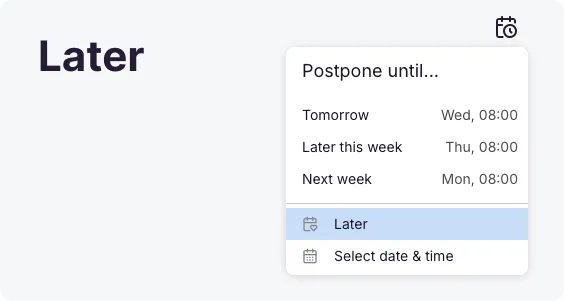
Not sure when you’ll be able to tackle a task? Move it to the “Later” tab and keep your current list focused on what matters most. For example, if you’re waiting for a client’s reply and don’t want the task cluttering today’s view, just send it to “Later” and revisit when you’re ready.
- Dashboard: Catch Up
Stay instantly up to date! The new “Catch Up” view gives you a quick overview of all recent activity – comments from your team, client replies, or updates in the client portal. Open tasks remain under “Seen” until you mark them complete.

- Dashboard: Sorting
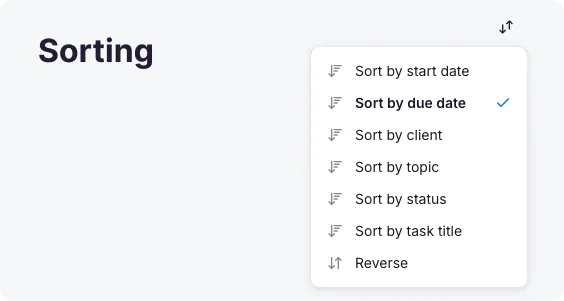
You can now sort your dashboard by start date, due date, client, status, topic, task title, or completion status. Need a different perspective? Reverse the order with one click.
- Task: Archiving
Keep your dashboard tidy without losing important information. Archive tasks you don’t need to see every day but aren’t ready to delete. Restore any archived task with a single click.

- Email Automation Status
Every task now displays a “traffic light” status for email automations:
Green = sent
Red = failed
Gray = pending

- Dashboard: Status Bar
A colorful status bar above your tasks gives you an instant overview of task progress and what’s left to do.

- Dashboard: Daily Time Bar
Track your productivity at a glance. The green bar above the task list shows how much time you’ve tracked today – regardless of your current date filter.
- Tasks: History Range
Too many overdue tasks? Now you can filter your dashboard to show only the past 45, 90, or 180 days of tasks.
- Tasks: Unread & Urgent
Unopened tasks appear in bold, and upcoming deadlines are highlighted in orange – so nothing slips through the cracks.
- Dashboard: Grouping
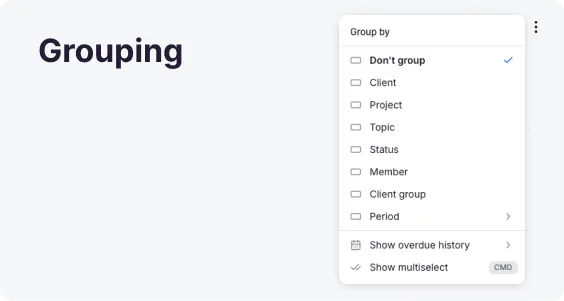
Group tasks by client, topic, client group, status, period, project, or team member. Bulk actions are now easier than ever for grouped tasks!
- Date Filter: More options
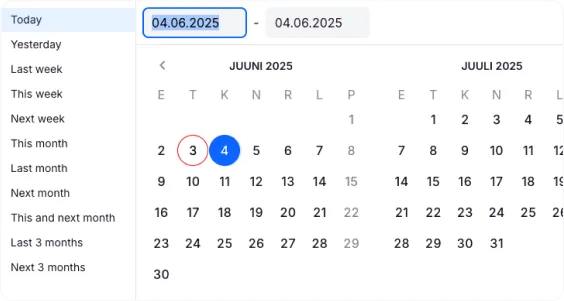
Handy quick date selections are now available throughout Uku: dashboard, reports, and client cards.
- Task: Bulk Delegation
Assign multiple tasks to another team member in one go. Use the “replace” function to remove the original assignee if needed.
- Reports
When you select an account in the filter, all other filters (clients, topics, members) will only show values related to that account.
- Emails
You can now use more placeholders in your invoice email templates for extra flexibility.
