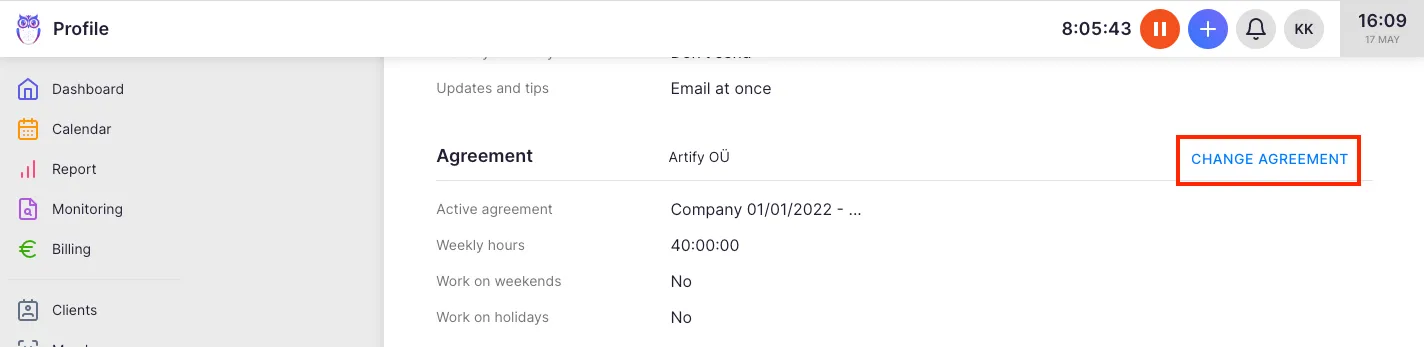
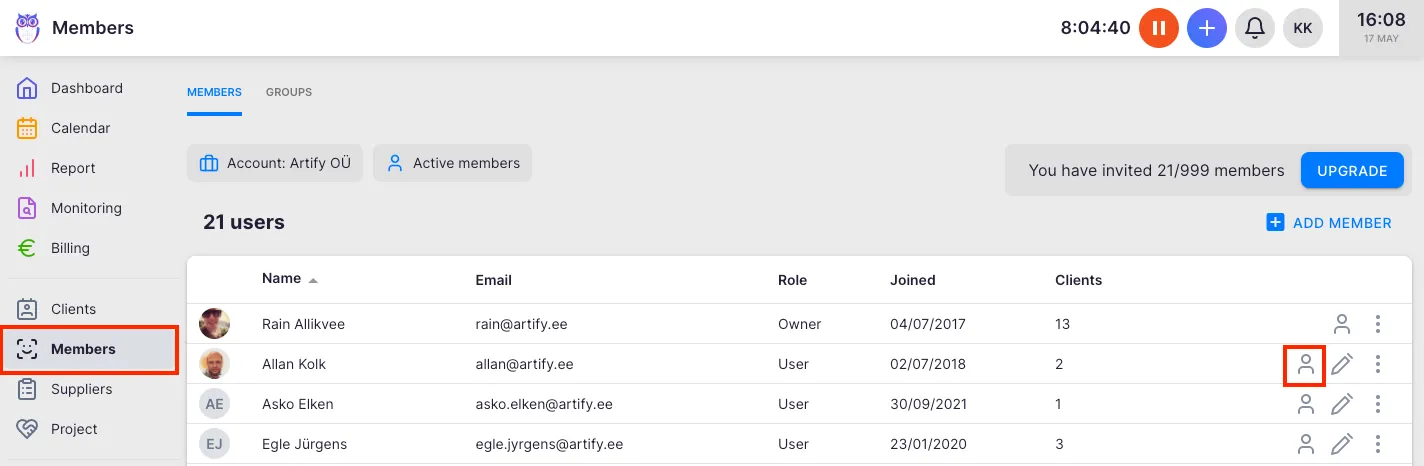
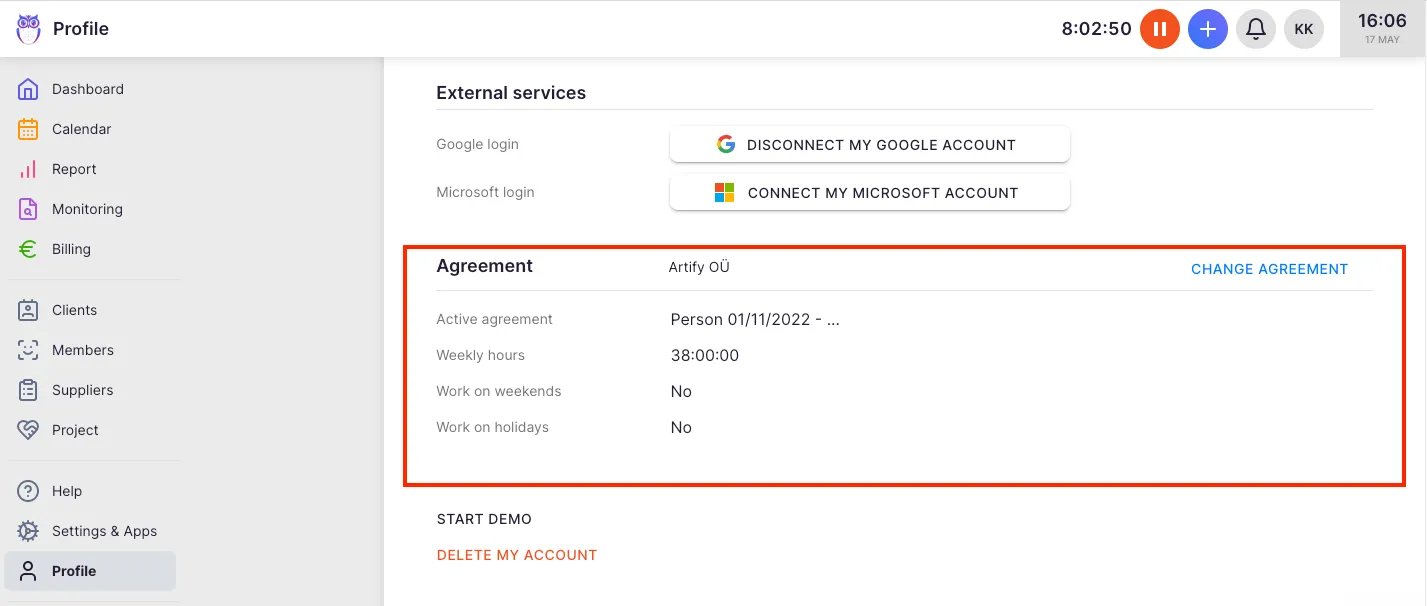
How to see and change the Flextime agreement?
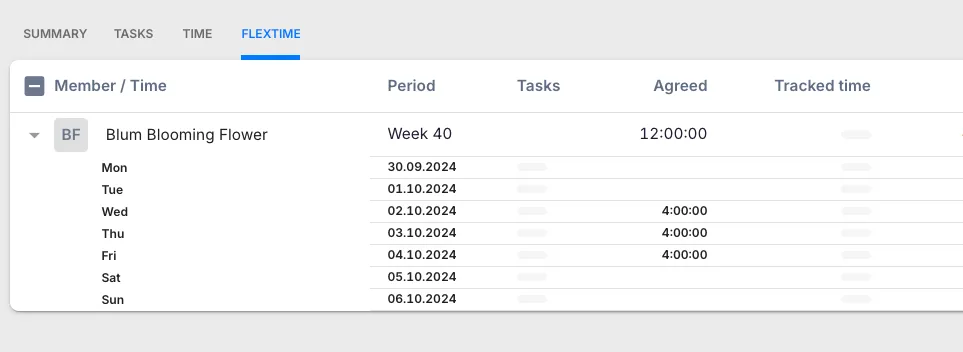
A flextime agreement defines each team member’s expected working hours — how many hours per day and per week, whether they work on holidays, how much office time is expected, and (optionally) their labor cost and billing rate. The Flextime report compares actual tracked hours against these agreed values each period.
Who can do this
Section titled “Who can do this”- Viewing agreements: Any team member can view their own flextime agreement from their profile.
- Adding or changing agreements: Company Admins and Company Owners only.
- The Flextime app must be activated for your company.
How to view a flextime agreement
Section titled “How to view a flextime agreement”- Select Members from the main navigation menu.
- Click on the team member’s name to open their profile.
- Select the Agreements tab.
The Agreements tab shows all active and past agreements for that member. Each agreement is shown as an expandable panel with its date range and settings.
How to add a new agreement
Section titled “How to add a new agreement”- Open the member’s profile and go to the Agreements tab.
- Click + Add agreement.
- Set the Start date. Leave End date empty for an open-ended agreement.
- Configure the agreement fields (see below).
- Click Save.
Multiple agreements form a timeline for the member. Each agreement covers its own date range. When a new agreement starts, the previous one is automatically closed at the end of the previous day.
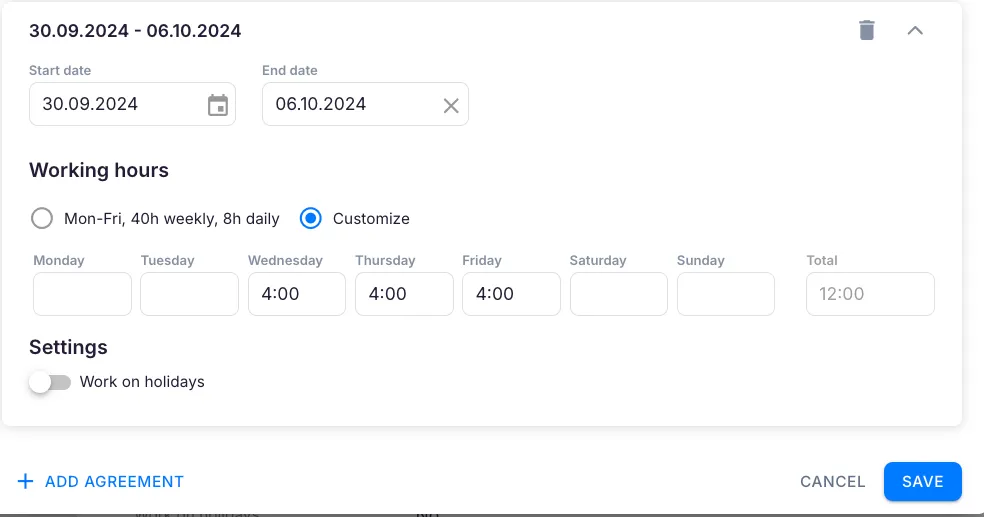
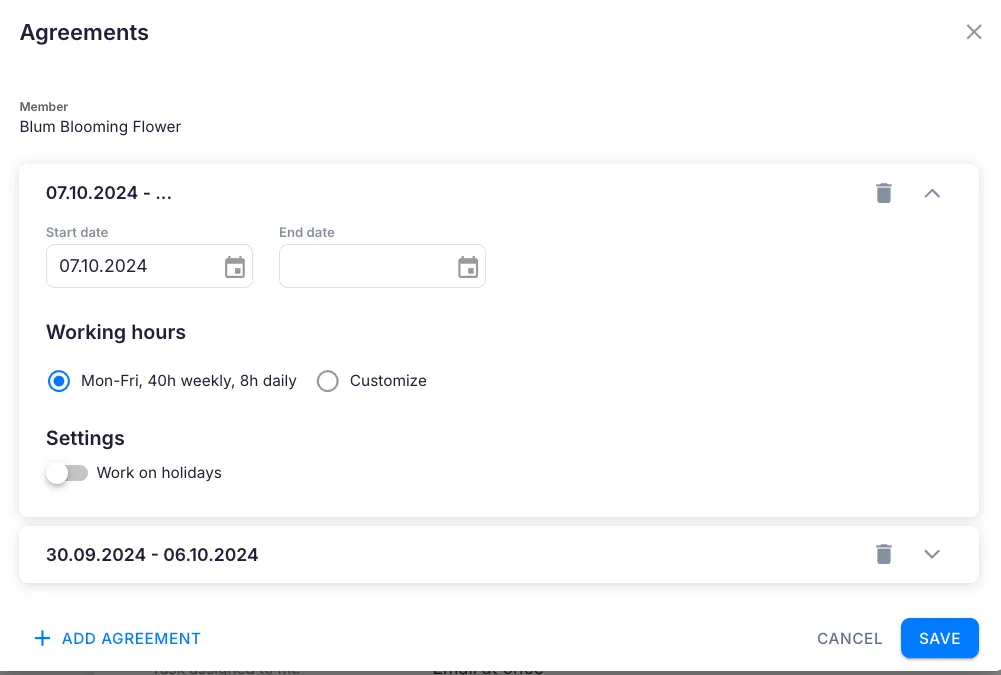
Agreement settings
Section titled “Agreement settings”Working hours
Section titled “Working hours”Choose between two modes:
- Standard — Monday to Friday, equal hours each day based on the company default (e.g., 8 hours per day, 40 hours per week).
- Custom — set individual hours for each day of the week. A Total field shows the weekly sum. Use this for part-time schedules or non-standard working patterns.
Enable Work on holidays if this member is expected to work on public holidays. When disabled, public holidays automatically reduce the expected hours for that period.
Expected office hours
Section titled “Expected office hours”Enter a percentage to define how much of the member’s working time should be spent in the office (for example, 80 for 80%). Leave it empty to use the company-wide default. This value drives the office time tracking columns in the Flextime report.
Cost and rate settings
Section titled “Cost and rate settings”When cost tracking is enabled for your company, you can configure per-agreement:
- Billable rate (per hour) — the rate charged to clients for this member’s work. Leave empty to use the company default.
- Labor cost (per member) — the direct cost of this member’s employment, with a selectable cost type (monthly salary or hourly rate).
- Overhead (per member) — indirect company expenses attributed to this member (rent, tools, insurance, etc.). Leave empty to use the company default.
Copying an agreement
Section titled “Copying an agreement”To start a new agreement from an existing one, click the copy icon on the agreement panel. Uku duplicates all settings into a new panel with a blank start date. Adjust the dates and any changed settings, then save.
Excluding a member from the Flextime report
Section titled “Excluding a member from the Flextime report”To exclude a member entirely from flextime tracking, create a custom agreement with 0 hours for each working day. With zero expected hours, the member appears in the Flextime tab with no balance to approve.
Troubleshooting
Section titled “Troubleshooting”The Agreements tab is not visible on the member profile
Section titled “The Agreements tab is not visible on the member profile”The Flextime app may not be activated. Go to Settings & Apps and confirm the Flextime app is active.
Cannot add or change a member’s agreement
Section titled “Cannot add or change a member’s agreement”Only Company Admins and Company Owners can modify agreements. Contact a Company Admin to make the change.
Flextime report shows incorrect expected hours
Section titled “Flextime report shows incorrect expected hours”Open the member’s Agreements tab and verify the agreement covering the relevant period. Check the start and end dates — if there is a gap in agreement coverage, Uku has no agreed hours for that period and the report may show zero or unexpected values.
A member does not appear in the Flextime report
Section titled “A member does not appear in the Flextime report”Confirm the member has an active agreement on the Agreements tab. Without an agreement, Uku cannot calculate expected hours and the member is excluded from the report.