
How to add time to multiple tasks at once?
If you perform the same work across several tasks or clients, you can log time for all of them in a single bulk action instead of opening each task individually.
Who can do this
Section titled “Who can do this”- All active team members can add time to tasks assigned to them.
- Works from the Dashboard or Client view.
Apply the same time to all selected tasks
Section titled “Apply the same time to all selected tasks”- Open the Dashboard (or a Client view task list).
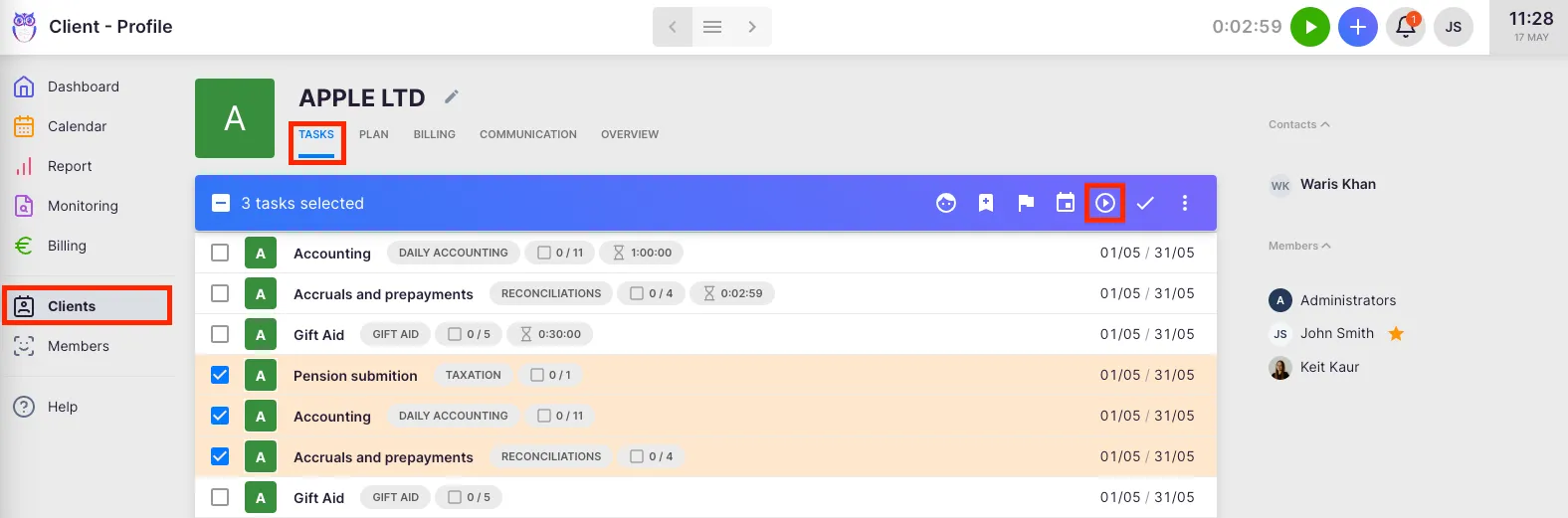
- Click the multi-select icon (two checkmarks) above the task list to enter bulk selection mode.
- Select the tasks you want to add time to by clicking their checkboxes.
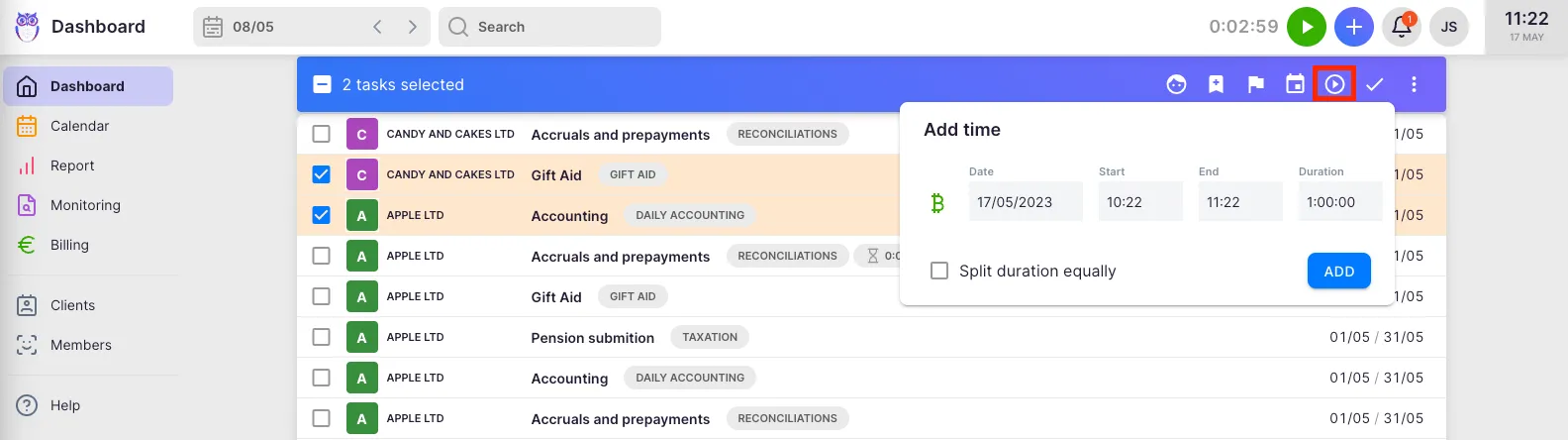
- Click the Add time icon in the bulk action bar that appears.
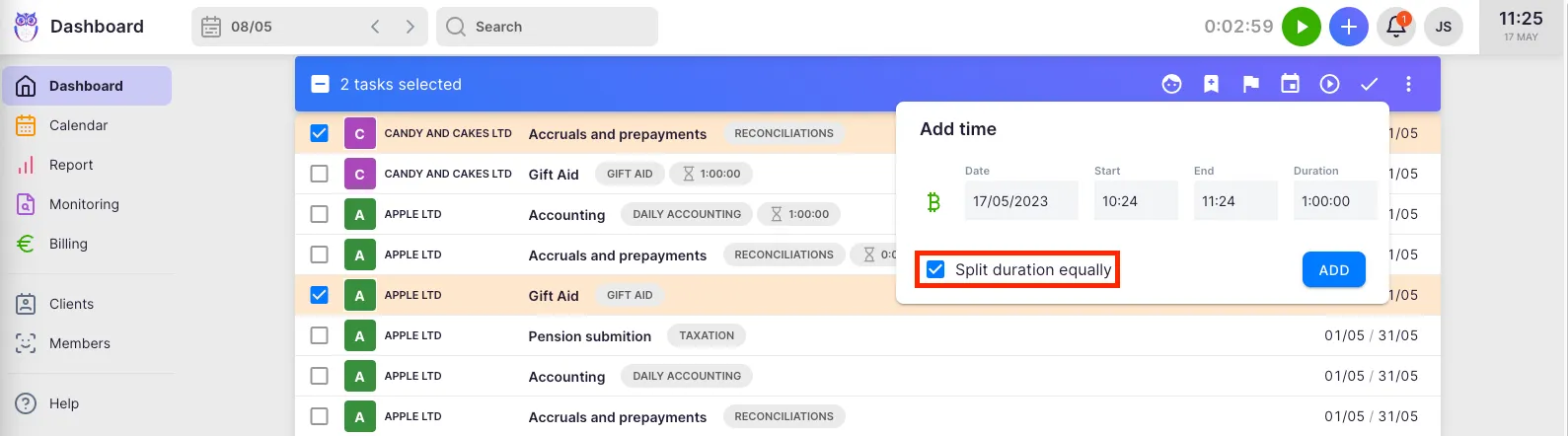
- Enter the time as a start and end time or as a duration.
- Leave the Split time equally option unchecked.
- Click Save.
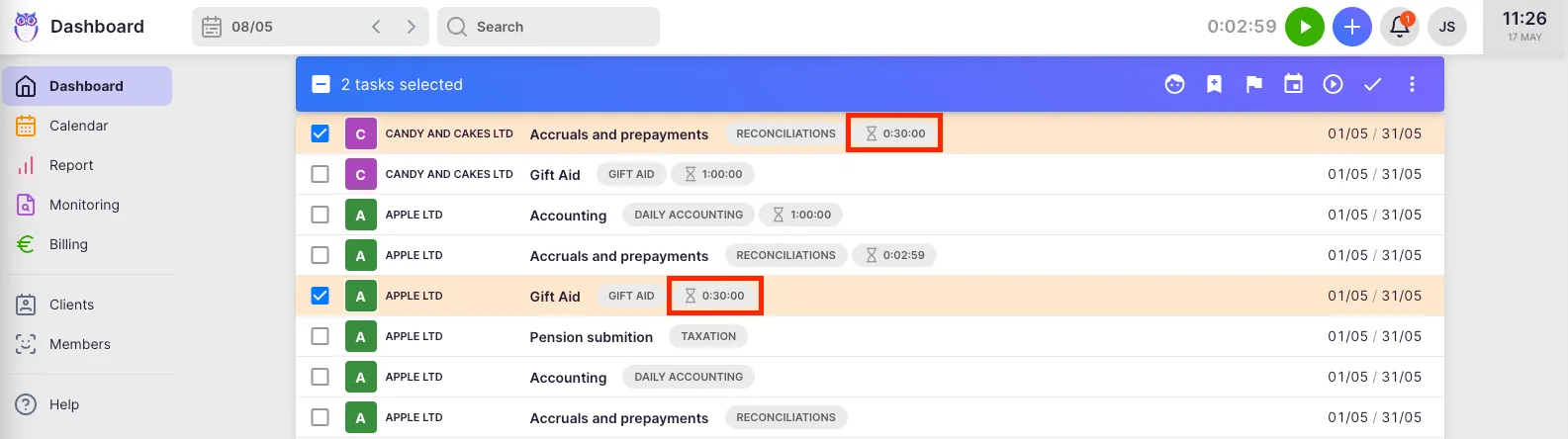
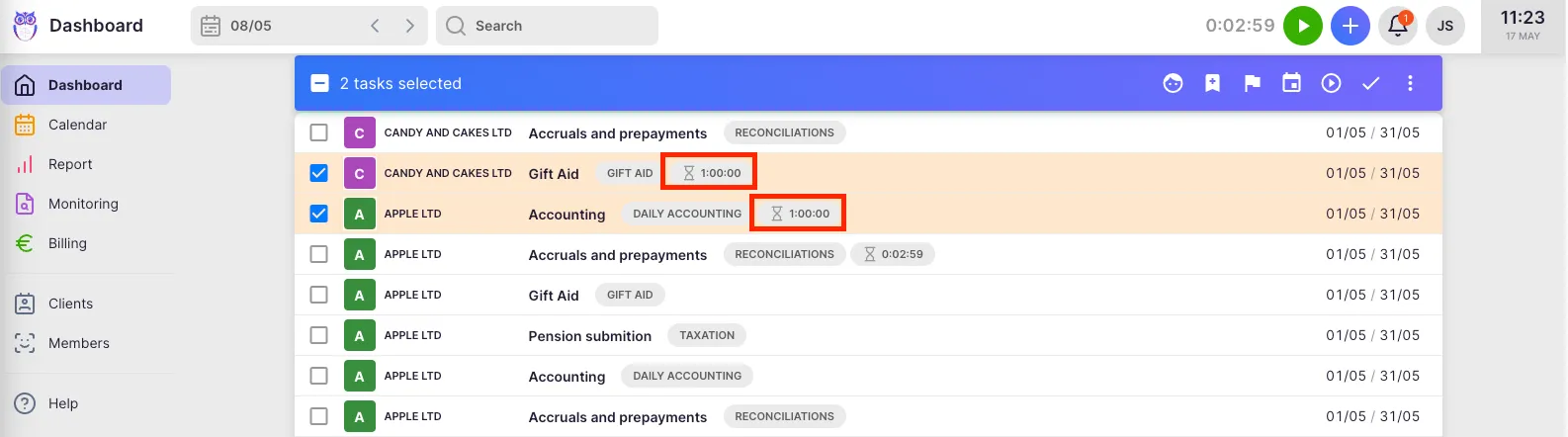
Each selected task receives the full time amount you entered.
Split time equally between tasks
Section titled “Split time equally between tasks”- Follow steps 1–4 above.
- Enter the total amount of time to distribute.
- Enable the Split time equally checkbox.
- Click Save.
Uku divides the total time evenly across all selected tasks. For example, entering 2 hours for 4 selected tasks logs 30 minutes on each.
Troubleshooting
Section titled “Troubleshooting”The Add time icon does not appear in the action bar
Section titled “The Add time icon does not appear in the action bar”Confirm you have selected at least one task using the bulk selection checkboxes. The bulk action bar and its icons only appear when at least one task is selected.
The Split time equally option is missing
Section titled “The Split time equally option is missing”Select at least two tasks. The split option is only available when multiple tasks are selected.
Time entries appeared on the wrong tasks
Section titled “Time entries appeared on the wrong tasks”Double-check your task selection before saving. Review which checkboxes are active in the bulk selection view, and deselect any tasks that should not receive the time entry.
Cannot enter multi-select mode
Section titled “Cannot enter multi-select mode”Look for the multi-select icon (two checkmarks) above the task list. If it is not visible, ensure you are on the Dashboard or a Client view task list — multi-select bulk actions are not available in all views.