How to submit a vacation, absence, or remote work request?
Submit vacation, absence, or remote work requests directly in Uku. When approved, your status appears on the team calendar so colleagues can see who is in the office, working from home, or away without having to ask.
Who can do this
Section titled “Who can do this”- All active team members can submit requests.
- The Workforce Management app must be activated for vacation and absence requests.
- For remote work entries, Remote work must be enabled in your Calendar settings.
- Requests require a Company Admin or Company Owner as the approver.
Submitting a vacation or absence request
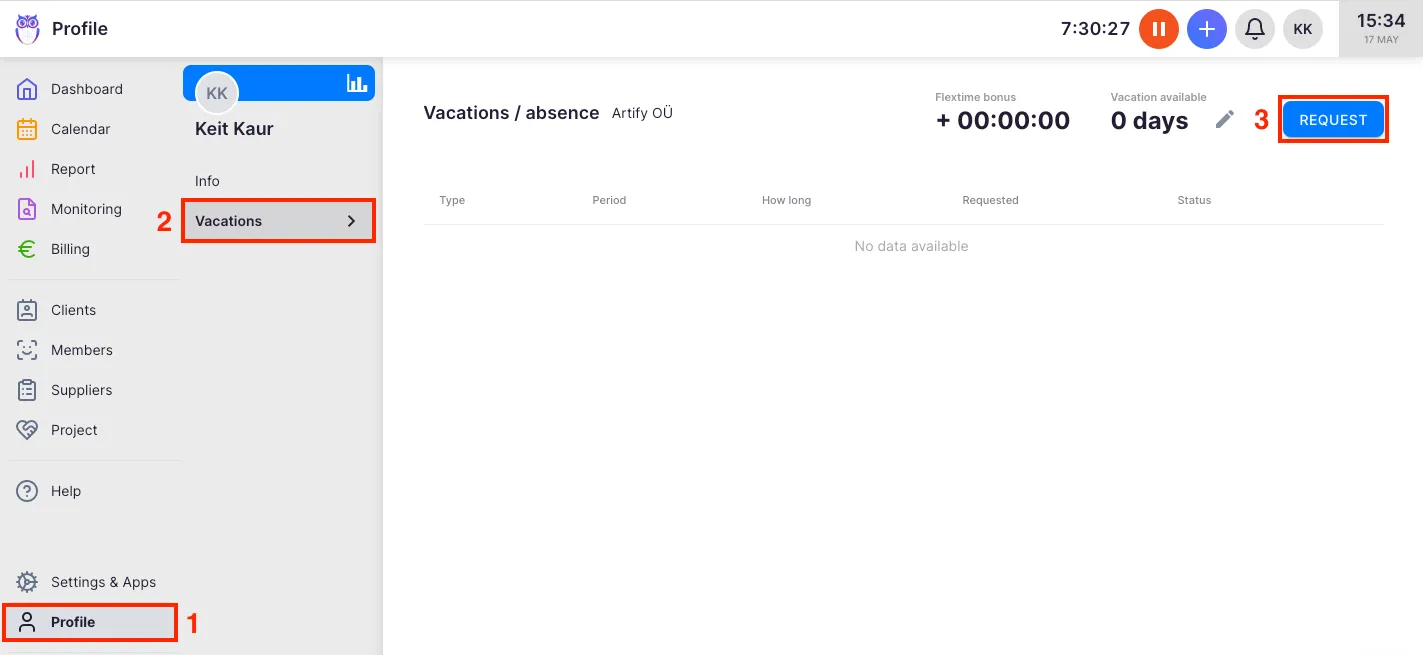
Section titled “Submitting a vacation or absence request”- Select your Profile from the main navigation menu.
- Click Vacations from the submenu.
- Click the Request button.
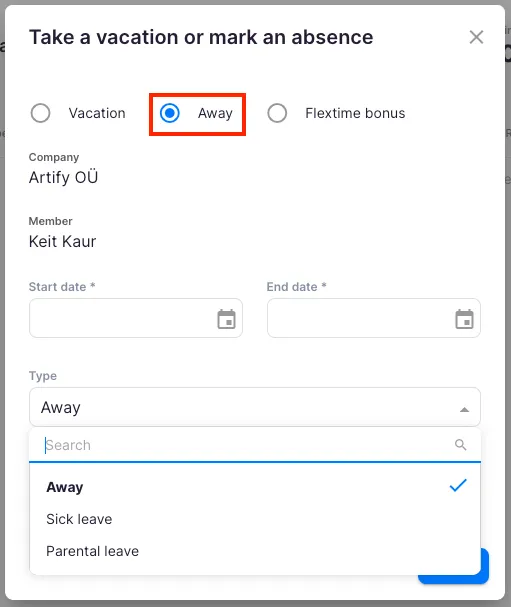
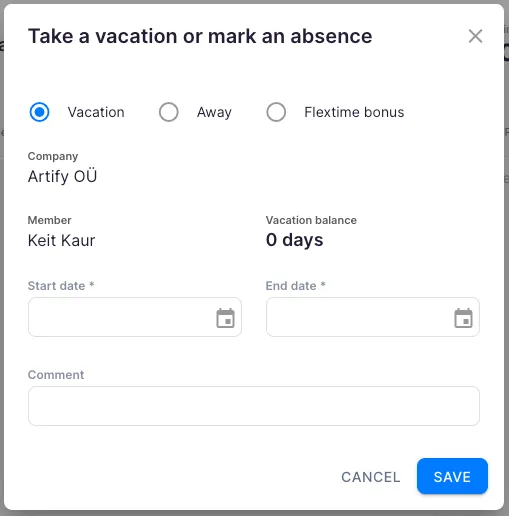
- Choose the request type:
- Vacation — paid vacation. Shows your available vacation day balance.
- Away — includes sick leave, parental leave, and other absences.
- Flextime bonus — use accumulated flextime credit as time off. Shows your current flextime balance. Requires the Flextime app to be active.
- Set the start and end dates.
- Select an Approver — must be a Company Admin or Company Owner.
- Add optional notes if needed.
- Click Save to submit. The request moves to In review status. The approver can then approve or decline it.
Request statuses
Section titled “Request statuses”- In review — submitted and waiting for approval.
- Approved — approved by a Company Admin or Company Owner. The absence appears on the team calendar.
- Declined — the approver declined the request.
- Done — the absence period is complete.
How leave days are calculated
Section titled “How leave days are calculated”The Duration column in the request list shows total calendar days from start to end date. This is not the number of leave days deducted from your balance.
Uku automatically excludes weekends (Saturday and Sunday) and public holidays that fall within the request period when calculating consumed leave days. To see the actual number of leave days consumed, open the individual request.
Example: A vacation from April 14 to April 27 shows Duration as 14 days, but only 8 working days are deducted because weekends and public holidays are excluded.
Adding remote work days
Section titled “Adding remote work days”Log remote work days directly from the Calendar:
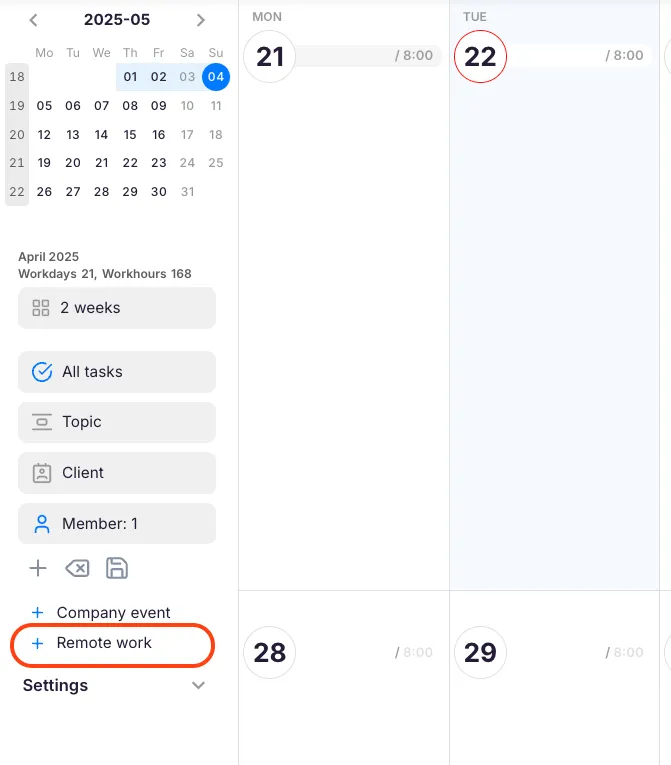
- Open the Calendar from the main navigation menu.
- Click + Remote work in the left sidebar.
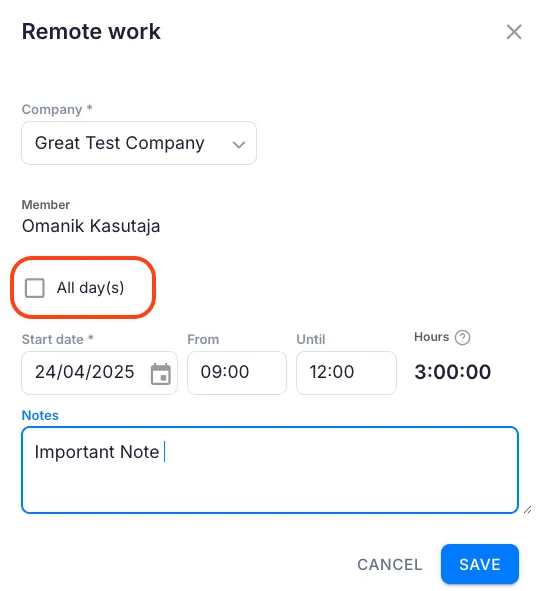
- Select whether the remote work covers the whole day or specific hours.
- Optionally add a note.
- Click Save.
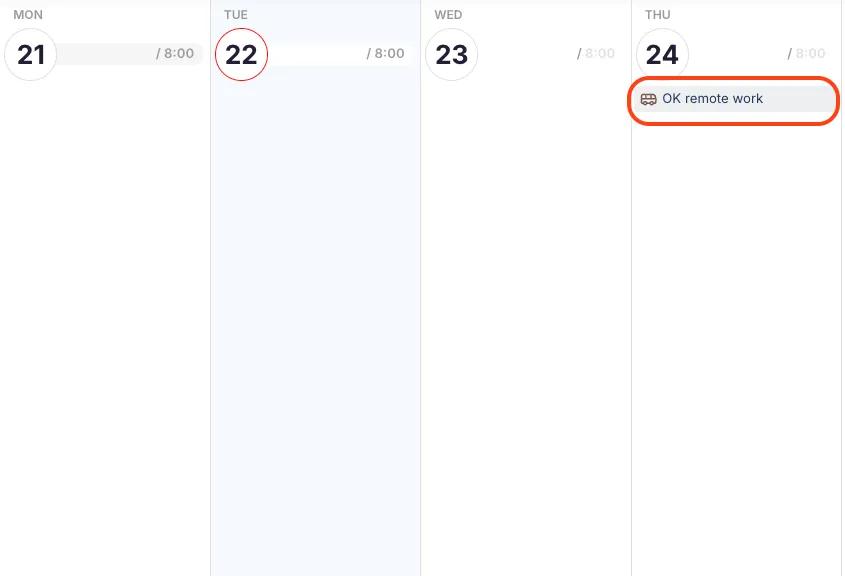
Remote work days appear on the calendar with a distinctive icon. Your team can see your working location on the shared calendar.
Troubleshooting
Section titled “Troubleshooting”The Request button is not visible
Section titled “The Request button is not visible”The Workforce Management app may not be activated. Ask your Company Admin to enable it in Settings & Apps.
The Remote work option does not appear in the Calendar sidebar
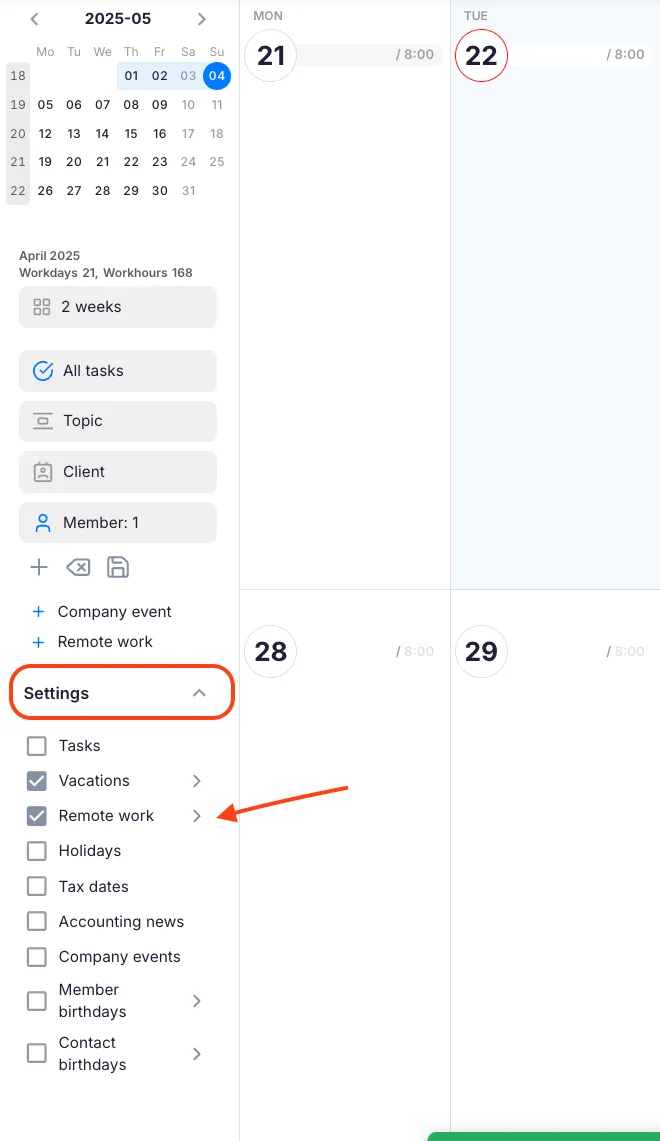
Section titled “The Remote work option does not appear in the Calendar sidebar”Open the Settings panel at the bottom of the Calendar left sidebar and enable the Remote work toggle.
Request was submitted but not approved
Section titled “Request was submitted but not approved”Requests require explicit approval from the assigned approver. Check your request status in Profile → Vacations. If the request has been In review for a while, contact your approver directly — they receive a notification but may not have acted on it yet.
The Flextime bonus request type is not available
Section titled “The Flextime bonus request type is not available”The Flextime app must be activated for your company. Ask your Company Admin to enable Flextime in Settings & Apps. You also need an accumulated flextime balance to use this option.
Screenshots
Section titled “Screenshots”