Reassigning tasks during employee absence
When a team member is unexpectedly away, the Dashboard and Calendar give you the tools to quickly find their tasks, prioritize by deadline, delegate urgent work, and reschedule the rest — all without disrupting client service.
Who can do this
Section titled “Who can do this”- Company Admins and Company Owners can reassign tasks across all clients.
- Users with Client Admin permission can reassign tasks on their assigned clients.
Step 1: Find the absent member’s tasks
Section titled “Step 1: Find the absent member’s tasks”- Open the Dashboard.
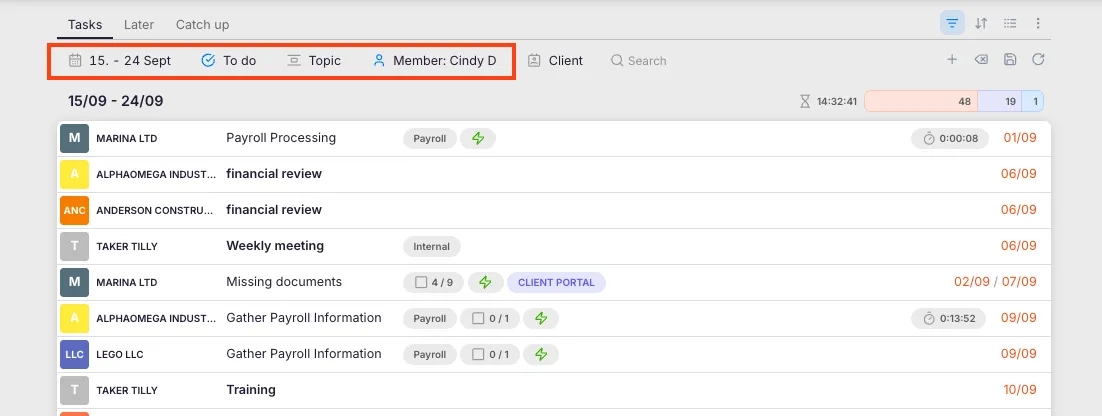
- Set the date range to cover the absence period.
- Use the Member filter and select the absent team member’s name.
- Optionally add a Task status filter (for example, select Active to see only open tasks).
You now see all of that member’s tasks for the selected period.
Step 2: Prioritize
Section titled “Step 2: Prioritize”Before reassigning, identify which tasks need immediate action:
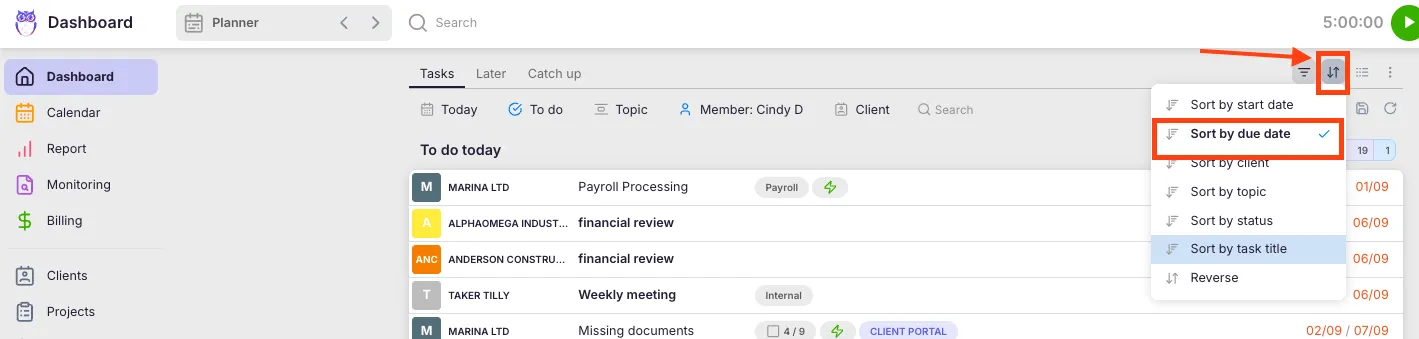
- Sort by Due date to surface the nearest deadlines.
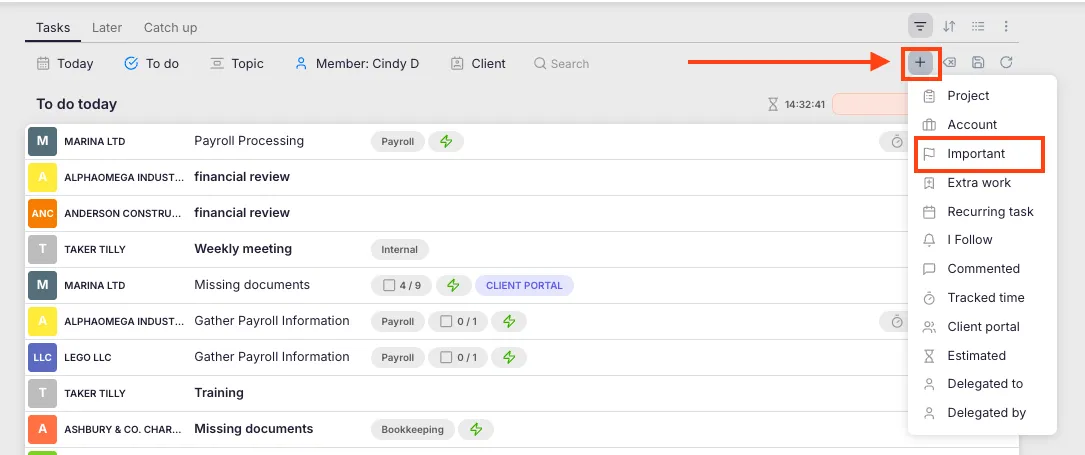
- Use the Important filter to highlight tasks marked as critical.
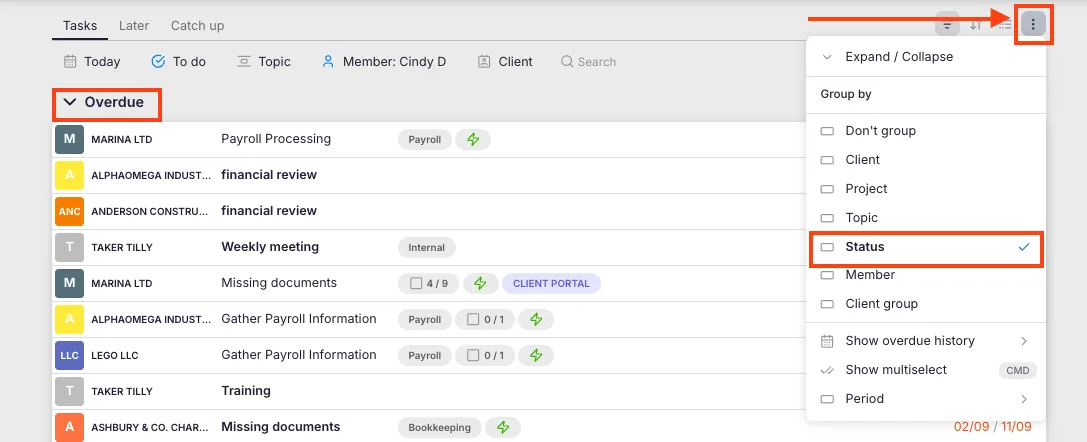
- Add the Overdue status filter to find tasks that have already missed their deadline.
Step 3: Delegate or postpone tasks
Section titled “Step 3: Delegate or postpone tasks”Using bulk actions on the Dashboard
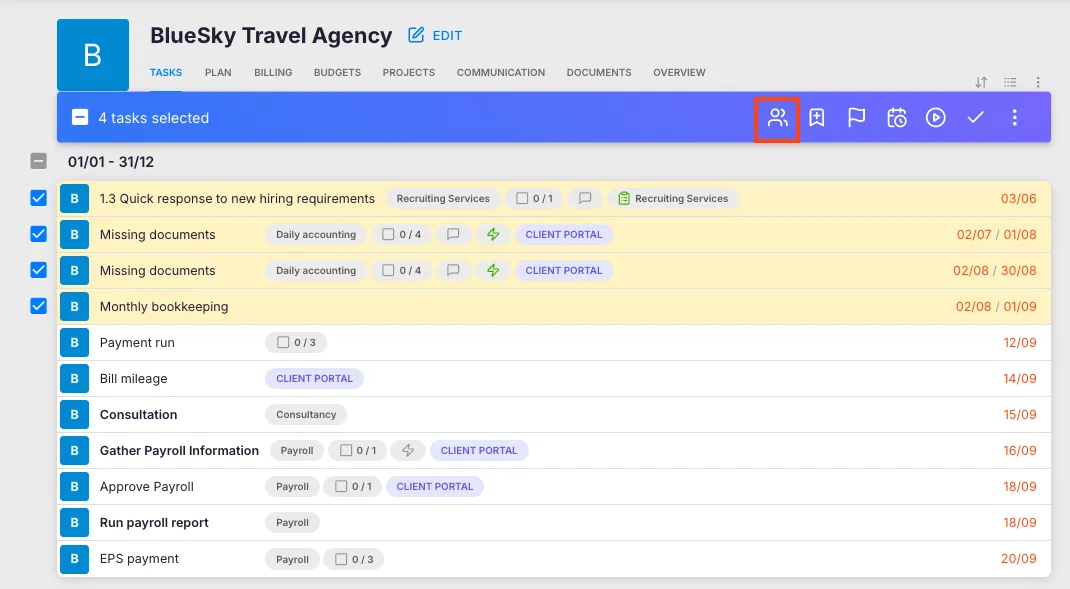
Section titled “Using bulk actions on the Dashboard”- Click the multi-select icon (two checkmarks) above the task list to enter bulk selection mode.
- Select the tasks you want to reassign or reschedule.
- Use the bulk action bar:
- Change assignee — delegate to another team member.
- Postpone — extend due dates if the member will return soon.
Delegating individual tasks from a client profile
Section titled “Delegating individual tasks from a client profile”- Open the relevant Client profile.
- Select the Tasks tab.
- Open the task and change the assignee to the replacement team member.
Step 4: Use the Calendar for day-by-day rescheduling
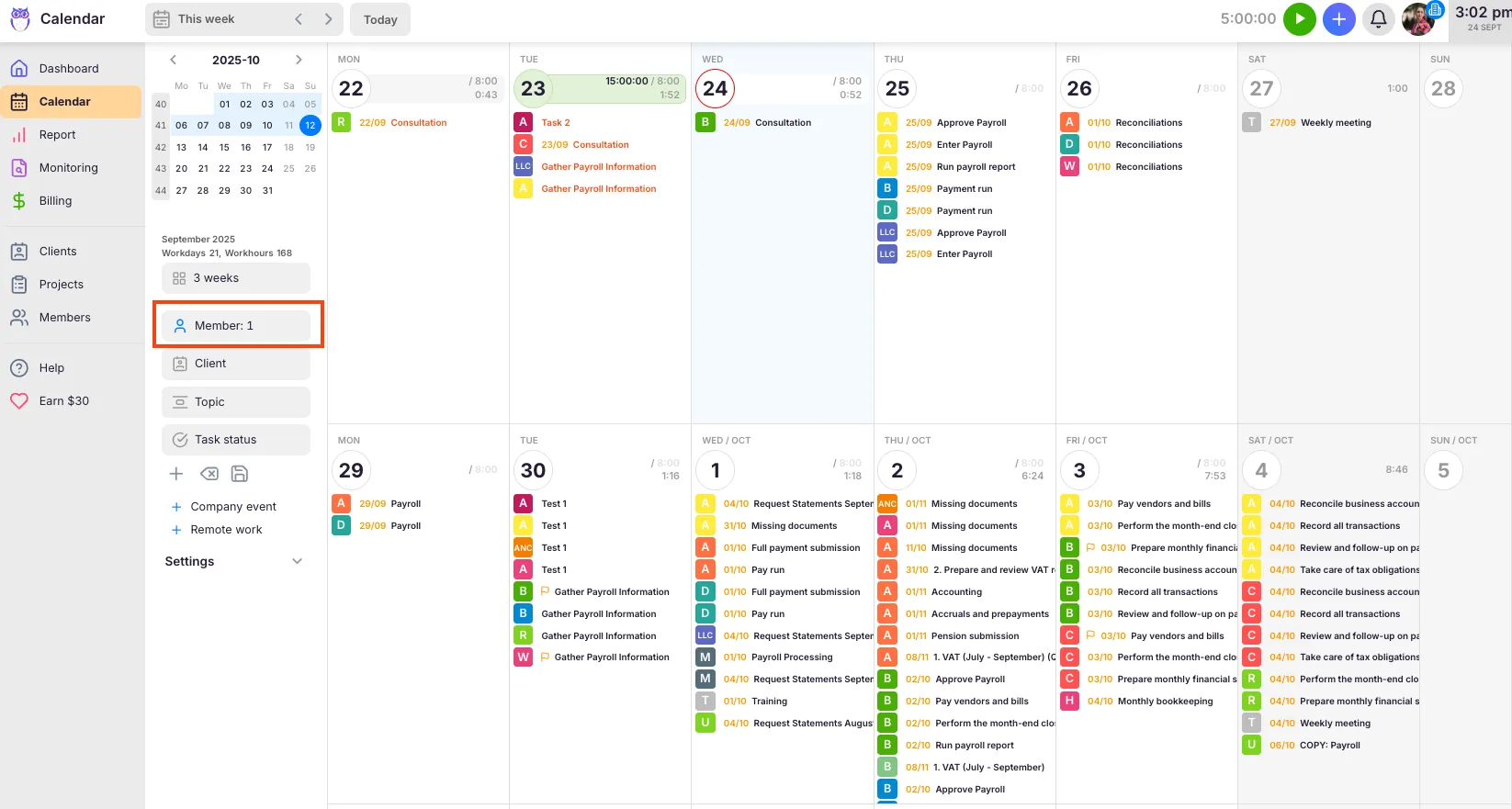
Section titled “Step 4: Use the Calendar for day-by-day rescheduling”- Open the Calendar from the main navigation menu.
- Use the Member filter to display the absent member’s tasks.
- Drag individual tasks from their current day to a new date to reschedule.
Uku updates the task’s start date automatically when you drop it on a new day. The Calendar is best for individual task moves — use the Dashboard bulk actions for reassigning many tasks at once.
Troubleshooting
Section titled “Troubleshooting”Tasks do not appear after filtering by the absent member
Section titled “Tasks do not appear after filtering by the absent member”Check all active filters on the Dashboard. Remove any topic, client, or status filters that might be excluding the tasks. Make sure the date range covers the absence period.
Delegated tasks are not visible to the new assignee
Section titled “Delegated tasks are not visible to the new assignee”After reassignment, ask the new assignee to confirm their Dashboard Member filter is set to show their own tasks (or is cleared). The tasks should appear once the filter matches them as the assignee.
Cannot drag tasks in the Calendar
Section titled “Cannot drag tasks in the Calendar”The Calendar only supports dragging one task at a time. For bulk rescheduling, use the Dashboard bulk actions instead.
Cannot see or edit the absent member’s tasks
Section titled “Cannot see or edit the absent member’s tasks”You need either Company Admin rights (to see all tasks) or Client Admin permission on the relevant clients (to see those clients’ tasks). Without either, you can only see tasks on clients you are assigned to as a Client Member.