
Lock time entries
Time entry locking prevents Company Members from adding or editing time entries for past periods. Use it to close your books cleanly at the end of each week or month without worrying about retroactive changes.
Who can do this
Section titled “Who can do this”- Company Owners and Company Admins can enable and configure time entry locking.
- The lock applies to Company Members only — Company Admins and Company Owners can always edit locked entries.
How to enable time entry locking
Section titled “How to enable time entry locking”- Select Settings & Apps from the main navigation menu.
- Open the Company app settings.
- Navigate to the Settings tab.
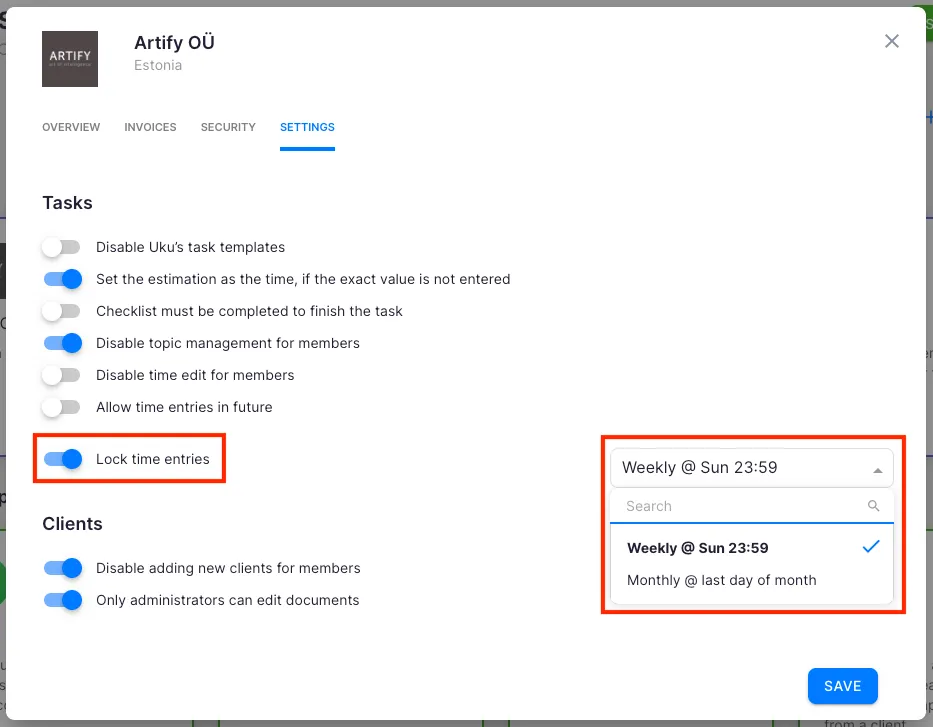
- Enable the Lock time records setting.
- Choose the locking trigger:
- Weekly — entries from previous weeks are locked as soon as the new week begins.
- Monthly — entries from previous months are locked as soon as the new month begins.
Once enabled, when a Company Member tries to add or edit a time entry in a locked period, Uku displays an error: “Time entry cannot be added, because time entries to this period are locked.”
Reminders before the period closes
Section titled “Reminders before the period closes”Uku can send automatic reminders before the current period closes, prompting team members to fill in any missing entries. Each member can choose whether to receive these reminders by email, as an in-app notification, or both — configured in their personal notification settings under Profile → Notifications.
How to correct a locked time entry
Section titled “How to correct a locked time entry”If a Company Member needs to correct a locked entry, a Company Admin or Company Owner must handle it. Because Company Admins cannot create entries on behalf of another person (only edit existing ones), follow this process:
- The Company Member creates a 1-minute time entry on the relevant task for the current (unlocked) period.
- The Company Member adds a comment to this entry specifying the correct date and time period.
- The Company Member adds a Company Admin to the task.
- The Company Admin changes the entry to the correct date and time.
- The Company Admin adds a confirming comment, then removes themselves from the task.
Troubleshooting
Section titled “Troubleshooting”A team member cannot edit their time entry
Section titled “A team member cannot edit their time entry”The entry is likely in a locked period. Ask a Company Admin or Company Owner to make the correction using the process described above.
The Lock time records setting is not visible
Section titled “The Lock time records setting is not visible”Only Company Admins and Company Owners can see and configure company-level settings. Verify your account role — Company Members do not have access to this setting.
A Company Admin cannot create a time entry for another member
Section titled “A Company Admin cannot create a time entry for another member”This is by design. Company Admins can edit existing time entries but cannot create new ones on behalf of other members. The member must first create a placeholder entry, which the Company Admin then corrects.
Time entries are locking too frequently
Section titled “Time entries are locking too frequently”The lock trigger may be set to Weekly. If weekly closing is too restrictive for your team’s workflow, switch the trigger to Monthly in Settings & Apps → Company → Settings.