
Time tracking settings
Uku lets you control time tracking behavior at two levels: per client (making time entry mandatory before completing tasks) and at the company level (setting estimation defaults and restricting manual time edits). Use these settings to enforce consistent time tracking practices across your team.
Who can do this
Section titled “Who can do this”- Company Owners and Company Admins can change company-wide time tracking settings.
- Company Owners, Company Admins, and users with Client Admin permission can change client-specific time tracking settings.
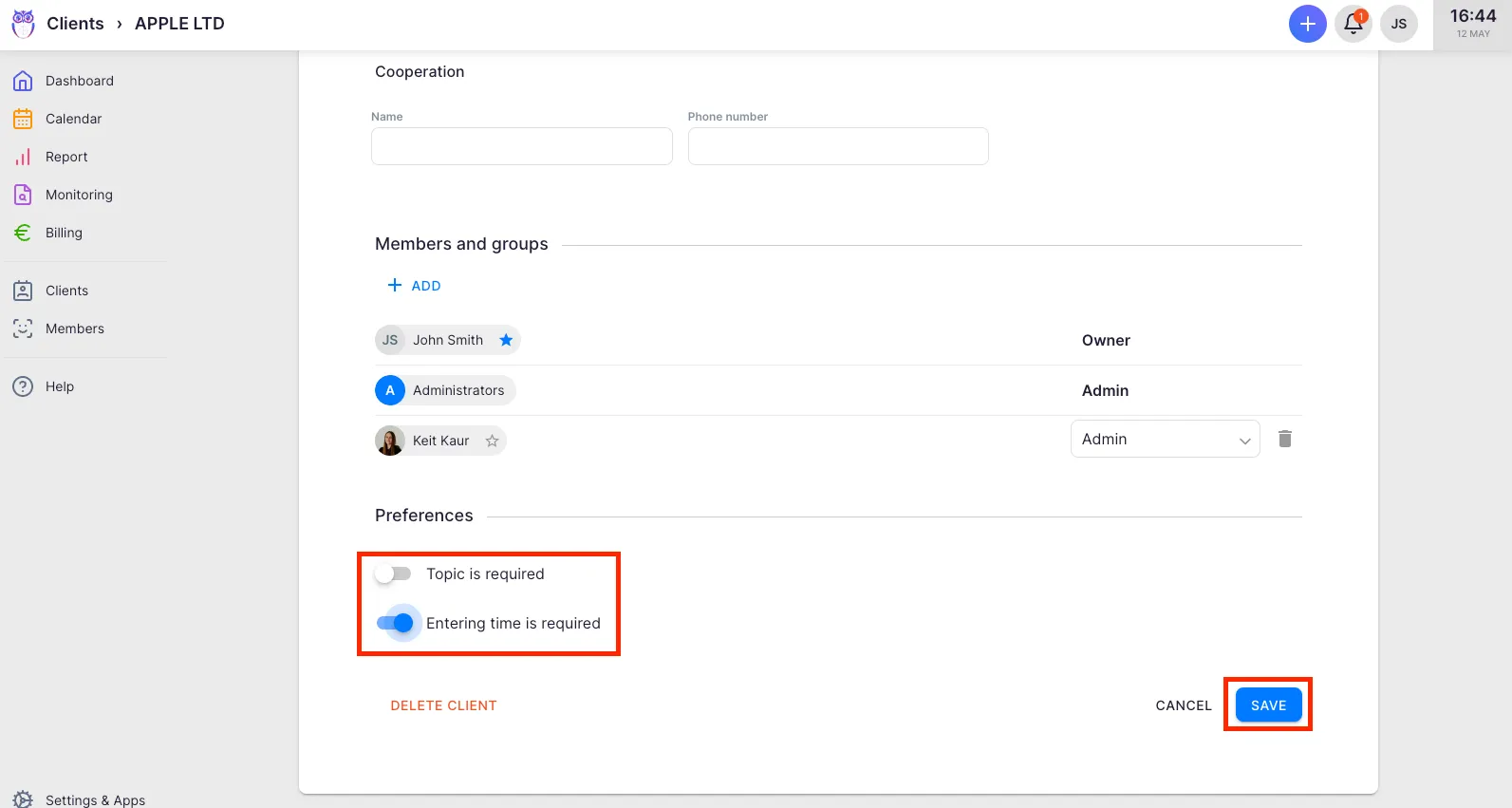
Client-level: require time entry before completing a task
Section titled “Client-level: require time entry before completing a task”When enabled for a client, tasks belonging to that client can only be marked done after at least one time entry has been recorded.
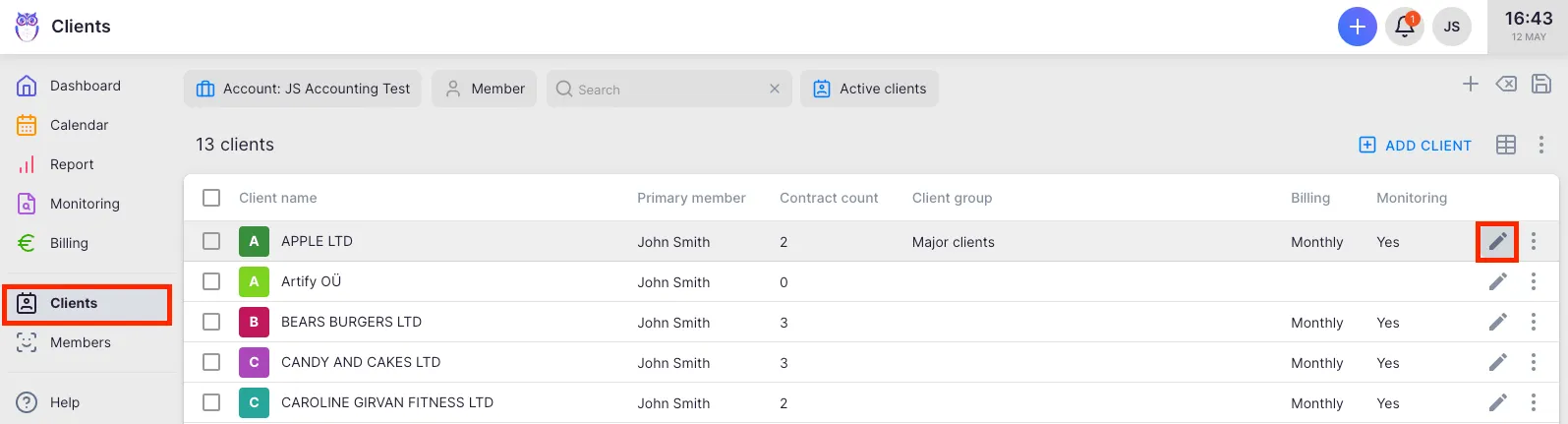
- Select Clients from the main navigation menu.
- Open the client you want to configure.
- Click the edit (pencil) icon next to the client’s name.
- Enable the Time recording is mandatory toggle.
- Save the client settings.
Company-level time tracking settings
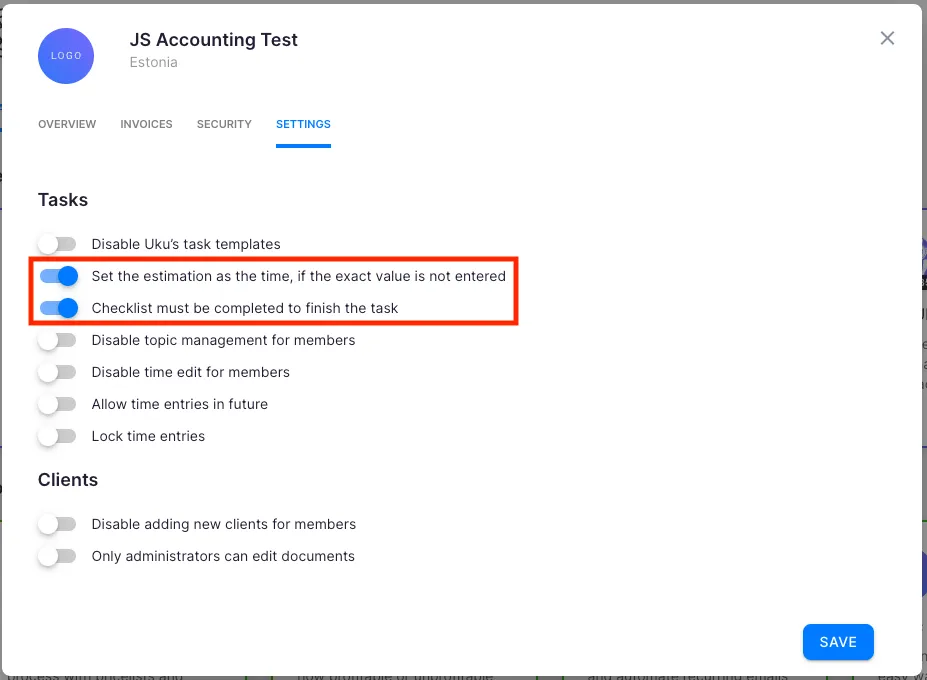
Section titled “Company-level time tracking settings”Configure these settings in Settings & Apps → Company → Settings.
Set the estimation as the time if the exact value is not entered
Section titled “Set the estimation as the time if the exact value is not entered”When this setting is on and a task is marked done without any tracked time, Uku uses the task’s estimation as the recorded time. If the task also has no estimation, the time defaults to 0:00. This is useful for teams who set estimations consistently but sometimes forget to run the timer.
Disable users from correcting journals
Section titled “Disable users from correcting journals”When this setting is on, Company Members cannot manually add or edit time entries. All time must be recorded using the timer. Company Admins and Company Owners are unaffected and can always edit entries.
Lock time entries for closed periods
Section titled “Lock time entries for closed periods”To prevent retroactive changes to past periods (weekly or monthly), enable time entry locking in Settings & Apps → Company → Settings. See the article Lock time entries for the full setup guide.
Troubleshooting
Section titled “Troubleshooting”A member completed a task without entering time
Section titled “A member completed a task without entering time”Check whether Time recording is mandatory is enabled for that specific client. If the setting is off, members can mark tasks done without recording time. The company-wide estimation fallback fills in time automatically when no entry exists but does not block task completion.
Estimated time shows as 0:00
Section titled “Estimated time shows as 0:00”The task does not have a time estimation set. Open the task, click the three-dot menu, and add an estimation. Without an estimation, the fallback setting has no value to use.
A member cannot edit their time entries
Section titled “A member cannot edit their time entries”The Disable users from correcting journals setting is likely enabled. A Company Admin or Company Owner must either adjust the entry on the member’s behalf or disable the restriction in company settings.
Setting changes are not visible to members
Section titled “Setting changes are not visible to members”Settings take effect immediately but may require a page reload. Ask affected members to refresh their browser.