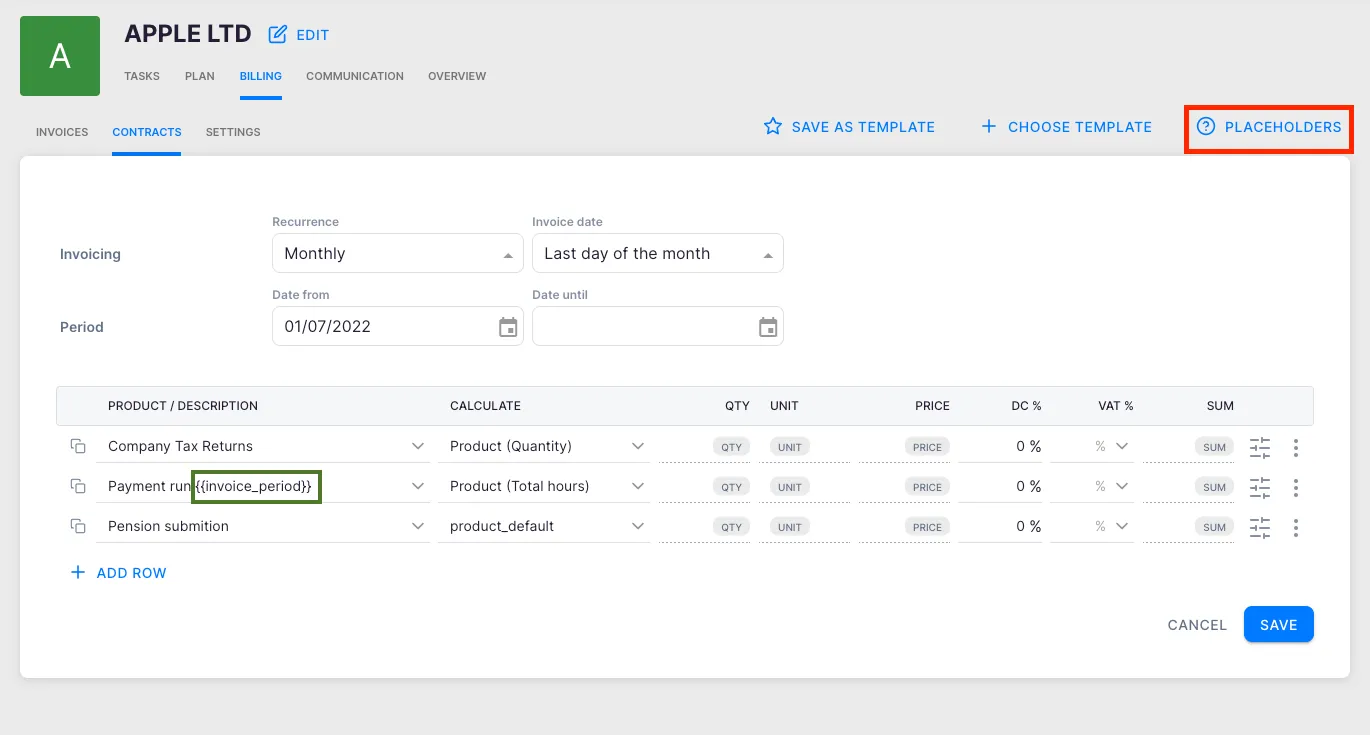
Billing placeholders
Who can do this
Section titled “Who can do this”- Any member with permission to create or edit products, contracts, or invoices.
- Permissions depend on your company’s billing settings. See Billing permissions and settings.
Available placeholders
Section titled “Available placeholders”| Placeholder | What it inserts |
|---|---|
| `##{{invoice_previous_period}}` | Previous billing period (for example "December 2025") |
| `##{{invoice_period}}` | Current billing period (for example "January 2026") |
| `##{{invoice_next_period}}` | Next billing period (for example "February 2026") |
| `##{{quantity_as_time}}` | Billed quantity displayed as time (for example "2h 30min") |
| `##{{quantity_as_number}}` | Billed quantity displayed as a number (for example "2.5") |
| `##{{client_primary_user}}` | The client's primary assigned team member name |
For prepayment invoices, ##{{invoice_next_period}} is especially useful — it automatically shows the upcoming billing period on the invoice.
How to add a placeholder
Section titled “How to add a placeholder”Placeholders can be added in the Product, Contract, or Invoice view.
- Open the Product, Contract row, or Invoice line you want to edit.
- In the description field, type the placeholder exactly as shown in the table above — for example
##{{invoice_period}}. - Save the product or contract row.
- When Uku generates the invoice, the placeholder is automatically replaced with the real value.
Example
Section titled “Example”If a product description contains:
Accounting services for ##{{invoice_period}}
The generated invoice line displays:
Accounting services for January 2026
Troubleshooting
Section titled “Troubleshooting”Placeholder text appears literally on the invoice instead of being replaced
Section titled “Placeholder text appears literally on the invoice instead of being replaced”Double-check the placeholder syntax. It must use the exact format ##{{placeholder_name}} with no extra spaces inside the braces. Copy and paste the placeholder from the table above to ensure accuracy.
The period shown on the invoice is wrong
Section titled “The period shown on the invoice is wrong”Verify that the correct placeholder is used. ##{{invoice_period}} shows the current billing period; ##{{invoice_previous_period}} and ##{{invoice_next_period}} show the adjacent periods. Also confirm that the contract’s billing period is configured correctly.
Workload placeholder shows zero
Section titled “Workload placeholder shows zero”##{{quantity_as_time}} and ##{{quantity_as_number}} pull data from tracked time entries. If no time has been logged against the relevant tasks for that billing period, the value is zero.
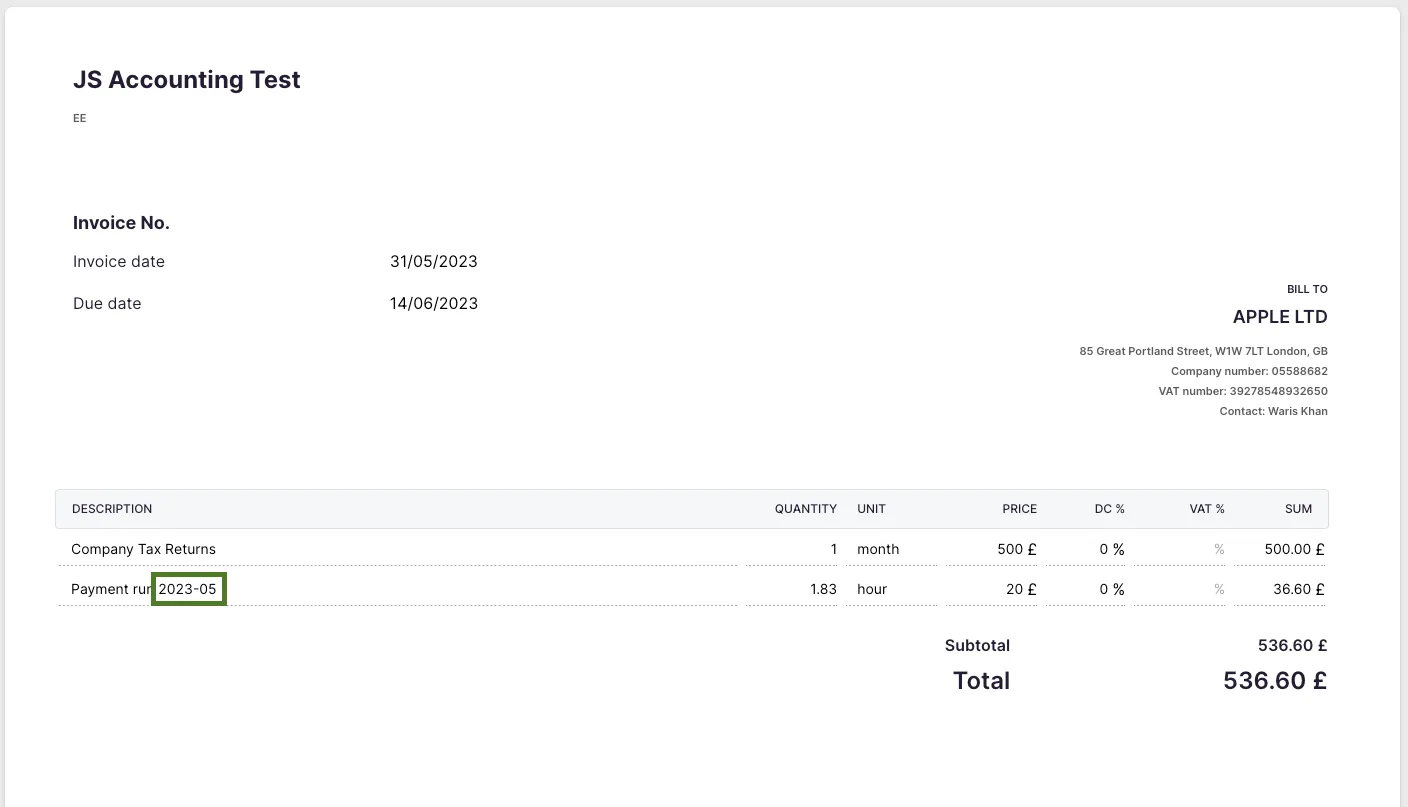
Screenshots
Section titled “Screenshots”