How to use topics?
Topics are labels that categorize tasks by the type of work involved. Once assigned to a task, a topic lets you filter your dashboard, generate detailed time reports, and control which tasks appear on invoices. Topics also let you set a billable default that overrides the company-wide setting.
Who can do this
Section titled “Who can do this”- All team members can add topics to tasks (unless restricted by a Company Admin or Owner).
- Company Admins and Company Owners can create, edit, archive, and delete topics in Settings & Apps.
- Company Admins can disable the ability for regular members to add new topics.
How to create and manage topics
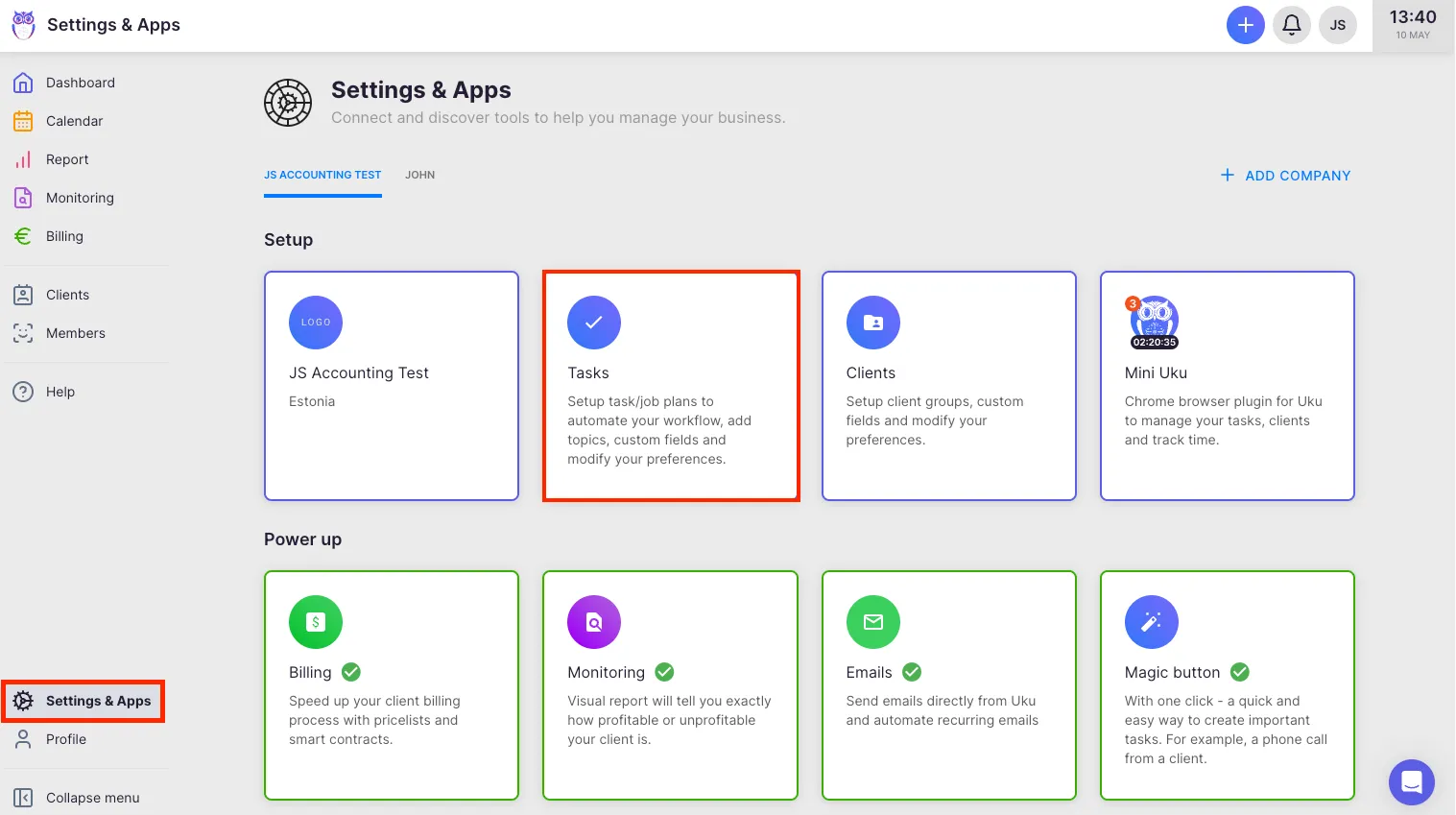
Section titled “How to create and manage topics”- Select Settings & Apps from the main navigation menu.
- Click the Tasks app.
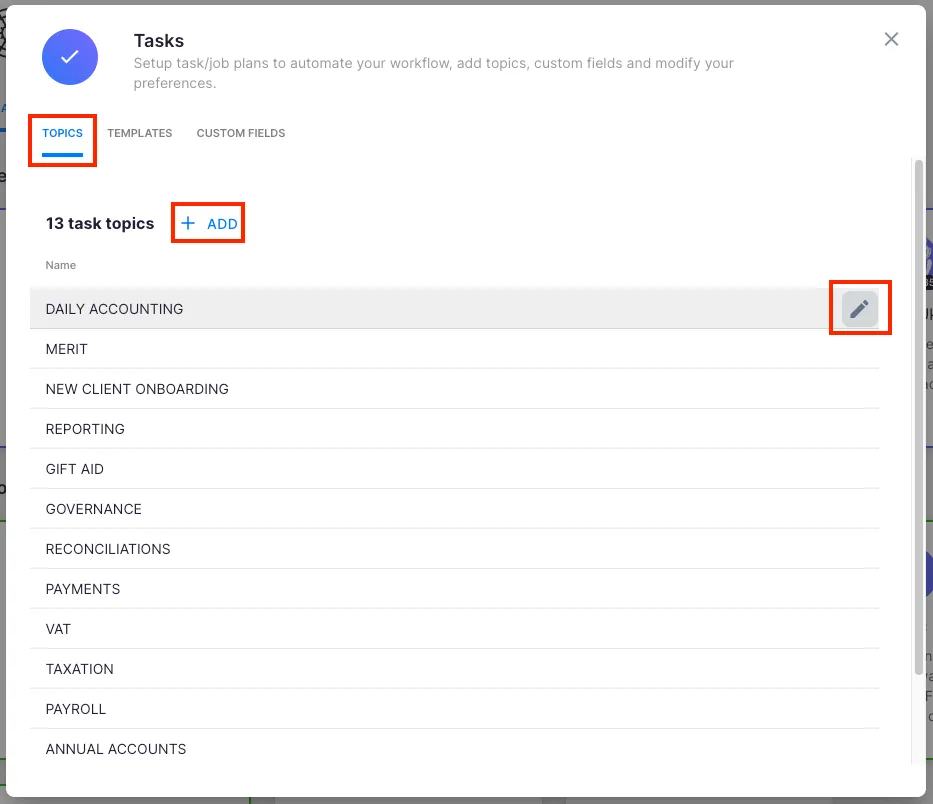
- Select the Topics tab.
- Click + Add to create a new topic.
- To edit or delete an existing topic, click the edit (pencil) icon next to the topic name.
Making topics mandatory for a client
Section titled “Making topics mandatory for a client”You can require that a topic is always added when creating tasks for a specific client. Open the client’s settings (via the client edit dialog) and enable the Topic is mandatory toggle. This ensures consistent reporting for that client.
How topics are used across Uku
Section titled “How topics are used across Uku”Dashboard
Section titled “Dashboard”Filter and group tasks on the Dashboard by topic. When grouping by topic is enabled, tasks with the same start time and topic appear together.
Billable default (topic override)
Section titled “Billable default (topic override)”Each topic can have its own billable setting. When a task belongs to a topic, the topic’s billable setting overrides the company-level billable default. This is the most precise way to control which work is billed automatically.
Report
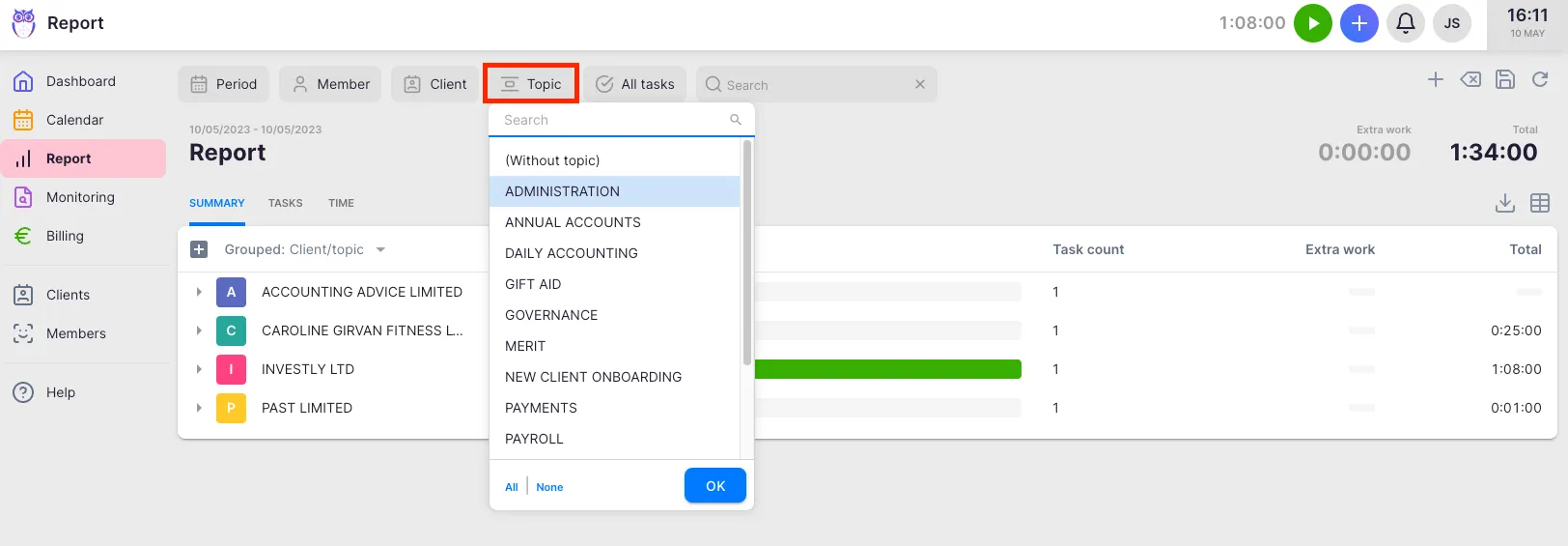
Section titled “Report”Filter and view tasks and time spent by topic in the Report view. The Topic column in the Summary tab shows hours and billable amounts per topic.
Billing
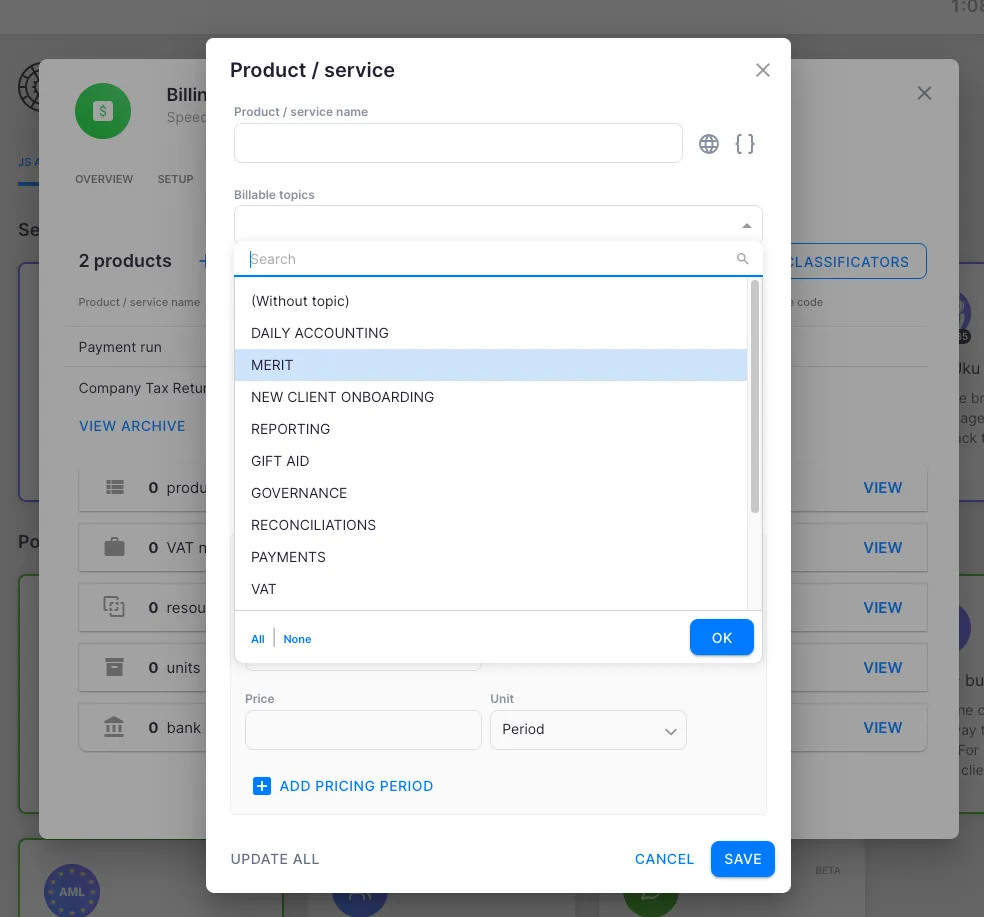
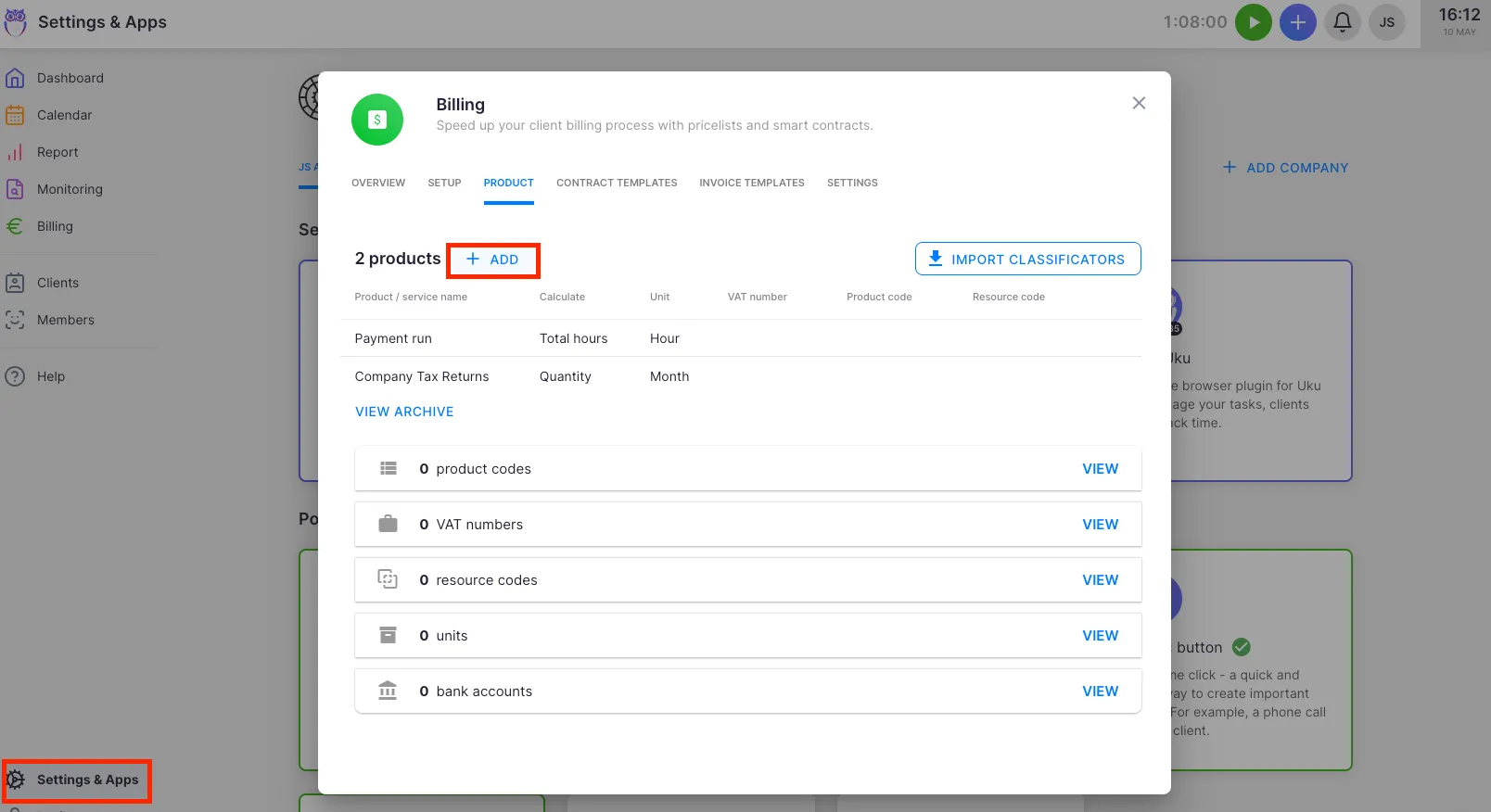
Section titled “Billing”When creating a product or service in Billing, you can assign a billed topic. This controls which tasks’ time tracking appears on the invoice for that product. If no topic is assigned to a product, all topics are automatically billed.
Troubleshooting
Section titled “Troubleshooting”Cannot delete a topic
Section titled “Cannot delete a topic”If a topic is already assigned to a task, it cannot be deleted — only archived. Archiving hides it from the topic picker but preserves its historical data. If the topic was never used, it can be deleted immediately.
Regular members cannot create new topics
Section titled “Regular members cannot create new topics”A Company Admin or Company Owner may have disabled the option for regular members to add new topics. Contact your Company Admin to re-enable this or to add the needed topic for you.
Topic is not appearing on invoices
Section titled “Topic is not appearing on invoices”Check the product or service settings in Billing. If a specific billed topic is assigned to the product, only tasks with that topic will appear on invoices. Remove the topic assignment from the product to bill all topics automatically.
Default topics do not match your needs
Section titled “Default topics do not match your needs”Default topics are created when setting up a new account and are starting suggestions only. Navigate to Settings & Apps → Tasks → Topics to edit or delete topics to match your firm’s actual workflow.