
How to set up billing debt reminders in Uku
Path: Settings & Apps > Billing > Settings > Send Debt Reminders | Settings & Apps > Billing > Invoice templates (for content)
Plan: All plans (Billing feature must be enabled)
Who can do this
Section titled “Who can do this”- Company Owners and Company Admins with access to Settings & Apps.
- An email server or connected email account must be configured (in Settings & Apps > Emails) for reminders to send.
Overview
Section titled “Overview”The debt reminder system automatically emails clients when invoices become overdue. You control when each reminder sends by setting the number of days after the due date. Up to 3 reminders can be sent in sequence per overdue invoice. Once an invoice is marked as paid, all scheduled reminders for that invoice stop automatically.
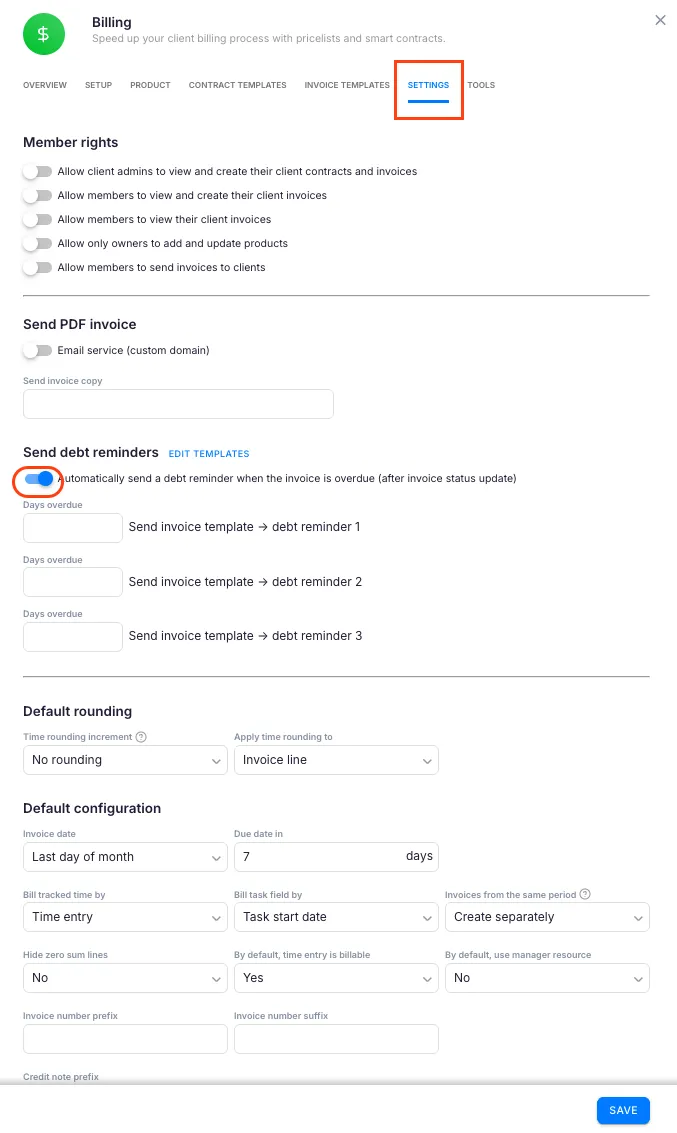
Step 1: Activate debt reminders
Section titled “Step 1: Activate debt reminders”- Open Settings & Apps from the main menu.
- Select the Billing app.
- Go to the Settings tab.
- Find the Send Debt Reminders section.
- Enable the Send Debt Reminders toggle.
Once enabled, three reminder levels appear for configuration.
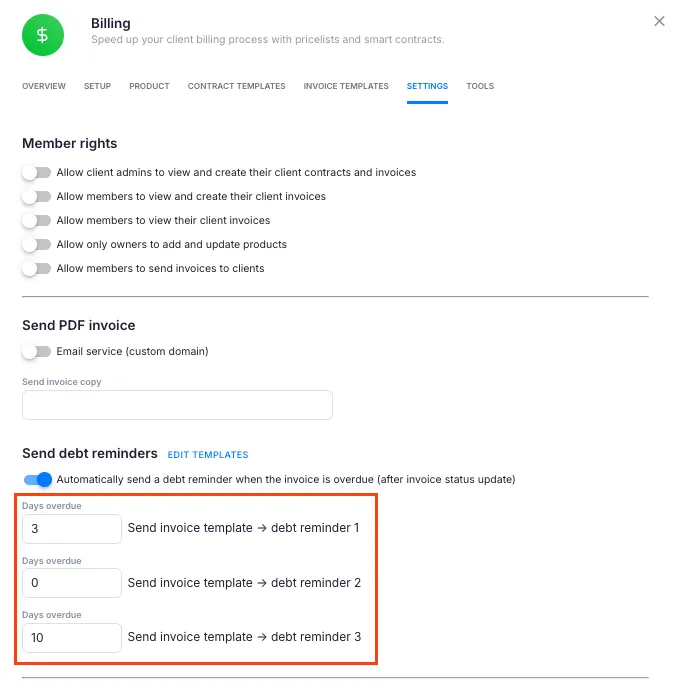
Step 2: Configure reminder timing
Section titled “Step 2: Configure reminder timing”Set how many days after the due date each reminder should be sent:
- Reminder 1 (First notice)
- Reminder 2 (Follow-up notice)
- Reminder 3 (Final notice)
Setting a reminder to 0 days or leaving it blank disables that reminder. This lets you use 1, 2, or all 3 reminders depending on your collections process. Setting Reminder 1 to 0 sends it on the due date itself.
Step 3: Customise reminder email content
Section titled “Step 3: Customise reminder email content”- Open Settings & Apps > Billing > Invoice templates.
- Find the Email Debt Reminder templates.
- Edit the template for each reminder level:
- Debt Reminder 1 — first overdue notice
- Debt Reminder 2 — second overdue notice
- Debt Reminder 3 — final notice
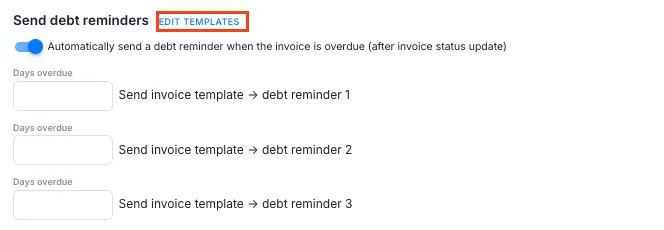
Alternatively, click Edit Templates next to the Send Debt Reminders toggle to go directly to the templates.
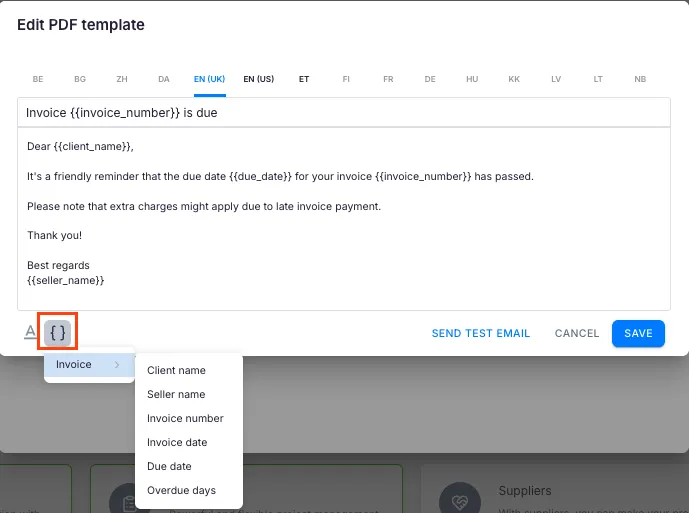
Step 4: Use dynamic placeholders
Section titled “Step 4: Use dynamic placeholders”Personalise reminder emails with placeholders that populate automatically from invoice data:
| Placeholder | What it inserts |
|---|---|
| `##{{client_name}}` | Client company name |
| `##{{seller_name}}` | Your company name |
| `##{{invoice_number}}` | Specific invoice number |
| `##{{invoice_date}}` | Date invoice was created |
| `##{{due_date}}` | Original payment due date |
| `##{{overdue_days}}` | How many days payment is overdue |
Step 5: Disable reminders for specific clients
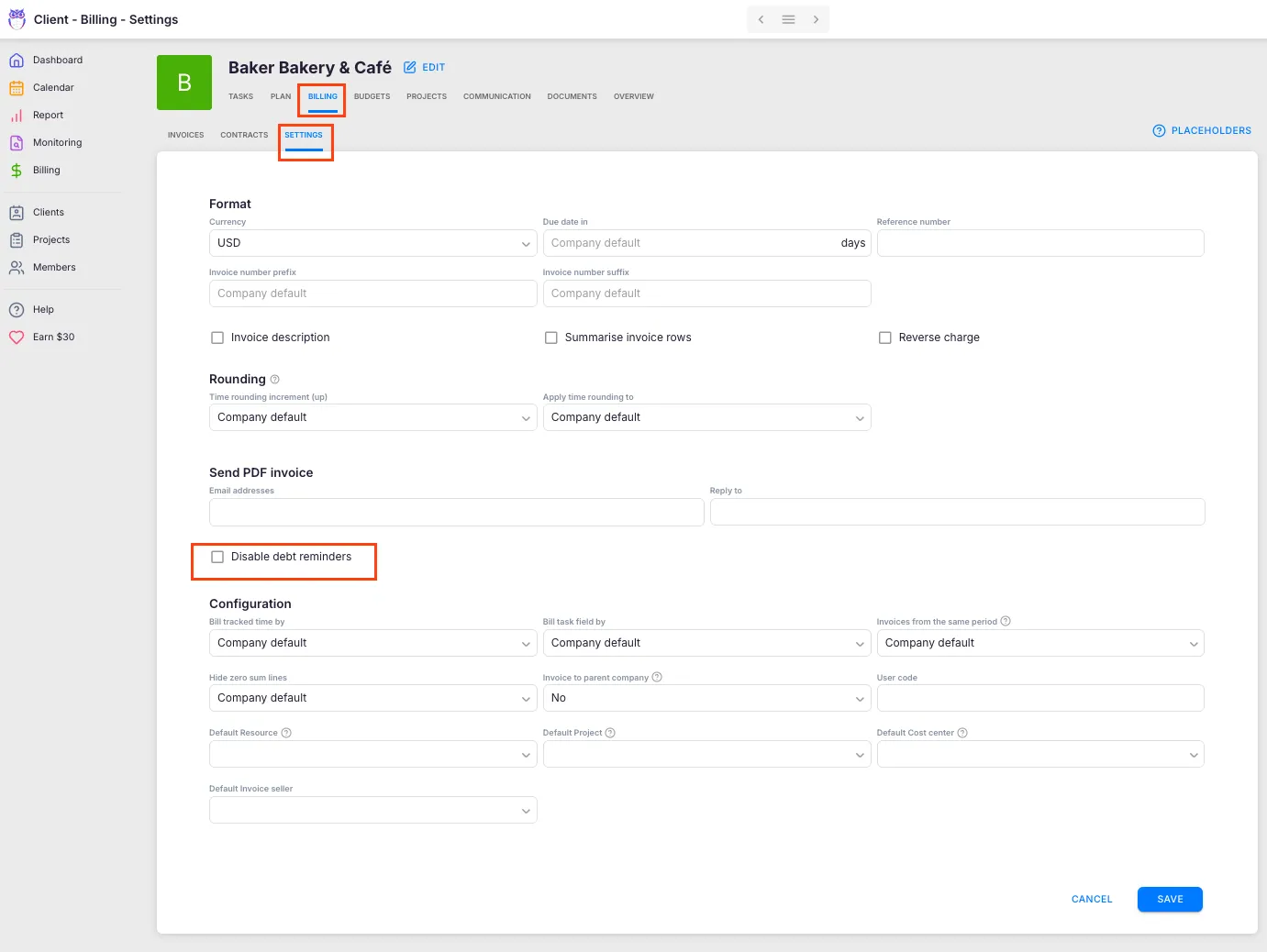
Section titled “Step 5: Disable reminders for specific clients”Some clients may need special handling. To disable automatic reminders for an individual client:
- Open the client profile.
- Go to Financials > Contracts.
- Open the contract settings and go to Send PDF invoice.
- Enable the Disable debt reminders option.
- Save the contract settings.
Troubleshooting
Section titled “Troubleshooting”Reminders are not being sent
Section titled “Reminders are not being sent”Check that an email account is connected in Settings & Apps > Emails and that the Send Debt Reminders toggle is on. Also verify that the invoices in question are in Sent or Paid status — reminders only send for invoices that have been sent to the client.
A client stopped receiving reminders
Section titled “A client stopped receiving reminders”If the invoice has been marked as paid (manually or via integration sync), all remaining reminders for that invoice are cancelled automatically.
Client says they received too many reminder emails
Section titled “Client says they received too many reminder emails”The reminder timing is company-wide. To stop reminders for a specific client, enable Disable debt reminders in their contract settings (see Step 5).
Reminders are sending on the wrong day
Section titled “Reminders are sending on the wrong day”Reminder timing is based on calendar days after the due date, including weekends and public holidays. Adjust the day count in Step 2 to match your desired schedule.
Reminder templates show wrong currency or language
Section titled “Reminder templates show wrong currency or language”Reminder emails use the same invoice details, including the invoice’s billing currency. For language, create reminder templates for each client language in Invoice templates and Uku will match them to the client’s communication language.