How to create a prepayment invoice
Who can do this
Section titled “Who can do this”- Company Owners and Company Admins can always set up prepayment invoices.
- Company Members can manage invoices and contracts based on the billing settings in Settings & Apps > Billing > Settings. Important: Prepayment invoices can only include products with a fixed price. Hourly or per-piece products cannot be used.
Step 1 — Activate the Billing app
Section titled “Step 1 — Activate the Billing app”If you have not already, activate the Billing app in Settings & Apps to enable all invoicing features. See Billing overview.
Step 2 — Create fixed-price products
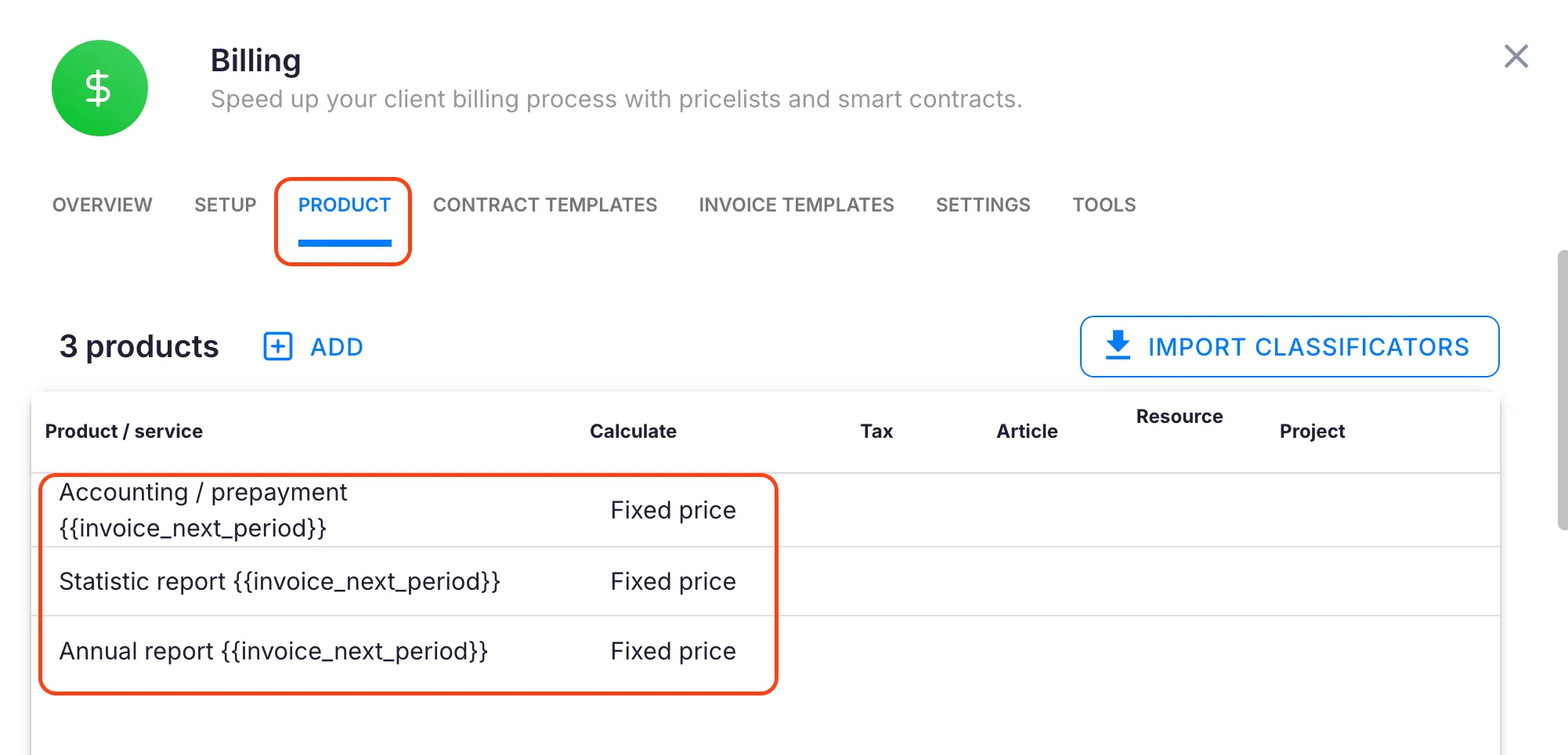
Section titled “Step 2 — Create fixed-price products”- Open Settings & Apps > Billing > Setup > Articles and click + Add.
- Add the fixed-price services you want to include.
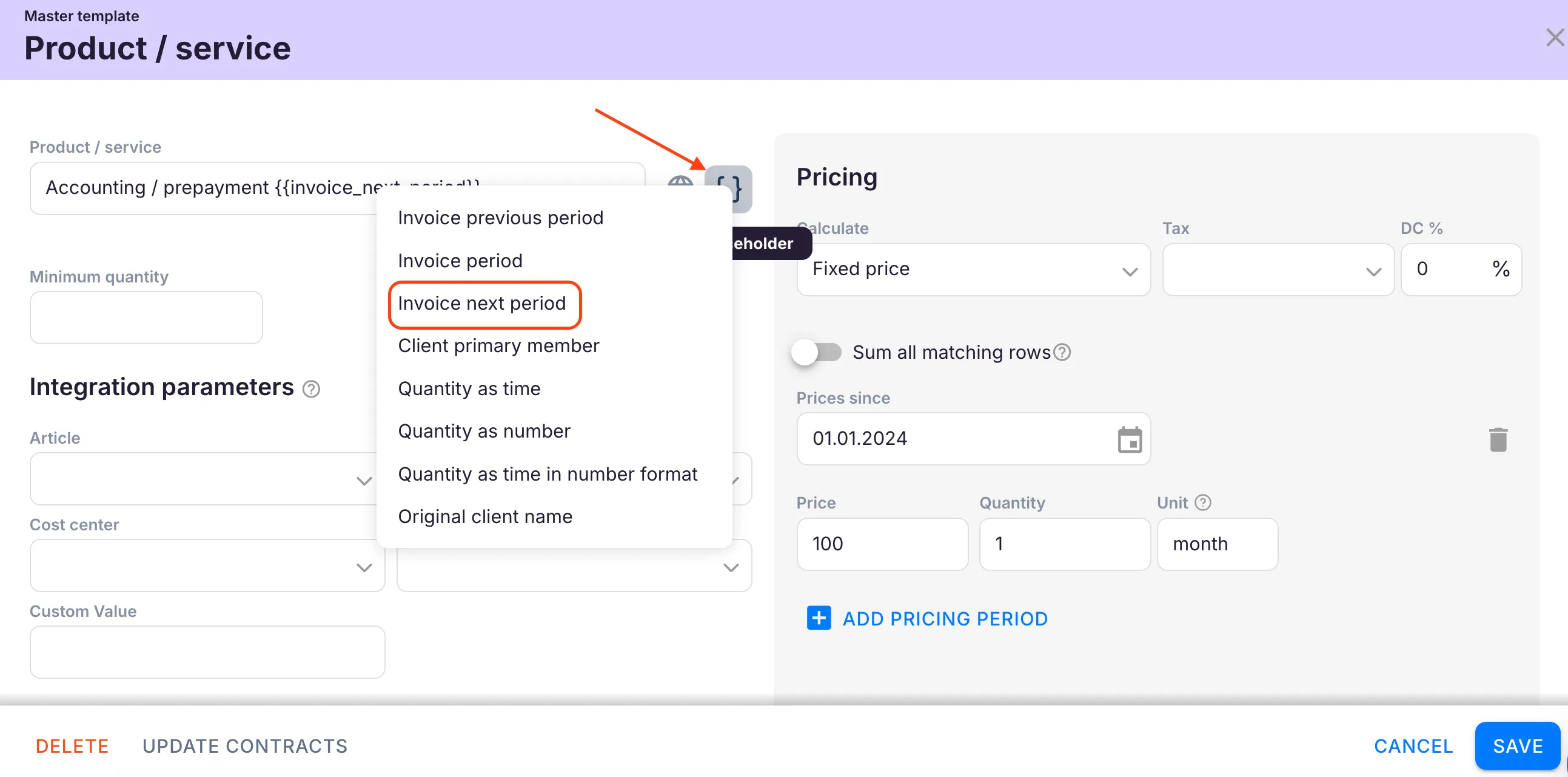
- To make the invoice period clear to clients, use placeholders in the product name or description — for example,
##{{invoice_next_period}}will automatically show the upcoming billing period.
Using ##{{invoice_next_period}} in the product name makes it immediately clear to the client what billing period the prepayment covers. See Billing placeholders for the full placeholder list.
Step 3 — Set up a client contract
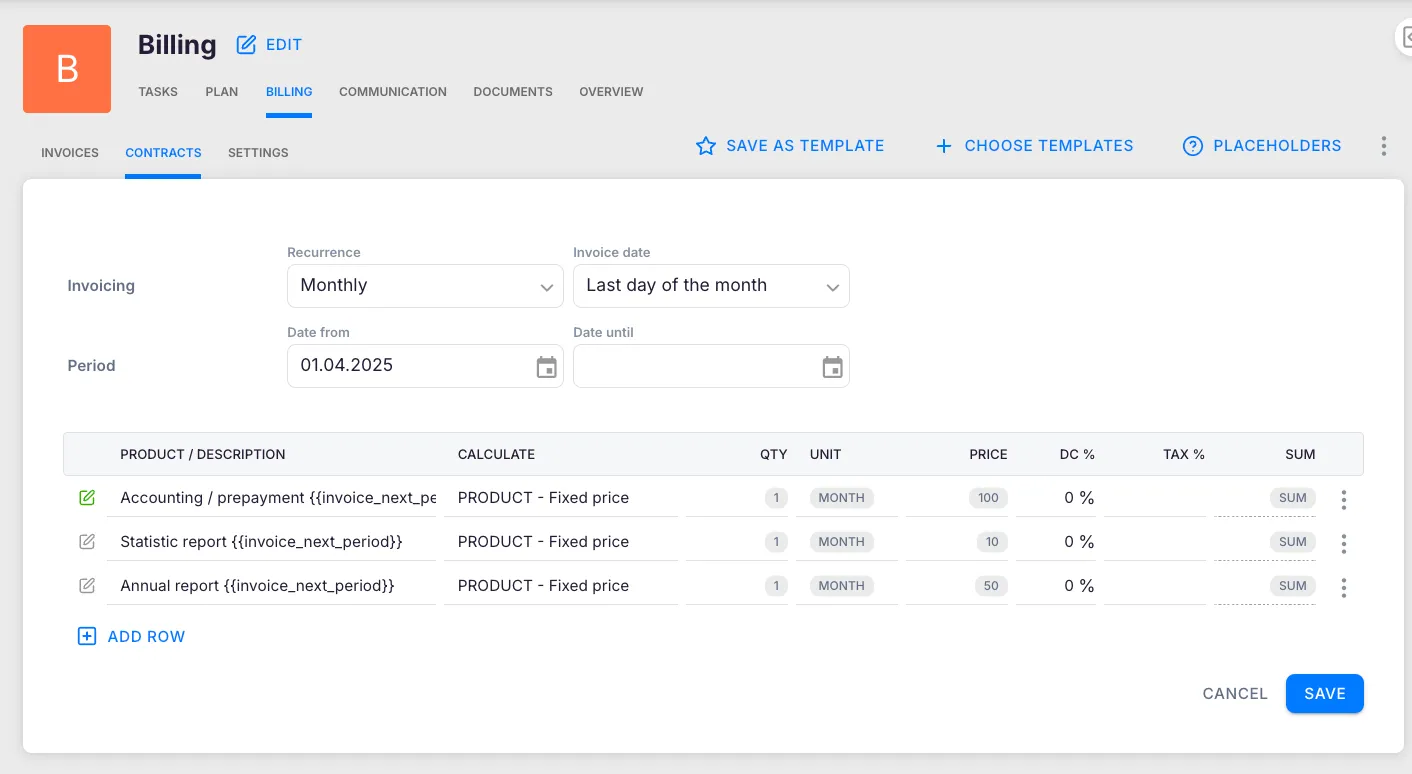
Section titled “Step 3 — Set up a client contract”- Open the client profile and go to Financials > Contracts.
- Click Add contract.
- Add the fixed-price products to the contract.
- Set the start date for the prepayment period.
Step 4 — Generate and send the invoice
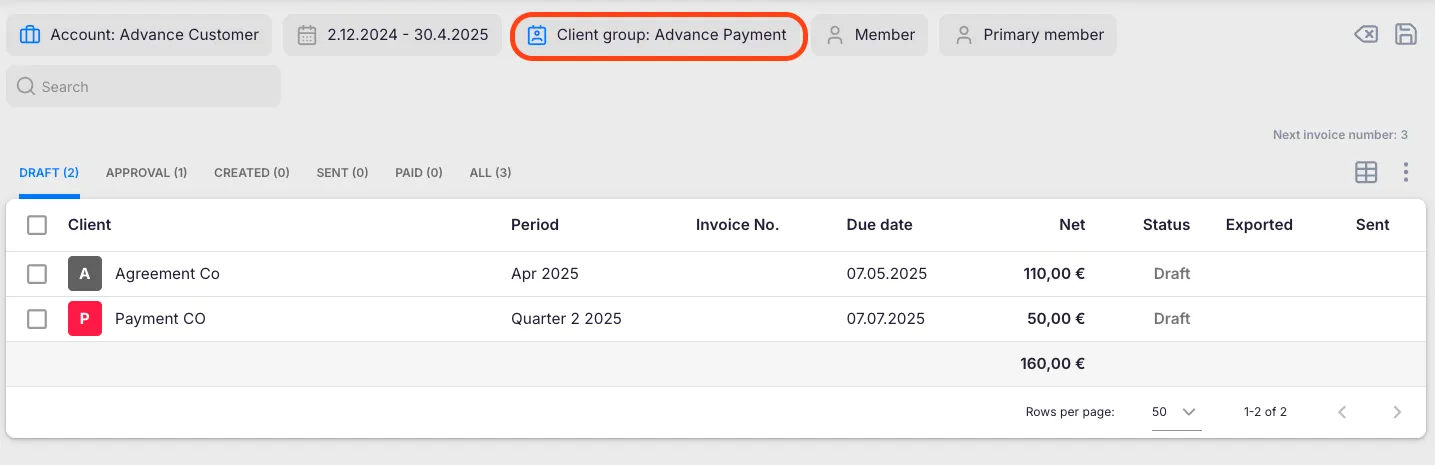
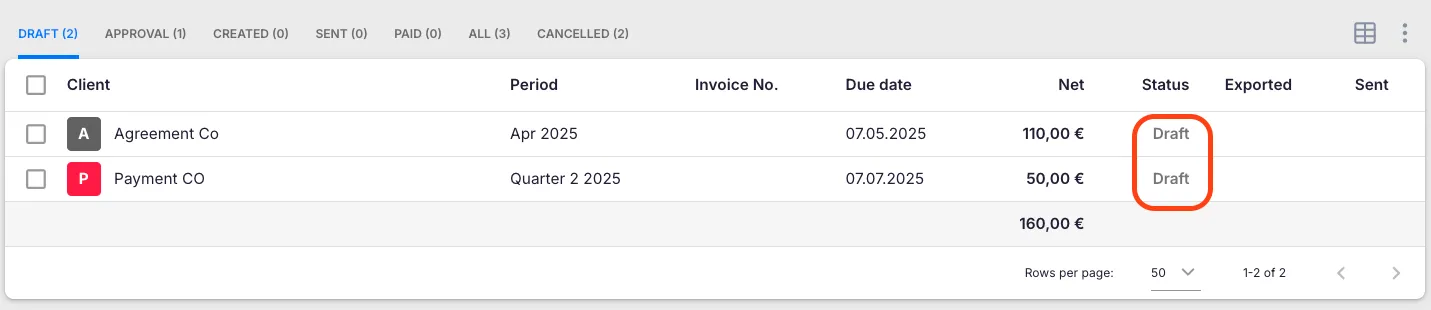
Section titled “Step 4 — Generate and send the invoice”Once the billing period begins, Uku generates the invoice automatically and places it in Draft status.
- Open Billing from the main navigation and go to the Invoices section.
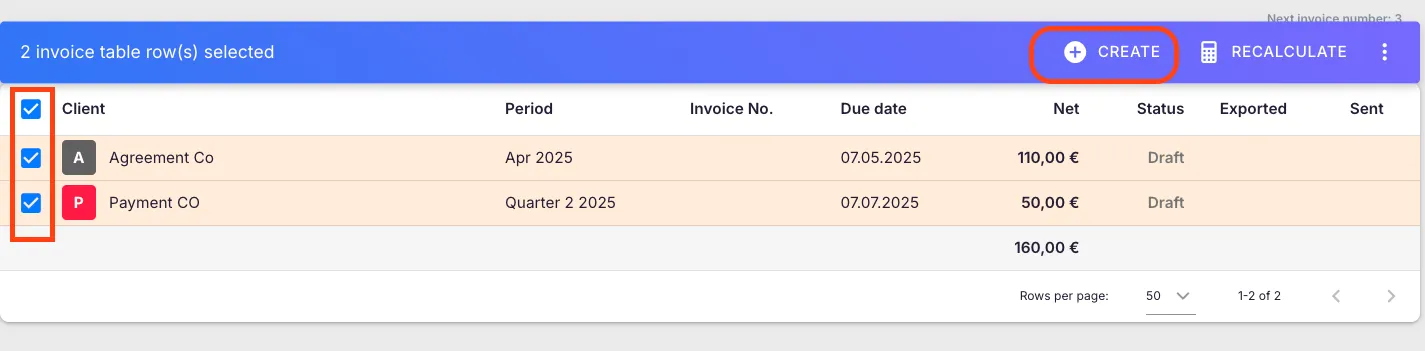
- Select the draft invoices you want to finalise.
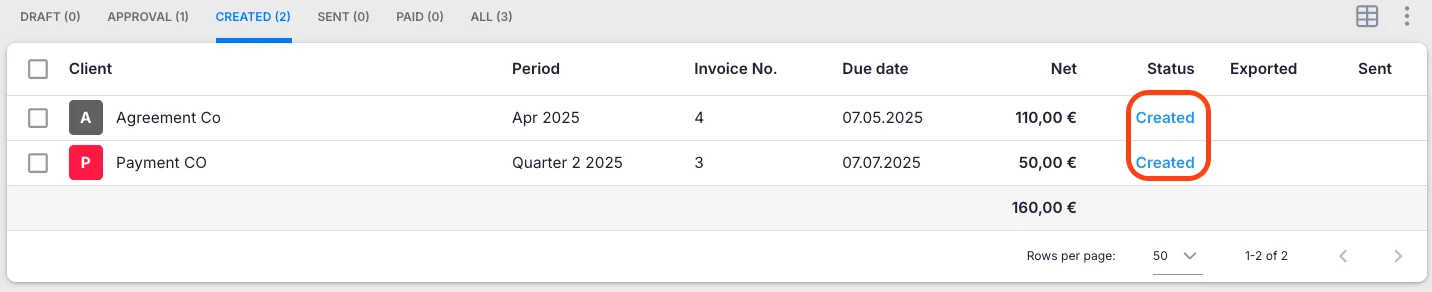
- Click Create to move them to Created status.
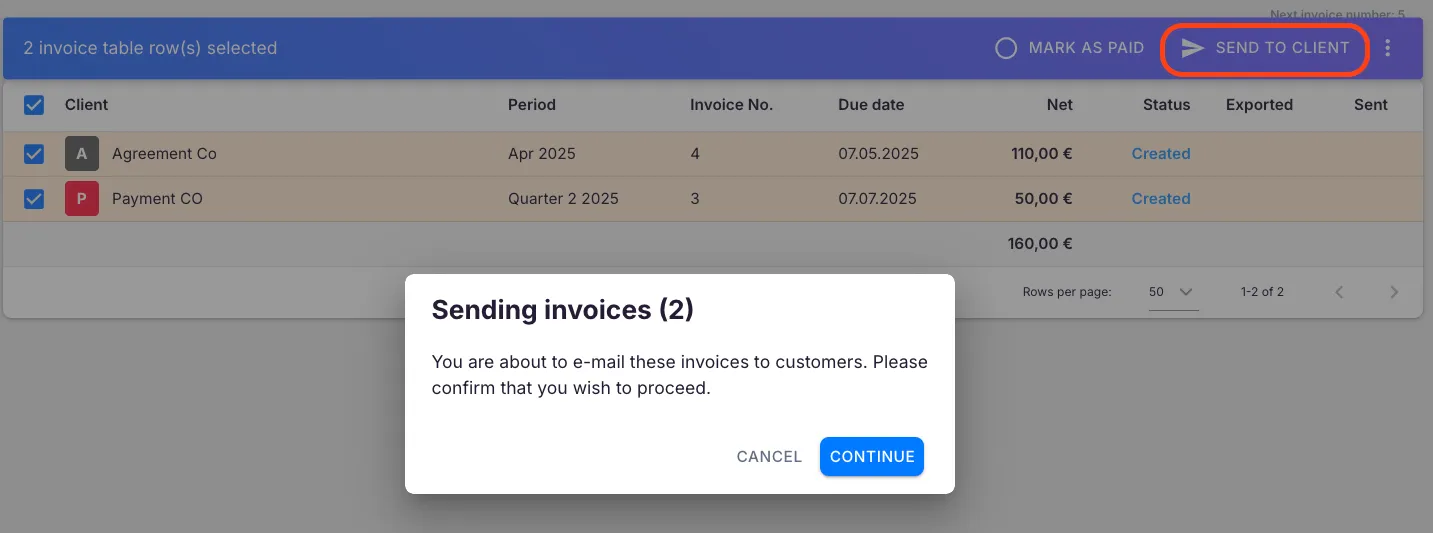
- Review the invoice, then send it to the client.
Troubleshooting
Section titled “Troubleshooting”The invoice is not being generated automatically
Section titled “The invoice is not being generated automatically”Verify that the contract has the correct start date and that the billing period has begun. The invoice will only appear as a Draft once the period starts.
Non-fixed-price products appear on the invoice
Section titled “Non-fixed-price products appear on the invoice”Prepayment invoices only support fixed price products. Remove any hourly or per-piece products from the client contract.
Placeholders are not replaced on the invoice
Section titled “Placeholders are not replaced on the invoice”Check the placeholder syntax — use the exact ##{{placeholder_name}} format. Placeholders are resolved when the invoice is generated, not when you save the product.
The invoice is stuck in Draft status
Section titled “The invoice is stuck in Draft status”Drafts must be manually moved to Created status. Select the invoices in the Draft tab and click Create.