
How to change a project?
After creating a project, you can update its workflow, change its status, and add notes from the project card. Status changes control which tasks appear on team dashboards and can be used to advance the project through workflow stages.
Who can do this
Section titled “Who can do this”- Team members with project management permissions can update and manage projects.
- Only Company Owners can delete a project.
Project card overview
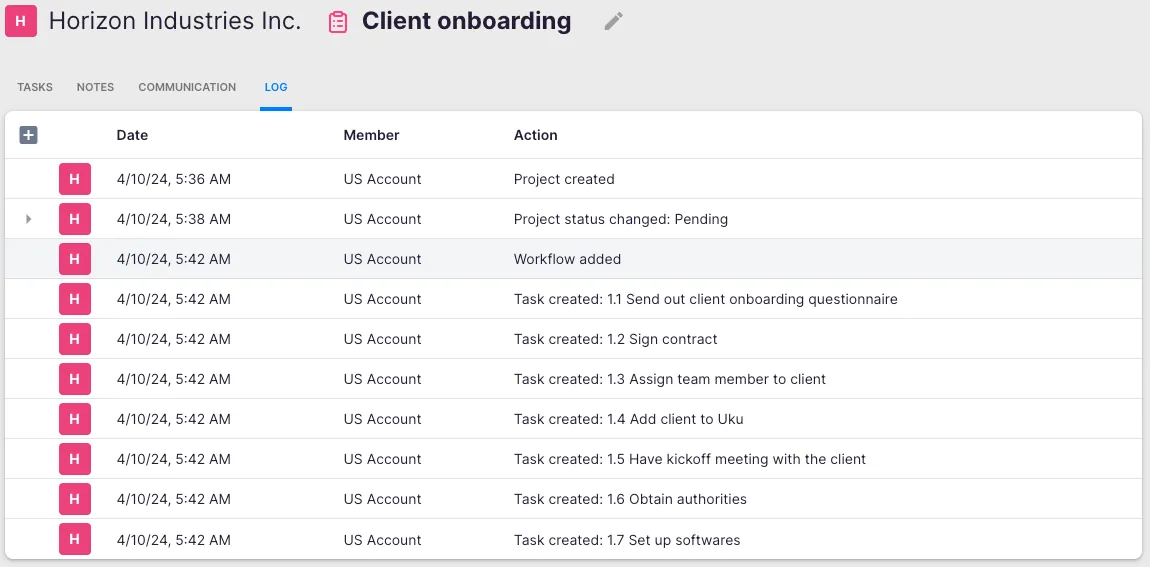
Section titled “Project card overview”The project card displays key project information. You can enter notes related to the project, and the Logs section shows who performed which activities on the project.
Modify the project workflow
Section titled “Modify the project workflow”You can add or edit tasks in a project’s workflow in two ways:
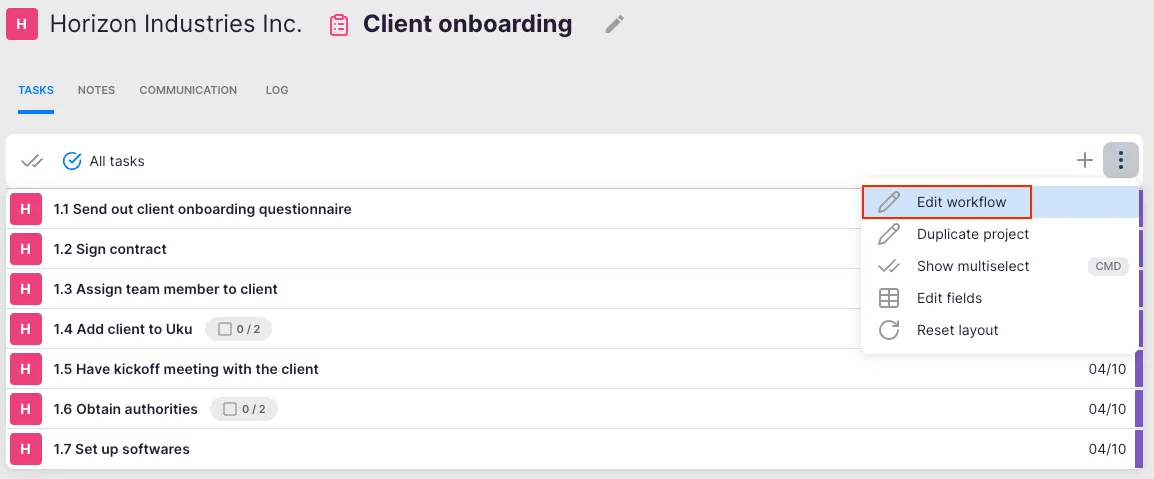
- Open the three-dot menu on the project and select Edit workflow to access the workflow creation view.
- Add tasks individually using the Add task option in the project header.
Change project status
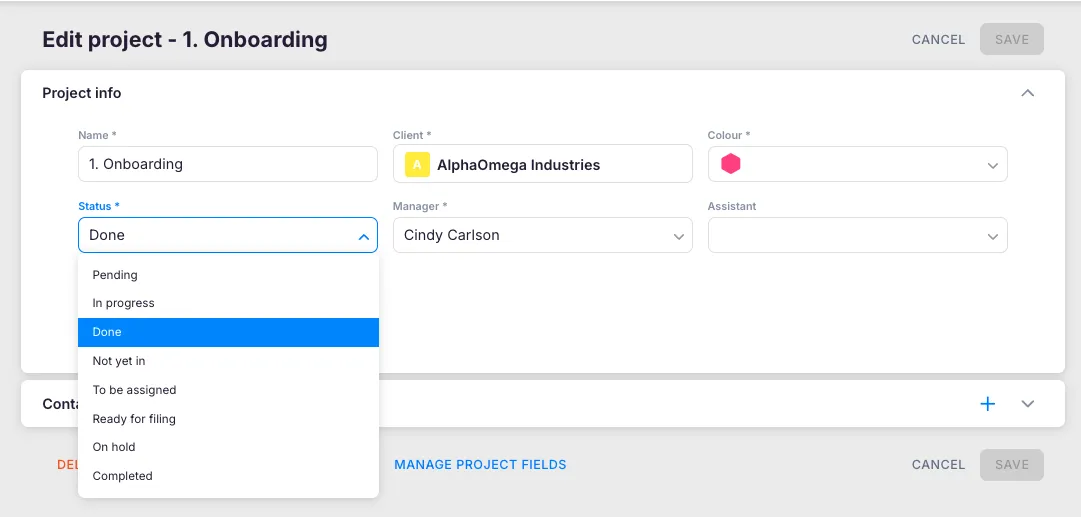
Section titled “Change project status”Update a project’s status as it moves through workflow stages to control which tasks appear on team dashboards.
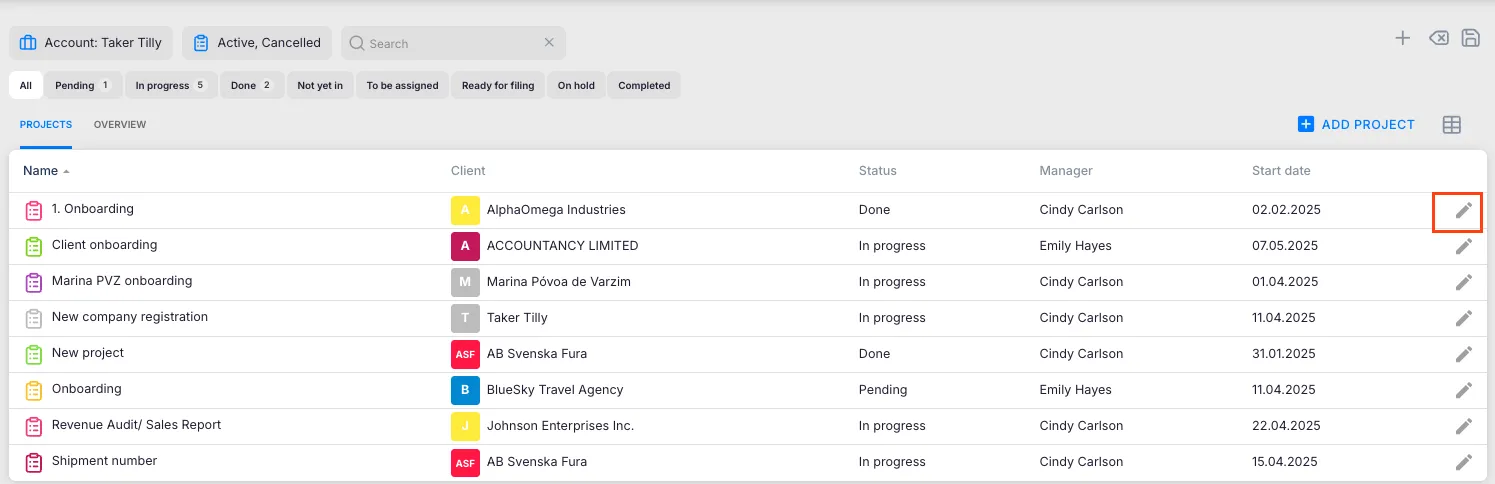
- Open Projects from the main navigation.
- Find the project in the project list.
- Click the pencil icon on the project row.
- Select the new status from the Status dropdown.
Status options
Section titled “Status options”- Cancel — Opens the workflow creation view. Add any tasks that need to be completed as part of the cancellation process. These tasks appear on the Dashboard.
- Archive — Tasks are no longer displayed on the Dashboard after the project is archived.
- Delete — Only the Company Owner can delete a project. All tasks related to the project must be deleted first.
View projects by status
Section titled “View projects by status”The Projects list organizes projects into status tabs. Each tab shows the count of projects in that status. Click any tab to filter the list, or combine the status filter with Client, Member, or Date filters.
Troubleshooting
Section titled “Troubleshooting”Cannot delete a project
Section titled “Cannot delete a project”Only the Company Owner has delete permissions. Additionally, all tasks under the project must be deleted before the project itself can be removed. Consider archiving instead.
Archived project tasks still showing on the Dashboard
Section titled “Archived project tasks still showing on the Dashboard”Refresh the page after archiving. If tasks persist, verify the project status was saved correctly by checking the Status column in the project list.
Pencil icon is not visible on the project row
Section titled “Pencil icon is not visible on the project row”You may not have the required permissions to edit this project. Contact your Company Admin or Company Owner to verify your role.
Workflow changes not reflected in tasks
Section titled “Workflow changes not reflected in tasks”Tasks already created are not automatically updated when the workflow changes. New tasks added after the workflow edit will follow the updated workflow.