Forgot to stop the timer? Here's how to fix it quickly
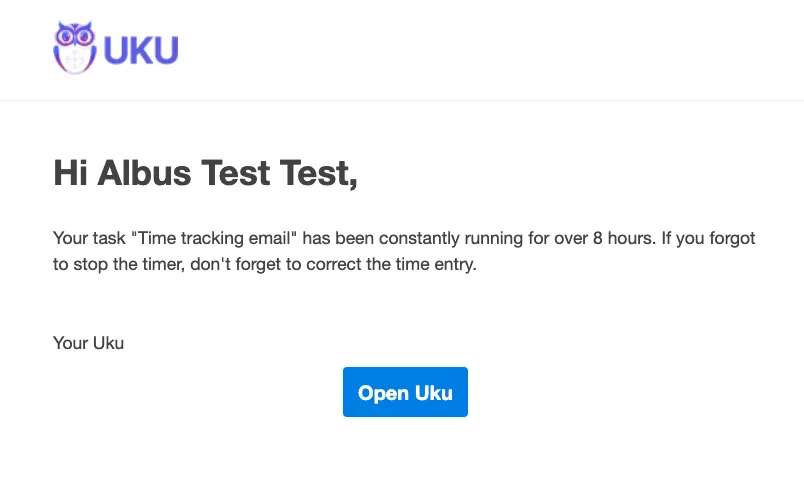
If your Uku timer has been running longer than intended, you can pause it and then correct the time entry to reflect the actual hours worked. Uku also sends an email alert when a timer has been running continuously for 8 hours, so you can catch it before it gets out of hand.
Who can do this
Section titled “Who can do this”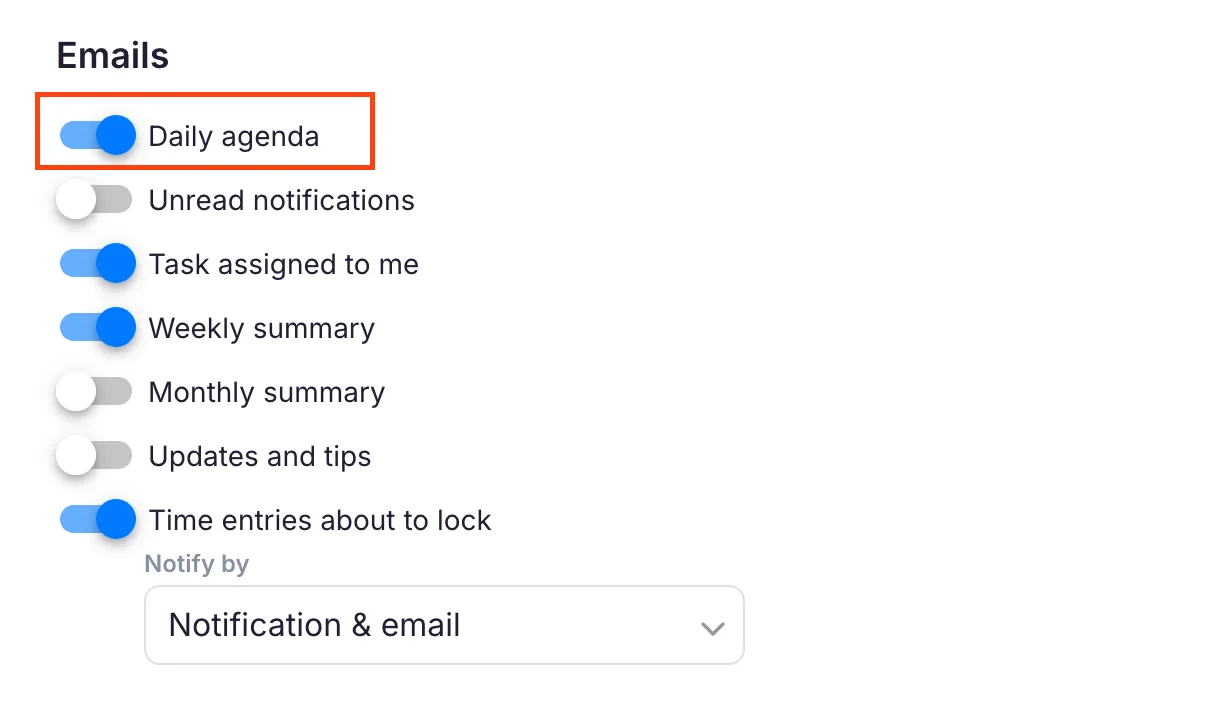
- Any team member who tracks time on tasks.
- The Daily agenda email notification must be active in your profile to receive the 8-hour alert.

Pause the timer
Section titled “Pause the timer”You can pause an active timer in two ways:
- Click the timer widget in the application header bar — it shows the elapsed time and has a pause button.
- Open the task where time is being tracked and click the pause button next to the time display.
Edit the logged time
Section titled “Edit the logged time”- Open the task where the incorrect time entry is recorded.
- Click the time display (the hours shown on the task) to expand the timesheet panel.
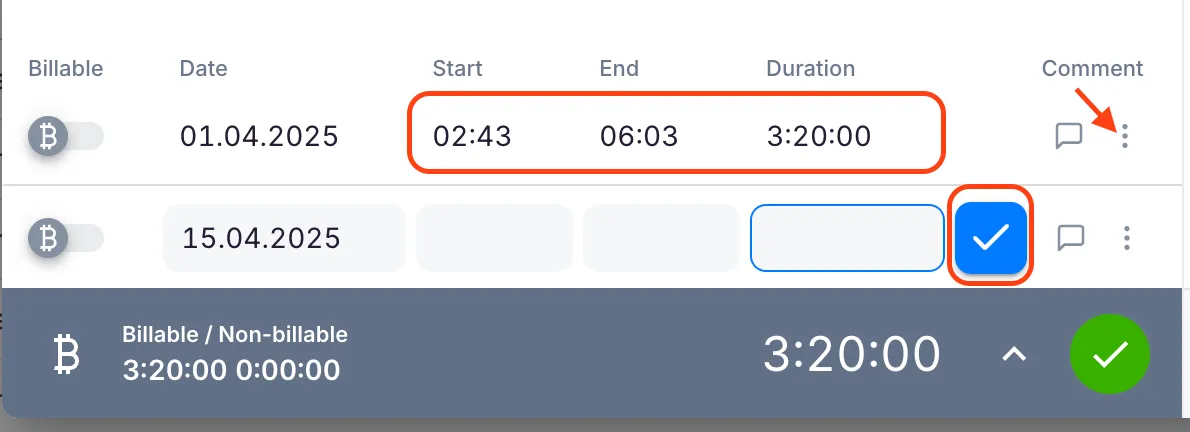
- Find the incorrect time entry and click into any field you want to correct: Start time, End time, or Duration.
- Enter the correct value.
- Click the checkmark button on the row to save.
Delete and recreate the entry
Section titled “Delete and recreate the entry”If you prefer to start fresh rather than editing the existing entry:
- Click the three-dot menu on the right side of the incorrect time entry.
- Select Delete and confirm.
- In the empty row at the bottom of the timesheet panel, enter the correct Start time, End time, or Duration.
- Click the checkmark to save the new entry.
Enable the 8-hour email alert
Section titled “Enable the 8-hour email alert”Uku sends an email notification if your timer has been running continuously for more than 8 hours. To receive this alert:
- Open your Profile page.
- Find the Notifications or Emails section.
- Enable the Daily agenda toggle.
The 8-hour alert is bundled with the daily agenda notification. Both will be active once the toggle is on.
Troubleshooting
Section titled “Troubleshooting”Did not receive the 8-hour email notification
Section titled “Did not receive the 8-hour email notification”Go to your Profile page and confirm the Daily agenda toggle is enabled in the notifications section. Also check your spam folder — the alert email may have been filtered.
Cannot find the running timer
Section titled “Cannot find the running timer”Look for the active timer indicator in the application header bar. It shows elapsed time and is visible from any page in Uku. If the timer is not visible, it may have been paused already or started on a different browser session — try refreshing the page.
The time entry cannot be edited
Section titled “The time entry cannot be edited”The entry may be in a locked period. If your company has time entry locking enabled, entries from previous weeks or months cannot be edited by Company Members. Ask a Company Admin to make the correction.
Accidentally deleted the wrong time entry
Section titled “Accidentally deleted the wrong time entry”Deleted time entries cannot be recovered. Create a new entry on the same task with the correct start time, end time, and duration to replace the deleted one.
Screenshots
Section titled “Screenshots”