Uku Dashboard — how to use and set it up
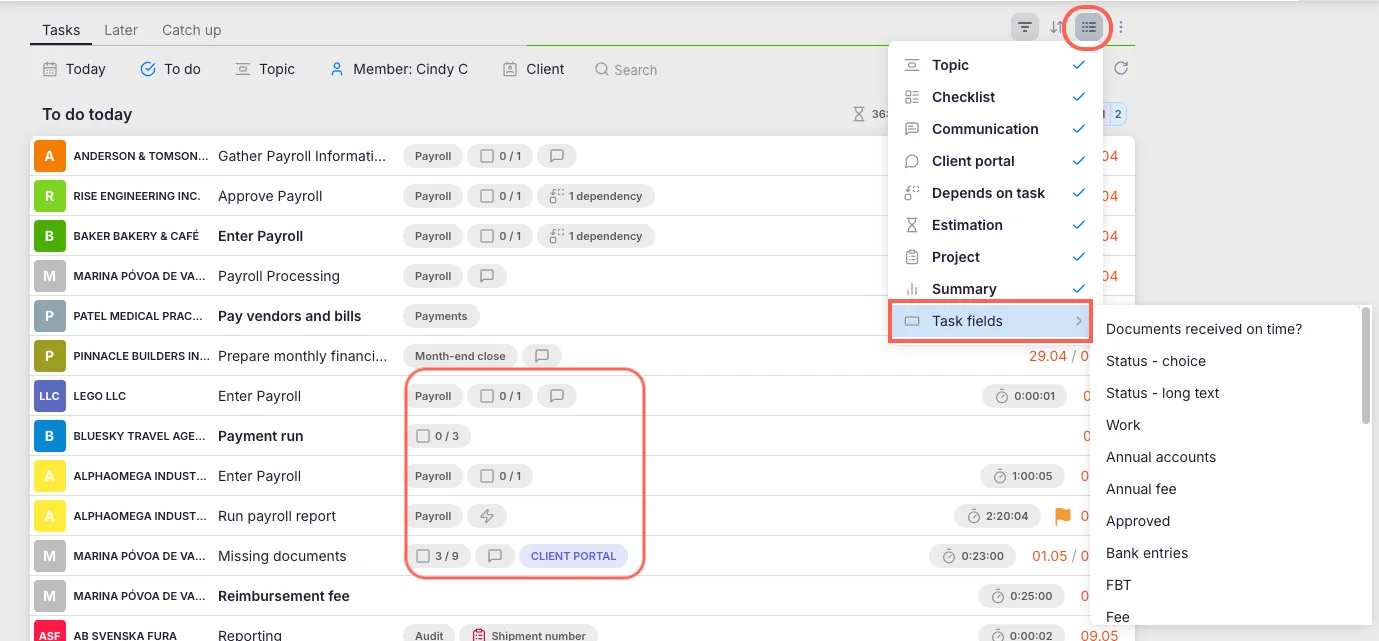
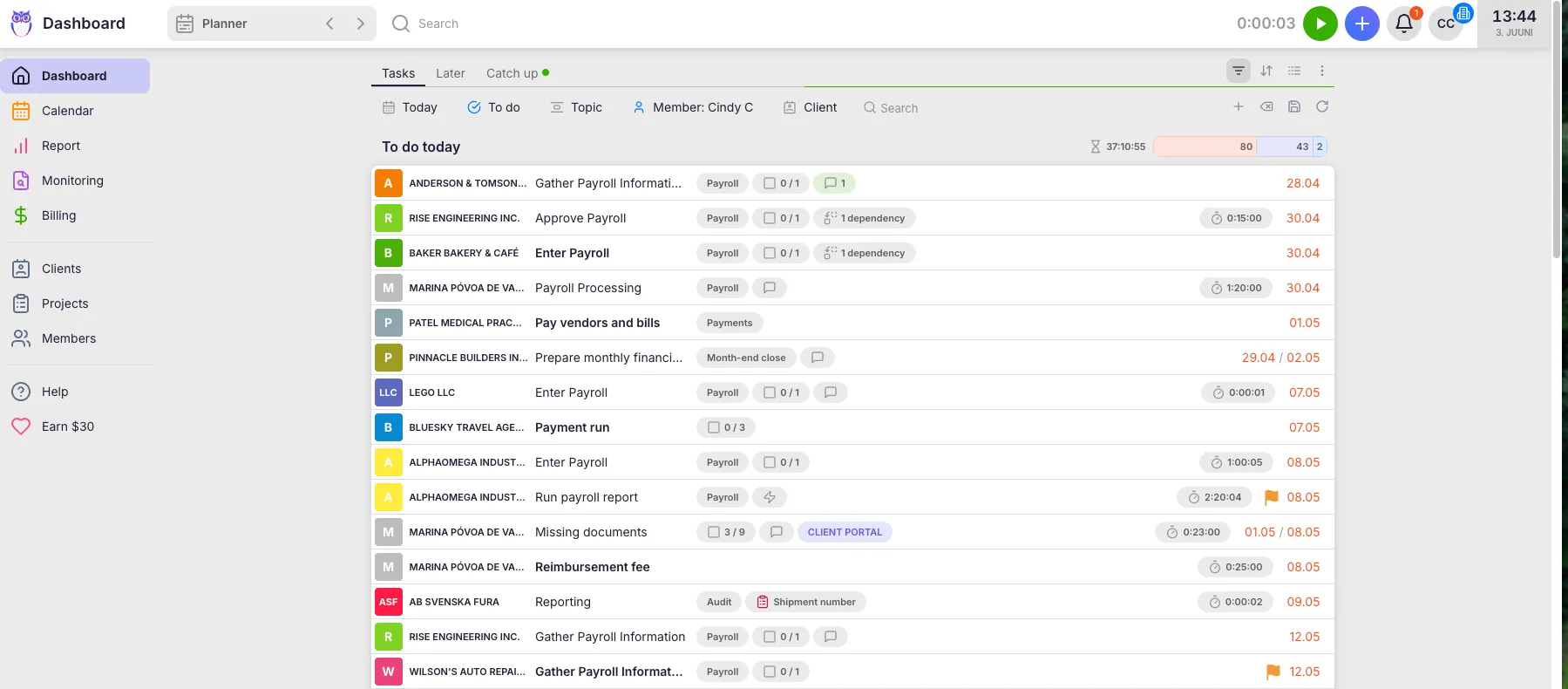
The Dashboard is your personal daily task view. It opens automatically after login and shows all tasks assigned to you, sorted by due date. From here you can filter, sort, group, and search your work — and save your preferred view as a bookmark.
Who can do this
Section titled “Who can do this”- All Uku users see their own Dashboard after logging in.
- Company Admins and Company Owners can view other members’ tasks using the Member filter.
Dashboard views
Section titled “Dashboard views”The Dashboard has three views:
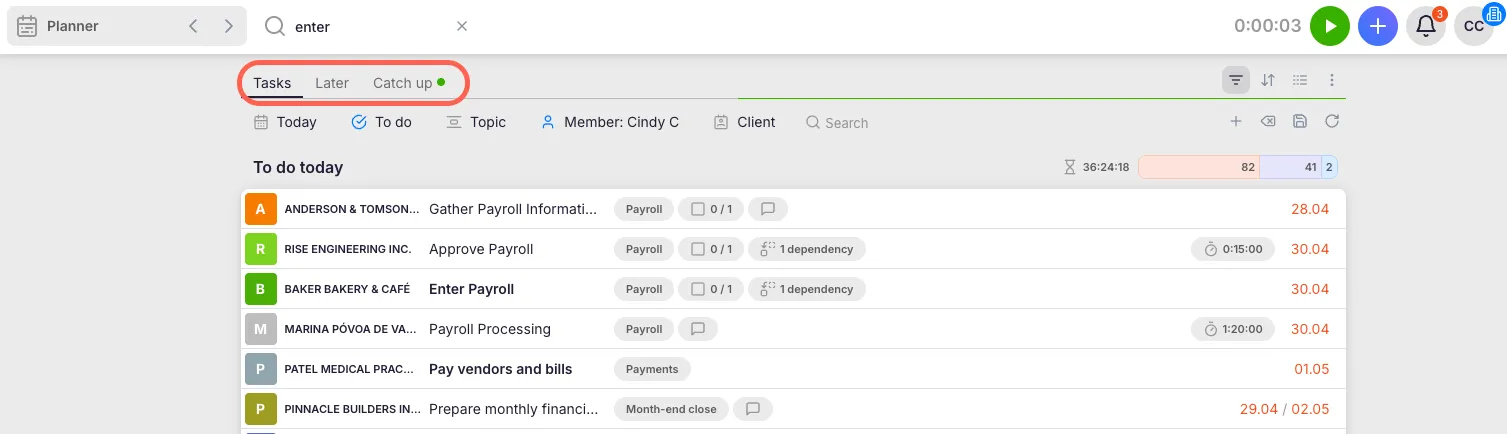
- Tasks — The default view showing tasks for the current day.
- Later — Shows tasks that have been postponed to “Later” using bulk actions or the postpone menu.
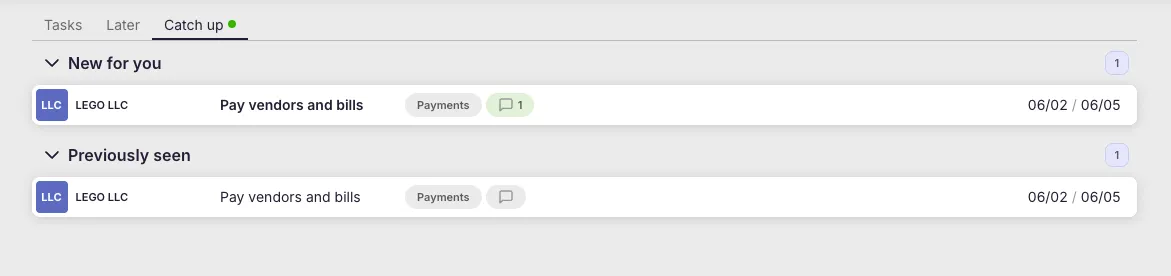
- Catch Up — A communication overview showing tasks where a team member added a comment, a client replied to your email, or a client responded via the Client Portal.
Catch Up view details
Section titled “Catch Up view details”A green dot appears on the Catch Up tab when there are new messages. Opened tasks remain in the Catch Up — Seen section until they are marked as done.

Dashboard header tools
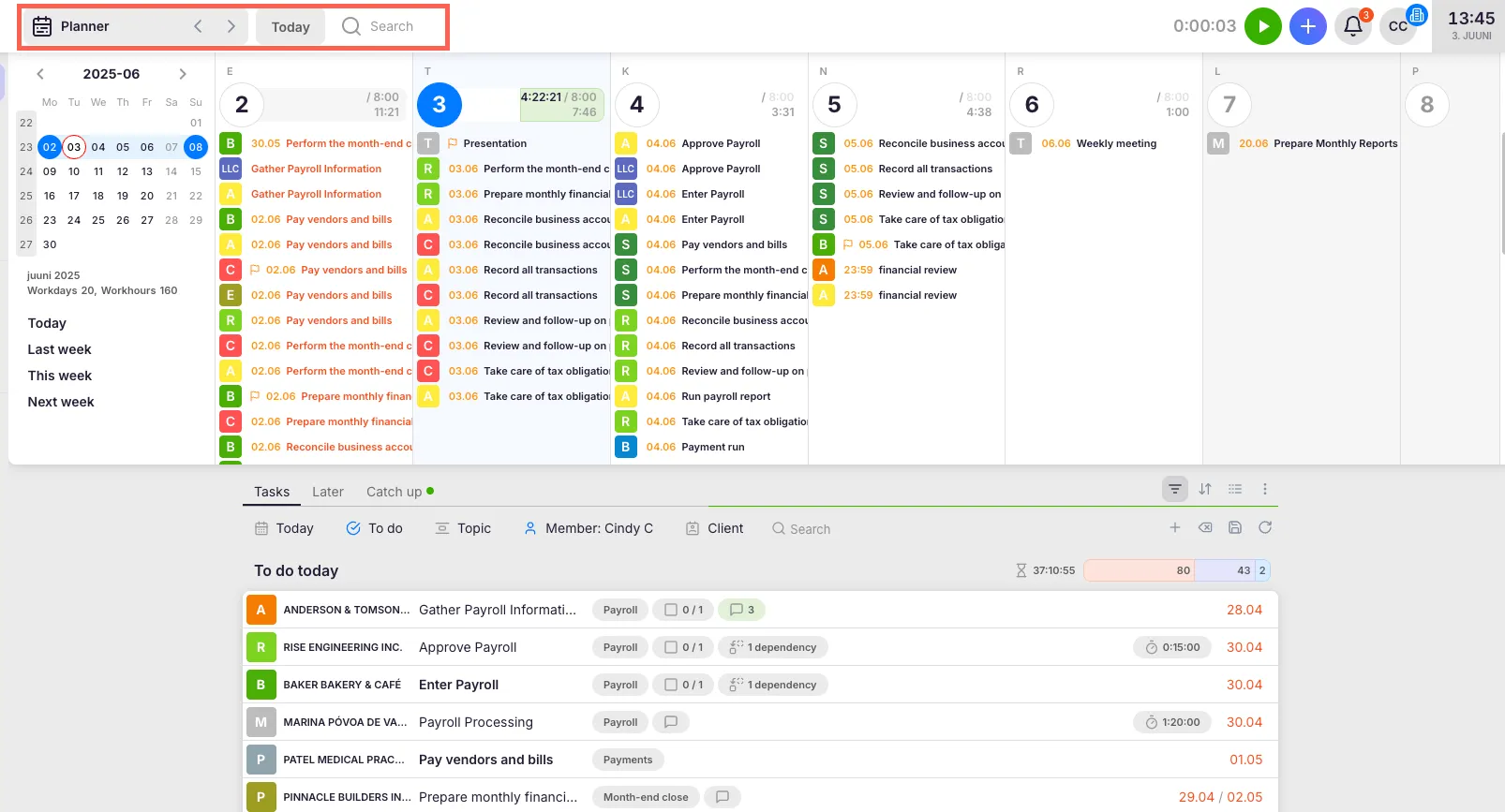
Section titled “Dashboard header tools”- Planner — Opens a weekly calendar view where tasks can be rescheduled by dragging them to a different day. Use the navigation arrows to view previous or upcoming weeks. Click Today to return to the current day.
- Search — Finds tasks and client-related information. Typing without pressing Enter searches within client, account, and topic names. Pressing Enter performs a full search across task title, description, checklist, client name, topic name, task ID, and recurrence ID.

Filtering and sorting
Section titled “Filtering and sorting”Filter controls
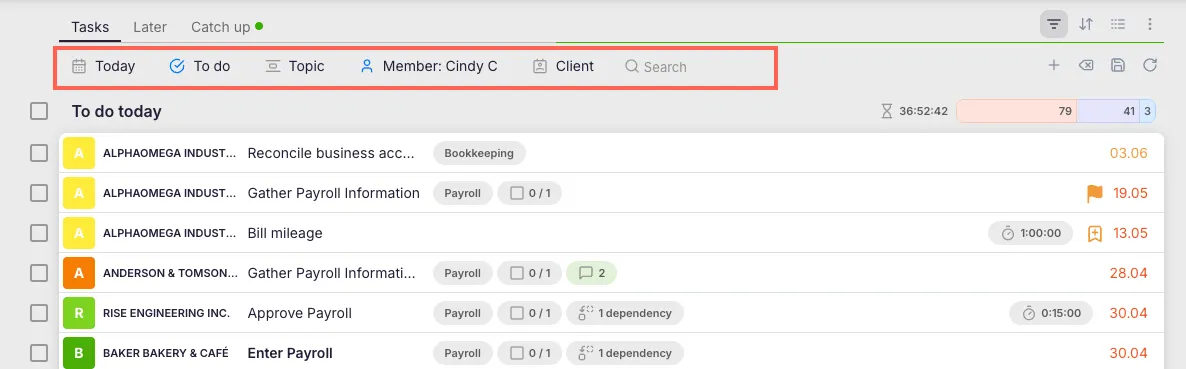
Section titled “Filter controls”Click the Filter icon to open the filter bar. Available filters:
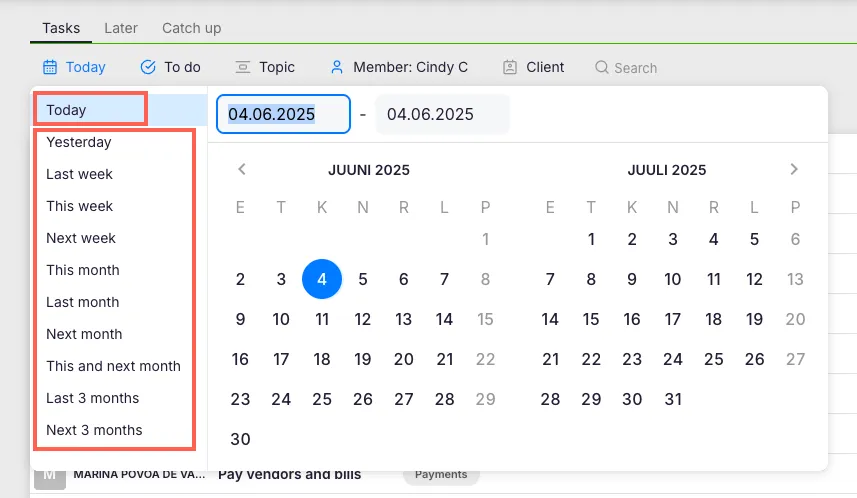
- Date — Choose a date range for displayed tasks.
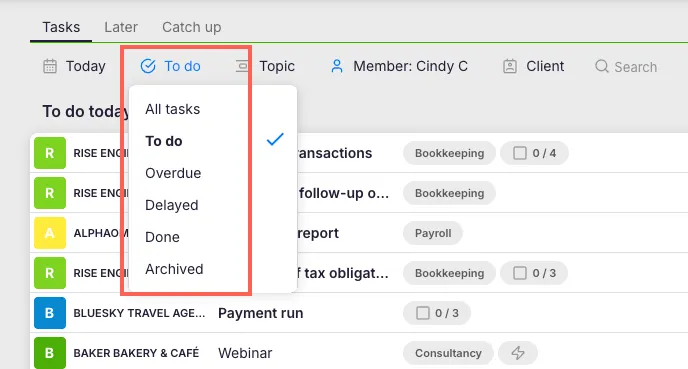
- Task status — Filter by All, To Do, Overdue, Delayed, Done, or Archived.
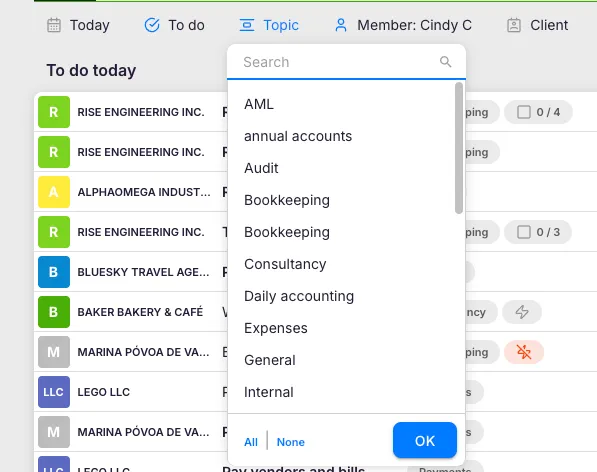
- Topic
- Member — Select one or more members.
- Client Click + to add extra filters: Account, Important, Extra Work, Recurring Task, I Follow, Commented, Tracked Time, Client Portal, Estimated, Delegated to, Delegated by, Project.
Sort controls
Section titled “Sort controls”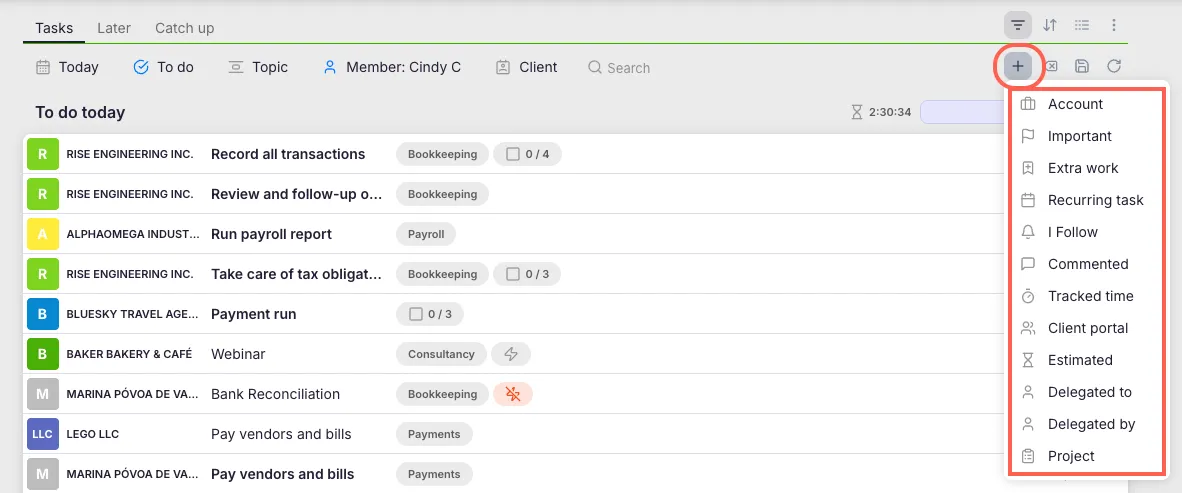
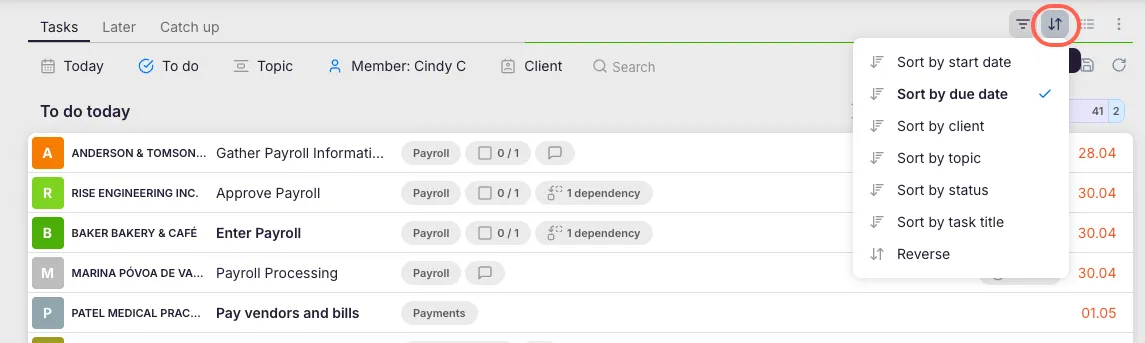
Click the Sort icon to sort tasks by: Start date, Due date, Client, Topic, Status, Task title, or Reverse order.
Grouping
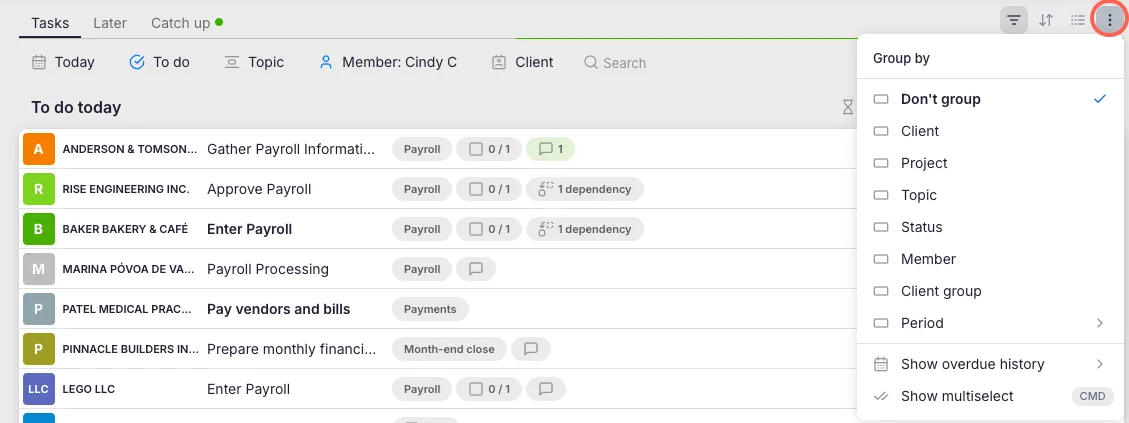
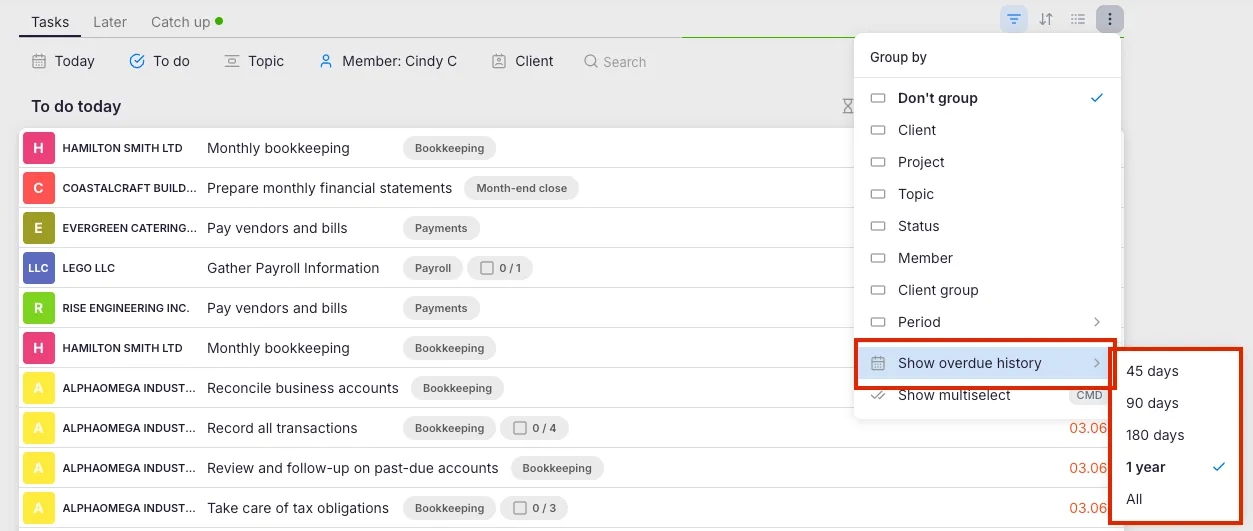
Section titled “Grouping”Click the Grouping icon on the toolbar to choose how tasks are organized:
- Don’t group — Sorted by start date.
- Group by client — Only client names are shown; clicking a client reveals their tasks.
- Group by project — Tasks grouped by project.
- Group by topic — Tasks grouped by topic.
- Group by status — Groups into Undone, In Progress, and Completed.
- Group by user — Tasks grouped by assigned member.
- Group by client group — Groups by client groups.
- Group by period — Groups by day, week, and month.
- Group by date — Groups tasks with the same start date; earlier tasks appear first.
Task display and details
Section titled “Task display and details”- If no date filter is selected, Uku displays tasks for the current day by default. To view older tasks, select a range: 45, 90, or 180 days ago, 1 year ago, or All (maximum 2 years ago).
- Tasks due today display their date in orange.
- Email automation status indicators appear on task rows: green = sent successfully, red = failed, grey = automation is set up.
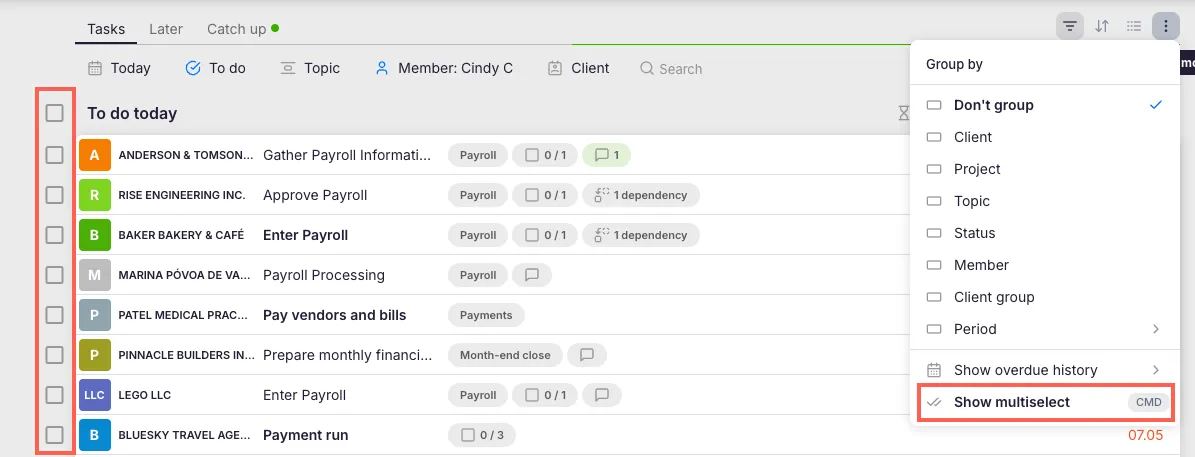
- Enable Show multiselect from the Grouping icon menu to add checkboxes for bulk actions.

Progress bar
Section titled “Progress bar”A progress bar at the top of the task list shows — for the selected period — Estimated Time, Number of Overdue Tasks, Tasks To Do, and Tasks In Progress.

Troubleshooting
Section titled “Troubleshooting”Dashboard appears empty after login
Section titled “Dashboard appears empty after login”Verify that the date filter is set to today or a broader range. If all tasks are completed or postponed, the default view may show no tasks.
Filters are not persisting between sessions
Section titled “Filters are not persisting between sessions”You need to save your filter configuration as a bookmark. Click the Filter icon, configure your filters, then click the disk icon to save. See the How to use bookmarks article for details.

Cannot see another team member’s tasks
Section titled “Cannot see another team member’s tasks”The Dashboard shows only your own tasks by default. Use the Member filter to view tasks assigned to other members. This requires Company Admin or Company Owner permissions.
Catch Up shows no messages even though comments were added
Section titled “Catch Up shows no messages even though comments were added”Ensure you are a follower of the task or that the comment was directed at you. Only tasks with activity relevant to your account appear in Catch Up.
Screenshots
Section titled “Screenshots”