How to use time estimation?
Time estimations let you record how long a task should take before you start working on it. Use estimations for workday planning — you can see daily totals in the Calendar and compare estimated vs. actual hours in Report.
Who can do this
Section titled “Who can do this”- All team members can add estimations to tasks assigned to them.
- Company Admins and Company Owners (and users with Client Admin permission) can add estimations to client Workflow recurring tasks and templates.
- A Company Admin must enable the estimation feature in company settings before it is available.
Enabling time estimation
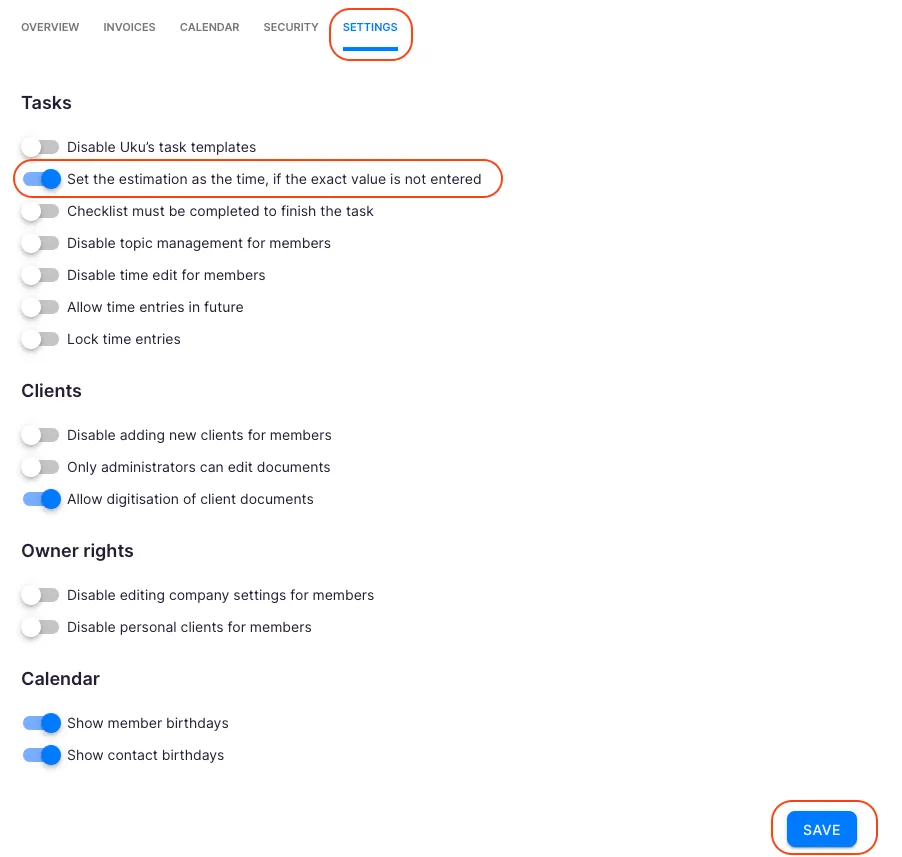
Section titled “Enabling time estimation”- Select Settings & Apps from the main navigation menu.
- Open the Company app settings.
- Go to the Settings tab.
- Enable the option Set the estimation as the time if the exact value is not entered.
- Click Save.
Once enabled, if a task is marked done without any tracked time, Uku automatically uses the estimation as the logged time.
Adding an estimation to a task
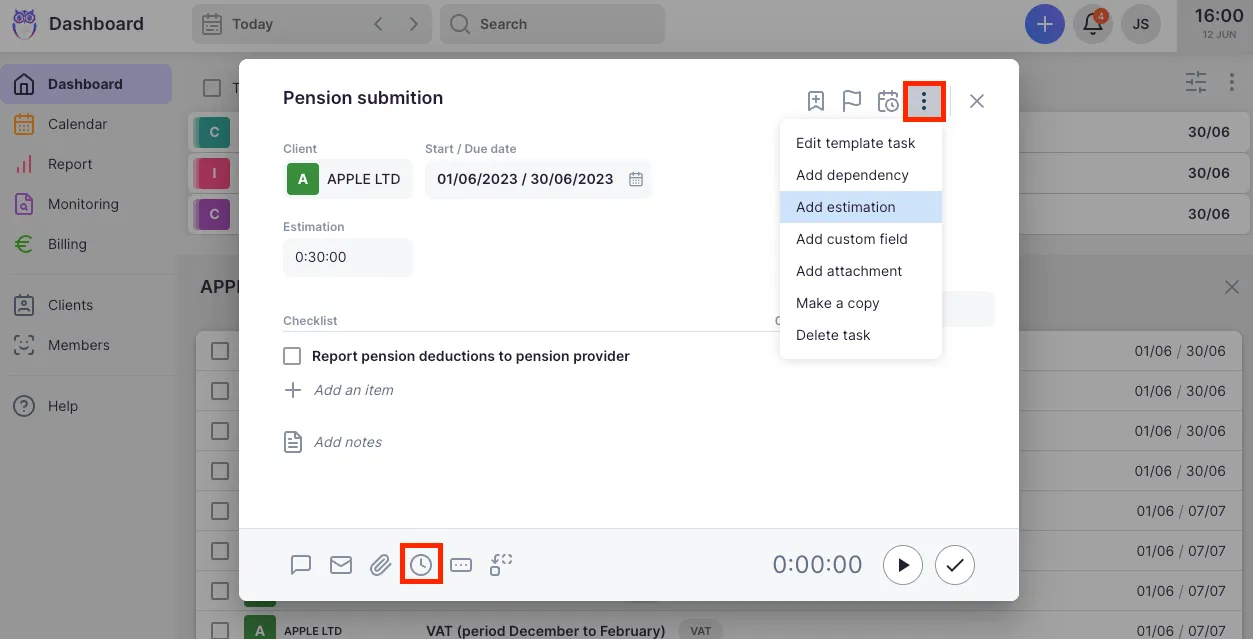
Section titled “Adding an estimation to a task”- Open the task.
- Click the three-dot menu (more options).
- Select Add estimation.
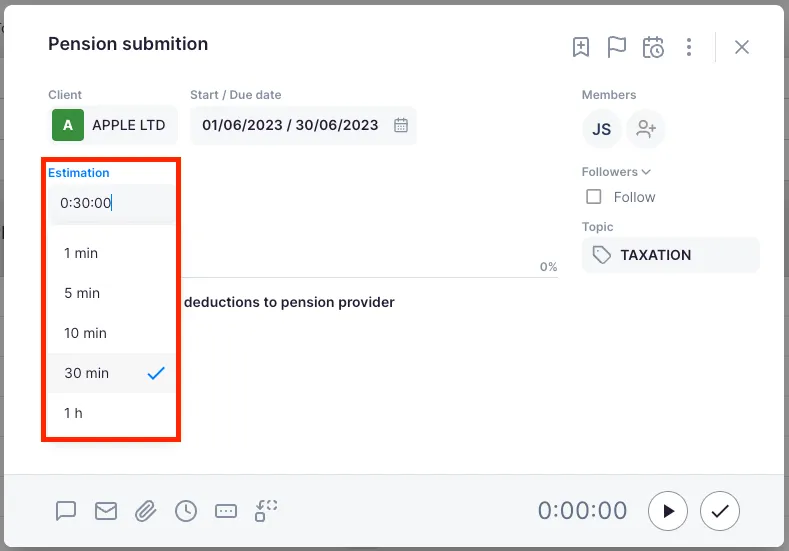
- Enter the estimated duration.
- Click Save.
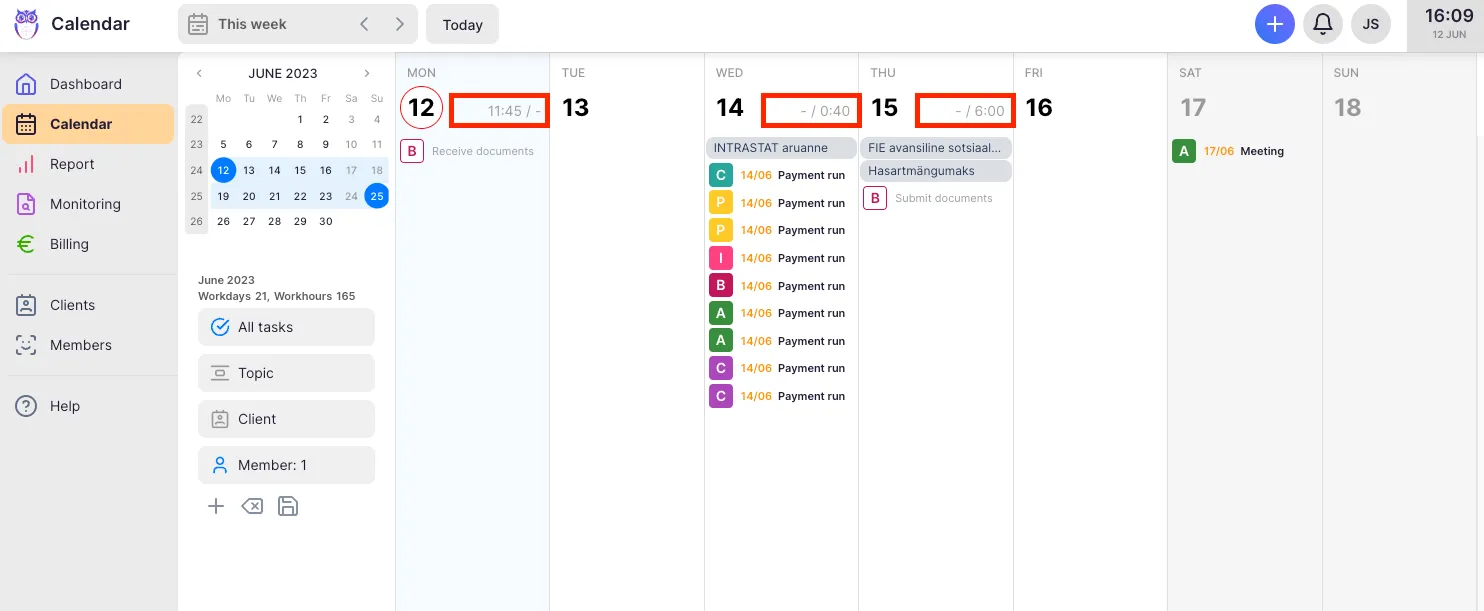
The estimation appears on the task and is included in the daily totals in the Calendar view.
Adding an estimation to a recurring task in a client’s Workflow
Section titled “Adding an estimation to a recurring task in a client’s Workflow”Setting the estimation on the recurring task template means every occurrence of that task inherits the estimation automatically.
- Select Clients from the main navigation menu and open the client’s profile.
- Select the Workflow tab.
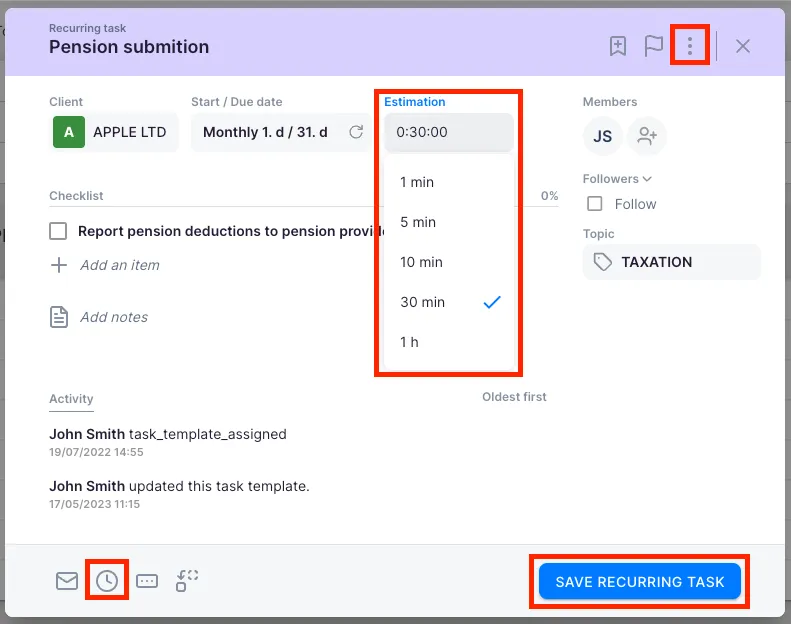
- Open the recurring task you want to estimate.
- Add the time estimation.
- Click Save.
Adding an estimation to a workflow template
Section titled “Adding an estimation to a workflow template”Adding estimations to a template automatically applies them to all clients that use that template — no need to set estimations client by client.
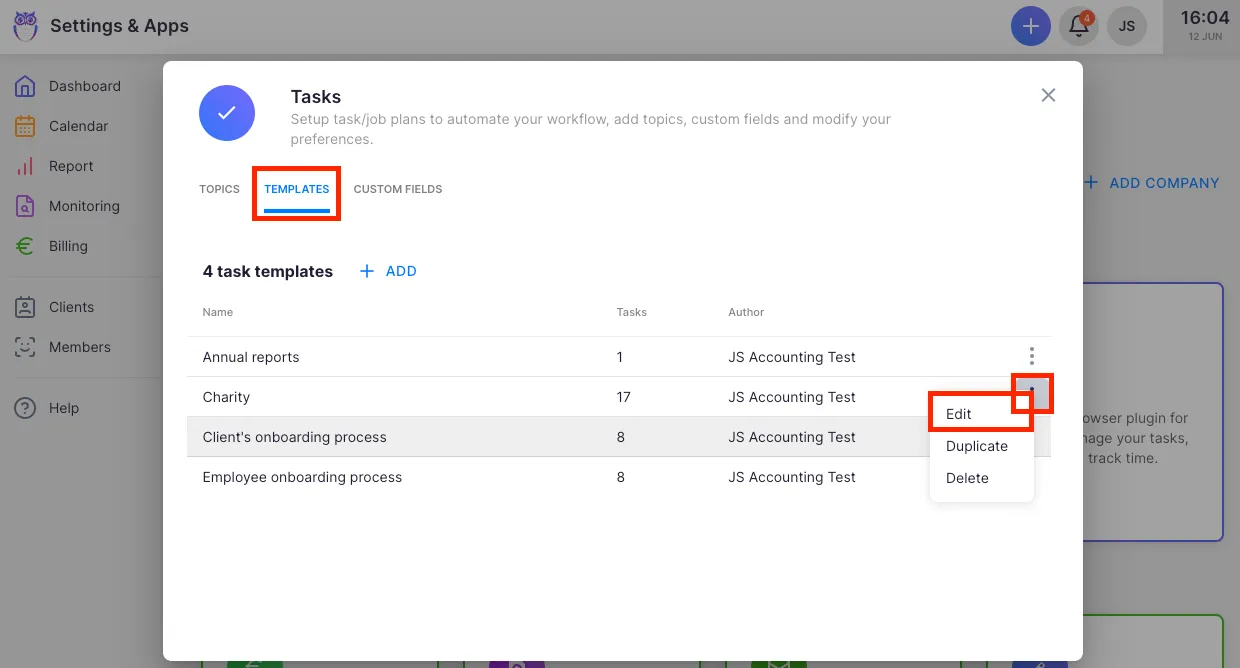
- Select Settings & Apps from the main navigation menu.
- Open the Tasks app settings.
- Select the Templates tab.
- Open the template where you want to add an estimation.
- Open the specific task within the template and add the estimation.
- Click Save.
Viewing estimations in the Calendar
Section titled “Viewing estimations in the Calendar”In the Calendar view, each day shows a summary of total estimated time for tasks scheduled on that day. This helps you see at a glance how busy a particular day will be before you start working.
Viewing estimations in Report
Section titled “Viewing estimations in Report”Open Report and use the Properties button to add the Estimation column to the Tasks or Summary tab. This lets you compare estimated vs. actual time across clients, members, or date ranges.
Troubleshooting
Section titled “Troubleshooting”The estimation option is not available on a task
Section titled “The estimation option is not available on a task”The estimation feature may not be enabled. Go to Settings & Apps → Company → Settings and confirm the estimation option is active. Ask a Company Admin to enable it if it is not already on.
The estimation is not appearing in the Calendar
Section titled “The estimation is not appearing in the Calendar”Verify the task has a start date that falls within the currently visible calendar range. Tasks without a scheduled date do not appear in the Calendar and will not contribute to the daily estimation total.
Template estimations are not applying to existing clients
Section titled “Template estimations are not applying to existing clients”Estimations added to a template apply to clients newly assigned to that template. For existing client workflows, you need to either update the estimation on each recurring task manually, or use the workflow template push feature to apply changes across all clients.
The estimation is overriding manually tracked time
Section titled “The estimation is overriding manually tracked time”The Set the estimation as the time if the exact value is not entered setting is a fallback — it only converts the estimation to tracked time when no actual time entry exists. Once you log even one minute of tracked time, the actual value takes precedence and the estimation is not used.