Workforce Management
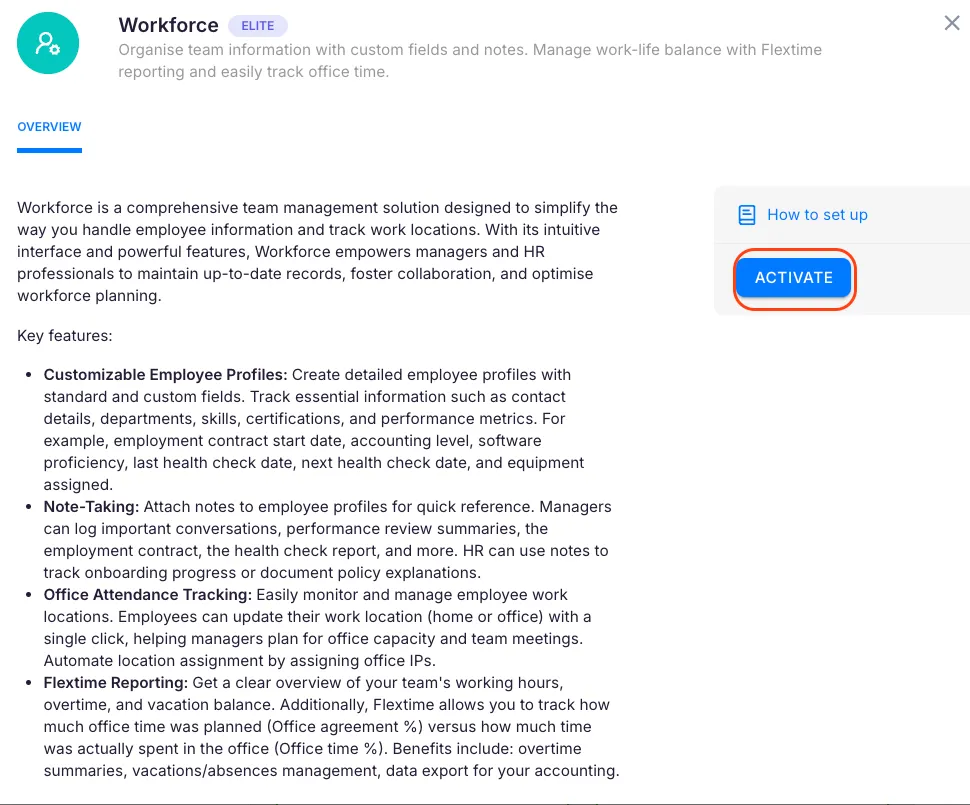
The Workforce Management app centralizes team information in one place: employee profiles with custom fields, vacation and absence tracking, flextime reports, notes, and agreements. Activate it to give your team a single hub for HR and planning.
Who can do this
Section titled “Who can do this”- Company Admins and Company Owners can activate, configure, and manage the Workforce Management app and view team-wide data.
- All team members can view and edit their own profile information once the app is active.
- Available on the Team plan and above.
Activating Workforce Management
Section titled “Activating Workforce Management”- Select Settings & Apps from the main navigation menu.
- Find and click the Workforce Management app card.
- Click Activate and confirm.
The app status changes to Active. Member profiles immediately gain the additional sections described below.
Configuring member fields
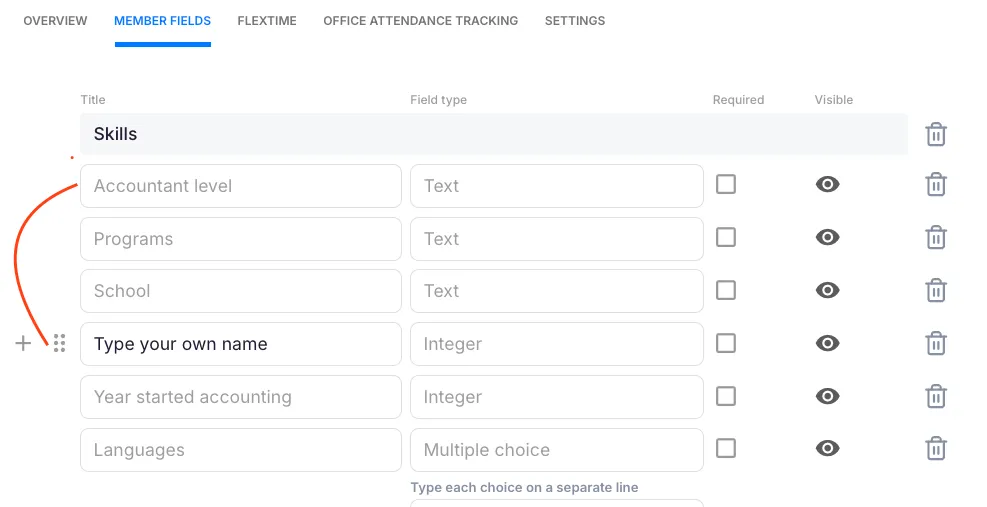
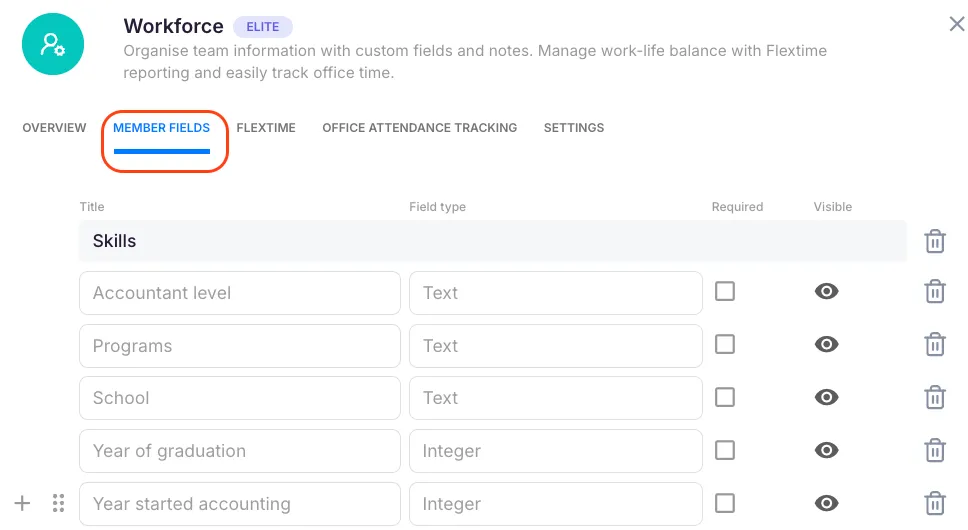
Section titled “Configuring member fields”Company Admins can define what additional information Uku collects about team members.
- Open the Workforce Management app settings.
- Select the User Fields tab.
- Click Add New Field to create a new field, or Add Subheading to group fields.
- To reorder fields, drag the six-dot handle to the desired position.
- Click Save.
Common field examples: contact details, departments, certifications, health check dates, employment contract start date, accounting level, assigned equipment.
What each member profile section does
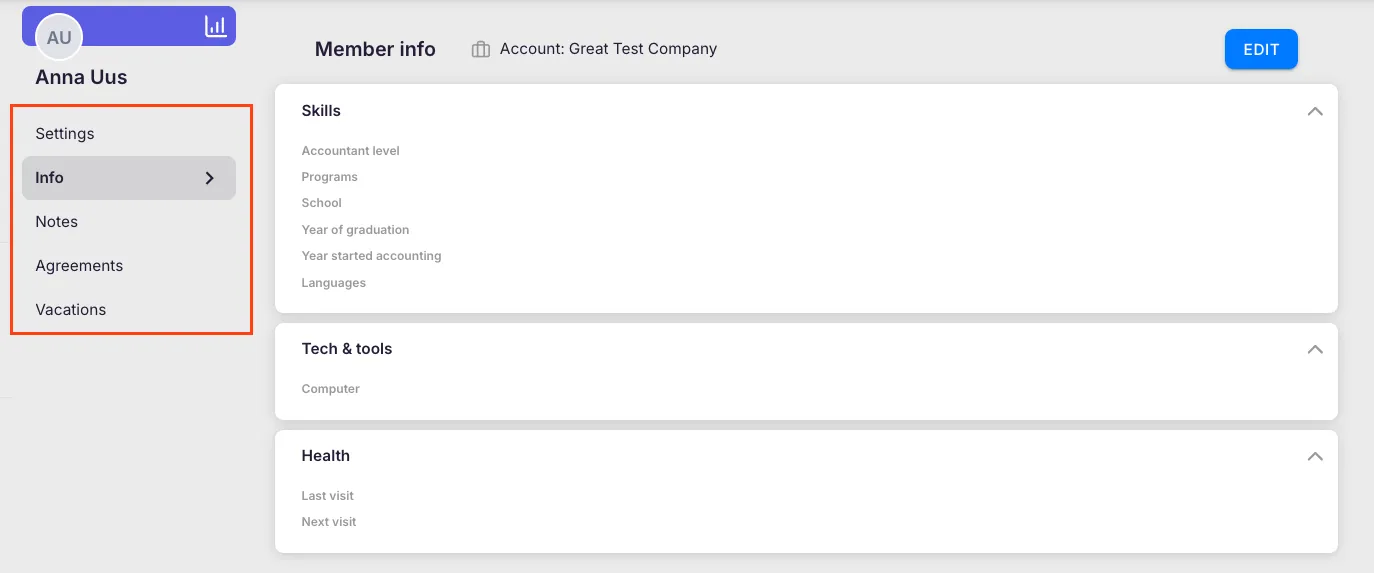
Section titled “What each member profile section does”Info section
Section titled “Info section”Displays the custom fields configured in User Fields. Members can fill in their own information; Company Admins see the data for all members. This section is only visible when Enable Additional Fields for Users is turned on in the app settings.
Notes section
Section titled “Notes section”Members and Company Admins can save private notes: performance review summaries, contract notes, onboarding checklists, and more. Notes are visible only to the member and Company Admins. This section is only visible when Enable Notes for Users is turned on in the app settings.
Agreements section
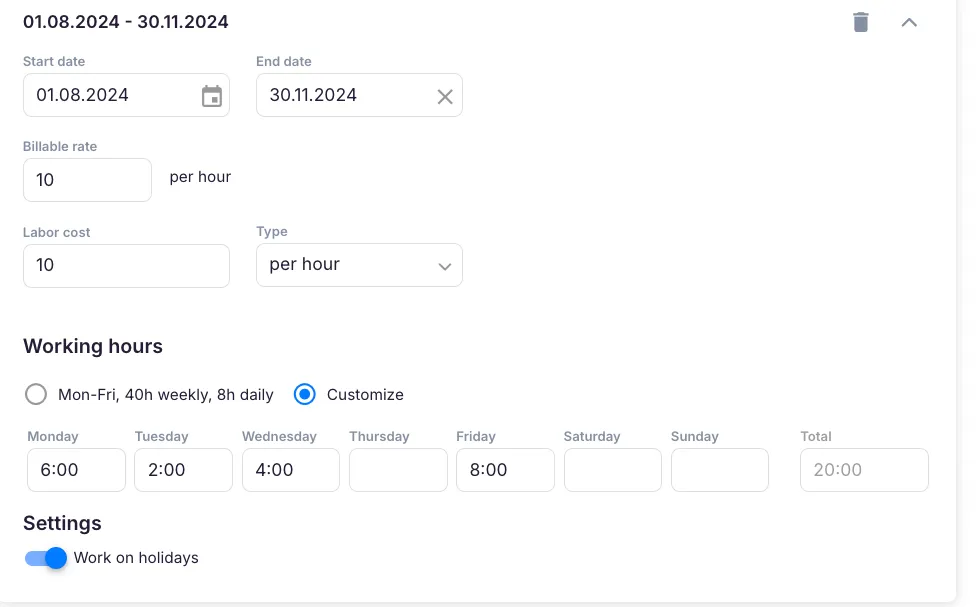
Section titled “Agreements section”Shows each member’s flextime agreement — expected working hours, schedule, office time percentage, and labor cost settings. Company Admins manage agreements here. See How to see and change the Flextime agreement? for details.
Vacations section
Section titled “Vacations section”Shows an overview of each member’s vacation requests, absence applications, and leave balance. Members can submit new requests. Company Admins can review, approve, or decline requests from here.
App settings
Section titled “App settings”In the Workforce Management app settings, two toggles control what members can see on their profile:
- Enable Notes for Users — shows the Notes section on member profiles and lets members add their own notes.
- Enable Additional Fields for Users — shows the Info section with custom member fields.
Flextime report
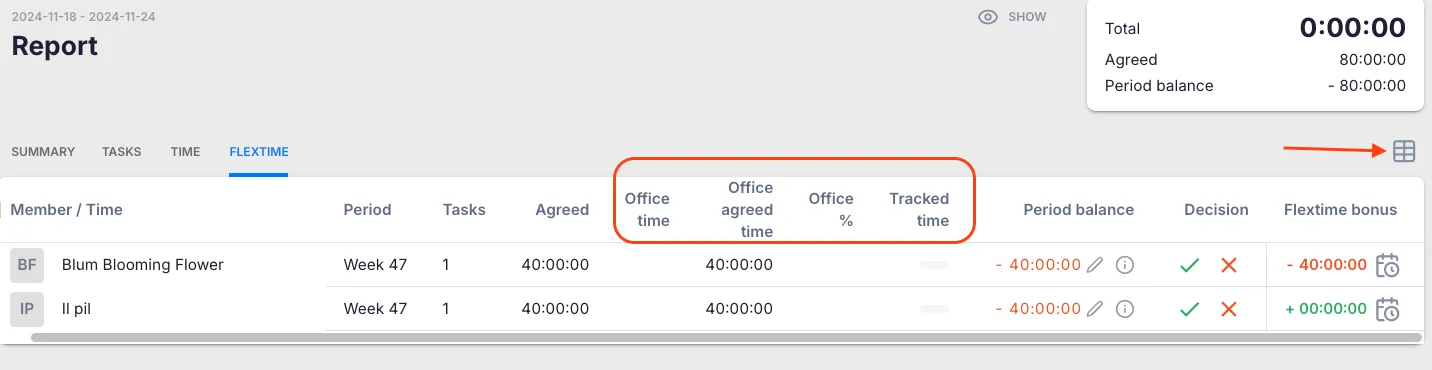
Section titled “Flextime report”The Report → Flextime tab provides an overview of the team’s actual vs. agreed working hours per period. Company Admins can approve or decline each period’s flextime, edit balances, and view the flextime history for any member. See How to use the Flextime report? for details.
Labor cost and billable rates
Section titled “Labor cost and billable rates”When your company uses the Budget feature, each member’s flextime agreement can include a Billable rate and a Labor cost. Hours worked are multiplied by the billable rate to show actual labor cost and resulting profit in budget views.
Troubleshooting
Section titled “Troubleshooting”Workforce Management is not visible in Settings & Apps
Section titled “Workforce Management is not visible in Settings & Apps”Confirm your company account is on the Team plan or above. The Workforce Management app is not available on the Free plan. Contact your Company Owner to check the current plan.
User fields are not appearing on member profiles
Section titled “User fields are not appearing on member profiles”Confirm two things: (1) Enable Additional Fields for Users is turned on in the Workforce app Settings tab, and (2) you clicked Save after adding the fields.
A member cannot see their own notes
Section titled “A member cannot see their own notes”Enable Notes for Users must be active in the Workforce app Settings tab. Verify the toggle is on and ask the member to refresh their browser.
Flextime report shows unexpected hours
Section titled “Flextime report shows unexpected hours”Check the member’s Agreements tab to confirm they have an active agreement covering the relevant period. Also verify the date range and member filters in the report are set correctly.