
Bulk actions on the dashboard
Bulk actions let you select multiple tasks on the Dashboard and apply changes to all of them at once — saving time when you need to delegate, postpone, log time, or mark done across many tasks in a single step.
Who can do this
Section titled “Who can do this”- Any team member who can view tasks on the Dashboard.
- Some actions (such as deleting) may require additional permissions depending on your company settings.
Activating bulk actions
Section titled “Activating bulk actions”There are three ways to start selecting tasks:
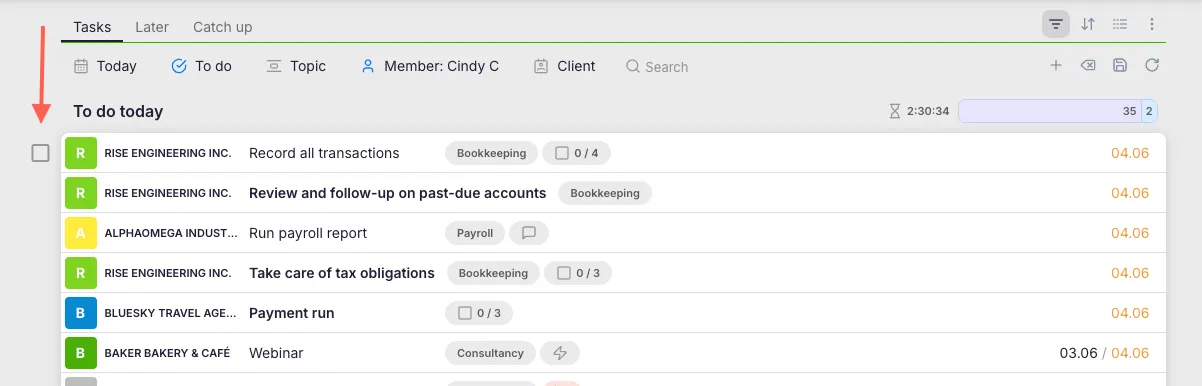
- Hover over a task row and click the checkbox that appears beside the client name.
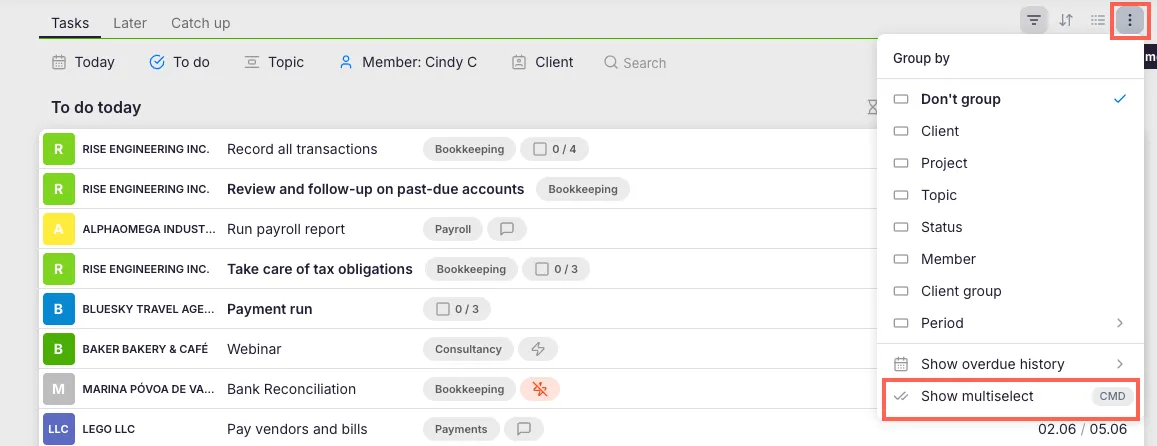
- Click the Grouping icon on the Dashboard toolbar and select Enable Selection to display checkboxes on all task rows.
- Hold Command (Mac) or Ctrl (Windows) while clicking tasks to select multiple items.
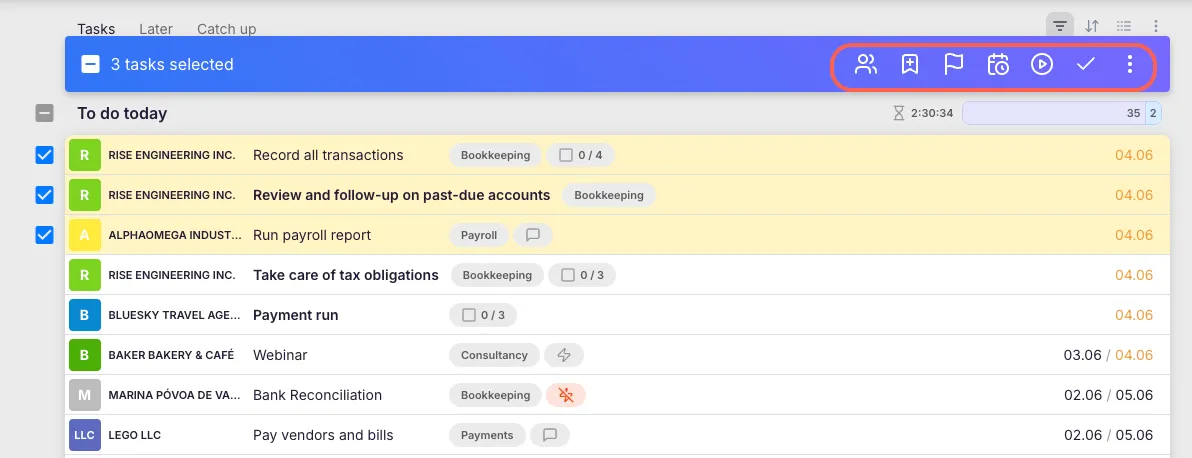
The bulk actions menu appears once you select one or more tasks.
Available bulk actions
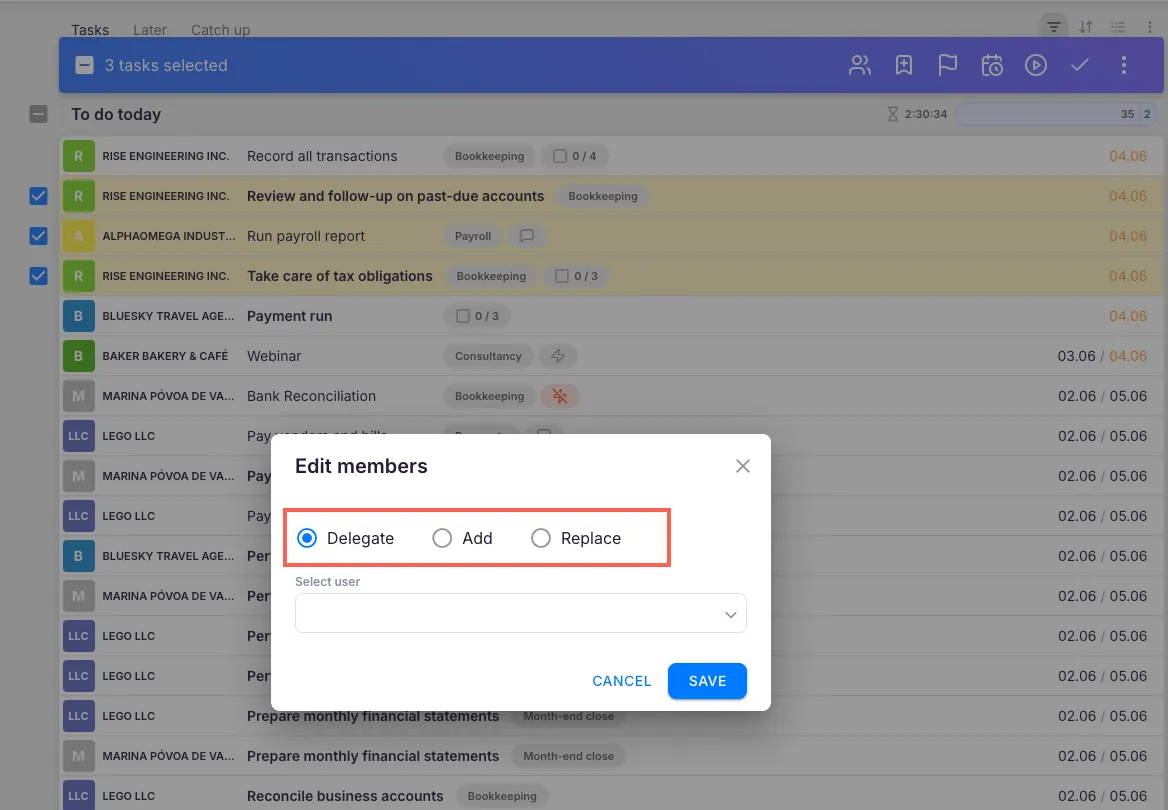
Section titled “Available bulk actions”- Delegate to users — Assign the selected tasks to new responsible members.
- Add user to task — Add an additional member as a follower or participant.
- Replace user — Remove one member and replace them with another.
- Mark as Extra Work / Important — Flag selected tasks accordingly.
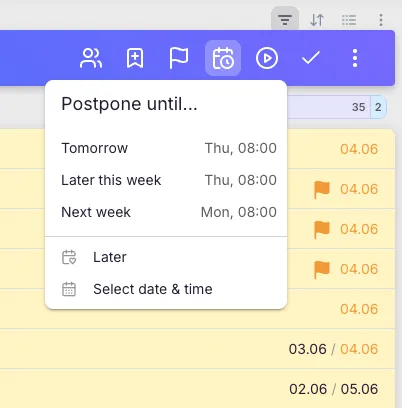
- Postpone — Reschedule tasks to a new date:
- Until tomorrow
- Later this or next week
- A specific date
- Later — Moves tasks to the Later view on the Dashboard
- Add Time — Log time for selected tasks:
- Enter the same time for all selected tasks
- Or divide the entered time equally across selected tasks
- Mark as Done — Complete several tasks at once.
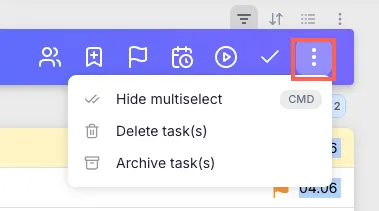
- Three-dot menu — Additional options:
- Delete — Remove tasks permanently.
- Archive — Move tasks to the archive so they no longer appear in the active task list.
Troubleshooting
Section titled “Troubleshooting”Checkboxes do not appear when hovering over task rows
Section titled “Checkboxes do not appear when hovering over task rows”Try clicking the Grouping icon on the Dashboard toolbar and selecting Enable Selection. Alternatively, hold Command (Mac) or Ctrl (Windows) while clicking tasks.
The bulk actions menu does not appear after selecting tasks
Section titled “The bulk actions menu does not appear after selecting tasks”Ensure you have actually checked one or more task checkboxes. If tasks appear highlighted but no menu shows, try refreshing the page and selecting tasks again.
Some bulk actions are grayed out or unavailable
Section titled “Some bulk actions are grayed out or unavailable”Certain actions may be restricted based on your role or the state of the selected tasks. For example, you cannot delegate tasks you do not have permission to edit. Contact your Company Owner or Company Admin if you need expanded permissions.
Bulk time entry is not distributing time correctly
Section titled “Bulk time entry is not distributing time correctly”When using Add Time, verify whether you selected “enter the same time for all tasks” or “divide time equally.” These two options produce very different results when multiple tasks are selected.