
How to postpone tasks?
The start or end date set when creating a task may not always match reality. Postponing tasks keeps your Dashboard clean and your schedule accurate. You can reschedule tasks using the Calendar view, the task detail view, or bulk actions on the Dashboard.
Who can do this
Section titled “Who can do this”- Any team member who has access to the tasks they want to reschedule.
- Bulk actions are available to all members with task access on the Dashboard.
Option 1: Calendar view
Section titled “Option 1: Calendar view”- Select Calendar from the main navigation.
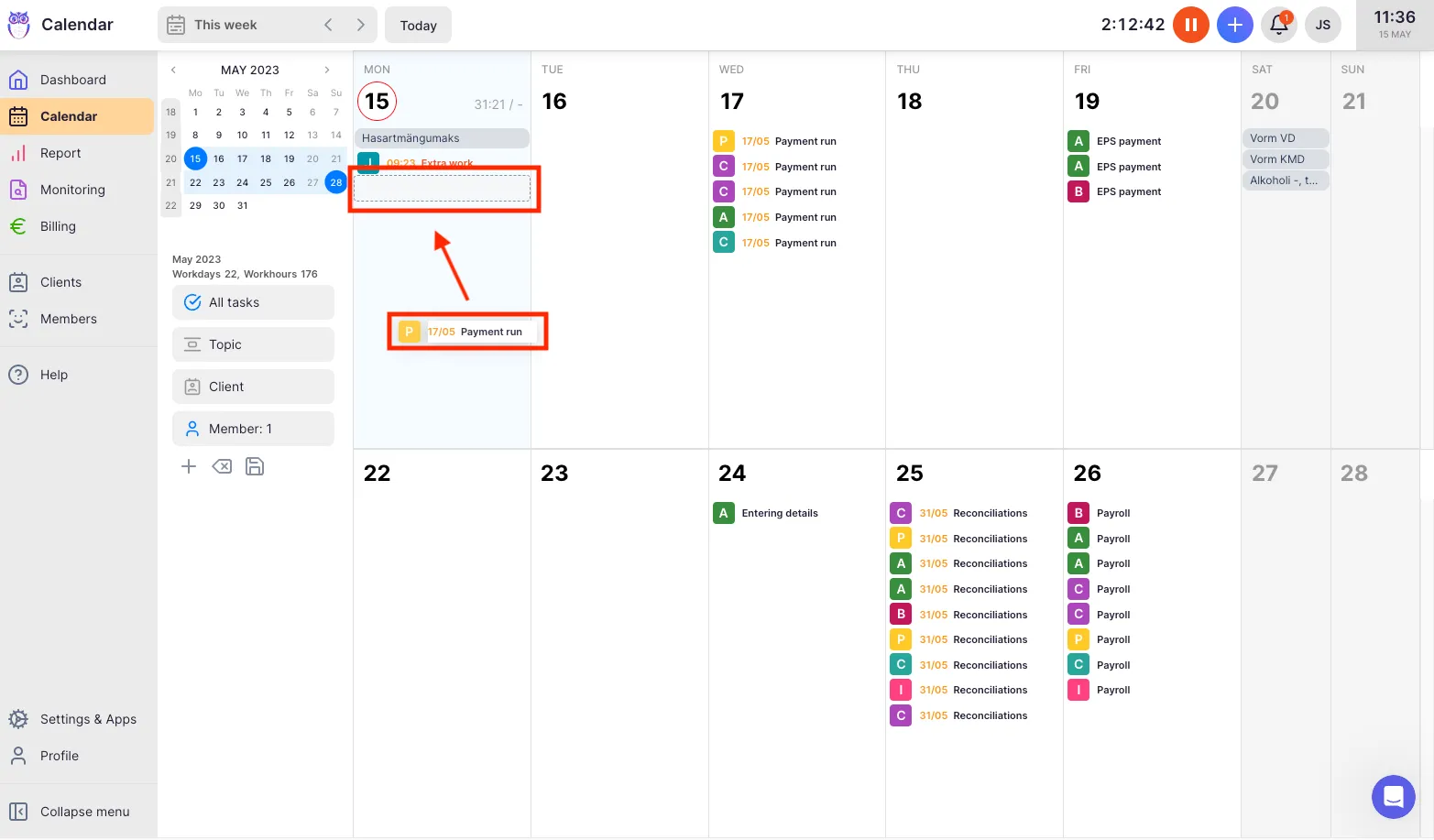
- Locate the task you want to reschedule. Tasks are displayed by their start date.
- Drag the task to the new day. A dotted-line placeholder shows where the task will land.
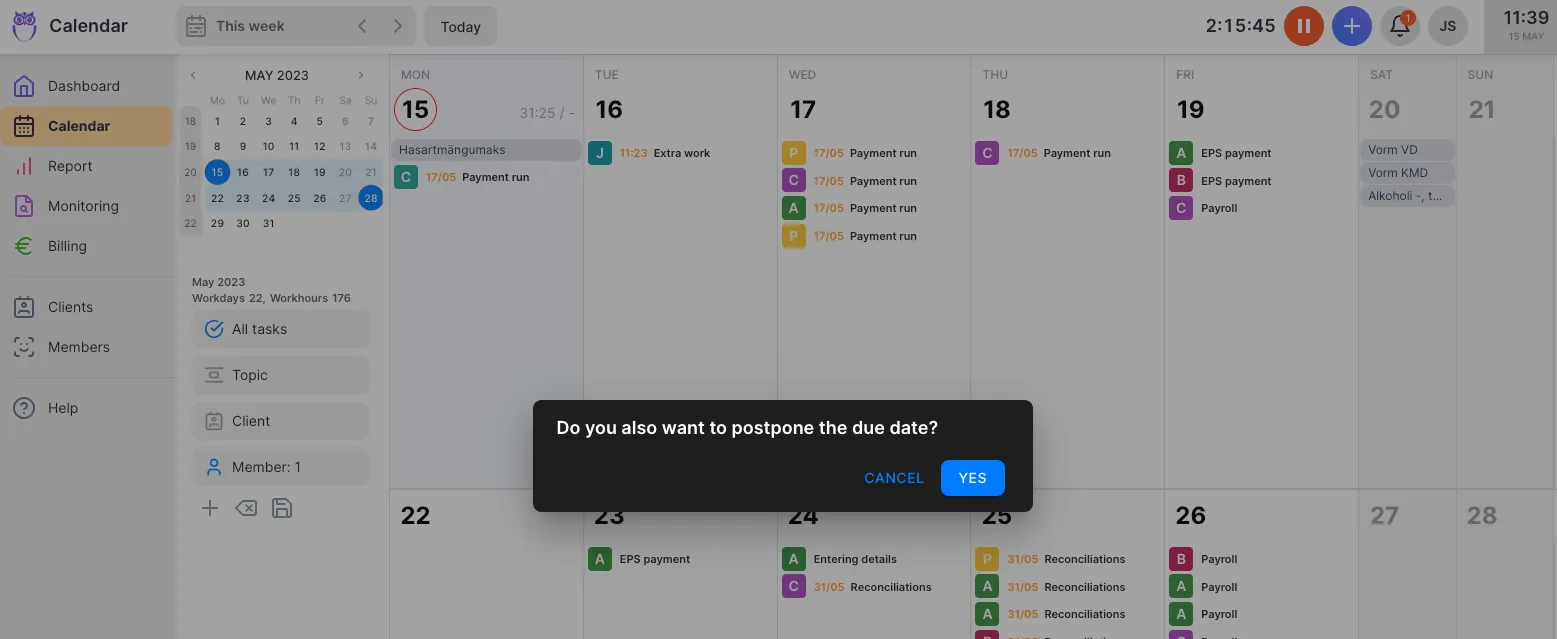
- If you drag the task past its due date, Uku will prompt you to confirm whether you want to move the due date as well.
Option 2: Task detail view
Section titled “Option 2: Task detail view”- Open the task you want to postpone.
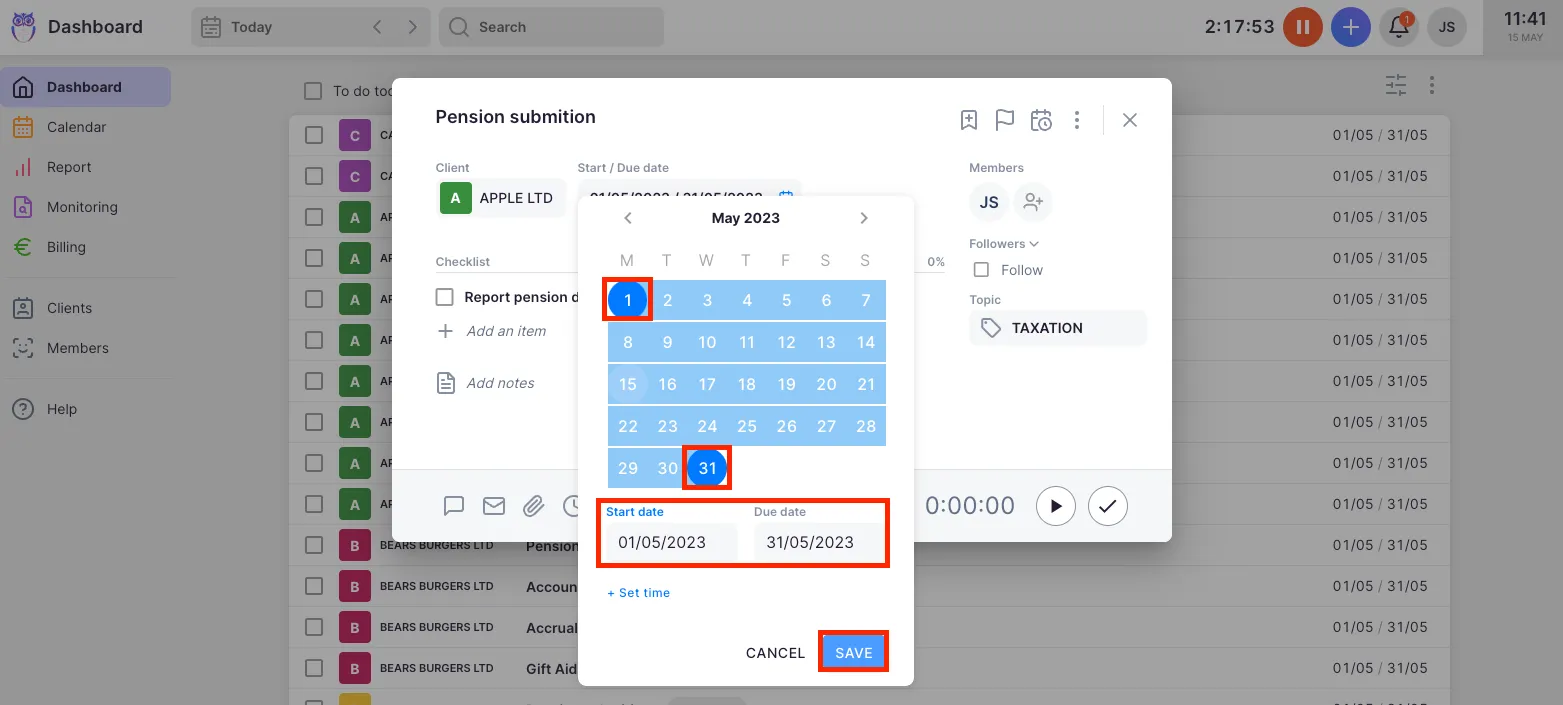
- Click the Start date field and select a new start date from the date picker.
- Click the End date field and select a new end date if needed.
- Save the change.
Option 3: Bulk action
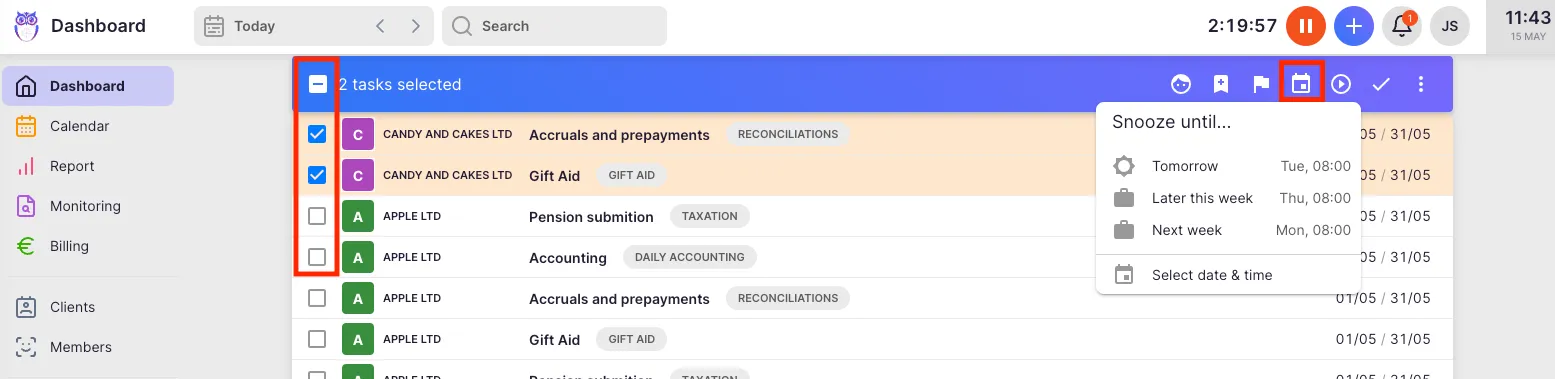
Section titled “Option 3: Bulk action”- On the Dashboard, hover over task rows and check the checkboxes (or hold Command/Ctrl while clicking).
- In the bulk actions menu that appears, click Postpone.
- Choose the new date:
- Until tomorrow
- Later this or next week
- A specific date
- Later — Moves tasks to the Later view
Troubleshooting
Section titled “Troubleshooting”Task does not move when dragged in Calendar view
Section titled “Task does not move when dragged in Calendar view”Ensure you are clicking and holding the task card before dragging. If the calendar is in a read-only mode or you lack permissions for that task, dragging will not work.
Due date did not update after dragging past the original deadline
Section titled “Due date did not update after dragging past the original deadline”Uku shows a confirmation prompt when you drag a task beyond its due date. If you dismissed the prompt, the due date remains unchanged. Repeat the drag and confirm the date change.
Bulk action icons are not visible
Section titled “Bulk action icons are not visible”Make sure you are on the Dashboard view. Bulk actions are not available in all views. Refresh the page if the icons do not appear.
Changes were not saved
Section titled “Changes were not saved”After editing dates in the task detail view, make sure you click Save. Navigating away without saving will discard your changes.