How to create a product for disbursement fees
Who can do this
Section titled “Who can do this”- Company Owners and Company Admins can create and manage products. Company Admins may be restricted if the Allow only Company Owners to add and update products setting is enabled.
Overview
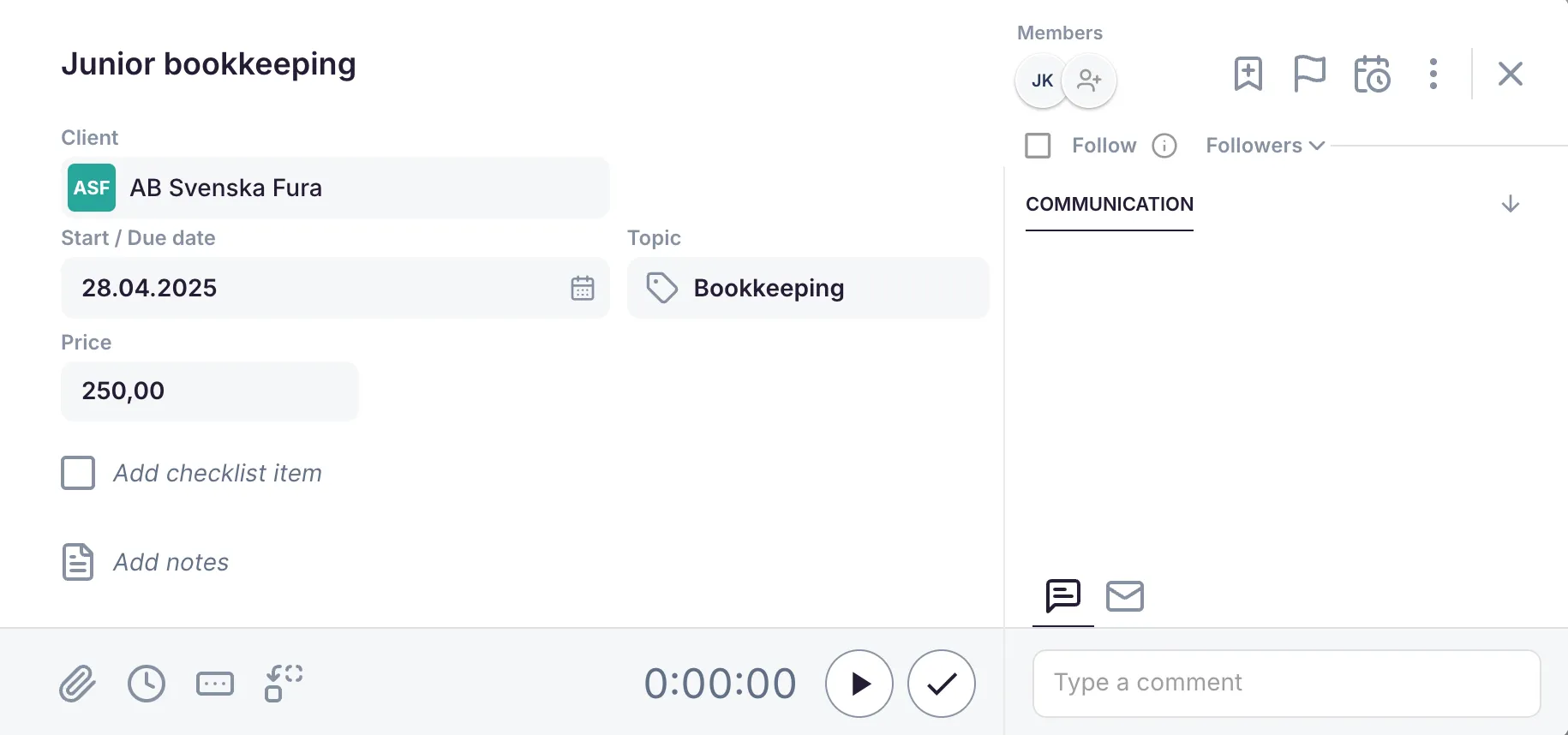
Section titled “Overview”When you pay fees on behalf of a client (for example, a government filing fee or stamp duty), the amount varies each time and cannot be set as a fixed price on the product. Instead, the actual cost is entered in a task field and flows directly into the invoice line.
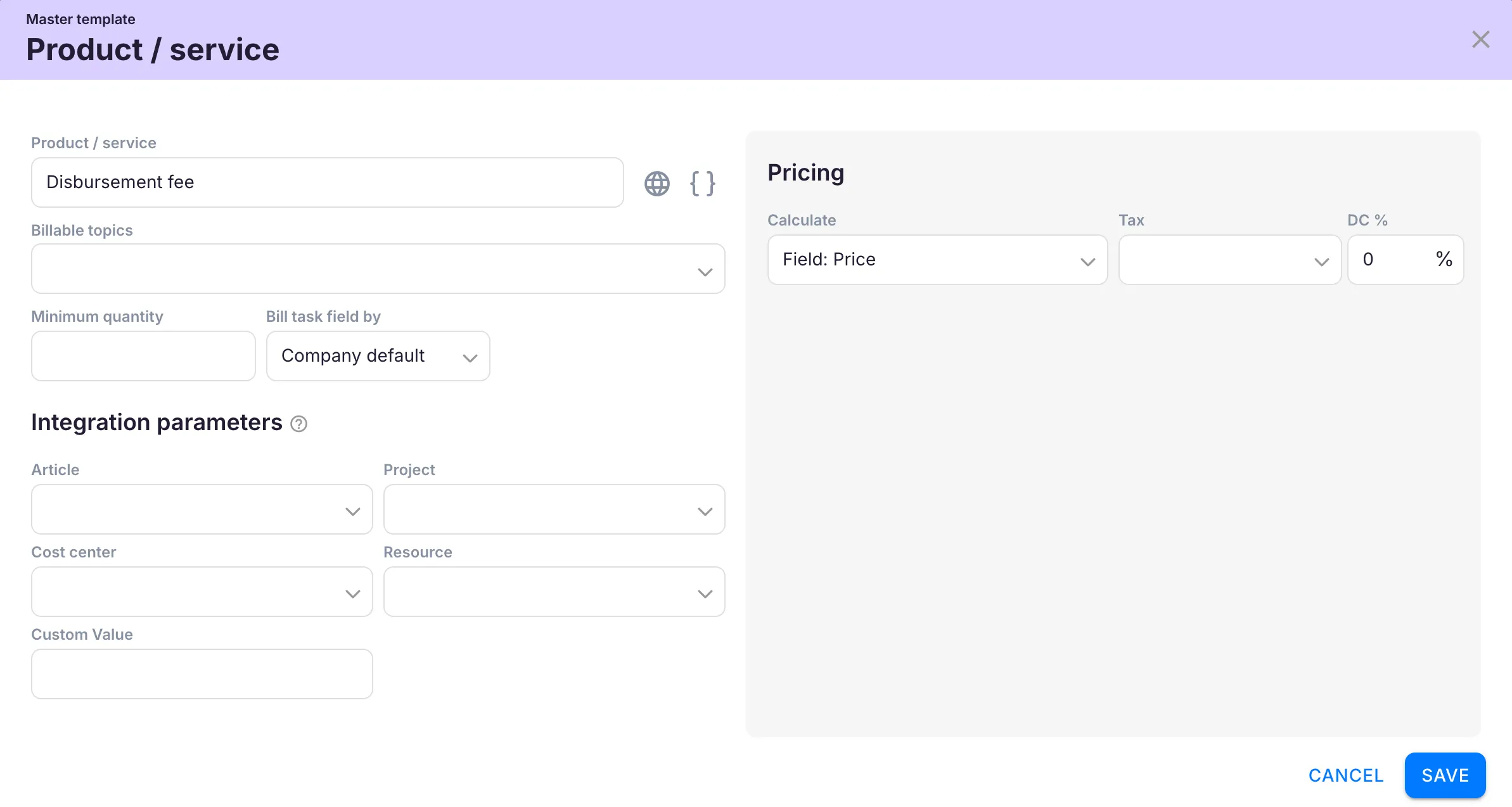
Steps to create a disbursement fee product
Section titled “Steps to create a disbursement fee product”- Create a task field with the type Price. This is where team members will enter the actual fee amount.
- Open Settings & Apps > Billing > Setup > Articles and click + Add.
- Enter a name for the product (for example, “Government filing fee”).
- Configure the product so its price is sourced from the Price-type task field you created, rather than a fixed amount.
- Click Save.
When working on a client task, the team member enters the actual fee amount in the Price task field. That amount is automatically included on the next invoice.
Because the fee varies each time, always double-check the amount entered in the task field before generating the invoice.
Troubleshooting
Section titled “Troubleshooting”The fee amount is not appearing on the invoice
Section titled “The fee amount is not appearing on the invoice”Verify that the task field type is set to Price and that the product is configured to pull its value from that specific task field.
The product shows a fixed price instead of the task field value
Section titled “The product shows a fixed price instead of the task field value”Edit the product and ensure the pricing source is set to the task field, not a static amount.
The task field is not available when creating the product
Section titled “The task field is not available when creating the product”Make sure the Price-type task field has been created and saved before configuring the product. Refresh the page if it does not appear.
Invoice shows 0 for the disbursement fee
Section titled “Invoice shows 0 for the disbursement fee”Confirm that the fee amount was entered in the Price task field on the specific task before generating the invoice.