How to add a task plan (Workflow)?
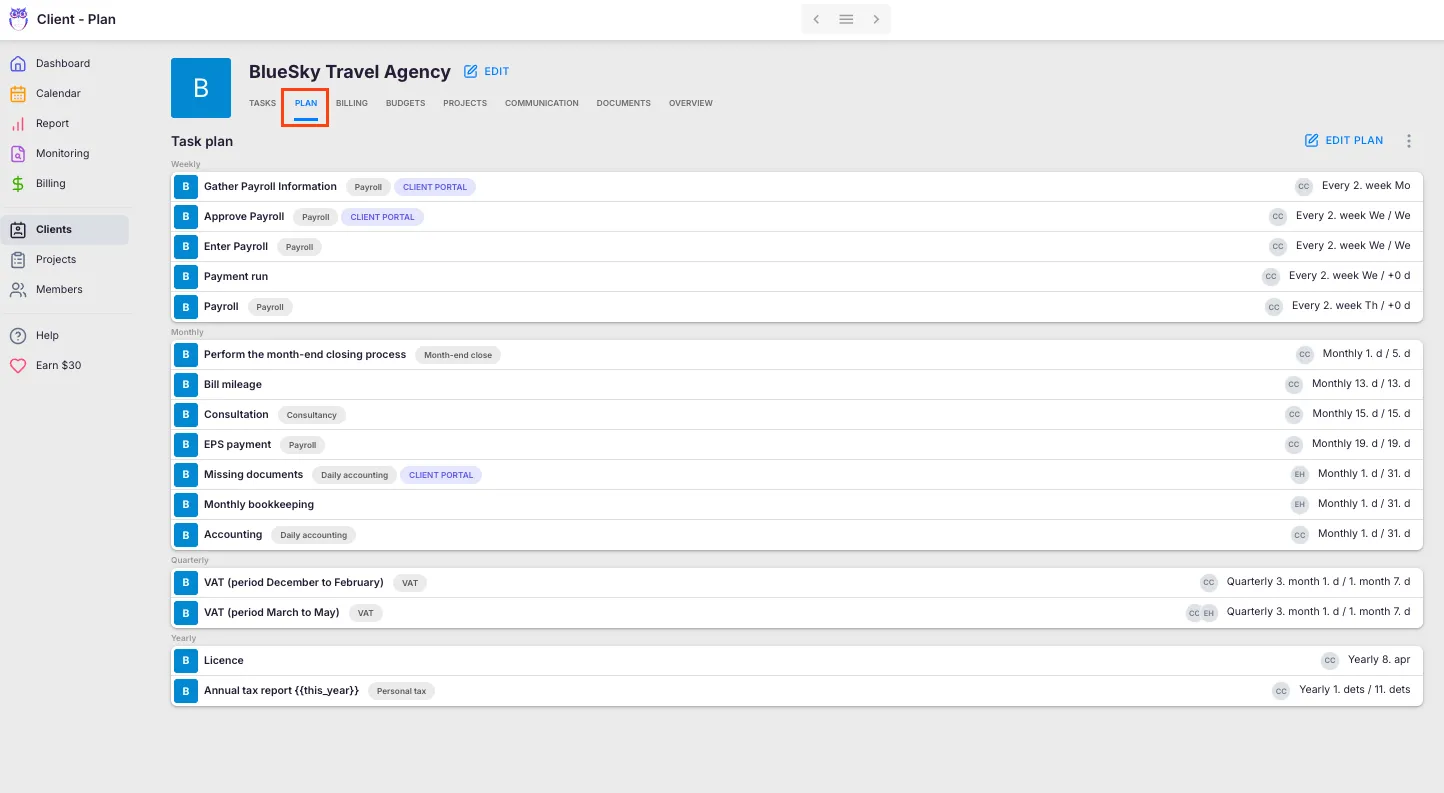
A client’s Workflow is the complete set of recurring and one-time tasks needed to serve that client — monthly bookkeeping, quarterly VAT returns, annual reports, and everything in between. Uku gives you three ways to build a client Workflow quickly: from a template, by copying from another client, or by adding tasks manually.
Who can do this
Section titled “Who can do this”- Any active team member with access to the client.
- The client must already exist in Uku with a contact person and at least one member assigned.
Three ways to create a client Workflow
Section titled “Three ways to create a client Workflow”- Method 1: Apply a template (built-in or your company’s own)
- Method 2: Copy from an existing client’s Workflow
- Method 3: Add tasks manually one by one
Method 1: Add a Workflow from a template
Section titled “Method 1: Add a Workflow from a template”- Select Clients from the main navigation.
- Open the client you want to set up.
- Select the Workflow tab from the client navigation.
- Click Choose template.
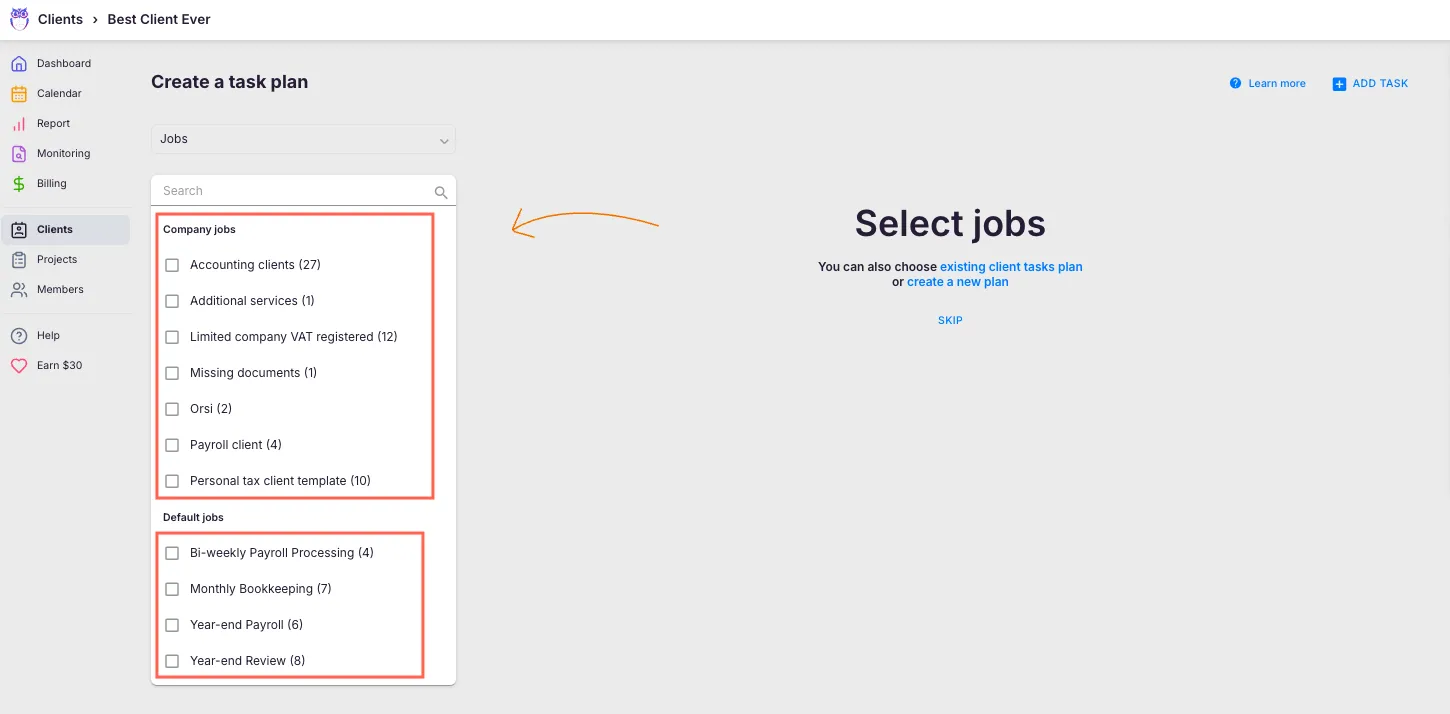
- Select a template from the list:
- Built-in templates — industry-standard workflows built by accountants
- Your company templates — custom templates created for your practice
- You can combine tasks from multiple templates
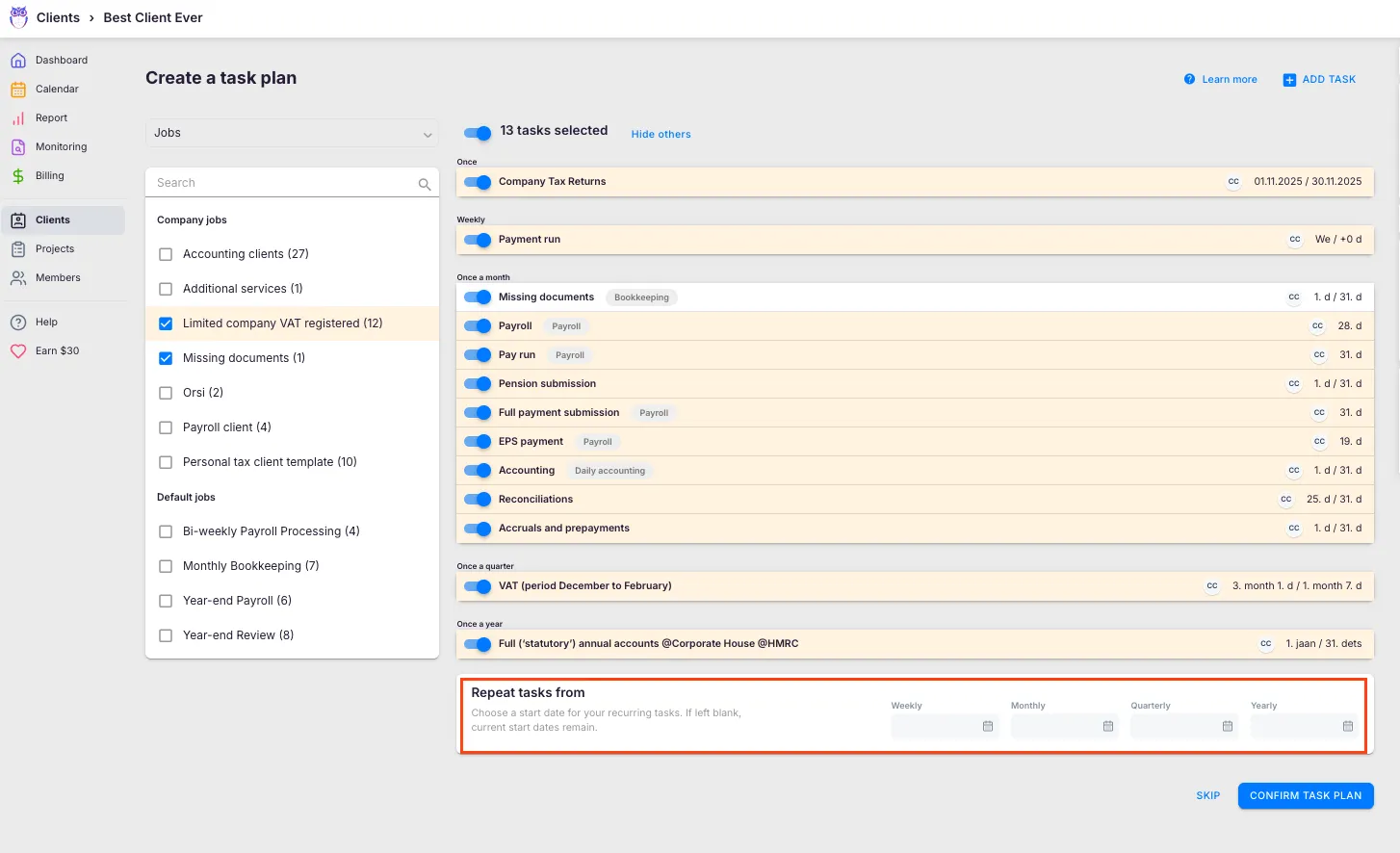
- Use the Repeat tasks from selector to set when recurring tasks should begin:
- Start of current month (default)
- Start of next month
- Start of current quarter
- Start of next quarter
- Custom date (calendar picker)
- Review the task list. Uncheck any tasks you do not need, or click + Add task to add more.
- Click Confirm task plan to finalize. After confirmation, all selected tasks appear on the client’s profile and on assigned members’ dashboards according to their start dates and recurrence patterns.
Method 2: Copy from an existing client
Section titled “Method 2: Copy from an existing client”Use this method when you have a similar client whose Workflow you want to replicate, or when setting up multiple clients with identical services.
- Open the client and select the Workflow tab.
- Click Choose template.
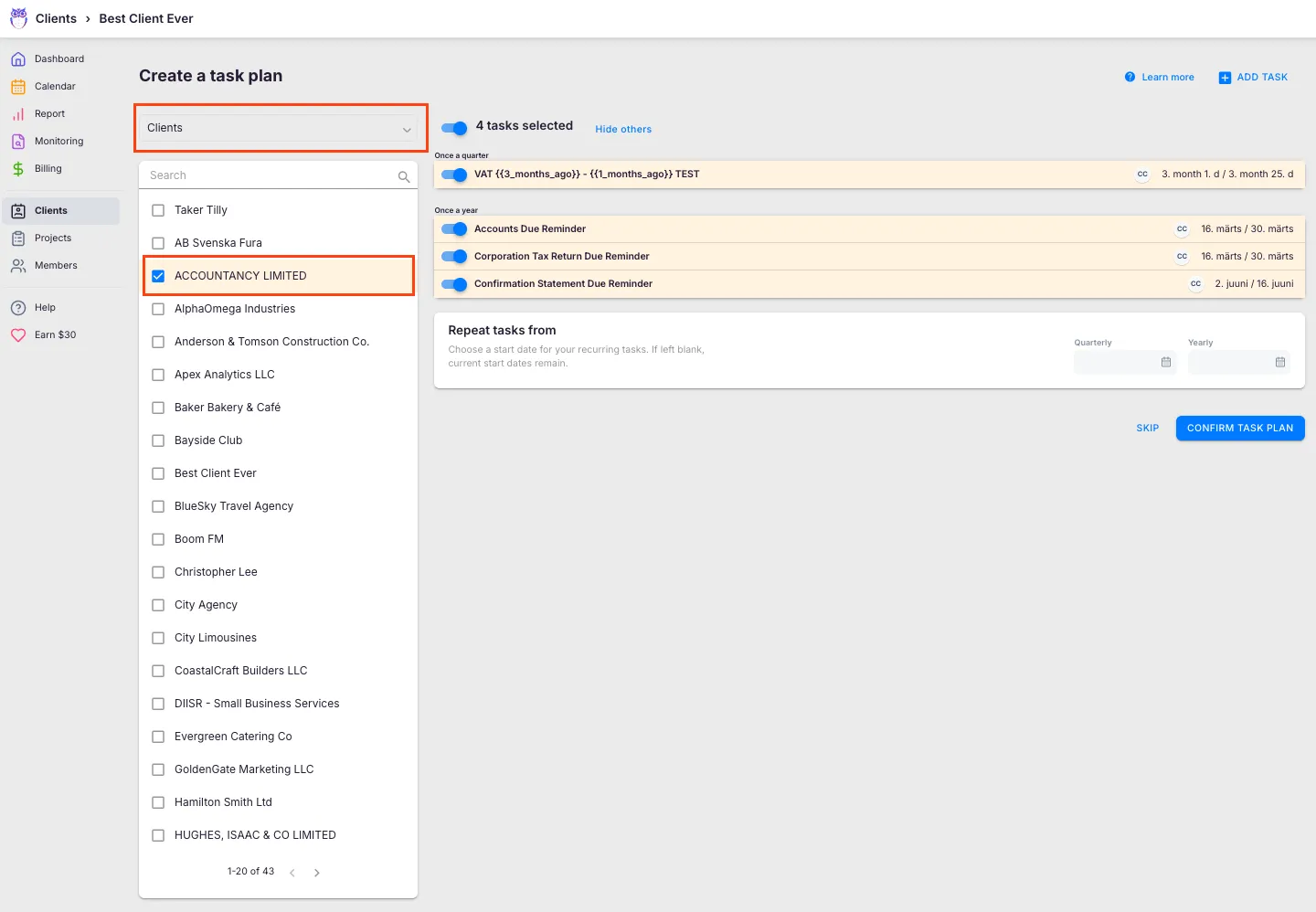
- Choose Clients from the template source list.
- Select the client whose Workflow you want to copy.
- Set the Repeat tasks from date.
- Add or remove tasks as needed, then click Confirm task plan.
Method 3: Add tasks manually
Section titled “Method 3: Add tasks manually”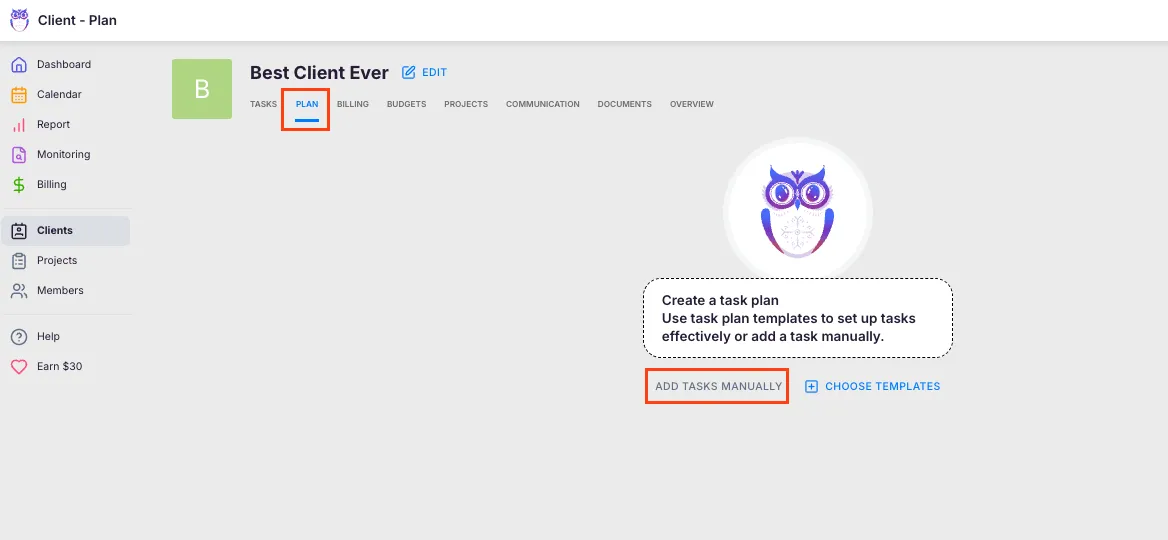
Use this method when the client has unique requirements that do not fit any template, or when you need just a few specific tasks.
- Open the client and select the Workflow tab.
- Click Add task manually.
- Fill in task details: title, description, start and due dates, recurrence pattern, assigned members, topic, checklist items, and custom fields.
- Click Add to save the task.
- Repeat for each additional task.
- Click Confirm task plan when finished.
Adding tasks to an existing Workflow
Section titled “Adding tasks to an existing Workflow”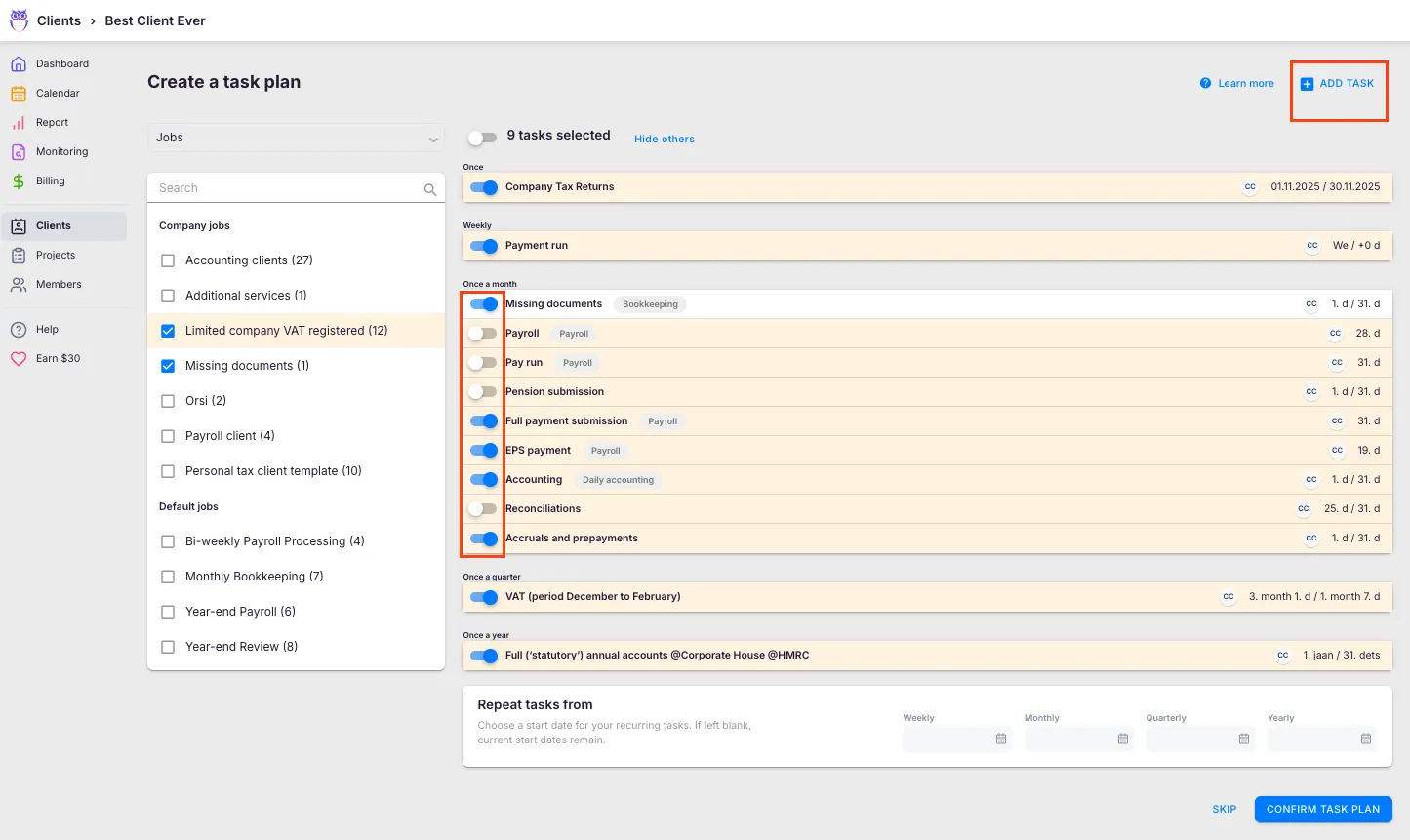
Adding tasks in bulk from templates
Section titled “Adding tasks in bulk from templates”- Go to the client’s Workflow tab and click Edit plan.
- Select + Add tasks (plural).
- Choose tasks from your templates.
- Use the Repeat tasks from dropdown to set when these new tasks begin.
- Click Confirm.
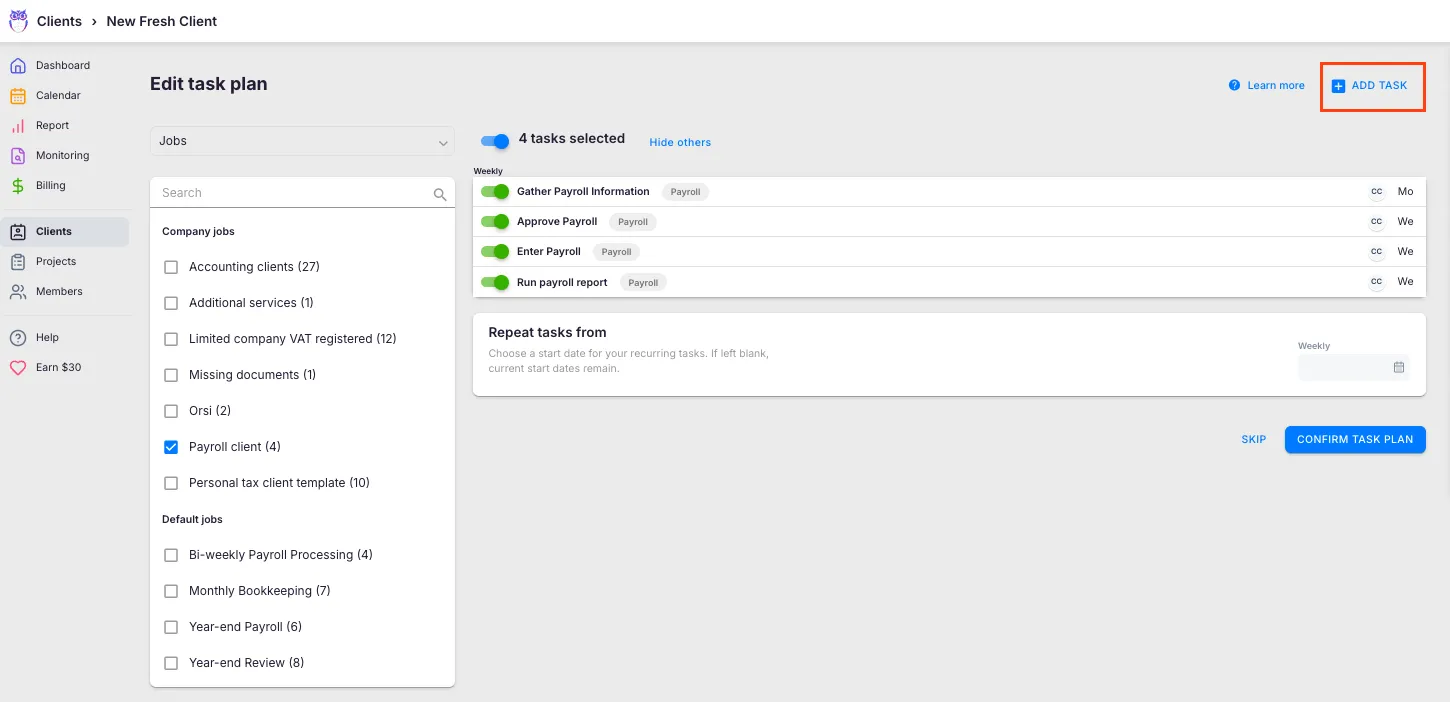
Adding individual tasks
Section titled “Adding individual tasks”- Go to the client’s Workflow tab and click Edit plan.
- Select + Add task (singular).
- Fill in task details and set the recurrence.
- Click Add, then Confirm task plan.
After confirming the Workflow
Section titled “After confirming the Workflow”- Recurring tasks generate on dashboards according to their start dates. Future occurrences are created automatically.
- One-time tasks appear immediately on assigned members’ dashboards.
- All Workflow tasks are visible under the client’s Workflow tab. You can edit, add, or remove tasks at any time.
- Editing the Workflow affects future task generation only — tasks already on the dashboard are not changed.
Troubleshooting
Section titled “Troubleshooting”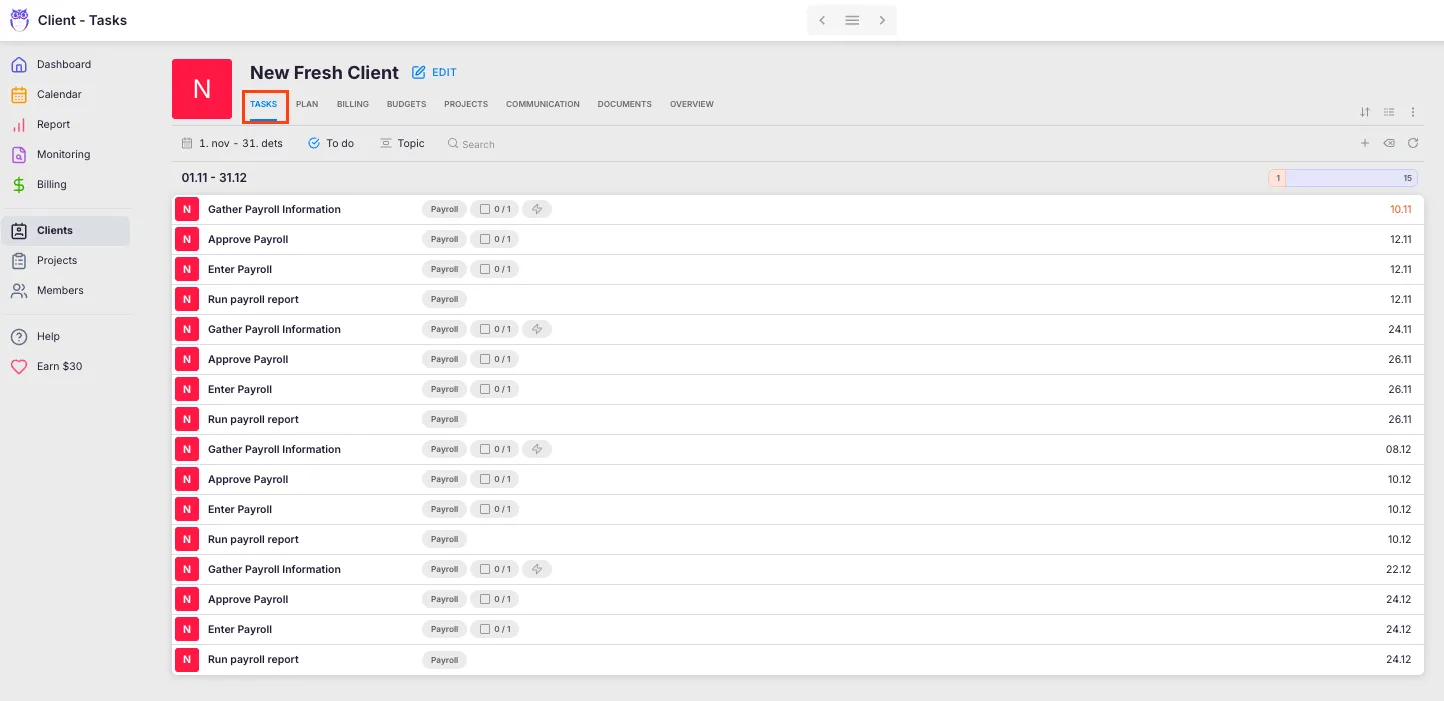
Template list is empty when creating a Workflow
Section titled “Template list is empty when creating a Workflow”Verify that templates have been added under Settings & Apps → Tasks → Templates. If templates exist but do not appear, check that they are published and visible to your role.
Tasks from the Workflow do not appear on the dashboard
Section titled “Tasks from the Workflow do not appear on the dashboard”Confirm that the Workflow was finalized by clicking Confirm task plan. Also check that the task start dates have been reached and that the assigned member is active.
Recurring tasks start from the wrong date
Section titled “Recurring tasks start from the wrong date”Review the Repeat tasks from setting used during Workflow creation. If incorrect, click Edit plan, adjust the start date for affected tasks, and re-confirm.
Copied Workflow includes tasks the client does not need
Section titled “Copied Workflow includes tasks the client does not need”After copying from another client, uncheck any tasks that do not apply before confirming. You can always click Edit plan later to add or remove tasks.
One-time tasks are not affected by the bulk start date setting
Section titled “One-time tasks are not affected by the bulk start date setting”This is expected. The Repeat tasks from date only affects recurring tasks (weekly, monthly, quarterly, annual). One-time tasks use their individually set start dates.
Screenshots
Section titled “Screenshots”