
Billing permissions and settings
Who can do this
Section titled “Who can do this”- Only Company Owners and Company Admins can access and change billing settings.
- Settings apply company-wide and affect what all Company Members can see and do in the Billing module.
How to open Billing settings
Section titled “How to open Billing settings”- Click Settings & Apps from the main navigation.
- Find and open the Billing app.
- Go to the Settings tab.
- Make your changes and click Save.
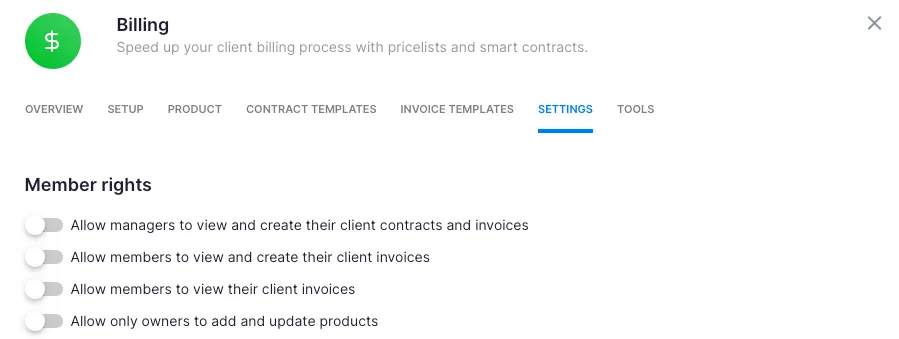
Understanding the two-axis permission system
Section titled “Understanding the two-axis permission system”Before reading the toggles, note that Uku has two independent permission axes that interact in billing:
- Company role — Company Owner, Company Admin, or Company Member. Set via the Administrator checkbox on the member profile.
- Client permission — Client Admin or Client Member on a specific client. Set under the client profile > Members tab.
Company Owners and Company Admins bypass all billing permission toggles — they always have full billing access. The toggles only affect Company Members. Within Company Members, some toggles apply to all Company Members, while toggle 1 applies only to those who also hold Client Admin permission on the specific client in question.
Member rights — the five permission toggles
Section titled “Member rights — the five permission toggles”1. Allow contract and invoice management for users with Client Admin permission
Section titled “1. Allow contract and invoice management for users with Client Admin permission”When enabled, a Company Member who holds Client Admin permission on a client can:
- View and create contracts for that client
- View and create invoices for that client
- Export invoices for that client
- Edit invoice rows on that client
This capability is scoped to the specific clients where the user holds Client Admin permission — it does not grant company-wide billing access. Without this toggle, only Company Owners and Company Admins can work with contracts.
Note on UI wording: The toggle label in the interface uses “managers” as shorthand for “Company Members with Client Admin permission on the client.” There is no Manager company role in Uku — the three company roles are Company Owner, Company Admin, and Company Member.
2. Allow all Company Members to view and create invoices
Section titled “2. Allow all Company Members to view and create invoices”When enabled, all Company Members (regardless of client permissions) can:
- View invoices on clients they are assigned to
- Create new invoices on those clients
- Export invoices This does not grant access to contracts.
3. Allow all Company Members to view client invoices
Section titled “3. Allow all Company Members to view client invoices”The most restrictive option. When enabled, Company Members can view invoices on clients they are assigned to but cannot create, edit, or export them. Read-only access only.
4. Allow only Company Owners to add and update products
Section titled “4. Allow only Company Owners to add and update products”When this toggle is on, only Company Owners can create or edit products in Billing. Company Admins lose access to product management when this setting is enabled.
5. Allow members to send invoices to clients
Section titled “5. Allow members to send invoices to clients”When enabled, Company Members can email finalised invoices directly to clients from Uku. Works in combination with the other permission toggles — a Company Member needs at least view-and-create access (toggle 2) to have an invoice to send.
How the toggles stack
Section titled “How the toggles stack”| Action | Company Owner | Company Admin | Member + Client Admin (toggle 1 on) | Member (toggle 2 on) | Member (toggle 3 on) |
|---|---|---|---|---|---|
| View contracts | Yes | Yes | Yes | No | No |
| Create/edit contracts | Yes | Yes | Yes | No | No |
| View invoices | Yes | Yes | Yes | Yes | Yes |
| Create invoices | Yes | Yes | Yes | Yes | No |
| Edit invoice rows | Yes | Yes | Yes | No | No |
| Export invoices | Yes | Yes | Yes | Yes | No |
| Send invoices to clients | Yes | Yes | Per toggle 5 | Per toggle 5 | No |
| Manage products | Yes | Per toggle 4 | No | No | No |
| Change billing settings | Yes | Yes | No | No | No |
If all toggles are off, Company Members see no billing data at all.
Email delivery settings
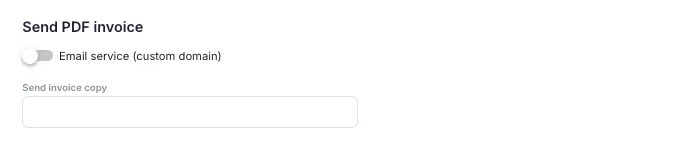
Section titled “Email delivery settings”Email service (custom domain)
Section titled “Email service (custom domain)”Toggle this on to send invoices from your own company email address instead of the default sending address. After enabling, select an email account from the dropdown or click + to connect a new address. The email account must first be connected in Settings & Apps > Emails.
Send invoice copy to
Section titled “Send invoice copy to”Enter one or more email addresses that should receive a copy of every invoice sent to a client. Useful for keeping your bookkeeper or finance team informed without giving them Uku access.
Time rounding
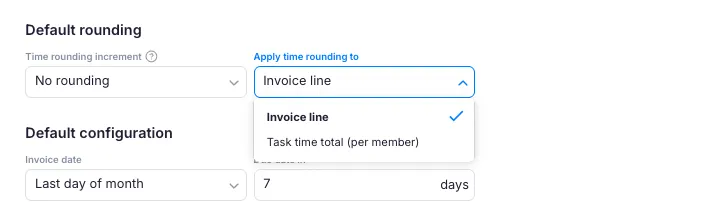
Section titled “Time rounding”Time rounding increment
Section titled “Time rounding increment”Choose how precisely to round tracked time when generating invoice lines:
- No rounding — bill exact tracked time
- 5 minutes (0.1 hours)
- 15 minutes (0.25 hours) — common for professional services
- 30 minutes (0.5 hours)
- 1 hour
Apply time rounding to
Section titled “Apply time rounding to”- Invoice line — all time for a product is totalled first, then rounded once. Three 15-minute entries (45 min total) round to 1 hour.
- Task — time is rounded separately per task. Three separate 15-minute tasks each round to 30 minutes (1.5 hours total).
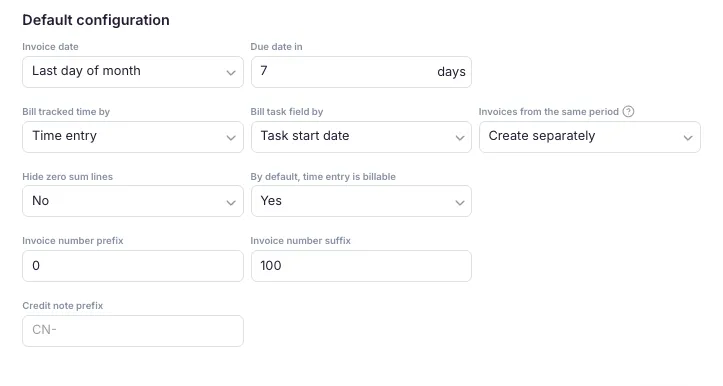
Default invoice configuration
Section titled “Default invoice configuration”Invoice date
Section titled “Invoice date”- Last day of month — invoice dated on the final day of the billing period
- First day of month — invoice dated on the first day of the following period
- Custom date — choose any specific day
Due date in
Section titled “Due date in”Number of days after the invoice date when payment is due. Enter 14 for net-14 terms, 30 for net-30, and so on.
Bill tracked time by
Section titled “Bill tracked time by”Determines which month a time entry appears on:
- Time entry (default) — time is billed in the month it was tracked
- Task start date — time is billed based on when the task started
- Task due date — time is billed when the task is due
- Task finish date — time is billed when the task is marked done
Invoices from the same period
Section titled “Invoices from the same period”- Create separately — each contract generates its own invoice
- Combine into one invoice — all contracts for a client in the same period merge into a single invoice
Hide zero sum lines
Section titled “Hide zero sum lines”When set to Yes, invoice lines with a zero amount are hidden on the generated PDF and invoice view. Default is No.
By default, time entry is billable
Section titled “By default, time entry is billable”- Yes — all new time entries are automatically marked billable; team members must manually mark non-billable time.
- No — time entries default to non-billable; team members must intentionally mark time as billable.
PDF line grouping
Section titled “PDF line grouping”Grouping options
Section titled “Grouping options”- Show all (default) — every invoice row appears individually, no merging applied
- Group by description — rows with the same description (case-insensitive) and the same tax rate are merged into one line
- Group by article — rows with the same article/product code and the same tax rate are merged into one line Rows with different tax rates are never merged, even if description or article matches. Rows with an empty description or no article code pass through ungrouped.
Grouped format
Section titled “Grouped format”When grouping is enabled, a second option appears:
- Show quantity (default) — the merged row shows the summed quantity, a weighted average unit price, and the correct net total
- Show total — only the description and net total are shown; quantity and unit price are left blank This setting can be overridden per client in the client’s contract Settings tab, where Company default falls back to this company-wide setting.
Invoice and credit note numbering
Section titled “Invoice and credit note numbering”Invoice number prefix and suffix
Section titled “Invoice number prefix and suffix”Text added before or after the sequential invoice number. For example, with prefix INV- and suffix -2025, invoice 100 appears as INV-100-2025. Leave either field blank if not needed.
Credit note prefix
Section titled “Credit note prefix”Prefix for credit notes (default: CN-). Helps distinguish credit notes from regular invoices in your accounting software.
Setting the next invoice number
Section titled “Setting the next invoice number”If you are migrating from another system or need to align with your accounting software numbering:
- Open Billing from the main navigation.
- Go to the All Invoices tab.
- Click the three-dot menu in the Billing view.
- Choose Set the Next Invoice Number.
- Enter the number for your next invoice. Set this before creating new invoices to avoid numbering conflicts.
Troubleshooting
Section titled “Troubleshooting”I cannot see the Settings tab in Billing
Section titled “I cannot see the Settings tab in Billing”Only Company Owners and Company Admins can access billing settings. If you need a setting changed, contact your Company Owner or Company Admin.
Invoice numbers are out of sequence
Section titled “Invoice numbers are out of sequence”If you changed the prefix or suffix after creating invoices, only new invoices use the new format. Use Set the Next Invoice Number to realign the sequence.
Invoices are not being sent from my custom domain
Section titled “Invoices are not being sent from my custom domain”Verify that your email account is connected under Settings & Apps > Emails, and that the Email service (custom domain) toggle is enabled in Billing settings with the correct account selected.
Grouped rows show an unexpected unit price
Section titled “Grouped rows show an unexpected unit price”When using Show quantity, the displayed price is a weighted average of all merged rows. Minor rounding may occur (for example, 3 × 3.33 = 9.99 instead of 10.00). Use Show total to hide the unit price and show only the net sum.
Time entries appear on the wrong month’s invoice
Section titled “Time entries appear on the wrong month’s invoice”Check the Bill Tracked Time By setting. If it is set to Task start date, Task due date, or Task finish date, time entries may land on a different month than when they were tracked. Switch to Time entry for straightforward same-month billing.