How to add a recurring task?
Recurring tasks repeat automatically on a schedule — weekly, monthly, quarterly, or yearly. Once you create a recurring task for a client, Uku adds it to the client’s Workflow and generates new instances on the configured schedule without any manual action.
Who can do this
Section titled “Who can do this”- Any team member with access to the client can add a recurring task to that client’s Workflow.
- Company Admins and Company Owners can add recurring tasks for any client.
Add a recurring task
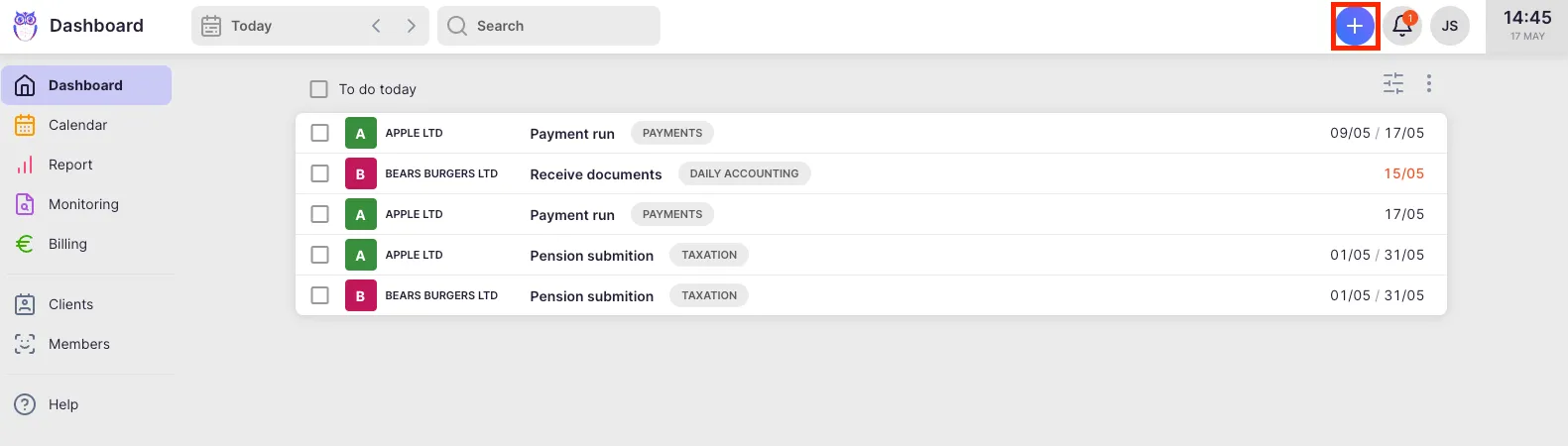
Section titled “Add a recurring task”- Click the + button in the Dashboard or navigation bar to open the task creation form.
- Select the client you want to assign the task to.
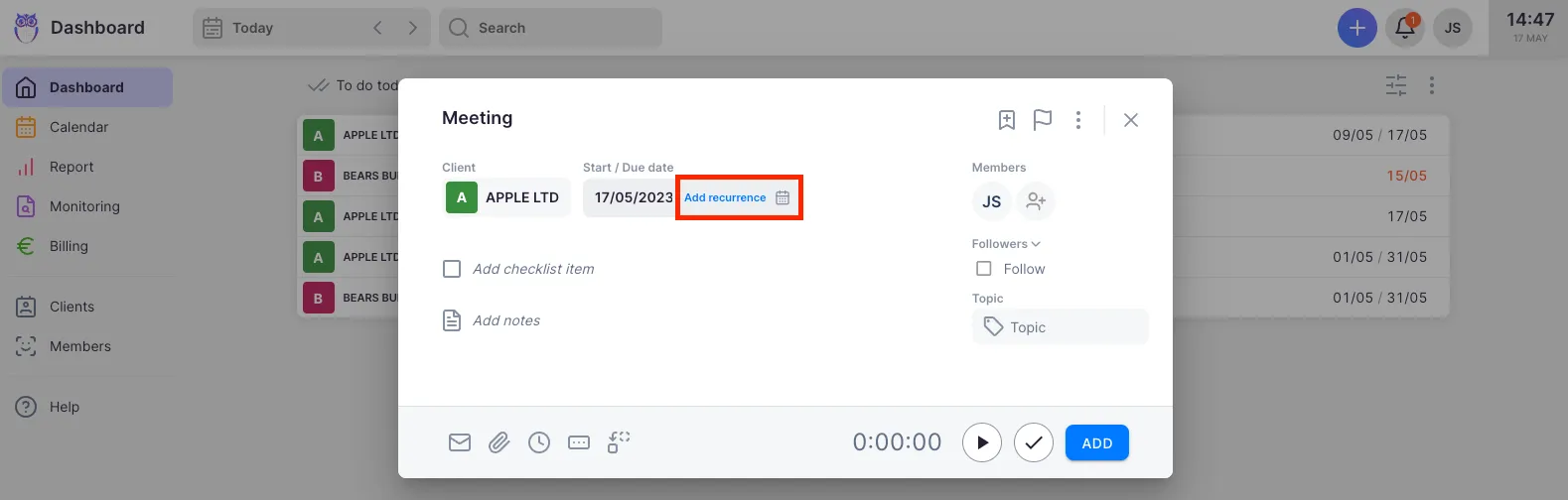
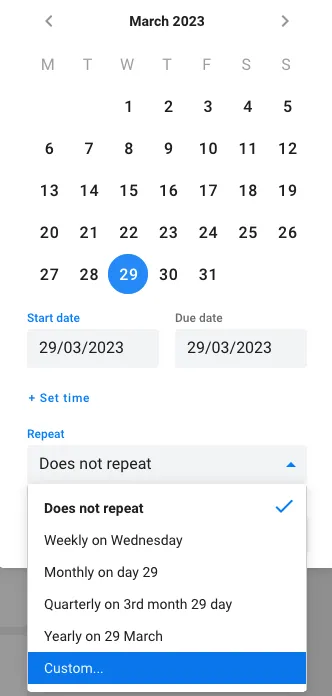
- Click the Start / Due date field and select the recurrence option.
- Choose a recurrence frequency: Weekly, Monthly, Quarterly, or Yearly.
- Add a Name and Topic to the task.
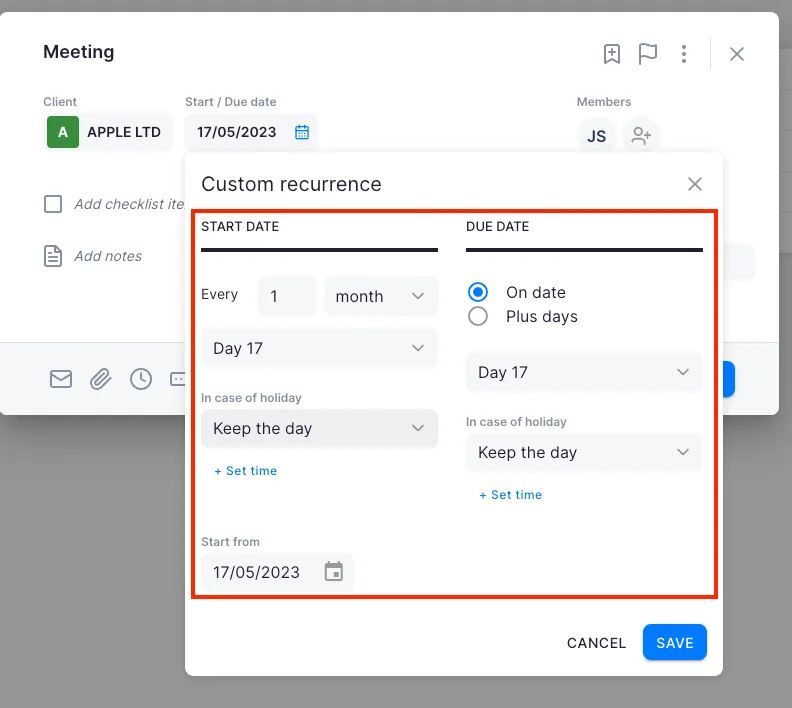
- Configure the recurrence schedule (see below for details on each type).
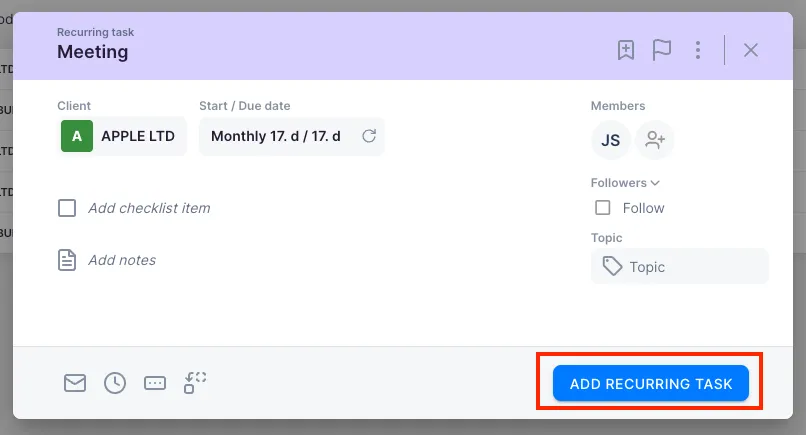
- Click Add recurring task to save the task to the client’s Workflow.
When recurrence is successfully configured, the task header turns purple, indicating it is a recurring task.
Recurrence types
Section titled “Recurrence types”Weekly recurrence
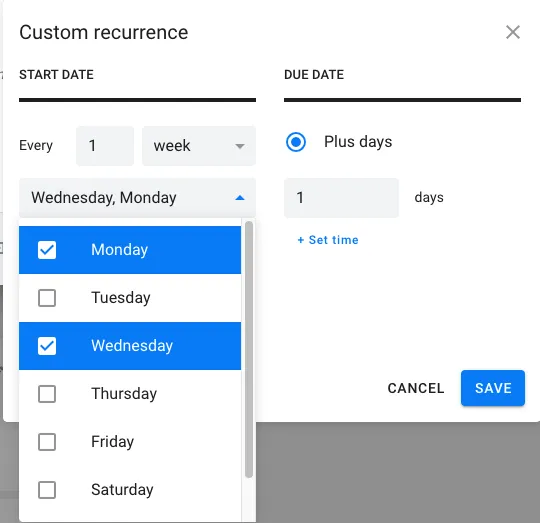
Section titled “Weekly recurrence”- Select the day(s) of the week when the task should appear on your dashboard.
- Set the interval — for example, an interval of 2 makes the task appear every other week.
- Use the + days field to offset the due date from the start date.
Monthly recurrence
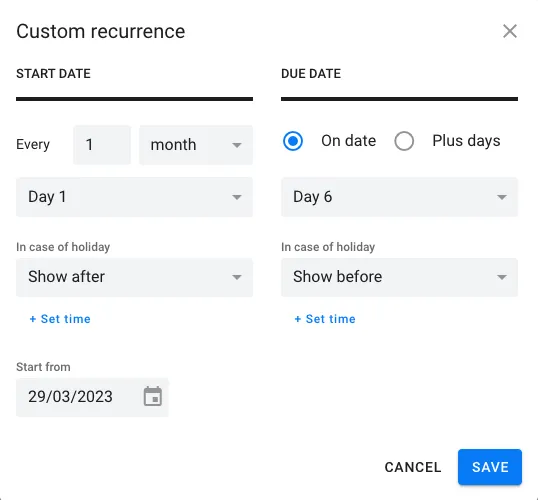
Section titled “Monthly recurrence”- Select the start date and due date for each monthly occurrence.
- Choose what happens if the date falls on a weekend or public holiday: Show before, Show after, or Keep the date.
- Use the + days rule to set the due date as a number of working days from the start date or beginning of the month.
Quarterly recurrence
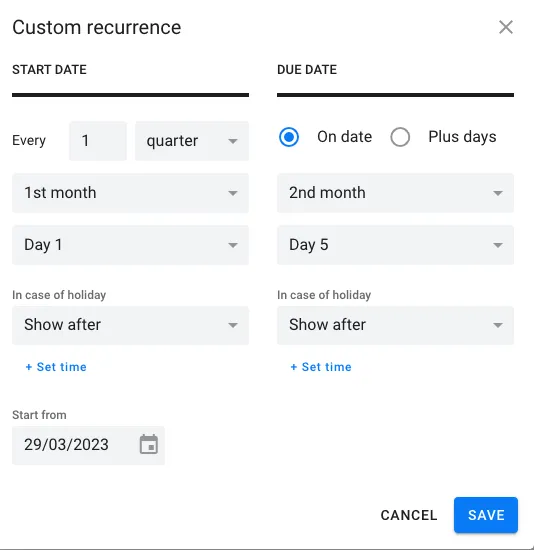
Section titled “Quarterly recurrence”Uku organizes quarters as Q1 (January–March), Q2 (April–June), Q3 (July–September), Q4 (October–December).
- Choose whether the start/due date falls in the first, second, or third month of the quarter.
- Select the exact date within that month.
- The + days rule can also be used for quarterly recurrence.
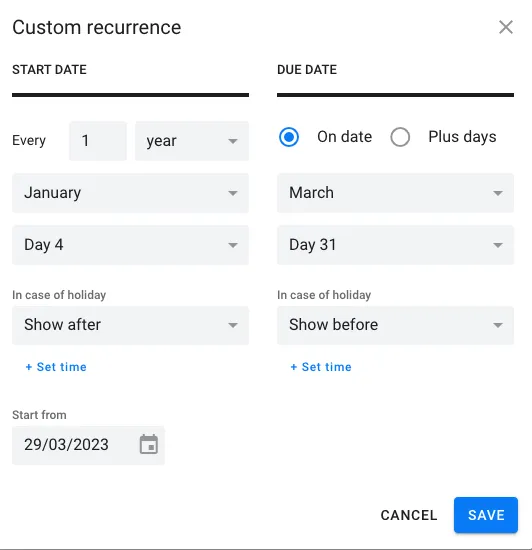
Yearly recurrence
Section titled “Yearly recurrence”- Select the month and day for both the start and due dates.
- The + days rule can also be used for yearly recurrence.
Custom recurrence
Section titled “Custom recurrence”For schedules that do not fit the standard options, select Repeat and then choose Custom to define a fully custom recurrence pattern.
Verify the task in the client’s Workflow
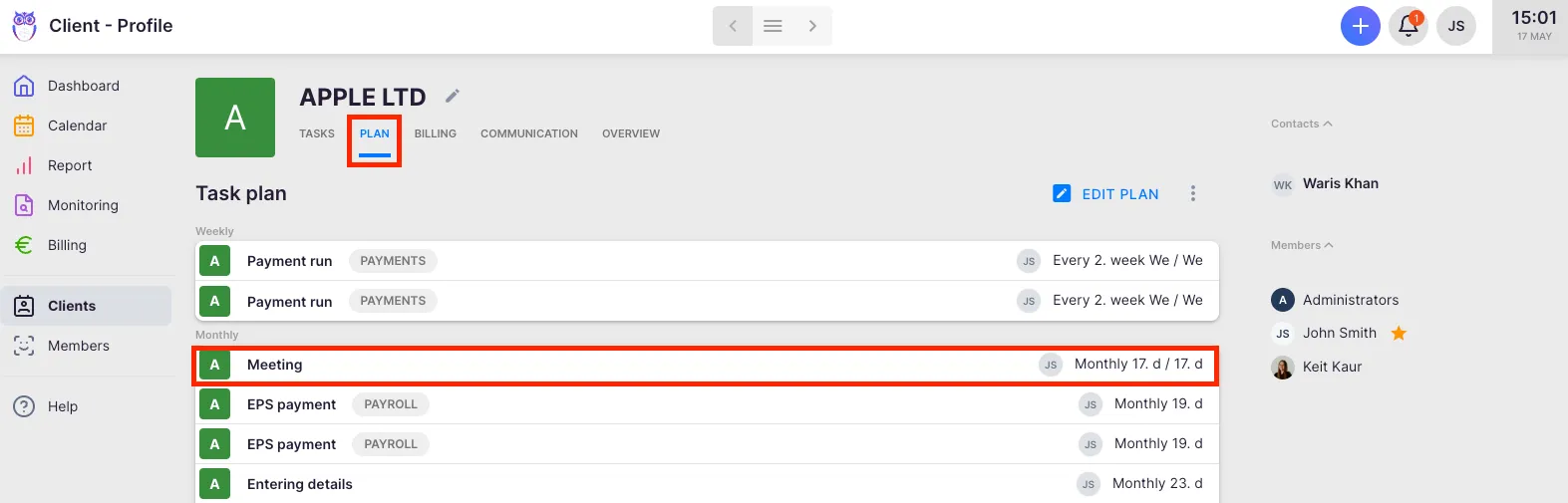
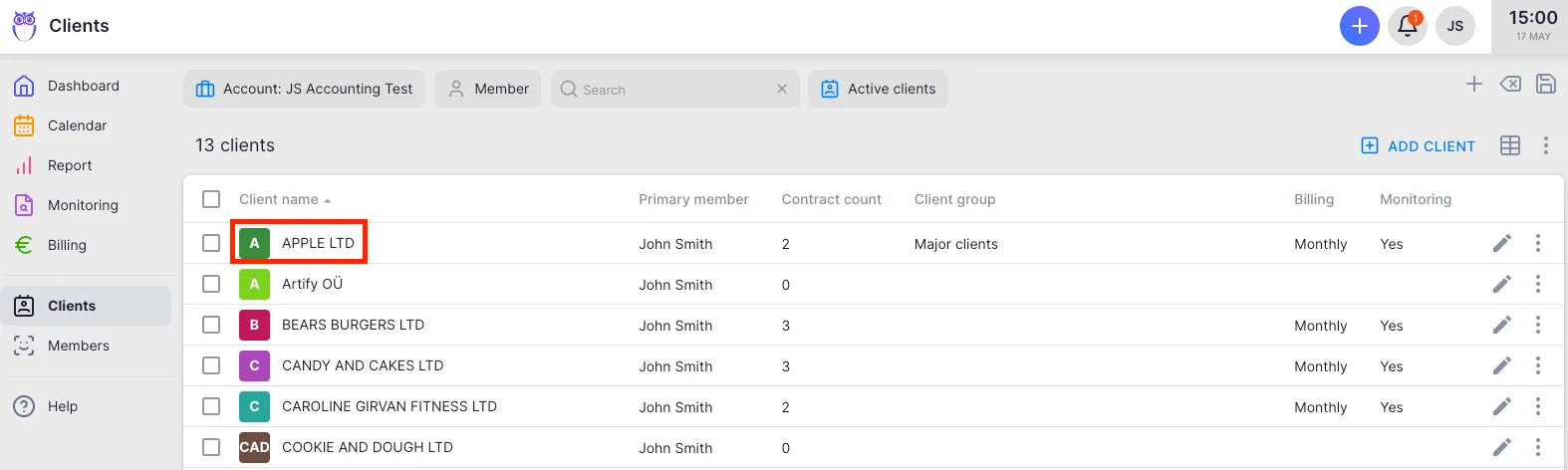
Section titled “Verify the task in the client’s Workflow”- Select Clients from the main navigation.
- Open the client’s profile.
- Select Workflow from the client menu.
Uku automatically adds all recurring tasks to the client’s Workflow. You can view and edit them there.
Troubleshooting
Section titled “Troubleshooting”The recurring task is not appearing on the dashboard
Section titled “The recurring task is not appearing on the dashboard”Verify that the recurrence start date has been reached. Tasks do not appear on the dashboard until their scheduled start date. Also check that the task’s start date does not fall on a weekend or holiday that is configured to shift the date.
Tasks appear on the wrong date or are offset from the expected schedule
Section titled “Tasks appear on the wrong date or are offset from the expected schedule”For quarterly tasks, confirm the task aligns with Uku quarter definitions (Q1 starts January 1). Check the recurrence settings and confirm they match the expected schedule.
The due date does not match what I expected
Section titled “The due date does not match what I expected”Check whether the + days rule is configured. If set, the due date is calculated as a number of working days from the start date or the beginning of the month, rather than a fixed calendar date. Also check the weekend/holiday handling setting.
Cannot find the recurring task in the client’s Workflow
Section titled “Cannot find the recurring task in the client’s Workflow”Navigate to the client’s profile and select Workflow. If the task is not listed, confirm that you clicked Add recurring task after configuring the recurrence. The task header should have turned purple before saving.
Cannot set recurrence — only see option to add a one-time task
Section titled “Cannot set recurrence — only see option to add a one-time task”Recurring tasks are only available for client tasks. If the task is assigned to a project, the recurrence option is not available. Create the recurring task from the client’s Workflow instead.
Screenshots
Section titled “Screenshots”