How to use client budgets
Who can do this
Section titled “Who can do this”- The Elite plan is required.
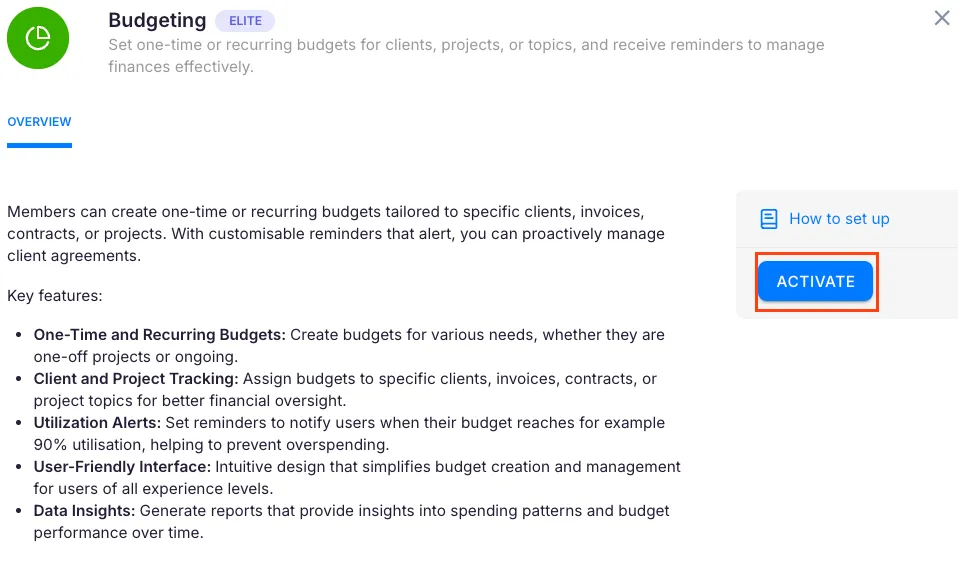
- Company Owners and Company Admins must activate the Budget app in Settings & Apps before it can be used.
- Once activated, any team member with access to the client profile can view and manage budgets for that client.
Activating the Budget app
Section titled “Activating the Budget app”- Open Settings & Apps from the main navigation.
- Find the Budget app in the list.
- Click Activate. After activation, a Budgets tab appears on client profiles under Financials.
Adding a budget
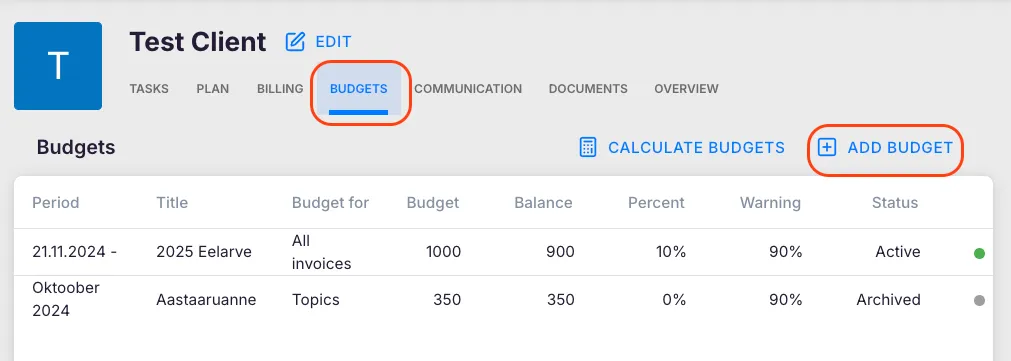
Section titled “Adding a budget”Path: Clients > [Client name] > Financials > Budgets tab > Add budget
- Open the client profile and go to Financials > Budgets.
- Click Add budget.
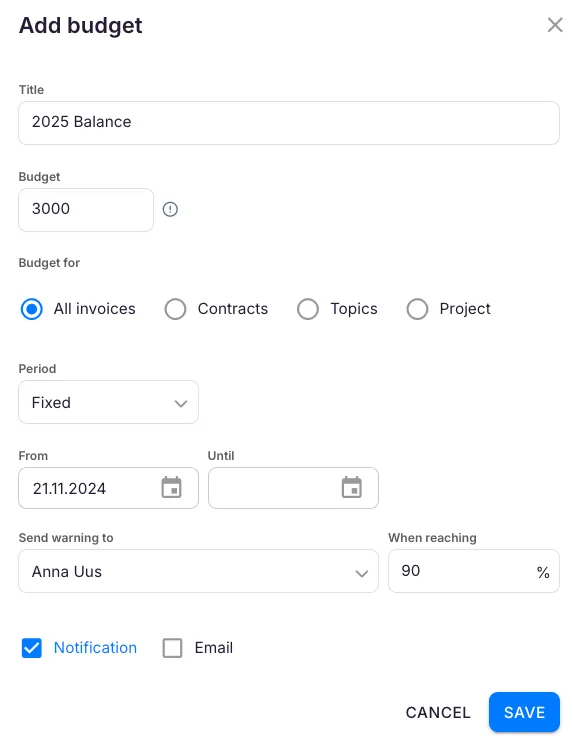
- Fill in the budget details:
- Title — a descriptive name (for example “Q2 2026 Monthly Retainer”).
- Budget — the total budget amount in your base currency (net sum cap).
- Budget for — what the budget tracks (see Budget types below).
- Period — Fixed for a one-time budget with a set end date, or Recurring for automatic renewal.
- From / Until — the date range; for recurring budgets, the end date is optional.
- Recurrence type — if recurring, choose Monthly, Quarterly, or Yearly.
- Send warning to — select which team members receive warning notifications.
- When reaching — the warning threshold as a percentage (default is 90%).
- Notification / Email — how warnings are delivered: in-app notification, email, or both.
- Click Save.
Budget types
Section titled “Budget types”Choose how the budget is measured under Budget for:
- All invoices — compares the budget against the total of all invoices (excluding voided ones) during the period. Requires the Billing app to be enabled.
- Contracts — tracks invoice totals for specific contracts you select. Contract budgets always use recurring periods. Requires the Billing app to be enabled.
- Topics — tracks actual work cost, calculated as tracked time multiplied by each team member’s billable rate. You can optionally limit it to specific topics.
- Projects — tracks actual work cost for specific projects, using the same billable-rate calculation as topics. Requires the Projects app to be enabled.
For Topics and Projects, the budget dialog shows your current company billable rate and how many team members have individual rates configured.
Fixed vs. recurring budgets
Section titled “Fixed vs. recurring budgets”- Fixed — covers a specific date range with both a start and end date. Once the period ends, the budget is automatically archived.
- Recurring — repeats on your chosen schedule (monthly, quarterly, or yearly). When a period ends, Uku archives it and creates a new one with the same budget amount. Ideal for ongoing retainers.
Budget warnings and notifications
Section titled “Budget warnings and notifications”When actual usage crosses the warning threshold:
- The budget row in the list turns red — remaining balance and percentage columns are highlighted.
- Selected team members receive an in-app notification (if Notification is enabled).
- Selected team members also receive an email alert (if Email is enabled). Warnings are sent once per budget period.
Manual budget recalculation
Section titled “Manual budget recalculation”Budget amounts update automatically in the background when related data changes (time entries, invoices). To trigger an immediate recalculation:
- Open the client’s Financials > Budgets tab.
- Click Calculate budgets.
Understanding the budget list
Section titled “Understanding the budget list”| Column | What it shows |
|---|---|
| **Period** | The date range the budget covers |
| **Title** | The budget name |
| **Budget for** | Budget type (All invoices, Topics, Contracts, or Projects) |
| **Budget** | The total budgeted amount |
| **Remaining budget** | Budget minus actual usage |
| **Percent** | Percentage of the budget used |
| **Warning** | The warning threshold percentage |
| **Status** | Active (green) or Archived (grey) |
Click any column header to sort the list. Click a row to open and edit the budget. To delete a budget, open it and click Delete budget.
Troubleshooting
Section titled “Troubleshooting”I cannot find the Budgets tab on the client profile
Section titled “I cannot find the Budgets tab on the client profile”The Budget app must be activated first in Settings & Apps. If it is already active and the tab is still missing, verify your plan — the Budget app requires the Elite plan.
Budget notifications are not being sent
Section titled “Budget notifications are not being sent”Check that the When reaching percentage has actually been reached. Also verify that recipients are selected under Send warning to and that the correct notification method (in-app and/or email) is enabled.
Budget shows incorrect spending amount
Section titled “Budget shows incorrect spending amount”Verify that the correct Budget for type is selected. If using Contracts, confirm the right contracts are linked. If using Topics or Projects, ensure that team member billable rates are configured correctly. Use Calculate budgets to force a recalculation.
Recurring budget does not reset at the start of a new period
Section titled “Recurring budget does not reset at the start of a new period”Confirm the Period is set to Recurring (not Fixed) and that the recurrence type and start date are configured correctly. Fixed budgets cover only their specified date range and do not automatically renew.