
How to group tasks?
Grouping tasks on the Dashboard lets you organize your view by client, topic, status, date, or other criteria. Grouped views can be saved as bookmarks so you can return to your preferred layout in one click.
Who can do this
Section titled “Who can do this”- All Uku team members with access to the Dashboard.
Grouping tasks on the Dashboard
Section titled “Grouping tasks on the Dashboard”- Open the Dashboard.
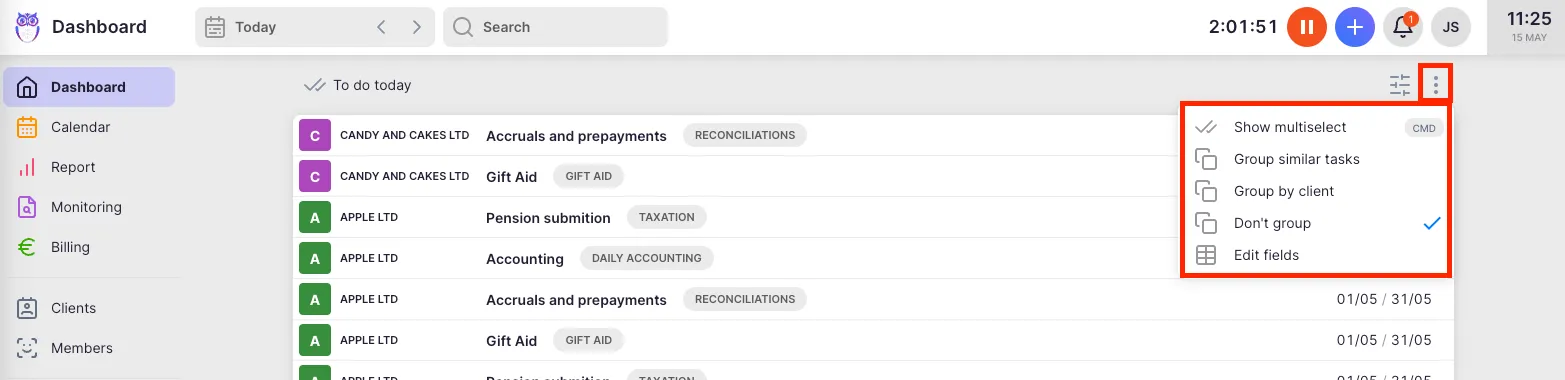
- Click the Grouping icon on the Dashboard toolbar (three-dot or group icon).
- Select a grouping option:
- Don’t group — Tasks are sorted by start date with no grouping applied.
- Group by client — Only client names are shown; click a client name to expand and view their tasks.
- Group by project — Tasks grouped by project.
- Group by topic — Tasks grouped by topic.
- Group by status — Groups into Undone, In Progress, and Completed.
- Group by user — Tasks grouped by assigned member.
- Group by client group — Tasks grouped by client groups.
- Group by period — Groups by day, week, and month.
- Group similar — Tasks with the same topic and deadline are grouped together.

Saving a grouped view as a bookmark
Section titled “Saving a grouped view as a bookmark”To quickly return to a grouped Dashboard view:
- Select the grouping method you want.
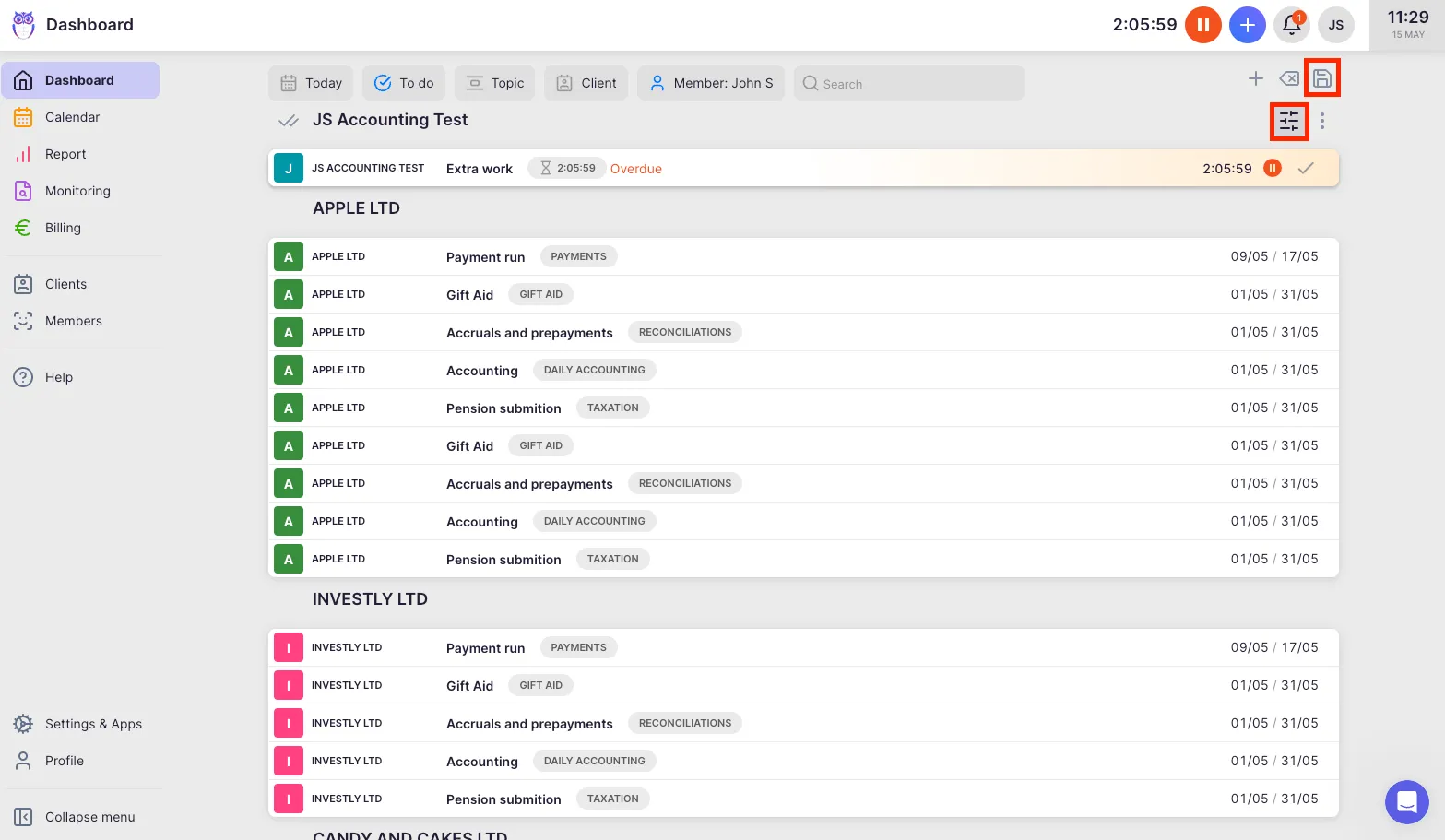
- Click the Filter icon to open the filter bar.
- Click the Save bookmark (disk) icon.
- Enter a name for the bookmark and click Save.
Access your saved bookmarks by hovering over Dashboard in the main navigation. See the How to use bookmarks article for the full reference.
Troubleshooting
Section titled “Troubleshooting”Grouping option is not visible
Section titled “Grouping option is not visible”Make sure you are on the Dashboard view, not in Report or Calendar. The Grouping icon with grouping options is only available on the Dashboard.
Saved bookmark does not appear in the menu
Section titled “Saved bookmark does not appear in the menu”Confirm that you clicked the Save bookmark (disk) icon after setting up your grouping. If you only changed the grouping without saving, the view resets when you navigate away.
Tasks appear ungrouped after selecting a grouping
Section titled “Tasks appear ungrouped after selecting a grouping”This can happen if tasks lack the data needed for grouping — for example, no topic assigned when using “Group by topic.” Ensure tasks have the relevant fields populated.