How to create a per-piece-based product
Who can do this
Section titled “Who can do this”- Company Owners and Company Admins can create and manage products. Company Admins may be restricted if the Allow only Company Owners to add and update products setting is enabled.
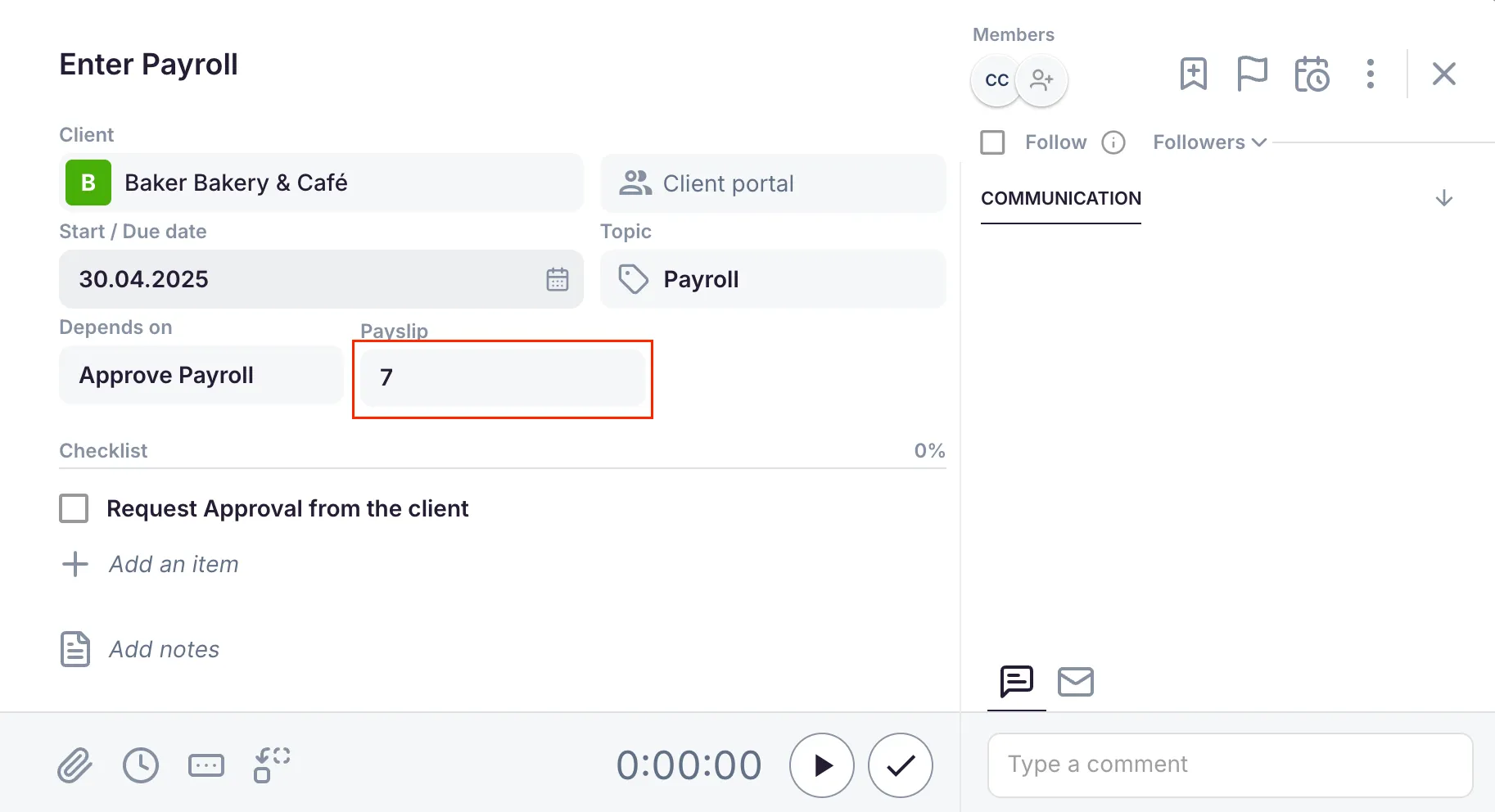
Step 1: Create a task field
Section titled “Step 1: Create a task field”Create a task field with the Number type to hold the quantity.
- Navigate to Custom Fields in your settings.
- Create a new task field and set its type to Number.
- Give the field a descriptive name (for example, “Number of payslips”).
- Save the field.
Step 2: Configure the per-piece product
Section titled “Step 2: Configure the per-piece product”- Open Settings & Apps > Billing > Setup > Articles and click + Add.
- Enter a product name.
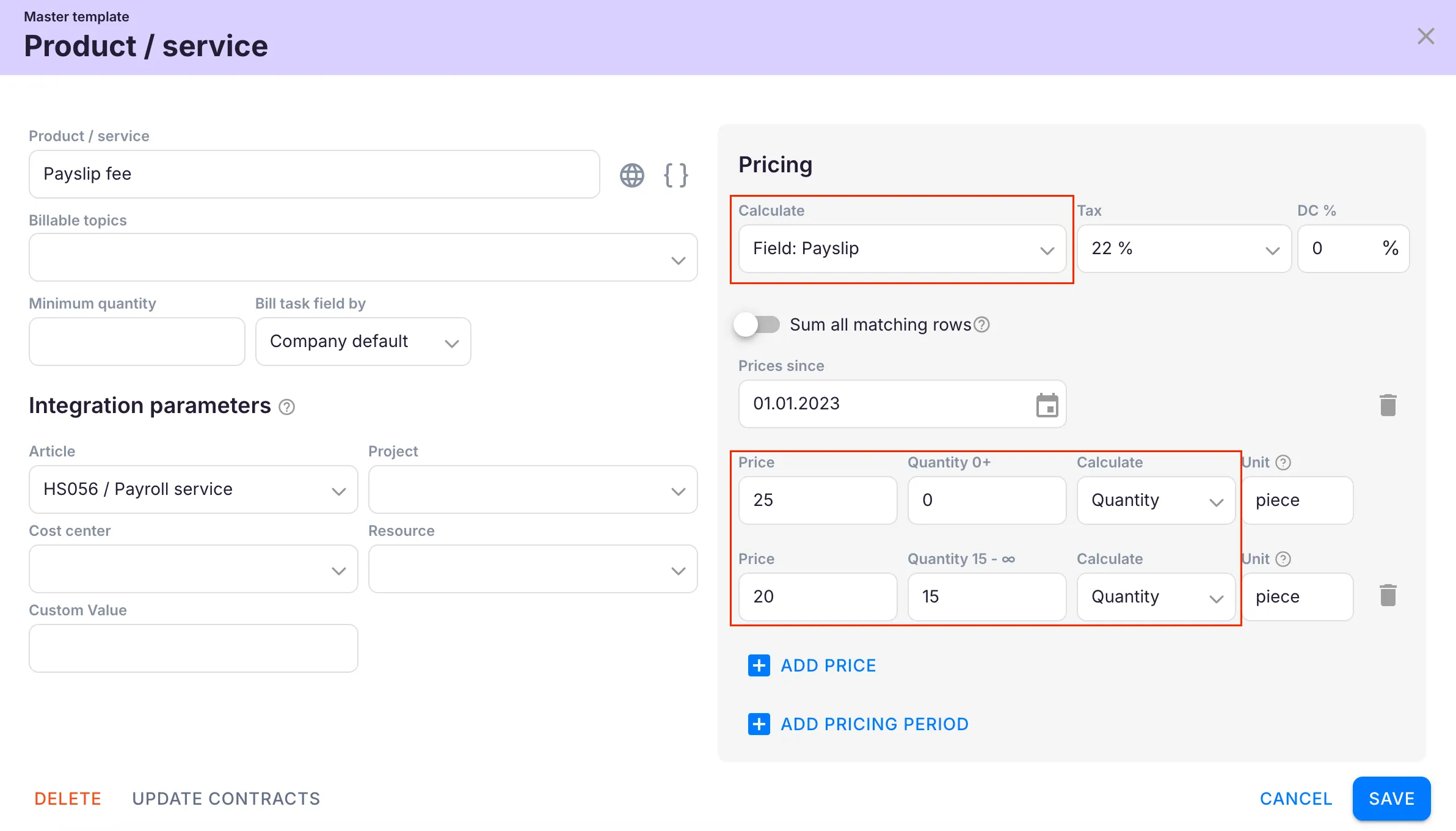
- Set the pricing type to Per piece.
- Select the task field from which the quantity will be taken.
- Enter the per-piece price.
- Optionally define pricing ranges for tiered billing at different quantity levels.
- Click Save.
Optional settings
Section titled “Optional settings”Sum all matching rows
Section titled “Sum all matching rows”- Enabled — the prices of all applicable pricing ranges are summed together. Use when each tier adds to the total.
- Disabled — only the single range in which the quantity falls is applied. Use for exclusive tier pricing.
Invoice when work is finished
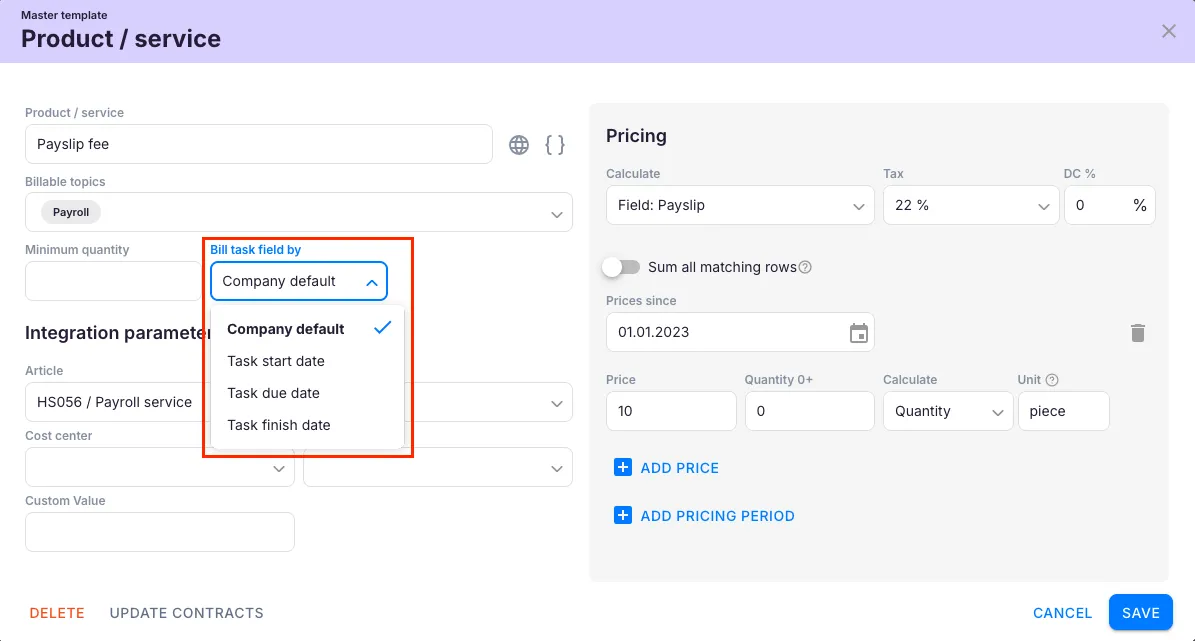
Section titled “Invoice when work is finished”Enable this option if the charge should only appear when the task is marked done, rather than at the start of the billing period. Prevents partial billing for ongoing work.
Future pricing periods
Section titled “Future pricing periods”Add additional pricing periods with future start dates. When the date arrives, the new prices apply automatically — useful for scheduling rate changes in advance.
Troubleshooting
Section titled “Troubleshooting”The invoice quantity shows zero
Section titled “The invoice quantity shows zero”Check that the Number-type task field is filled in on the task. The per-piece product pulls its quantity directly from this field.
The wrong pricing tier is being applied
Section titled “The wrong pricing tier is being applied”Review the Sum all matching rows setting. If it is enabled when it should not be, all range prices will be summed instead of selecting a single tier.
The charge appears before the task is finished
Section titled “The charge appears before the task is finished”Enable the Invoice when work is finished option on the product to delay billing until the task is marked done.
The task field does not appear in the product configuration
Section titled “The task field does not appear in the product configuration”Ensure the task field was created with the Number type. Only Number-type fields can be selected as a quantity source for per-piece products.