How to create an hourly-based product
Who can do this
Section titled “Who can do this”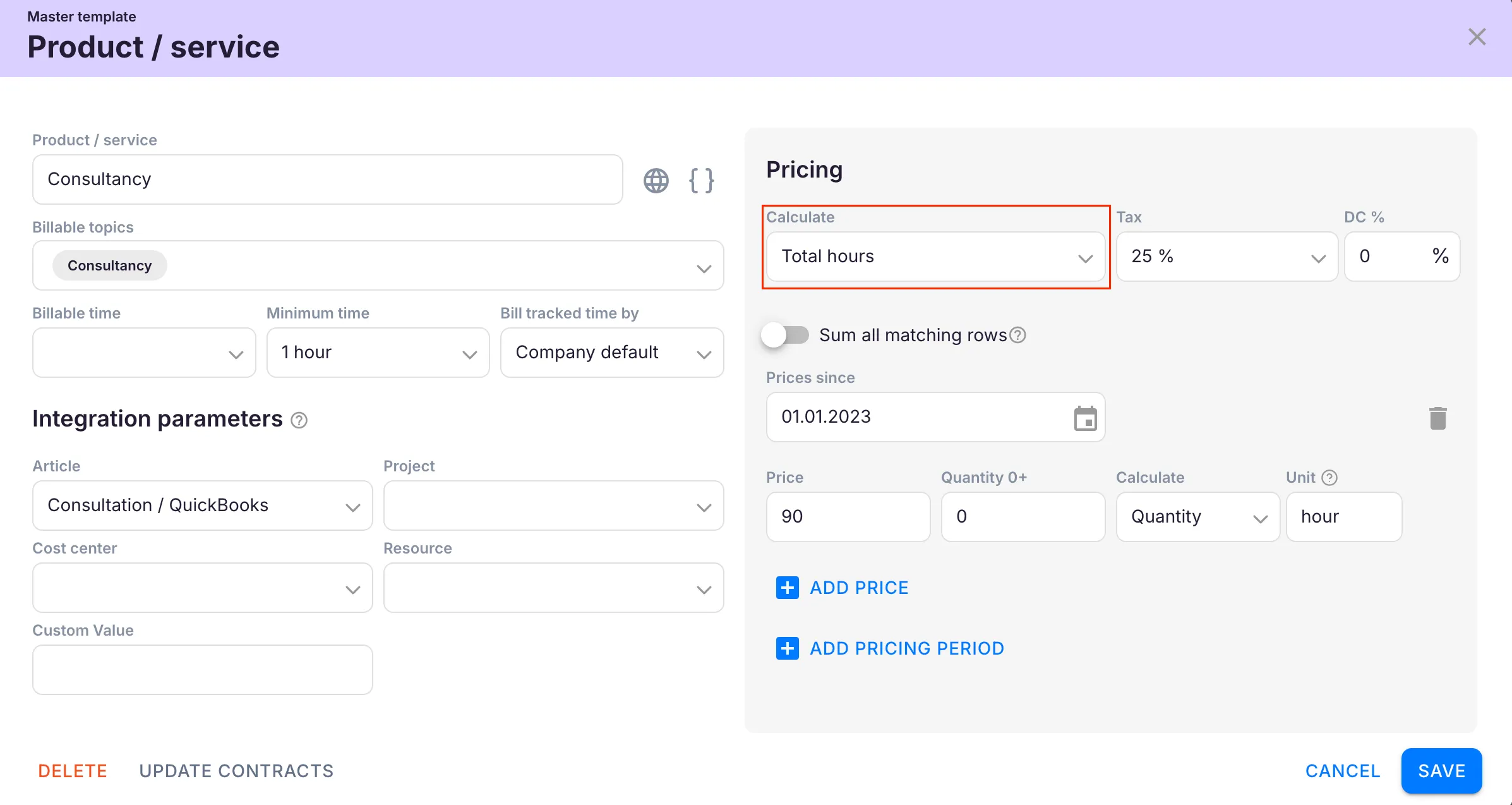
- Company Owners and Company Admins can create and manage products. Company Admins may be restricted if the Allow only Company Owners to add and update products setting is enabled.
Creating an hourly product
Section titled “Creating an hourly product”- Open Settings & Apps > Billing > Setup > Articles and click + Add.
- Enter a descriptive name for the product.
- Set the pricing type to Hourly.
- Choose the hour type (see options below).
- Configure optional settings as needed.
- Set up pricing and click Save.
Hour type options
Section titled “Hour type options”- Total hours — counts all hours spent on the task
- Regular hours — counts only standard (non-extra) work hours
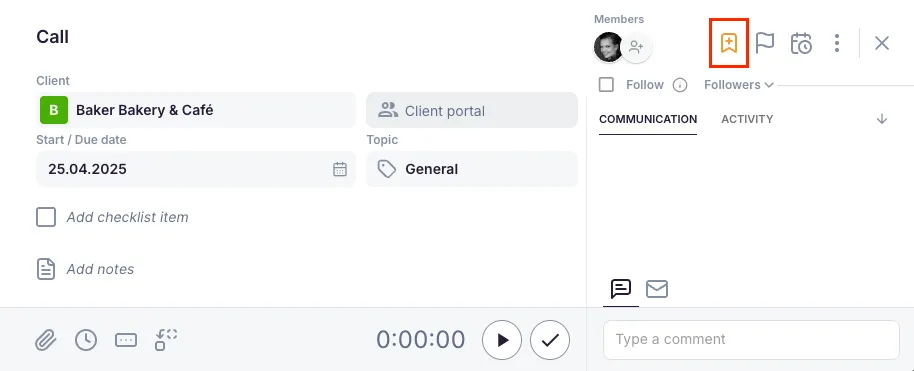
- Extra hours — counts only hours from tasks tagged with the Extra work flag
Optional settings
Section titled “Optional settings”Topic selection
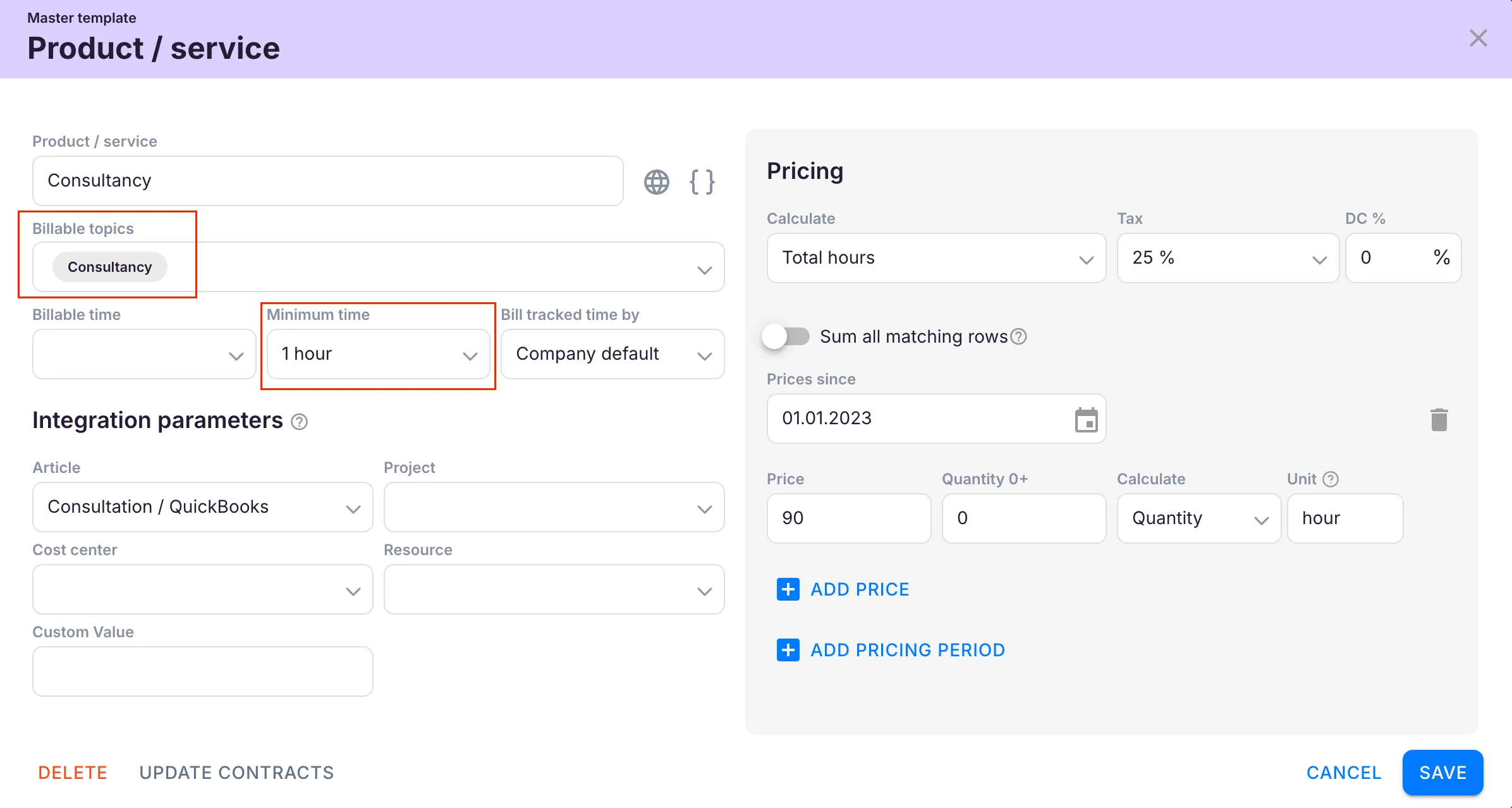
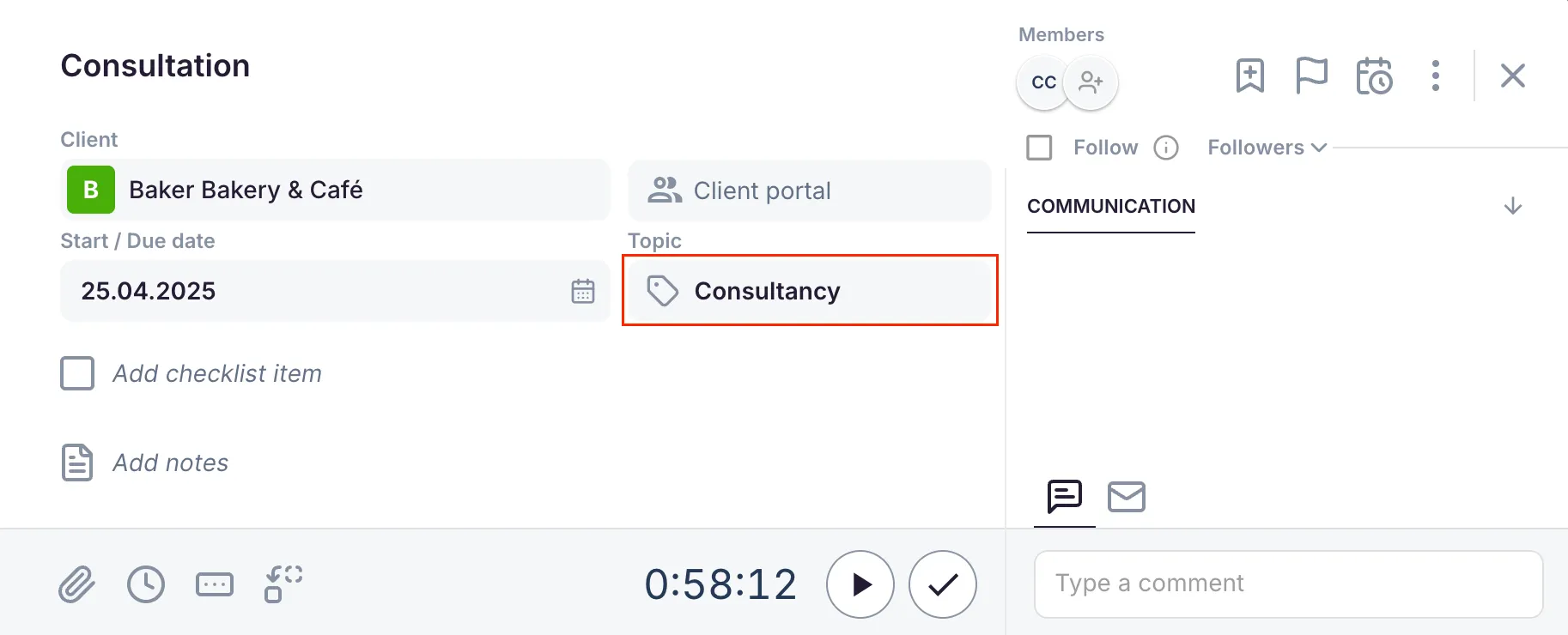
Section titled “Topic selection”Restrict billing to hours from tasks with a specific topic. When a topic is set, only time tracked on tasks with that topic is included in the billing calculation.
Minimum time
Section titled “Minimum time”Set a minimum billable time that is always charged, even if less time was tracked. For example, ensuring at least 1 hour is charged even if only 5 minutes were logged.
Invoice when work is finished
Section titled “Invoice when work is finished”Enable this option if the service should only be invoiced when the task is marked done. Prevents partial billing for ongoing work.
Sum all matching rows
Section titled “Sum all matching rows”When enabled, the prices of all applicable pricing ranges are summed together. When disabled, only the single range in which the tracked value falls is applied.
Future pricing periods
Section titled “Future pricing periods”Add additional pricing periods with future start dates. When the date arrives, the new prices apply automatically — useful for scheduling rate changes in advance.
Troubleshooting
Section titled “Troubleshooting”Hours are not being counted on the invoice
Section titled “Hours are not being counted on the invoice”Verify that time has been tracked on tasks linked to this product. If the hour type is set to Extra hours, only tasks tagged with Extra work are counted.
Invoice amount seems incorrect when using topic filtering
Section titled “Invoice amount seems incorrect when using topic filtering”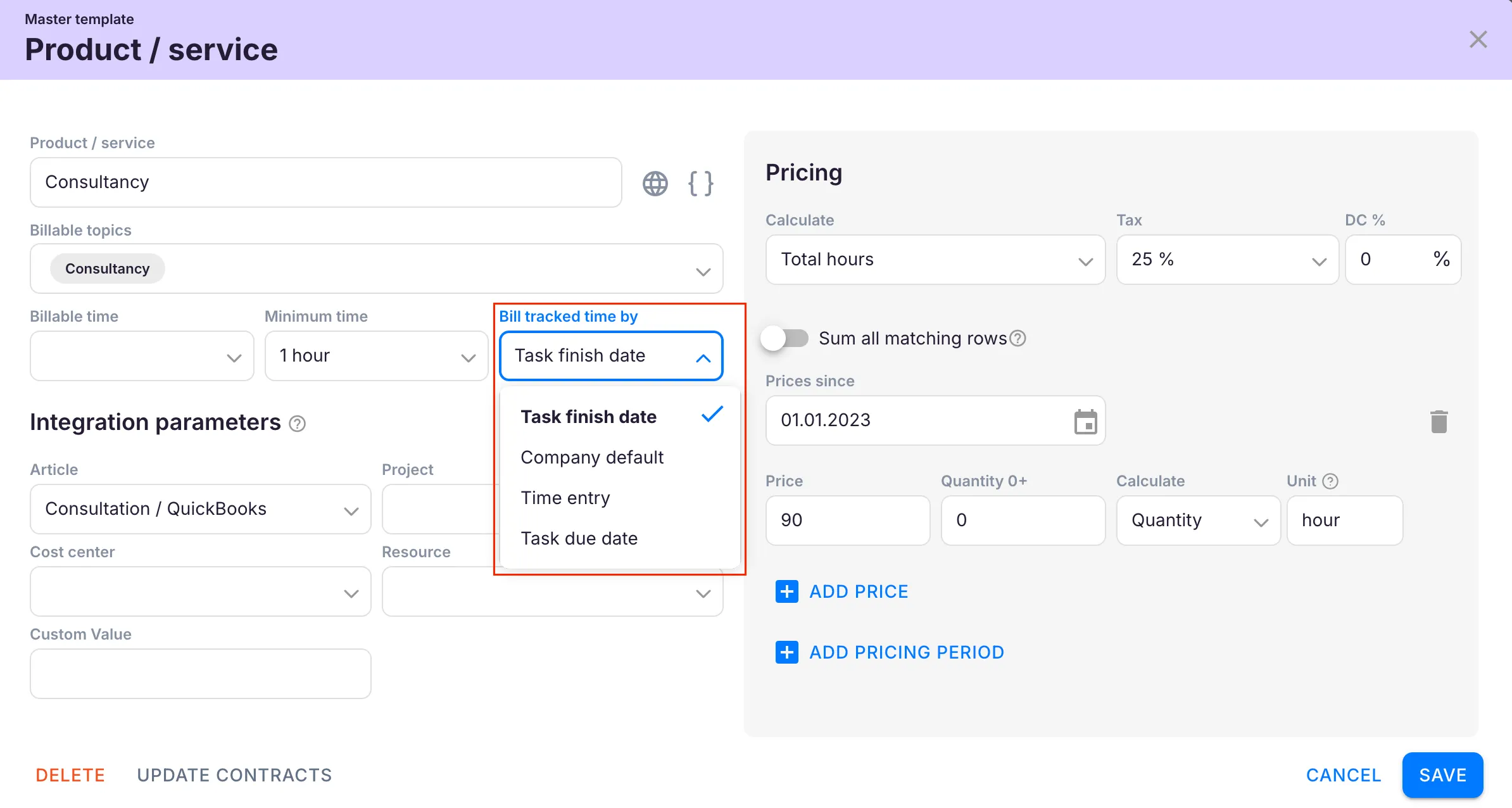
Confirm that the correct topic is assigned to the relevant tasks. Only time tracked on tasks with the matching topic is included.
Minimum time is not being applied
Section titled “Minimum time is not being applied”Ensure the minimum time value is configured on the product itself. The minimum applies per billing period, not per individual time entry.
New pricing rates are not taking effect
Section titled “New pricing rates are not taking effect”Check that the future pricing period start date has been reached. Pricing periods only activate on or after the configured date.
Screenshots
Section titled “Screenshots”