The client list
Who can do this
Section titled “Who can do this”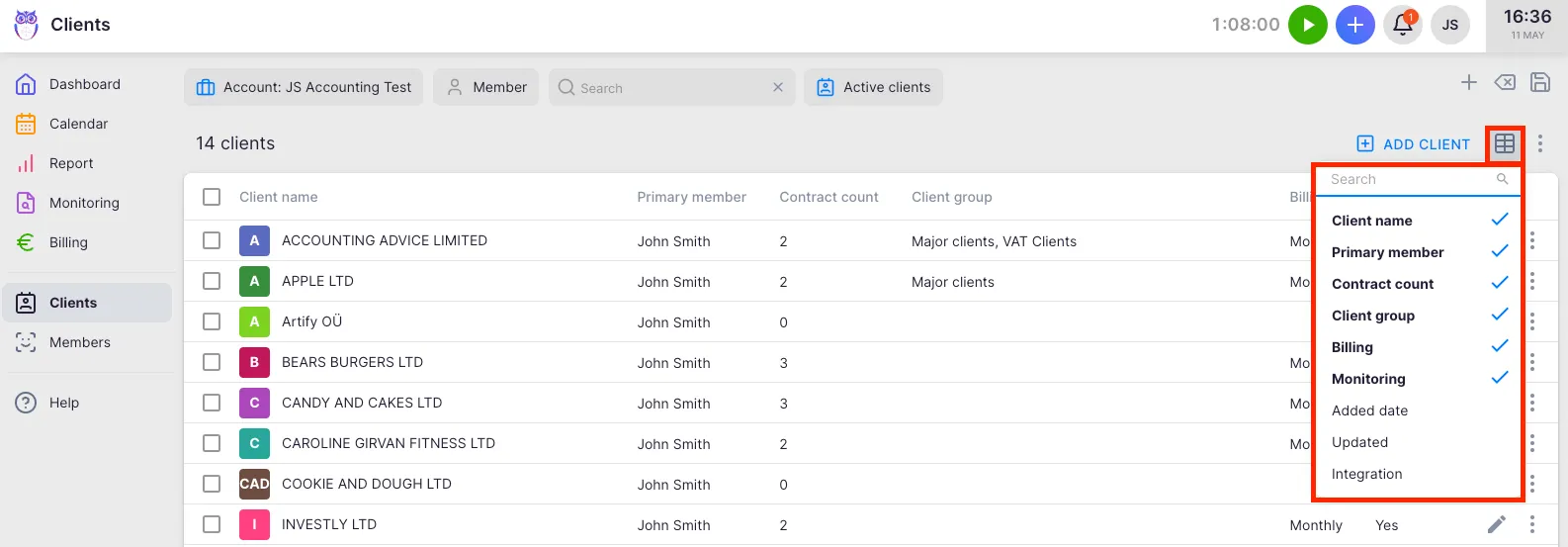
- All team members can view the client list.
- Adding, editing, importing, and deleting clients requires Company Owner or Company Admin rights, or member-level rights if client management is not restricted in company settings.
Navigating the list
Section titled “Navigating the list”Open the client list from Clients in the main navigation sidebar. The list loads all clients for your selected company. Sorting and filtering happen instantly in the browser — no page reload needed.
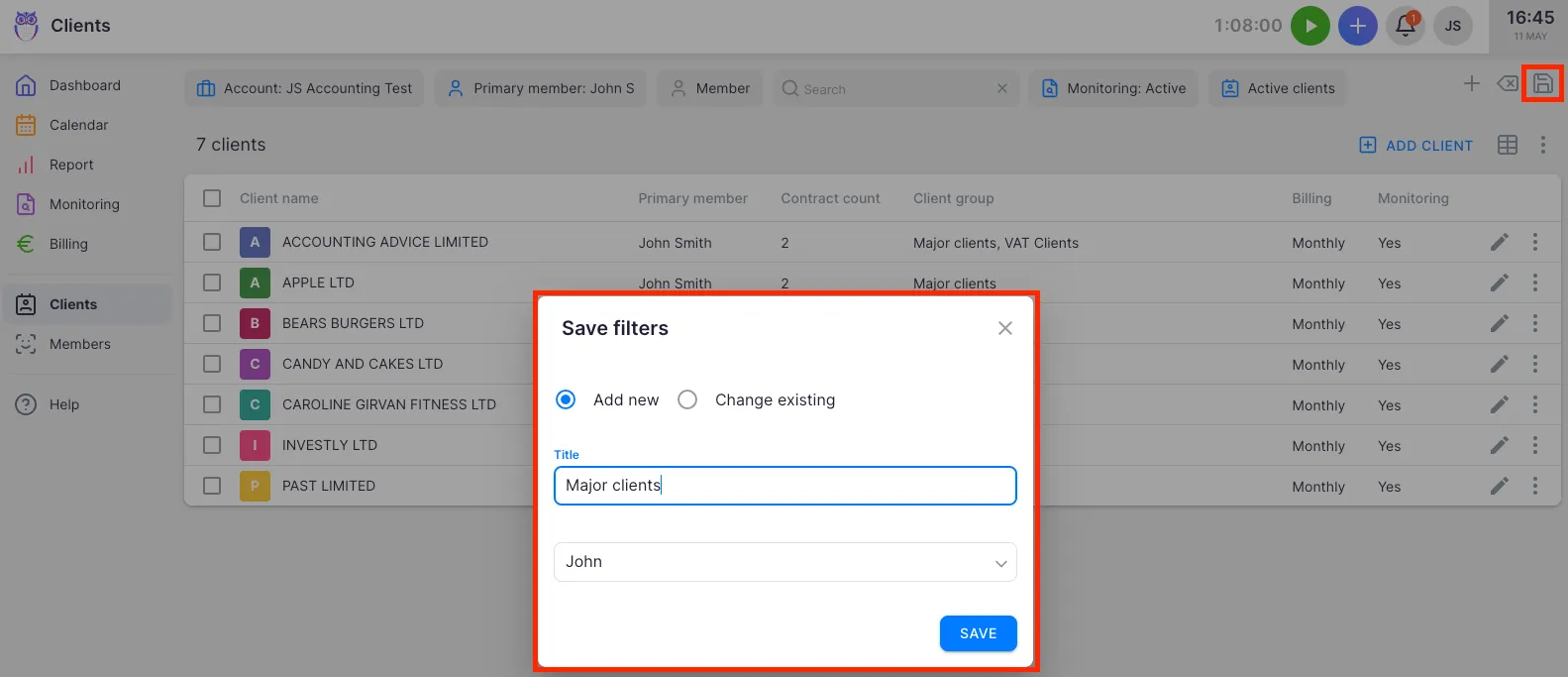
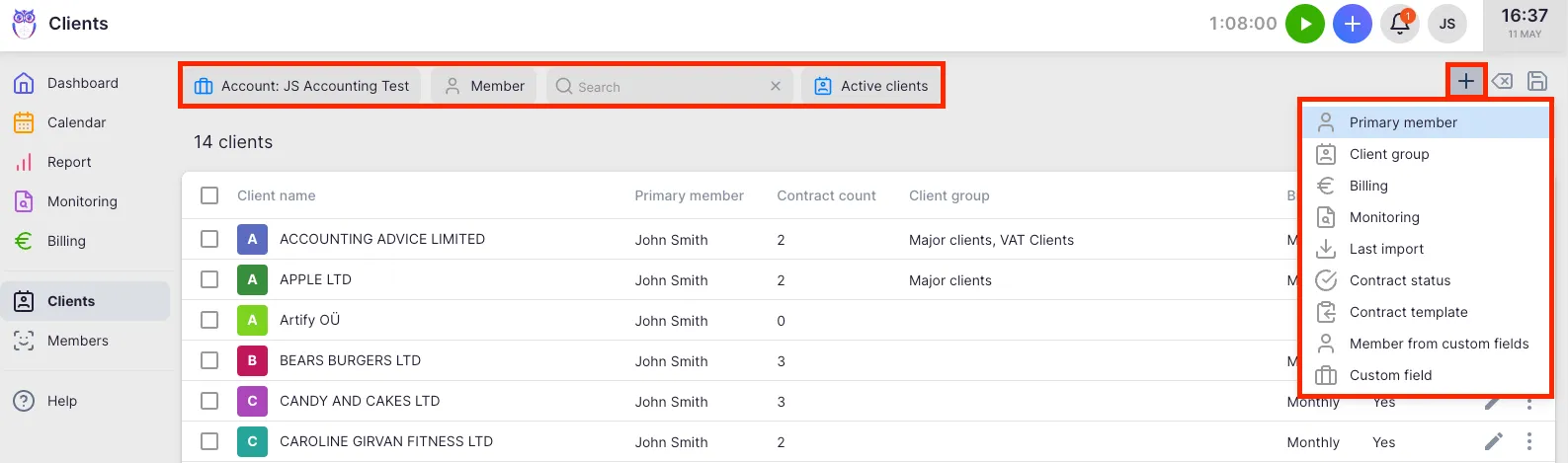
Use the filter bar at the top to narrow results by company account, client group, primary member, status, and more. Filters are reflected in the URL, so you can bookmark a filtered view or share it with a colleague. The total client count appears above the table on the left.
Customizing columns
Section titled “Customizing columns”Click the column properties button in the toolbar to show or hide columns. Your configuration is saved per member and persists across sessions. Available columns include:
- Client name and Avatar — always visible.
- Primary member — the team member assigned as main contact.
- Client code — your internal reference number for the client.
- Client group — one or more groups the client belongs to.
- Contract count and Billing — visible when billing is enabled. Shows active contracts and billing periods.
- Monitoring — visible when monitoring is enabled. Shows whether the client has active monitoring.
- Integration — visible when accounting integrations are enabled. Shows connected integrations as clickable chips.
- Budgets and Budget warning — visible when budgets are enabled. Highlights clients that have exceeded their warning threshold.
- Client portal — shows whether the client portal is active for this client.
- Sub-companies — lists any sub-clients linked to this client.
- Added date and Updated — hidden by default; useful for auditing.
- Client ID — hidden by default; click to copy the internal ID to clipboard.
Custom fields defined for clients also appear as available columns.
Row actions
Section titled “Row actions”Each row has an edit button (pencil icon) and a kebab menu (three dots) on the right side.
- Edit button — opens the full client edit form.
- View report (kebab) — opens the detailed report filtered to this client. Shows hours, tasks, and billing at a glance.
- Edit billing (kebab) — navigates to the client’s contracts page to manage billing agreements. Visible to Company Admins and Company Owners when billing is enabled.
Bulk actions
Section titled “Bulk actions”Select multiple clients using the checkboxes on the left side of each row. A bulk action bar appears at the top of the table showing available operations, including activating the Client Portal for multiple clients at once. The selection bar shows how many clients are selected out of the total available.
Adding, importing, and exporting clients
Section titled “Adding, importing, and exporting clients”- Click Add client (top-right, above the table) to create a new client manually.
- Open the action menu (three-dot menu at the top-right of the table) to access Import clients, Export clients, or Export client contacts.
Deactivating vs deleting a client
Section titled “Deactivating vs deleting a client”Uku distinguishes between deactivating and deleting a client:
- Deactivation — keeps the client record and all its history (tasks, invoices, time entries) but hides it from active lists. Deactivated clients can be found with the status filter and reactivated at any time. Available to Company Admins and Company Owners.
- Deletion — permanently removes the client record. Restricted to Company Owners. Not available for clients that have linked tasks, invoices, or other records.
In most cases, deactivation is the recommended approach — it preserves your reporting history while keeping the active client list clean.
Real-time updates
Section titled “Real-time updates”The client list listens for changes made by other team members. If a colleague adds or modifies a client, your list refreshes automatically. You can also click the Refresh button in the toolbar to reload data manually.
Troubleshooting
Section titled “Troubleshooting”A client I expect to see is not in the list
Section titled “A client I expect to see is not in the list”The client may be deactivated. Use the Status filter in the filter bar and select Inactive (or All) to include deactivated clients. If the client is not there at all, you may not have access to the company account it belongs to — check the account selector in the filter bar.
The bulk action bar does not appear when I check boxes
Section titled “The bulk action bar does not appear when I check boxes”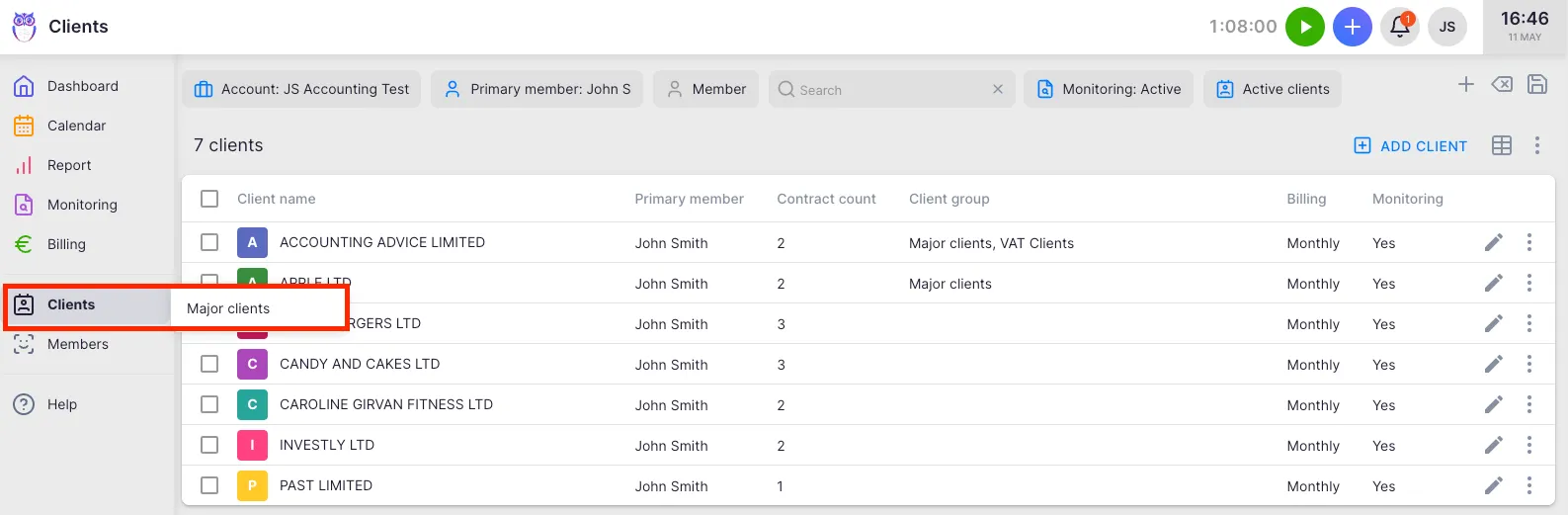
Make sure you are clicking the checkbox column on the far left of each row, not the row itself. If checkboxes are not visible, your role may not include bulk editing rights — contact your Company Admin.
I cannot see the Edit billing option in the kebab menu
Section titled “I cannot see the Edit billing option in the kebab menu”The Edit billing option is only visible to Company Admins and Company Owners when the billing feature is enabled. If you do not see it, your role or plan does not include billing management access.
Screenshots
Section titled “Screenshots”