
How to identify overlaps and missing time records?
When team members track time throughout the day, gaps (missed time) and overlaps (double-tracked time) can slip in unnoticed. The Report view has a built-in detection tool that highlights these issues with color-coded indicators and lets you correct them in a few clicks.
Who can do this
Section titled “Who can do this”- All team members can check their own time records.
- Company Admins and Company Owners can review time records for any team member.
How to view overlaps and gaps
Section titled “How to view overlaps and gaps”- Select Report from the main navigation menu.
- Switch to the Time tab.
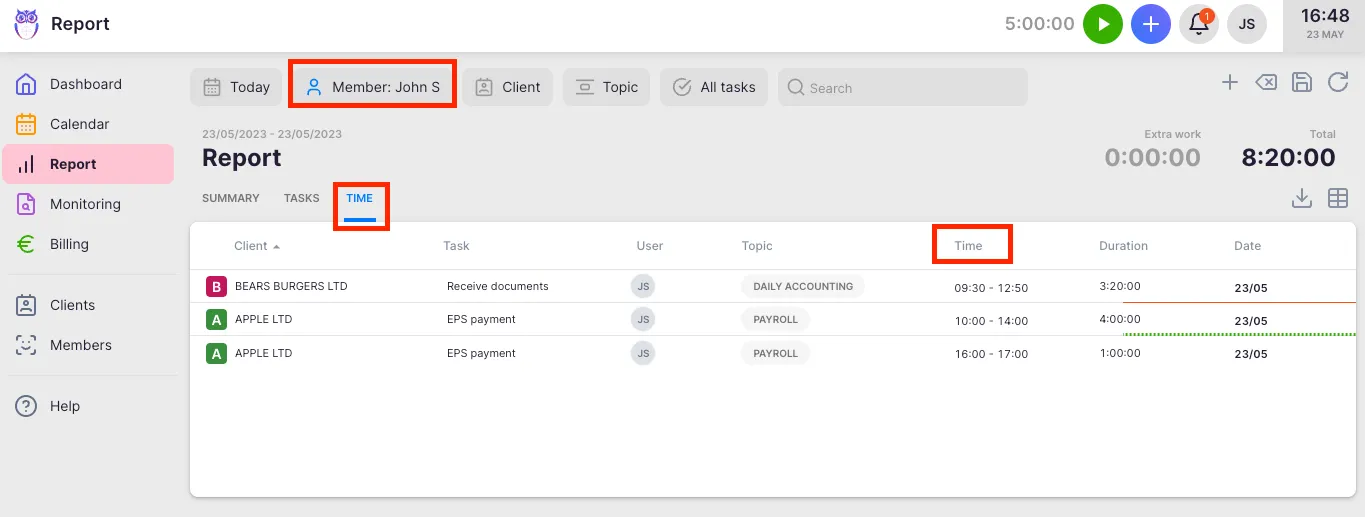
- Set the Member filter to the specific person you want to review. You must select exactly one member — filtering to multiple members or leaving the filter empty disables gap and overlap detection.
- Click the Time column header to sort entries in chronological order.
Color-coded lines now appear between consecutive time entries for the same day.
Understanding the color-coded indicators
Section titled “Understanding the color-coded indicators”- Long black line — separates one day from the next. No action needed.
- Green line — indicates a gap between two consecutive entries. Time went untracked during this interval.
- Red line — indicates an overlap, meaning two entries cover the same time period simultaneously.
Fixing gaps (green line)
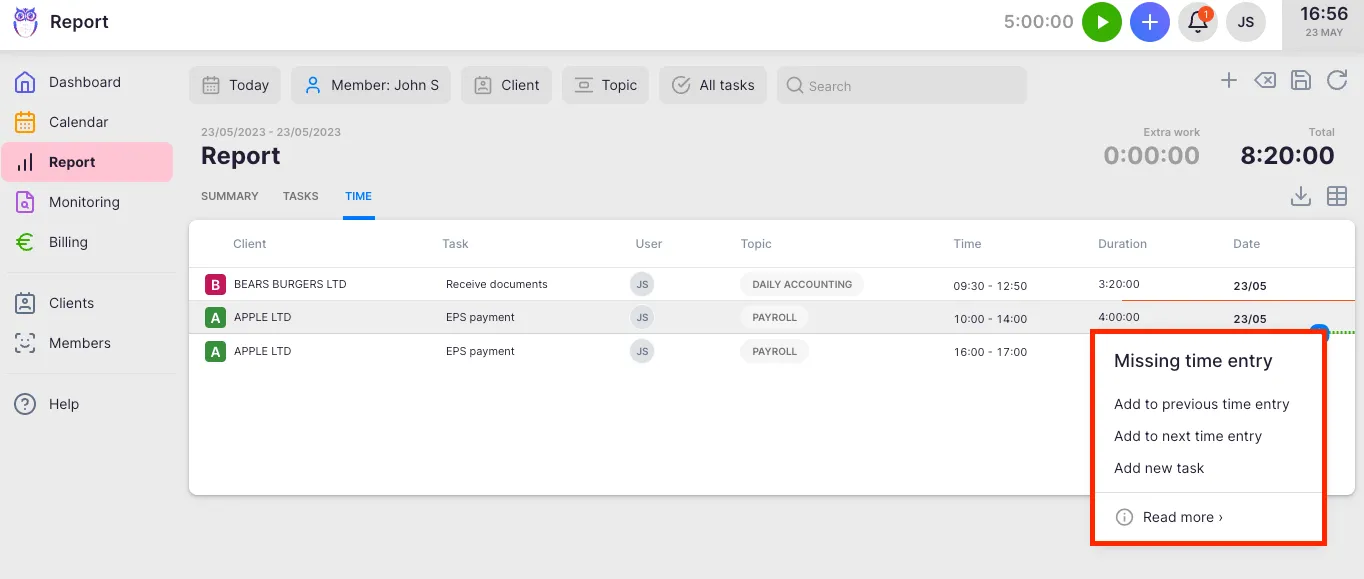
Section titled “Fixing gaps (green line)”- Hover over the green line between two entries.
- Click the three-dot menu that appears.
- Choose one of the following options:
- Add to previous time entry — extends the earlier entry to cover the full gap.
- Add to next time entry — extends the later entry backward to fill the gap.
- Add new task — opens the task creation dialog with the gap duration pre-filled. Use this when the untracked time belongs on a different task.
Fixing overlaps (red line)
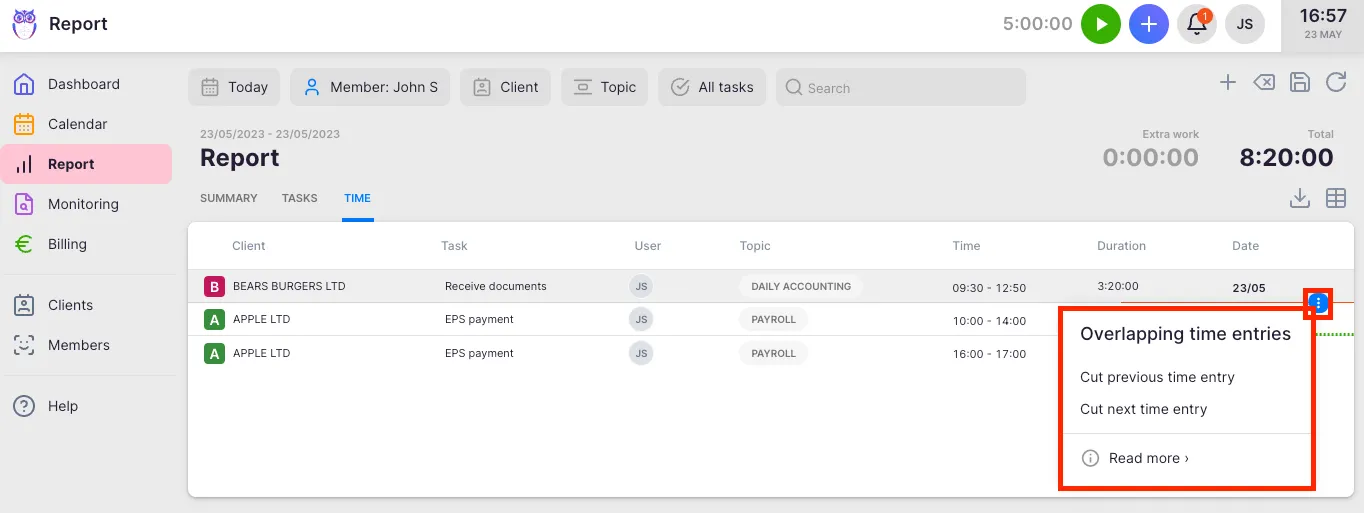
Section titled “Fixing overlaps (red line)”- Hover over the red line between two entries.
- Click the three-dot menu that appears.
- Choose one of the following options:
- Cut previous time entry — removes the overlapping portion from the first (earlier) entry.
- Cut next time entry — removes the overlapping portion from the second (later) entry.
Troubleshooting
Section titled “Troubleshooting”Color-coded lines are not appearing
Section titled “Color-coded lines are not appearing”Two conditions must both be true: (1) the Member filter must be set to exactly one person, and (2) entries must be sorted chronologically by clicking the Time column header. Verify both before investigating further.
A green gap appears during a lunch break
Section titled “A green gap appears during a lunch break”This is expected behavior. Gaps during planned breaks are normal and do not need to be corrected. You can safely ignore green lines that correspond to known break times.
The three-dot menu does not appear on hover
Section titled “The three-dot menu does not appear on hover”Position your cursor directly over the colored line itself, not over an entry row. The menu appears only when hovering the indicator line between rows.
The correction affected the wrong entry
Section titled “The correction affected the wrong entry”Confirm which entry is “previous” (started earlier) and which is “next” (started later) by reviewing the chronological order. The labels in the menu refer to time position, not list position.