How to create a product for additional services
Who can do this
Section titled “Who can do this”- Company Owners and Company Admins can create and manage products. Company Admins may be restricted if the Allow only Company Owners to add and update products setting is enabled.
Overview
Section titled “Overview”Some services should not appear on every invoice, but only when specific work is completed. For example, an annual accounts preparation fee should be charged once when the work is done, not recurring monthly. By linking the product to a task field, you control when the service is included on an invoice.
Step 1: Create a task field
Section titled “Step 1: Create a task field”Create a task field that acts as the trigger for invoicing.
- Navigate to Custom Fields in your settings.
- Create a new task field (a checkbox or number field depending on your use case).
- Give the field a descriptive name (for example, “Annual accounts completed”).
- Save the field.
Step 2: Create the product for additional services
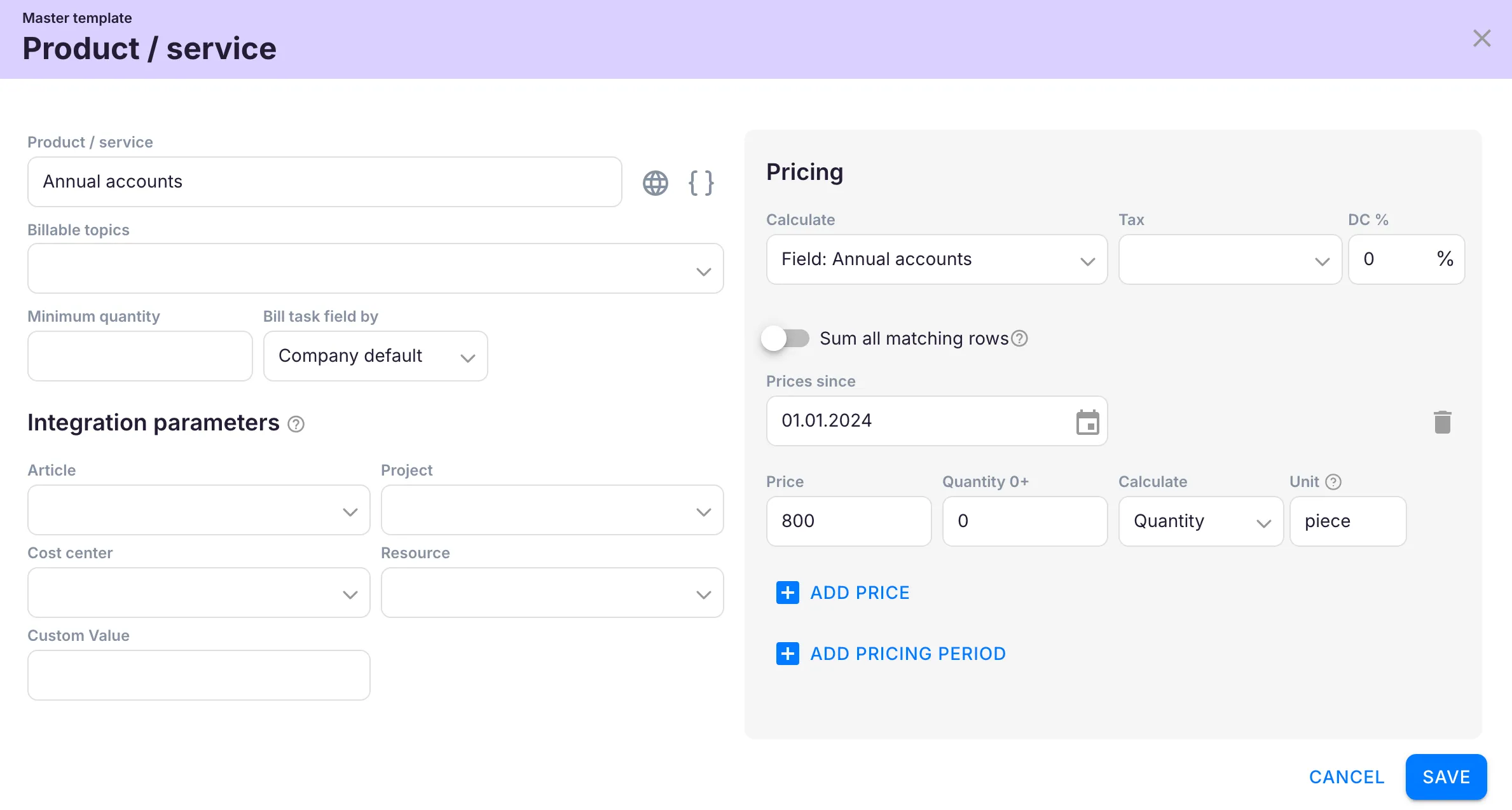
Section titled “Step 2: Create the product for additional services”- Open Settings & Apps > Billing > Setup > Articles and click + Add.
- Enter a product name (for example, “Annual accounts”).
- Configure the pricing (fixed, per piece, or hourly as needed for this service).
- Link the product to the task field you created in Step 1. This is what triggers invoicing when the field is filled in.
- Click Save.
How it works
Section titled “How it works”When the task field is filled in or checked on a task — for example, the accountant marks “Annual accounts completed” — the system queues this service for the next invoice. If the field is empty or unchecked, the service does not appear on the invoice for that period.
Example: To charge for annual accounts only when the work is finished, the accountant marks the “Annual accounts completed” field on the task. The product is automatically included on the next invoice.
Troubleshooting
Section titled “Troubleshooting”The additional service appears on every invoice
Section titled “The additional service appears on every invoice”Verify that the product is configured to bill based on the task field, not as a recurring fixed-price item. The product should only be triggered when the field value is set.
The service does not appear on the invoice even though the task field is filled in
Section titled “The service does not appear on the invoice even though the task field is filled in”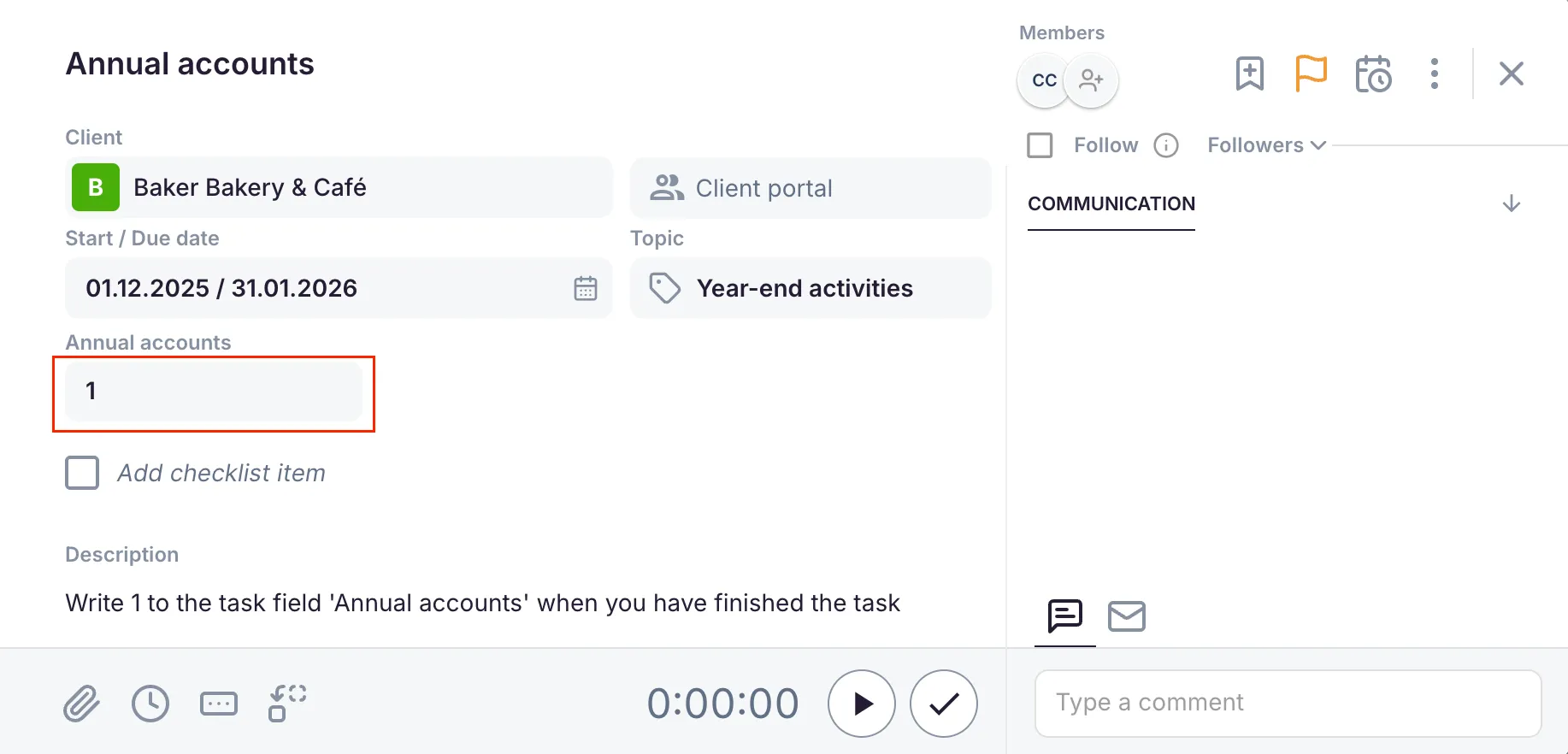
Check that the product is correctly linked to the task field in the product configuration. Also verify the product is included in the client’s contract.
The task field is not available when configuring the product
Section titled “The task field is not available when configuring the product”Make sure the task field has been created and saved in Custom Fields before attempting to link it in the product settings.
Screenshots
Section titled “Screenshots”