How to create a combined (hourly or per piece) product
Who can do this
Section titled “Who can do this”- Company Owners and Company Admins can create and manage products. Company Admins may be restricted if the Allow only Company Owners to add and update products setting is enabled.
Hourly combined product
Section titled “Hourly combined product”Use this when there is always a fixed fee for the service that differs from the hourly rate. The price is fixed up to a certain quantity threshold; if that threshold is exceeded, the hourly rate is added on top.
Example
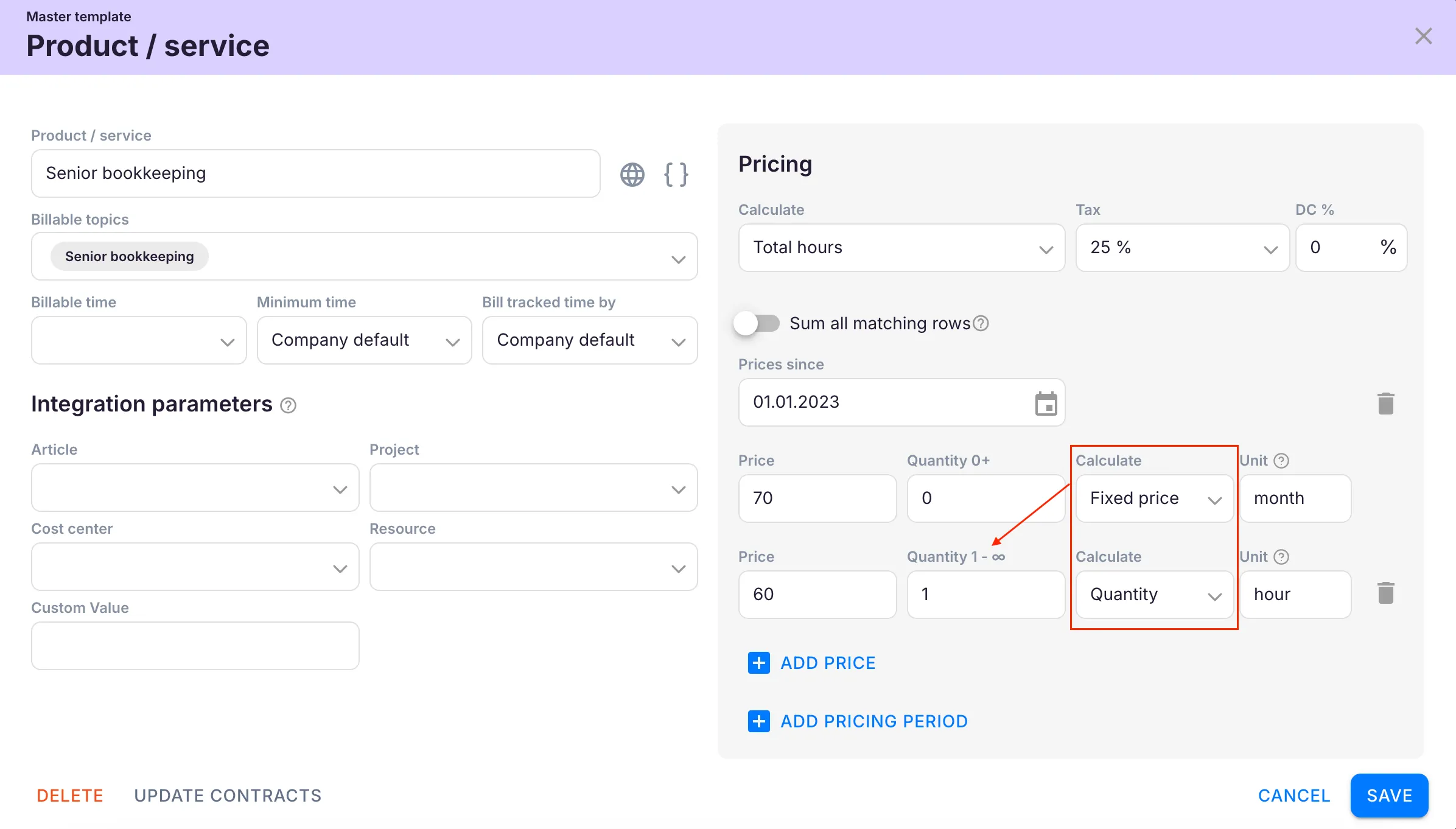
Section titled “Example”The service charges 70 EUR every month. Every additional hour beyond the first is billed at 60 EUR. When 2 hours are tracked:
- 70 EUR (fixed price for the first hour)
-
- 60 EUR (hourly price for the second hour)
- = 130 EUR total
Setting up an hourly combined product
Section titled “Setting up an hourly combined product”- Open Settings & Apps > Billing > Setup > Articles and click + Add.
- Enter a product name.
- Add a pricing row with the Fixed price type and enter your base fee.
- Add a second pricing row with the Hourly price type.
- In the hourly pricing row, define the starting hour threshold (for example, “after hour 1”) so the hourly price only applies beyond the fixed quantity.
- Click Save.
Pay attention to defining the hourly price as starting after a specific hour. This ensures the fixed fee covers the initial period and hourly billing only begins once that threshold is passed.
Alternative: Sum all matching rows
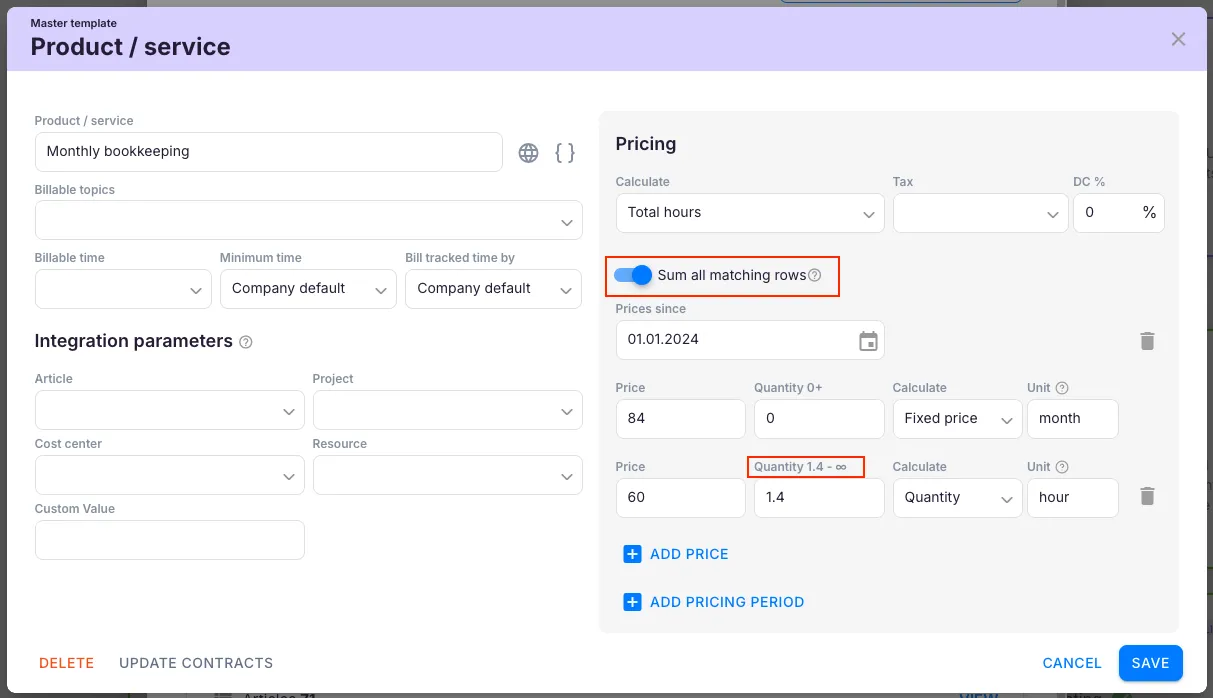
Section titled “Alternative: Sum all matching rows”Another approach is to enable the Sum all matching rows setting and define from what time the hourly price applies. For example, 84 EUR is charged up to 1.4 hours; after that, the calculation switches to an hourly rate.
Per-piece combined product
Section titled “Per-piece combined product”Use this when the price is fixed up to a certain quantity and any units beyond that threshold are charged at a per-piece rate.
Example
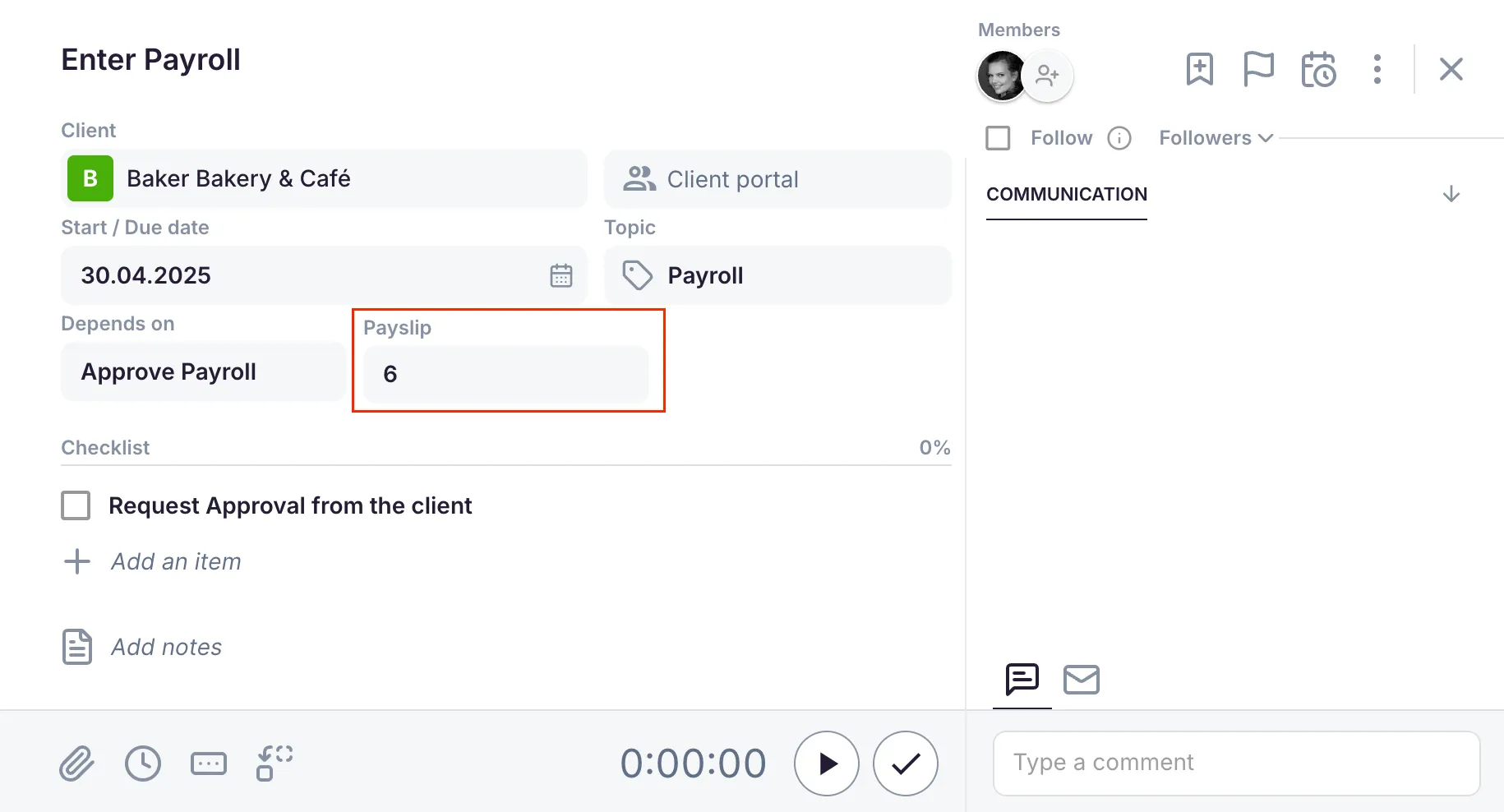
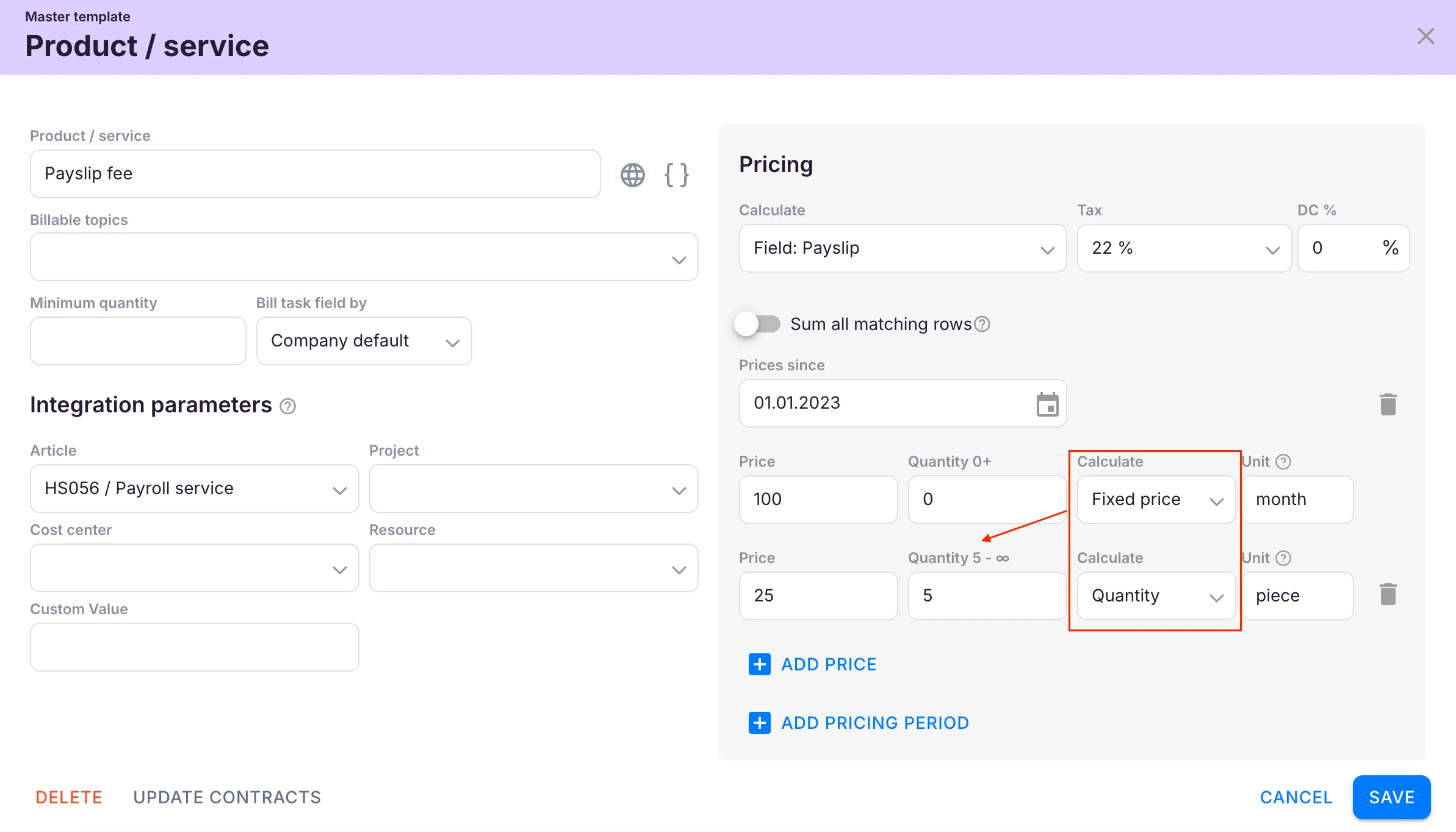
Section titled “Example”Every month there is a fixed fee of 100 EUR for up to 5 payslips. Every additional payslip is 25 EUR.
Setting up a per-piece combined product
Section titled “Setting up a per-piece combined product”- Open Settings & Apps > Billing > Setup > Articles and click + Add.
- Enter a product name.
- Add a pricing row with the Fixed price type and set the quantity threshold (for example, 5 payslips).
- Add a second pricing row with the Per piece price type and enter the per-unit price.
- Select the task field from which the quantity will be taken.
- Click Save.
The quantity for per-piece pricing is pulled from the designated task field. Make sure this field is correctly configured and filled in on each task to ensure accurate invoice calculations.
Troubleshooting
Section titled “Troubleshooting”The hourly overage is not being calculated
Section titled “The hourly overage is not being calculated”Verify that the hourly pricing row specifies the correct starting hour threshold. If it is set to start “after hour 0,” it will conflict with the fixed fee.
The per-piece quantity shows as zero on the invoice
Section titled “The per-piece quantity shows as zero on the invoice”Check that the corresponding task field has been filled in on the task. The quantity is pulled directly from that field.
Both pricing rows appear on the invoice when only one should
Section titled “Both pricing rows appear on the invoice when only one should”Review the Sum all matching rows setting. Toggle it on or off depending on whether you want cumulative or range-based pricing.
The fixed fee is not appearing
Section titled “The fixed fee is not appearing”Ensure the fixed pricing row has a quantity of at least 1 and that the product is correctly assigned to the client contract.