Magic buttons
Magic buttons let you create a new task and start its timer with a single click. They are designed for unexpected work — a phone call comes in, you press the button, the task is created and the timer starts. You fill in the details after you hang up.
Who can do this
Section titled “Who can do this”- All team members on the Team plan and above can use magic buttons.
- Company Admins and Company Owners can configure company-wide magic buttons (up to 4).
- Any member can configure their own personal magic buttons (up to 4).
How to set up magic buttons
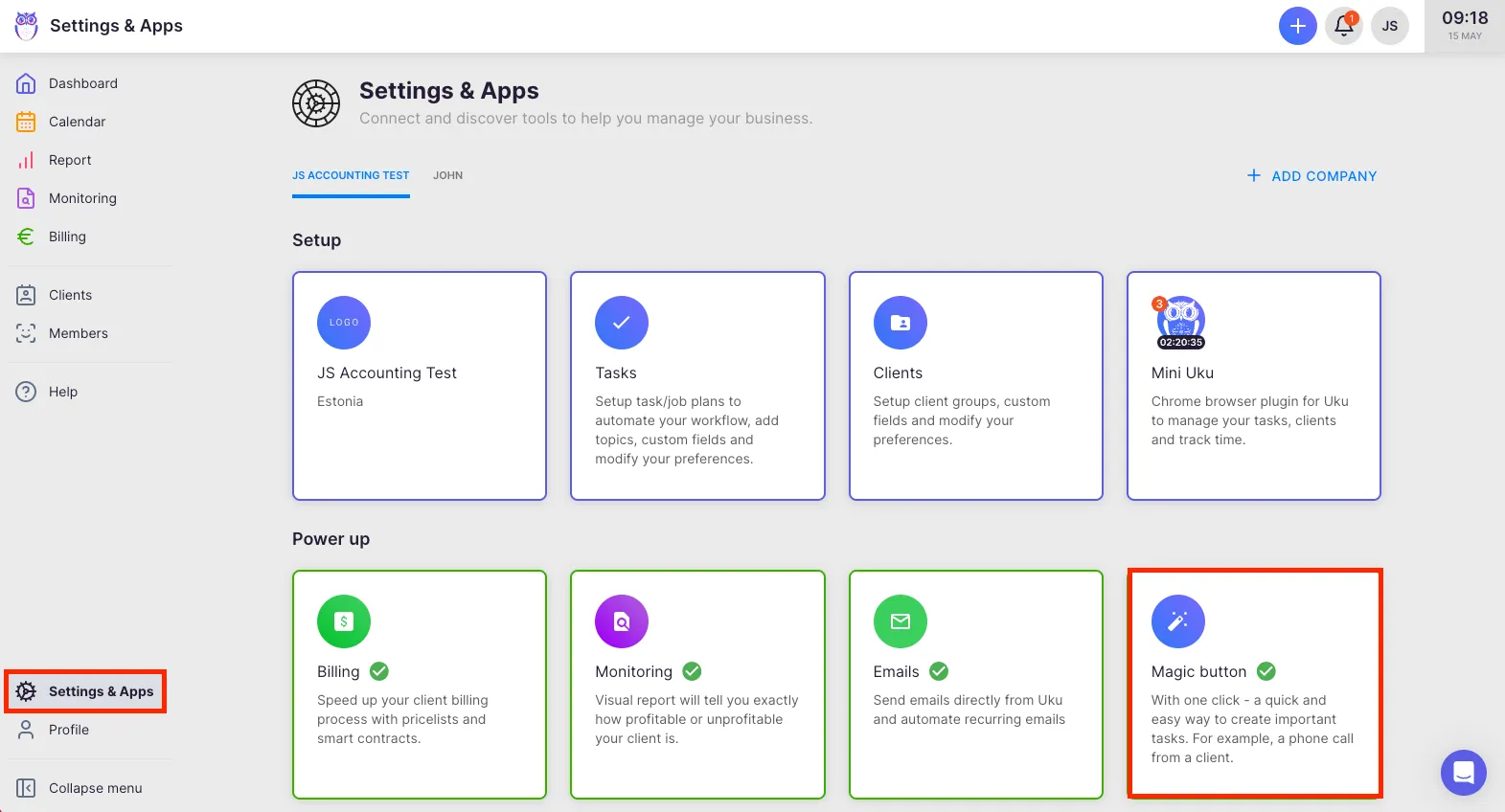
Section titled “How to set up magic buttons”- Select Settings & Apps from the main navigation menu.
- Open the Magic buttons app.
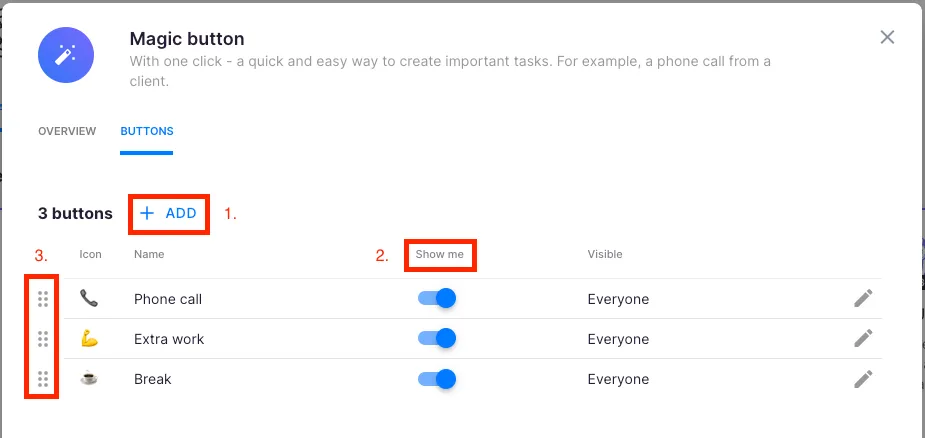
- Click Add button to create a new magic button.
- Configure the button with the desired task template (topic, title prefix, client assignment).
- Click Save.
In the Magic buttons settings, you can also:
- Choose which buttons are visible to members
- Change the display order of buttons You can create a maximum of 8 magic buttons total: 4 company-wide buttons and 4 personal shortcuts.


How to use magic buttons
Section titled “How to use magic buttons”- Hover over the + (Add) button in the navigation bar to reveal your magic buttons.
- Click a magic button to create a new task and start the timer simultaneously.
- Modify the client or other task details afterward as needed.
- Mark the task as done when complete.
After completing an unexpected task, you can quickly return to your previous task from the magic buttons list — the task you were working on before is shown for easy access.
Troubleshooting
Section titled “Troubleshooting”Magic buttons do not appear when hovering over the + button
Section titled “Magic buttons do not appear when hovering over the + button”Verify that your company is on the Team plan or above. Magic buttons are not available on the Free plan.
Cannot create company-wide buttons
Section titled “Cannot create company-wide buttons”Only Company Admins and Company Owners can configure company-wide magic buttons. Check your role under Members. You can still create up to 4 personal magic buttons regardless of your role.
Timer does not start when clicking a magic button
Section titled “Timer does not start when clicking a magic button”If another timer is already running, Uku pauses it before starting the new one. Check your active timers in the header widget to confirm the switch occurred.
Button limit reached
Section titled “Button limit reached”You can have a maximum of 8 magic buttons (4 company + 4 personal). Remove an existing button before adding a new one.
Screenshots
Section titled “Screenshots”