How to set up contracts
This content is not available in your language yet.
Who can do this
Section titled “Who can do this”- Company Owners and Company Admins can always create and edit contracts on any client.
- Company Members holding Client Admin permission on a client can manage that client’s contracts when the Allow contract and invoice management for users with Client Admin permission billing setting is enabled. See Billing permissions and settings.
- The Billing feature must be enabled for your company.
- At least one product must exist before you can add contract rows. See How to create products.
What is a contract?
Section titled “What is a contract?”A contract is a billing agreement attached to a specific client. It defines:
- Which services you provide (as contract rows linked to products)
- How often you bill (monthly, quarterly, or yearly)
- When the invoice is created (a specific day of the month, last day, or on creation date)
- What date range the contract covers
Contracts have two statuses: Active and Inactive. Only active contracts within their date range generate invoices.
Creating a contract
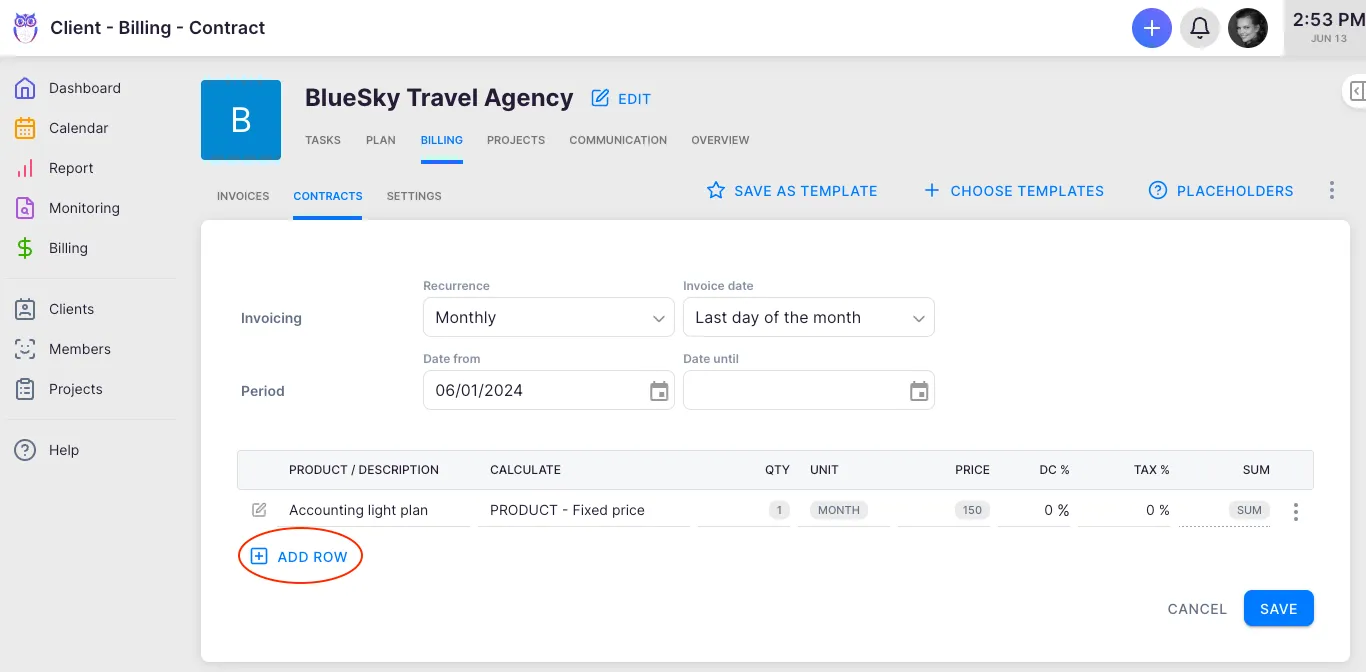
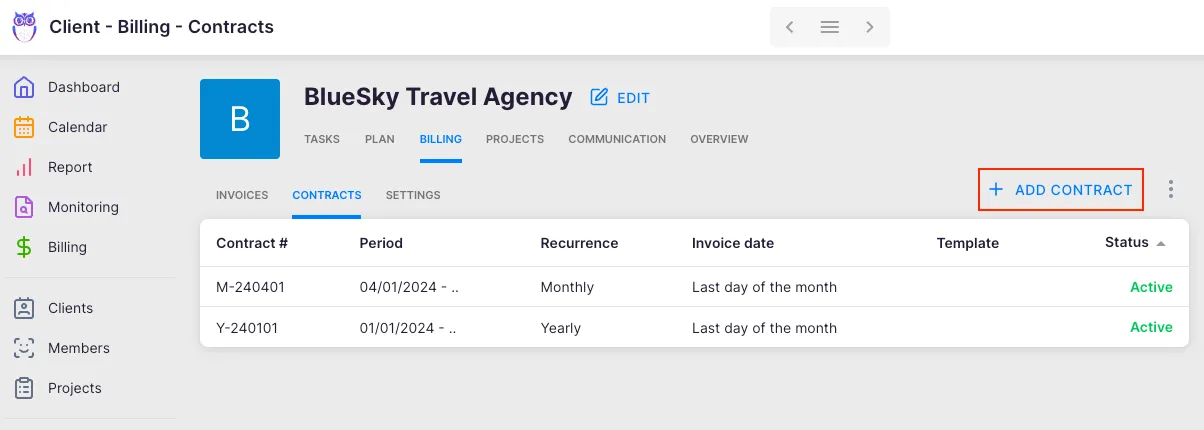
Section titled “Creating a contract”Path: Clients > [Client name] > Financials > Contracts > Add contract
- Open the client profile and go to Financials > Contracts.
- Click Add contract in the top-right corner.
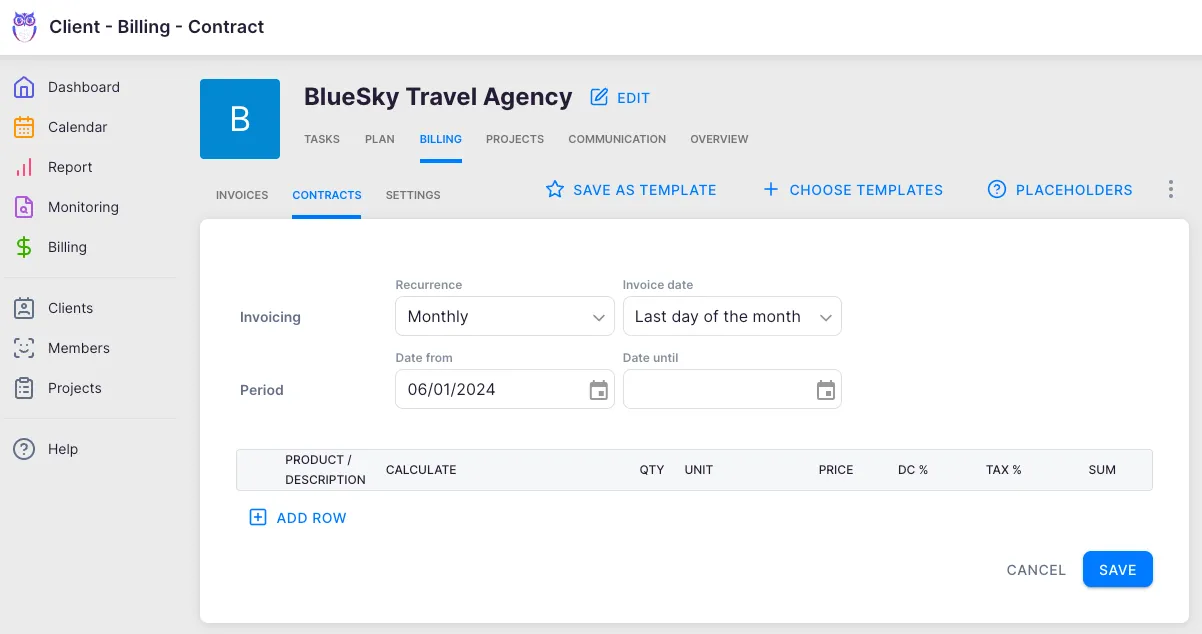
- Fill in the contract details:
- Name — a label for this contract (for example, “Monthly bookkeeping” or “Q1 advisory”).
- Recurrence — choose Monthly, Quarterly, or Yearly.
- Invoice date — the day the invoice is generated. Options: a specific calendar day (1–28), Last day of the month, or Creation date.
- Date from — when the contract starts.
- Date until — (optional) when the contract ends. Leave blank for open-ended contracts.
- Click Add row to add service lines. Select a product from the dropdown, or click New product to create one inline.
- Each row shows: service name, billing type, quantity, unit, price, and sum. Click a row to edit its details — pricing tiers, minimum quantities, discounts, tax rate, and more.
- Click Save.
To duplicate or delete a contract, use the three-dot action menu next to the contract in the list.
How contracts generate invoices
Section titled “How contracts generate invoices”The billing engine checks active contracts on their scheduled invoice date and generates invoices automatically:
- The contract’s recurrence determines the billing cycle.
- The invoice date determines which day of the cycle the invoice is created.
- For each contract row, the system calculates the billable amount based on the row type:
- Fixed price rows bill a set quantity at the defined price.
- Time-based rows pull tracked time from the billing period and apply pricing tiers.
- Task field rows bill based on custom field values from tasks in the period.
- Pricing tiers support volume-based pricing — different rates for different quantity ranges.
- Minimum quantities ensure a baseline charge even when tracked time is low.
- The generated invoice inherits the client’s contract settings (currency, due date, rounding, grouping).
Per-client contract settings
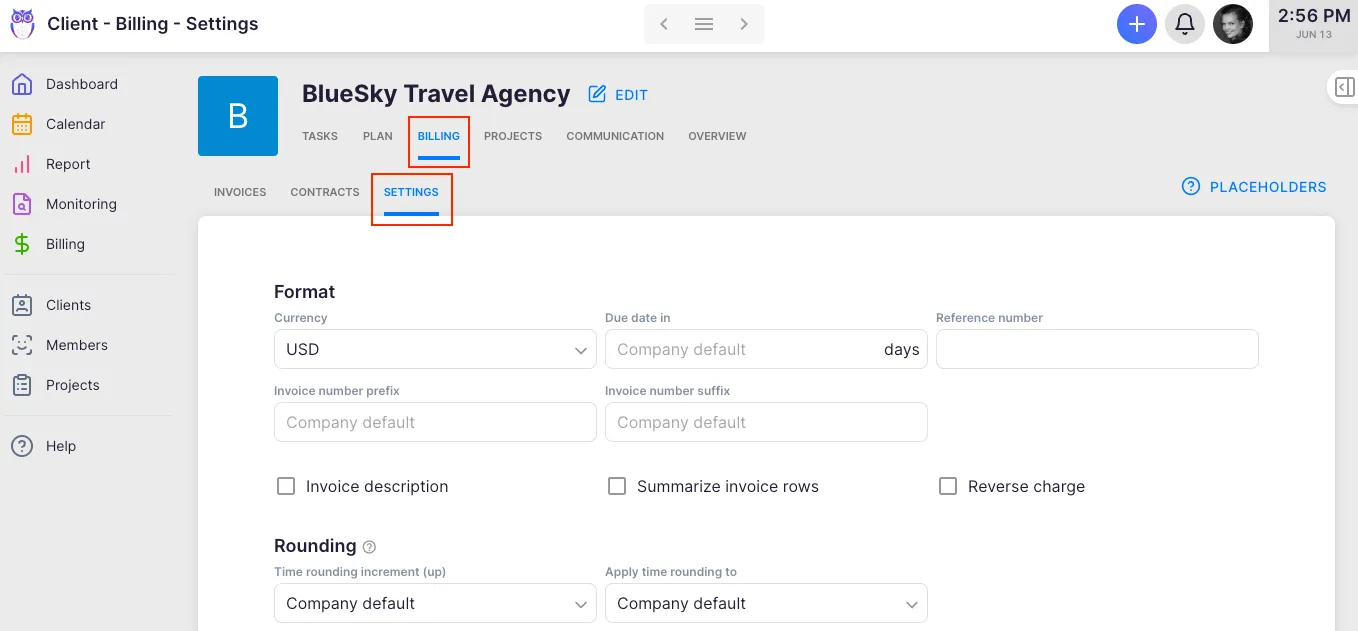
Section titled “Per-client contract settings”Each client has dedicated billing settings that apply across all their contracts. Open the contract settings from the Contracts tab. Most fields default to Company default, meaning the company-wide setting applies unless overridden here.
Format
Section titled “Format”- Currency — the invoice currency for this client.
- Payment due date — number of days after the invoice date when payment is due.
- Reference number — a reference number added to invoices for this client.
- Invoice number prefix/suffix — client-specific numbering overrides.
- Invoice description — text added to every invoice for this client.
- Reverse charge — enables the EU reverse charge notice on invoices (for cross-border EU services).
- Summarize invoice rows — combines multiple invoice lines into one consolidated line under a specified name.
Rounding
Section titled “Rounding”- Time rounding increment — round up tracked time to the nearest specified increment for this client.
- Apply rounding to — whether rounding is applied per invoice line or per task.
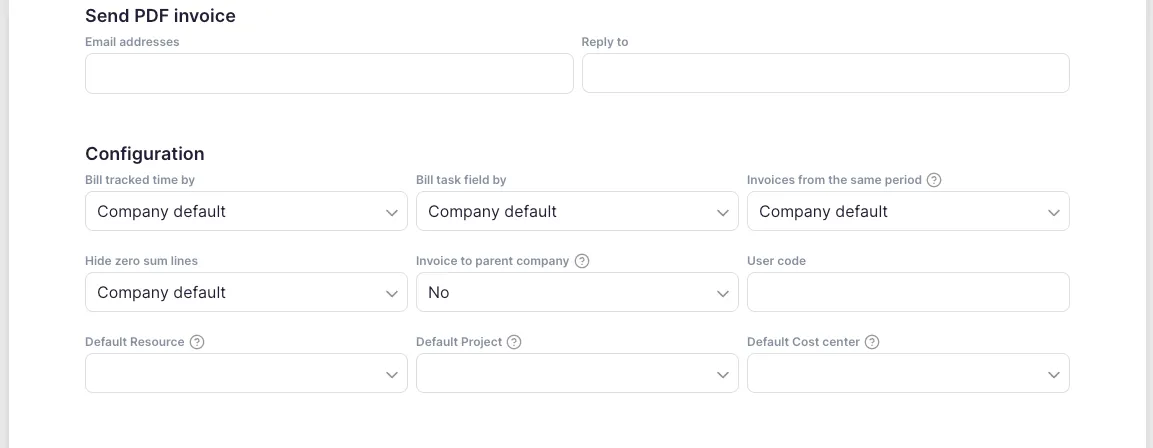
Send PDF invoice
Section titled “Send PDF invoice”- Email addresses — addresses that receive this client’s invoices automatically.
- Reply-to address — the reply-to address on invoice emails sent to this client.
- PDF line grouping — how rows are grouped on the PDF (Show all / Group by description / Group by article). Choosing a non-default option overrides the company setting for this client. Company default falls back to Settings & Apps > Billing > Settings.
- Disable debt reminders — turns off automatic payment reminders for this client.
Configuration
Section titled “Configuration”- Bill tracked time by — how time entries are assigned to billing periods (by time entry date, task start date, task due date, or task finish date).
- Bill task field by — how custom field values are assigned to billing periods.
- Invoice from the same period — when enabled, all active contracts for this client in the same period merge into one invoice.
- Hide zero sum lines — hides invoice rows with a zero amount from the PDF.
- Invoice to the parent company — if the client has a parent company, invoices are sent to the parent instead.
- Default resource / project / cost center / seller — applied to all rows in this client’s contracts by default.
Contract templates
Section titled “Contract templates”Templates let you define a contract structure once and reuse it across many clients — useful when you offer standardised service packages.
To create a template: when editing any contract, use the action menu to Save as template. Or open the Manage contract templates panel from the Contracts tab (three-dot menu next to Add contract).
To use a template: when creating a new contract, choose an existing template. The template pre-fills the recurrence, invoice date, and service rows. You can still customise the contract after applying it.
Templates support dynamic placeholders in product names that are replaced when generating invoices. See Billing placeholders for the full list.
For full details on creating and managing templates, see How to set up and use contract templates.
Bulk-assigning contracts across clients
Section titled “Bulk-assigning contracts across clients”To apply the same contract to many clients at once:
- Go to the Client list and select multiple clients using the checkboxes.
- Open the bulk actions menu and choose Contract.
- Choose one of three actions:
- Add — creates a new contract from a template for all selected clients. Set a start date and optionally an end date.
- Replace — swaps existing contracts (all contracts, or contracts of a specific recurrence or template) with a new template.
- Append only — adds the rows from a template into existing contracts without replacing them.
- Select the template to apply and click Save.
Troubleshooting
Section titled “Troubleshooting”No products available when creating a contract
Section titled “No products available when creating a contract”Products must be added under Settings & Apps > Billing > Setup > Articles before they appear in the contract product selection. See How to create products.
Invoices are not being generated
Section titled “Invoices are not being generated”Verify that the contract start date has passed and that the contract does not have an end date that has already elapsed. Also check that the contract status is Active.
Invoice goes to the wrong company
Section titled “Invoice goes to the wrong company”Check the Invoice to the parent company setting under the contract’s Configuration tab. Ensure it is set correctly for this client.
Multiple invoices are being created instead of one
Section titled “Multiple invoices are being created instead of one”Enable the Invoice from the same period option in the contract’s Configuration settings to consolidate invoices from multiple active contracts into a single invoice.
Permission error when creating a contract
Section titled “Permission error when creating a contract”Only Company Owners and Company Admins can manage contracts by default. Company Members can manage contracts only when the Allow contract and invoice management for users with Client Admin permission billing setting is enabled and they hold Client Admin permission on this specific client.