
Add and edit clients
This content is not available in your language yet.
Who can do this
Section titled “Who can do this”- Company Owners and Company Admins can add and edit any client.
- Company Members can add and edit clients if client management is not restricted in company settings.
- Deleting a client permanently is restricted to Company Owners.
Creating a new client
Section titled “Creating a new client”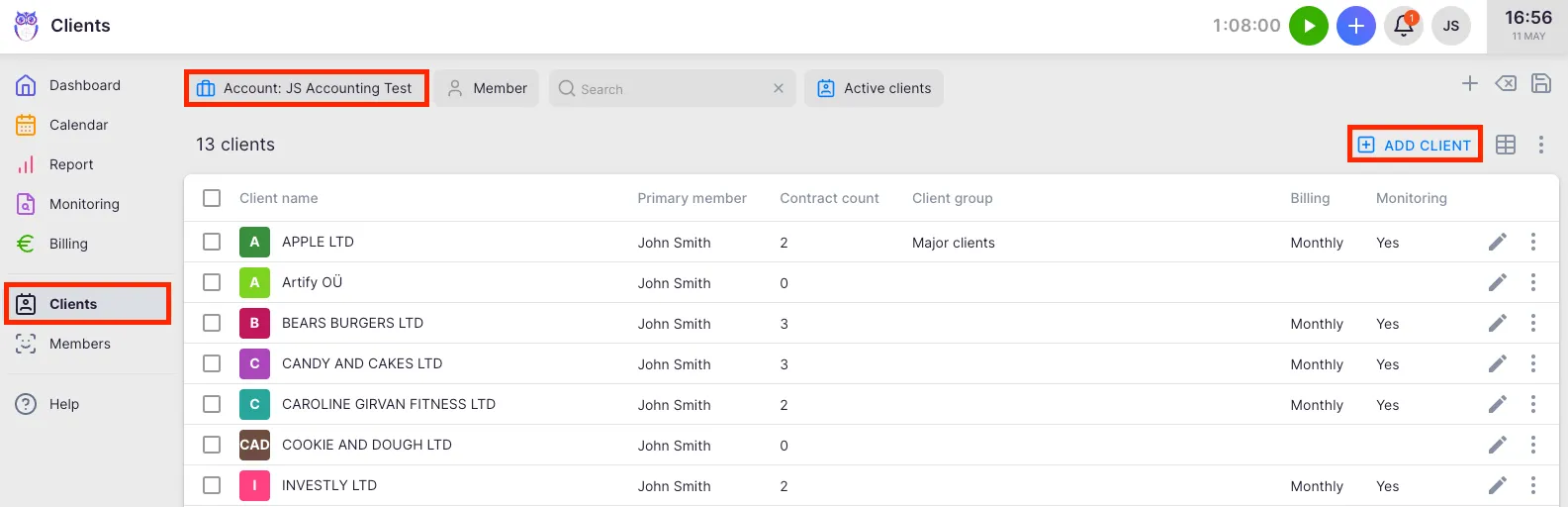
- Go to Clients in the main sidebar.
- Click Add client in the top-right area of the client list.
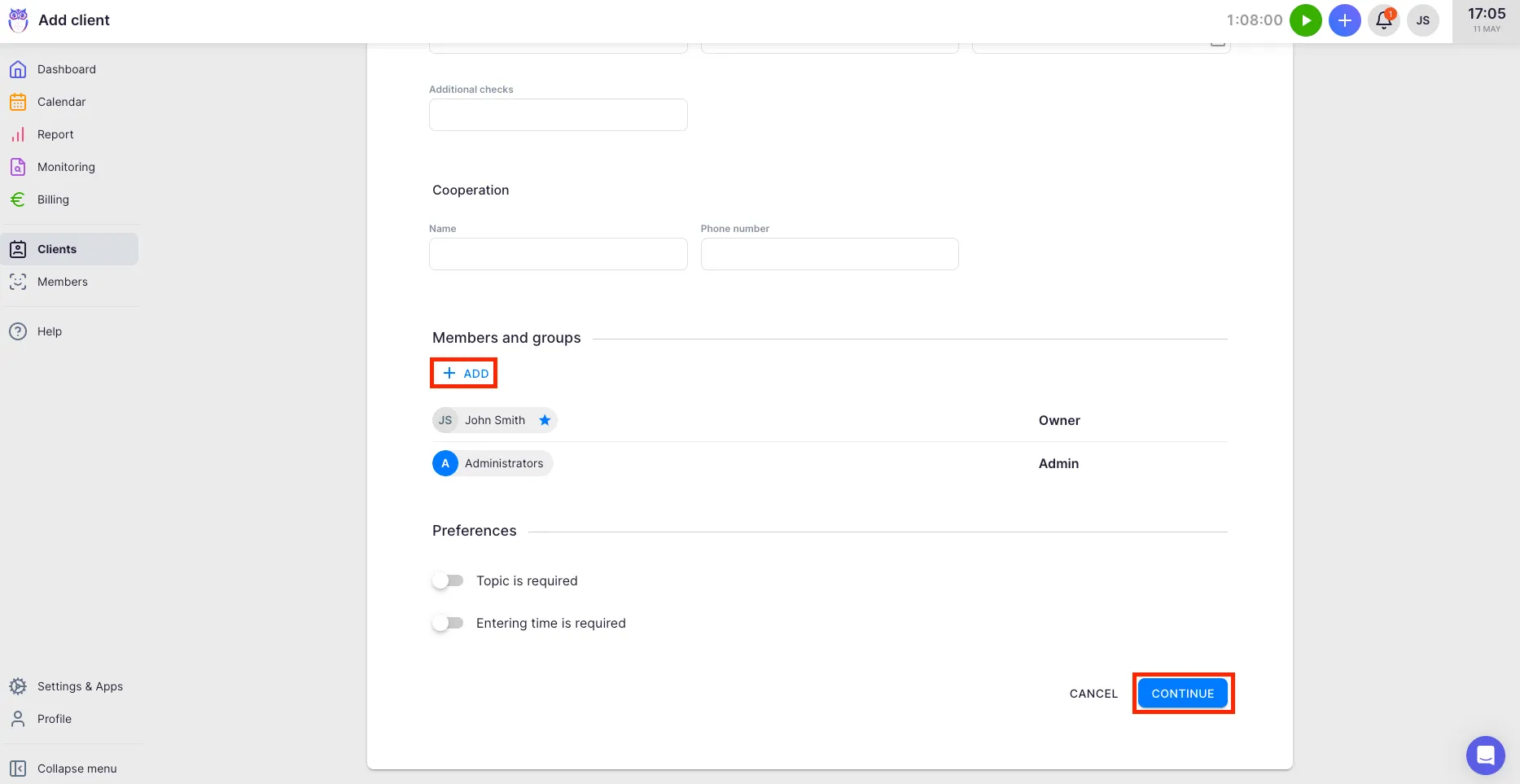
- Fill in the client form (see sections below) and click Continue.
After saving, Uku takes you to the workflow editor where you can set up recurring tasks and deadlines for the new client.
Company name and registry autocomplete
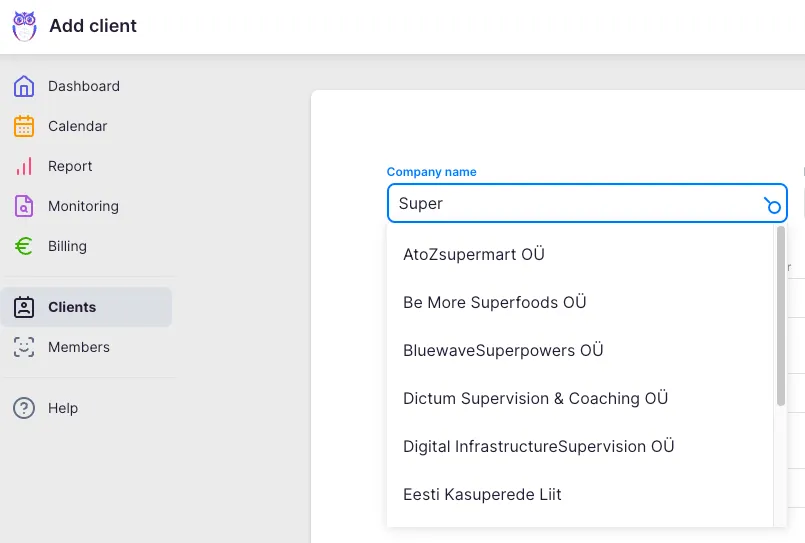
Section titled “Company name and registry autocomplete”Start typing in the Company’s name field. Uku searches official business registries based on the selected country and shows matching companies as suggestions. Selecting a suggestion auto-fills:
- Company name and mark (abbreviation)
- Company number (registration code) and VAT number
- Address, city, postal code, and state
- Contacts (if available from the registry)
For UK companies, Uku also fetches company type, status, date of creation, filing deadlines, SIC codes, and insolvency history from Companies House.
You can override any auto-filled value by editing the field manually. If no country is selected, autocomplete will not return results — set the country first to enable registry lookup.
Core client fields
Section titled “Core client fields”- Company’s name — the client’s legal or trading name. Required.
- Mark — a short abbreviation of up to 4 characters, auto-generated from the company name. Shown across the application to identify the client quickly. Converted to uppercase on save.
- Color — a color tag for the client. A random color is pre-selected; click to change.
- Country — controls which business registry is used for autocomplete. Defaults to your company’s country.
Below the core fields, additional fields appear depending on your company’s client custom field configuration — for example company number, VAT number, and address fields.
Assigning team members
Section titled “Assigning team members”The Members section controls which team members have access to this client’s data and tasks.
- Click the + button in the Members section header.
- Search for and select a team member from the dropdown.
- Set their Rights: Admin (Client Admin — full rights on this client) or Member (Client Member — standard access).
Notes on member assignments:
- The current user is automatically added as a member with Client Admin rights and set as the primary member.
- Company Owners and Company Admins are added automatically and their role cannot be changed here.
- If the Client Portal is enabled, a Client portal toggle appears per member to control portal access. The primary member always has portal access — this cannot be disabled for them.
- Newly added members default to Client Admin rights. Change to Client Member using the Rights dropdown.
Setting the primary member
Section titled “Setting the primary member”One team member is designated as the primary member for the client — the default assignee and main internal point of contact. To change the primary member, click the star or badge icon next to a different member’s name.
Client preferences
Section titled “Client preferences”Two toggles at the bottom of the form control task requirements for this client:
- Topic is required — when on, every task created for this client must have a topic assigned before it can be saved.
- Entering time is required — when on, team members must log time when marking tasks done for this client. Both are off by default for new clients.

Editing an existing client
Section titled “Editing an existing client”- Navigate to the client’s profile page (click the client name in the client list).
- Click Edit in the client header.
- Modify the fields you need and click Save.
After saving, you are returned to the client’s profile overview page.
To manage which custom fields appear on the client form, click Manage client fields at the bottom of the edit form. This opens the relevant section in Settings & Apps.
Deleting a client
Section titled “Deleting a client”To delete a client permanently, open the client’s edit form and click the red Delete client button at the bottom-left. A confirmation dialog warns you before proceeding. Deletion removes the client and all associated data permanently and cannot be undone.
In most cases, deactivating the client is preferable — it hides them from active lists while preserving all history. Deactivate from the client list’s kebab menu or status options.
Troubleshooting
Section titled “Troubleshooting”The company name autocomplete is not returning suggestions
Section titled “The company name autocomplete is not returning suggestions”Registry lookup requires a Country to be selected. If the Country field is empty or set to a country without a connected registry, autocomplete will not run. Set the country first, then start typing the company name.
I cannot remove a Company Admin from the client’s member list
Section titled “I cannot remove a Company Admin from the client’s member list”Company Owners and Company Admins are automatically assigned to every client with unrestricted access. Their membership cannot be removed from the client edit form — it is managed at the company level in Settings & Apps → Members.
I do not see the Delete client button
Section titled “I do not see the Delete client button”Permanent deletion is restricted to Company Owners. If you are a Company Admin or Member, you will not see the Delete client button. Use deactivation instead, or ask your Company Owner to delete the client.
After saving a new client I am taken to the workflow editor — can I skip it?
Section titled “After saving a new client I am taken to the workflow editor — can I skip it?”Yes. The workflow editor opens automatically after creating a client so you can set up recurring tasks straight away. If you are not ready, close the editor or navigate away — the client record is already saved and you can return to set up workflows at any time.