How to set up and use contract templates
This content is not available in your language yet.
Who can do this
Section titled “Who can do this”- Company Owners and Company Admins can create and manage contract templates and assign them to clients.
- Company Members with Client Admin permission on a client can manage that client’s contracts when the Allow contract and invoice management for users with Client Admin permission billing setting is enabled.
- Products must be created before building templates. See How to create products.
Creating a contract template
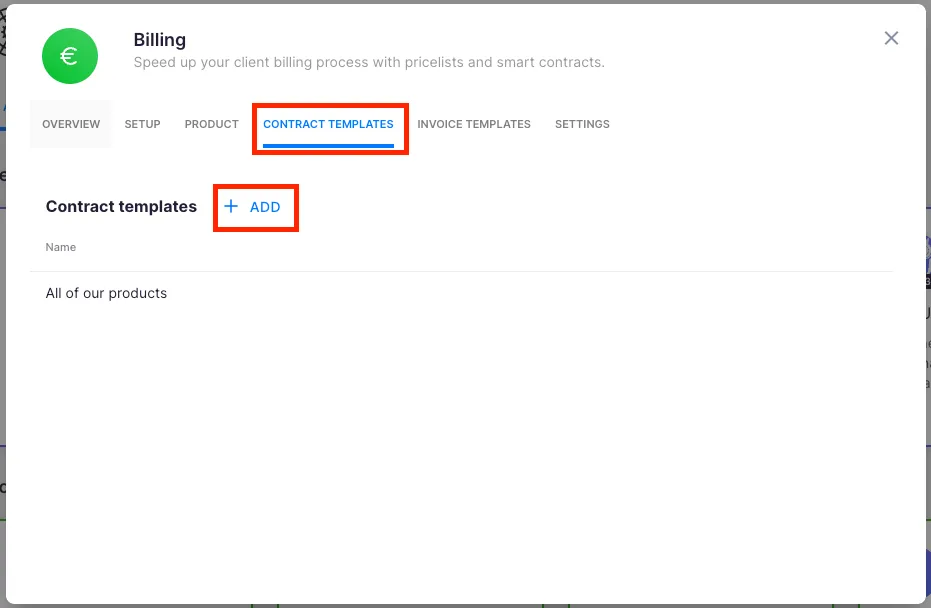
Section titled “Creating a contract template”Path: Clients > [any client] > Financials > Contracts > three-dot menu > Manage contract templates
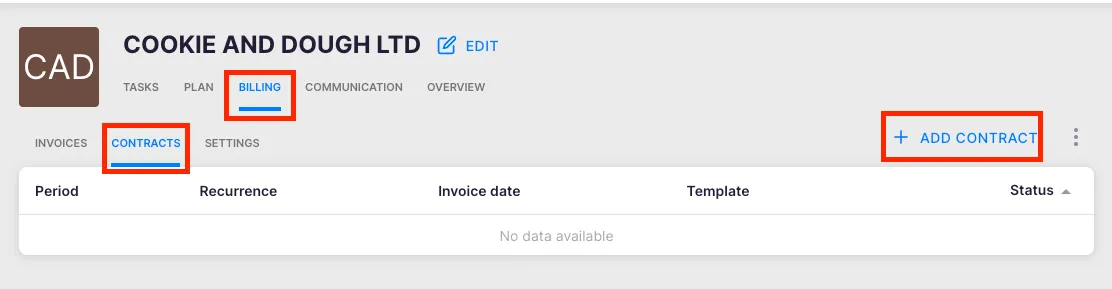
- Open any client profile and go to Financials > Contracts.
- Click the three-dot action menu next to Add contract.
- Select Manage contract templates to open the billing templates panel.
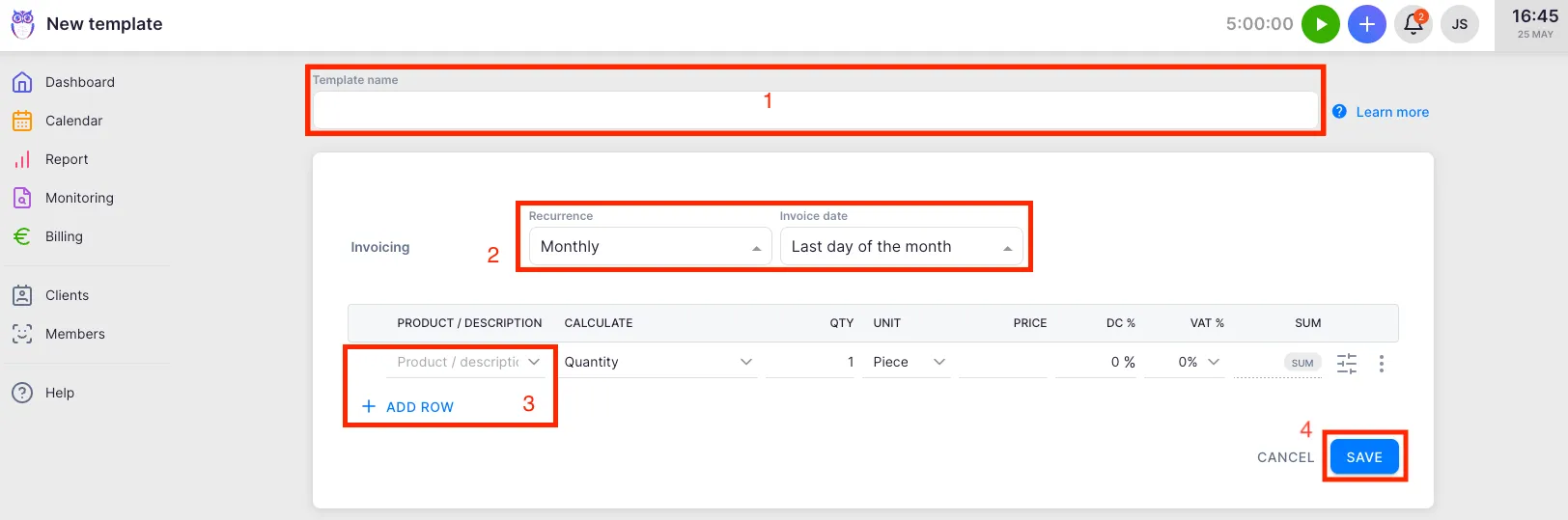
- Click Add template.
- Name the template (for example “Monthly bookkeeping” or “Quarterly package”).
- Set the recurrence (Monthly, Quarterly, or Yearly) and invoice date.
- Add service rows by selecting existing products or creating new ones inline.
- Click Save.
Alternatively, when editing any existing client contract, use the Save as template action to save it as a new template.
Applying a template to a single client
Section titled “Applying a template to a single client”- Open the client profile and go to Financials > Contracts.
- Click Add contract, then click Choose templates.
- Pick a contract template from the list.
- Adjust any client-specific details if needed.
- Click Save.
The contract shows a Billing template badge indicating which template it was created from.
Applying a template to multiple clients at once
Section titled “Applying a template to multiple clients at once”Path: Client list > select clients > bulk actions > Contract
- In the Client list, select the clients using the checkboxes.
- Open the bulk actions menu and click Contract.
- Choose one of three actions:
- Add — creates a new contract from the template for all selected clients.
- Replace — swaps existing contracts (all, or filtered by recurrence or template) with the new template.
- Append only — adds the rows from the template into existing contracts without replacing them.
- Select the template and click Save.
Template placeholders
Section titled “Template placeholders”Contract templates support dynamic placeholders in product names. These are replaced automatically when Uku generates invoices:
| Placeholder | What it shows |
|---|---|
| `{{invoice_previous_period}}` | The previous billing period |
| `{{invoice_period}}` | The current billing period |
| `{{invoice_next_period}}` | The next billing period |
| `{{client_primary_user}}` | The client's primary contact name |
| `{{quantity_as_time}}` | Billed quantity formatted as time (for example "3h 30min") |
Click the Placeholders button when editing a template to see the full list. See also Billing placeholders.
How the template link works
Section titled “How the template link works”If you modify a contract template, Uku can propagate those changes to all client contracts still linked to it. However:
- If you manually edit an individual client’s contract, the link between that contract and the template is permanently broken. Future template changes will no longer update that client’s contract.
- Contracts that have never been individually edited remain linked and receive template updates. The safest way to make a change across all clients is to edit the template rather than each client’s contract individually.
Troubleshooting
Section titled “Troubleshooting”Template changes are not reflected in a client’s contract
Section titled “Template changes are not reflected in a client’s contract”The link was broken because the client’s contract was edited individually. Manually update that client’s contract or remove it and re-apply the template.
No products available when creating a template
Section titled “No products available when creating a template”Products must be added in Settings & Apps > Billing > Setup > Articles before they can be included in a template.
The Contract bulk action does not appear in the client list
Section titled “The Contract bulk action does not appear in the client list”Ensure you have selected at least one client using the checkboxes before opening the bulk actions menu.
Template not appearing when adding a contract to a client
Section titled “Template not appearing when adding a contract to a client”Click Choose templates after clicking Add contract, rather than starting a blank manual contract.