What are custom fields and how to use them?
This content is not available in your language yet.
Custom fields let you track additional data on tasks and client records — numbers like headcount or invoice count, text notes, dropdown choices, and more. Instead of managing these details in a separate spreadsheet, store them in Uku so they are always accessible alongside the task.
Who can do this
Section titled “Who can do this”- Company Admins and Company Owners can create, rename, and archive custom fields in Settings & Apps.
- All team members can fill in custom field values on tasks they have access to.
Custom field types
Section titled “Custom field types”| Type | Use for |
|---|---|
| **Text** | Free-form notes, reference numbers, or any string value |
| **Number** | Numeric values — invoice count, number of employees, entries. Also usable in Monitoring targets. |
| **Choice** | Single selection from a predefined dropdown list |
| **Article** | Reference to a specific accounting article or regulation |
| **Price** | Monetary amount with currency formatting |
How to create a custom field
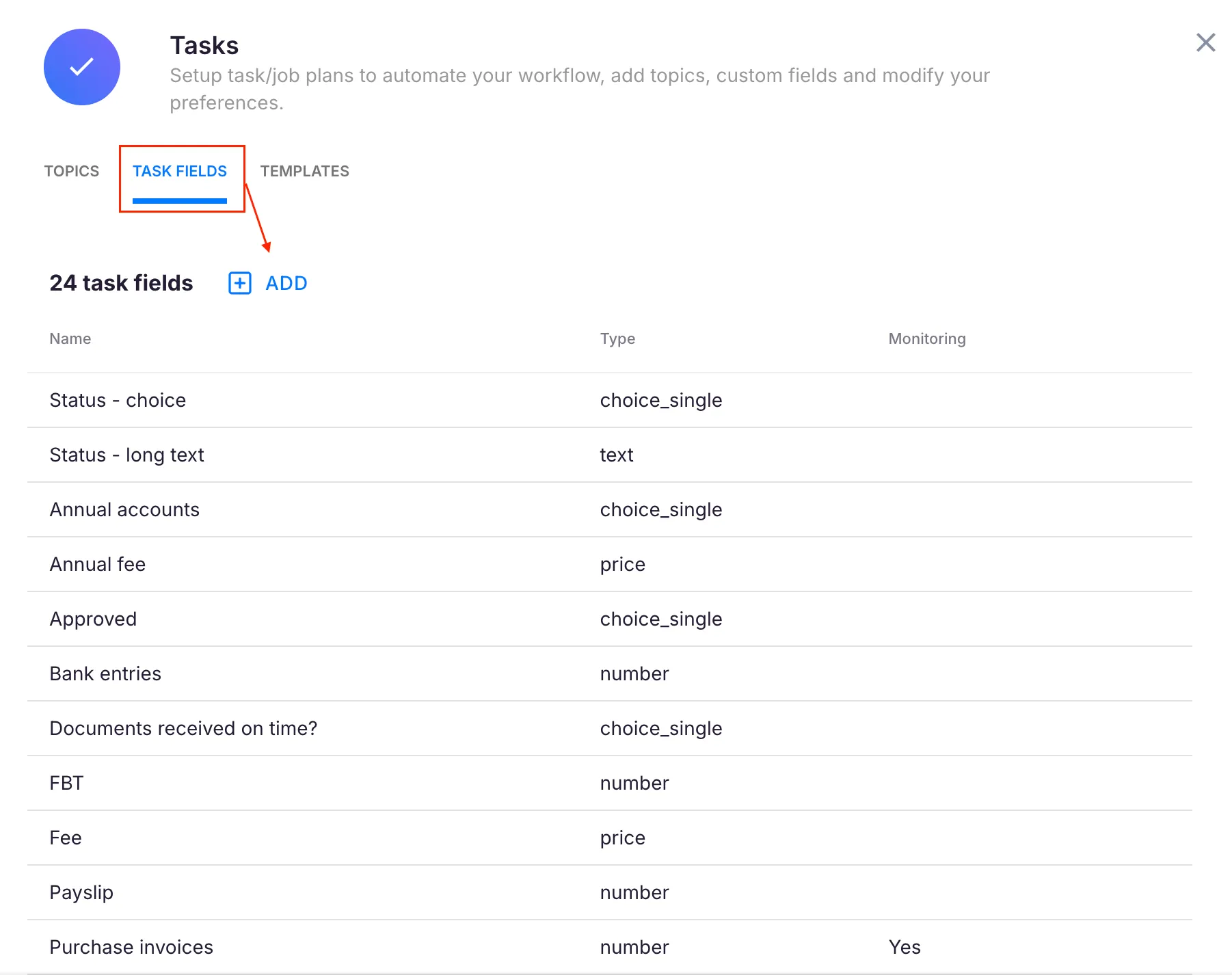
Section titled “How to create a custom field”- Select Settings & Apps from the main navigation menu.
- Click the Tasks app.
- Select Custom Fields.
- Click + Add. A dialog appears.
- Enter a name for the field.
- Select the field type.
- Optionally, make the field Required — required fields appear automatically on every new task. You can restrict the requirement to specific topics only.
- Click Save.
How to use a custom field on a task
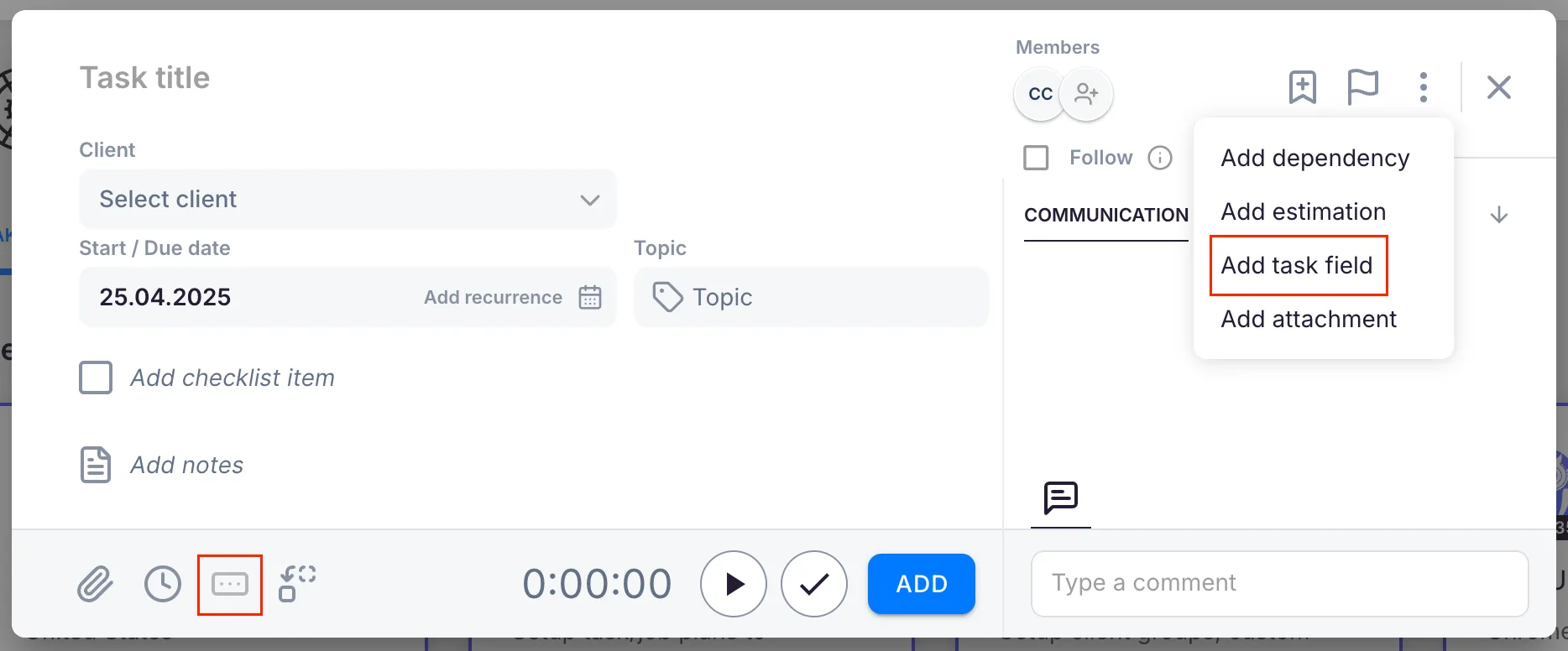
Section titled “How to use a custom field on a task”- Open a task.
- Click the More menu (three dots) and select Custom fields.
- Enable the custom field you need.
- Enter the value for the field.
Required fields appear on the task automatically without needing to be enabled manually.
Custom fields in reports
Section titled “Custom fields in reports”- Open the Report view.
- Click the Properties button (column settings icon) in the toolbar.
- Enable the custom field column you want to display.
The selected custom field data now appears as a column in the report, letting you filter and compare values across tasks, clients, and members.
Troubleshooting
Section titled “Troubleshooting”Custom field does not appear on a task
Section titled “Custom field does not appear on a task”Non-required fields must be manually enabled per task via the More menu. If the field is required but not appearing, confirm the task’s topic matches the topic restriction (if any) on the field settings.
Cannot change the field type after creation
Section titled “Cannot change the field type after creation”Field types are locked once created. Create a new custom field with the correct type and archive the old one.
Required field not showing on some tasks
Section titled “Required field not showing on some tasks”If the field is set to required only for specific topics, it will not appear on tasks assigned to other topics. Check the topic restrictions in the field settings in Settings & Apps → Tasks → Custom Fields.
Custom field column missing from report
Section titled “Custom field column missing from report”Open the Properties button in the report toolbar and verify the field is enabled. Each report tab maintains its own column visibility independently.