
How to set a recurrence for a task?
This content is not available in your language yet.
Recurrence lets a task regenerate automatically on a schedule — weekly, monthly, quarterly, or yearly. Recurring tasks are used for ongoing client work such as monthly bookkeeping, quarterly VAT returns, and annual reports. Recurrence can also be linked to a client’s own date fields for deadline-driven scheduling.
Who can do this
Section titled “Who can do this”- Any team member with permission to create or edit tasks.
- Recurrence can only be set on tasks that belong to a client workflow. Project tasks do not support recurrence.
Set up basic recurrence
Section titled “Set up basic recurrence”- Create a new task or open an existing task.
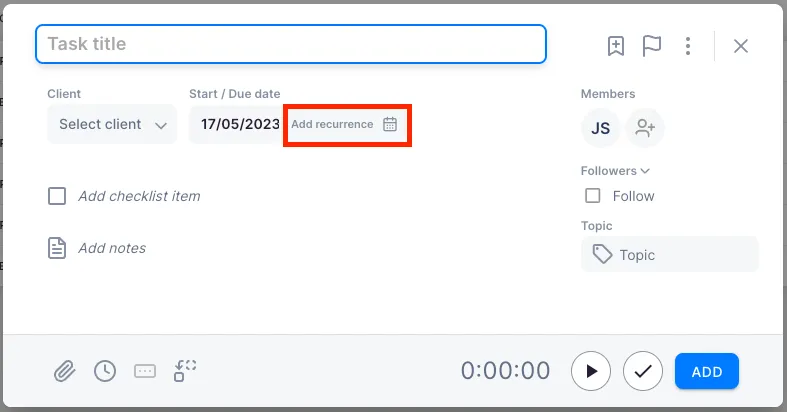
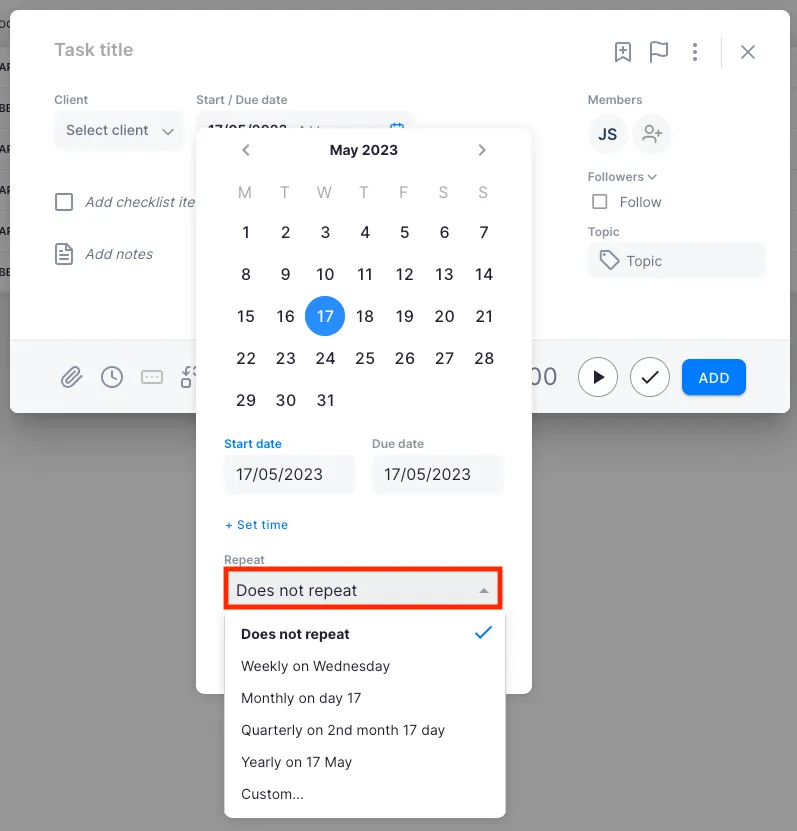
- Click the Start / Due date field.
- In the date picker, locate the Repeat section.
- Choose a recurrence pattern: Weekly, Monthly, Quarterly, or Yearly.
- Save the task.
Custom recurrence options
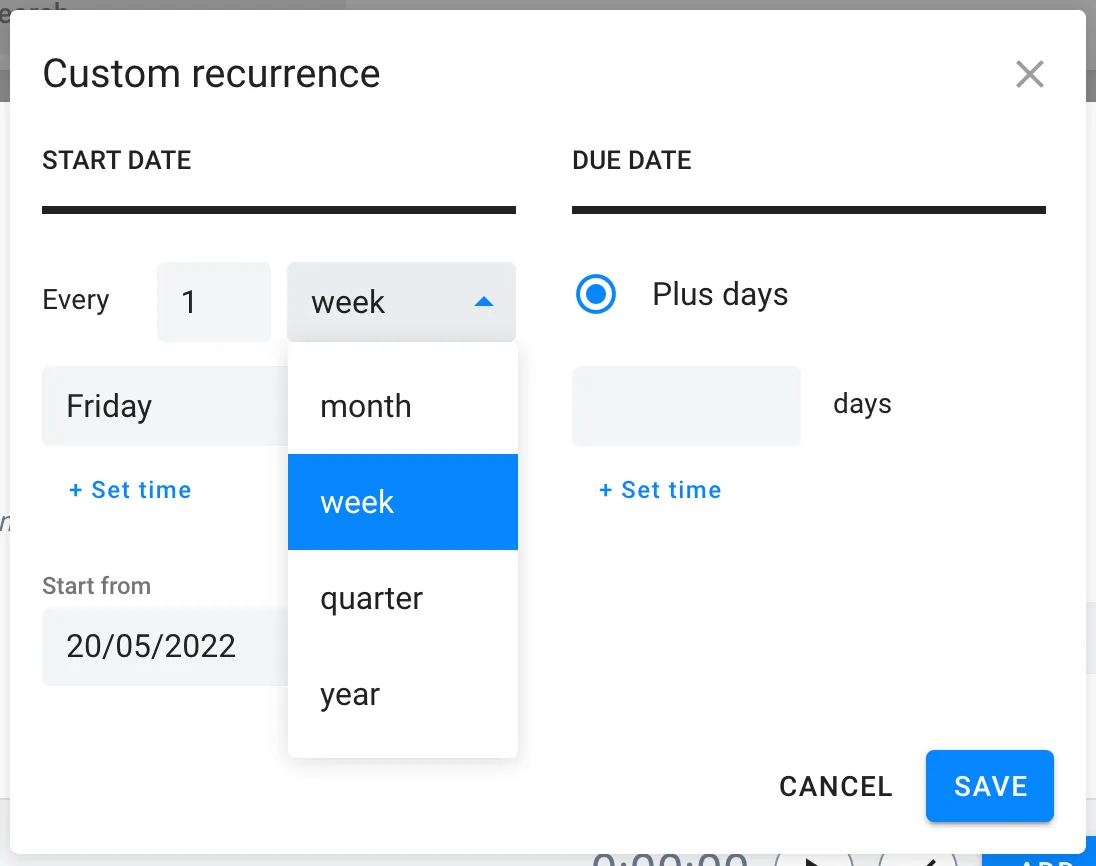
Section titled “Custom recurrence options”For more control, select Custom from the Repeat section, or click Add recurrence.
Monthly recurrence
Section titled “Monthly recurrence”By default, Uku sets the recurrence to start from today. Change the start date using the calendar. If you select a past month as the start date, tasks can be created retroactively. If you set a future start date, no task will be created for the current month.
Weekly recurrence
Section titled “Weekly recurrence”Select the day of the week the task should appear on your dashboard. You can also set an interval — for example, setting the interval to 2 makes the task appear every other week.
Quarterly recurrence
Section titled “Quarterly recurrence”The default start time is the day of the current month. You can change the month and date using the calendar.
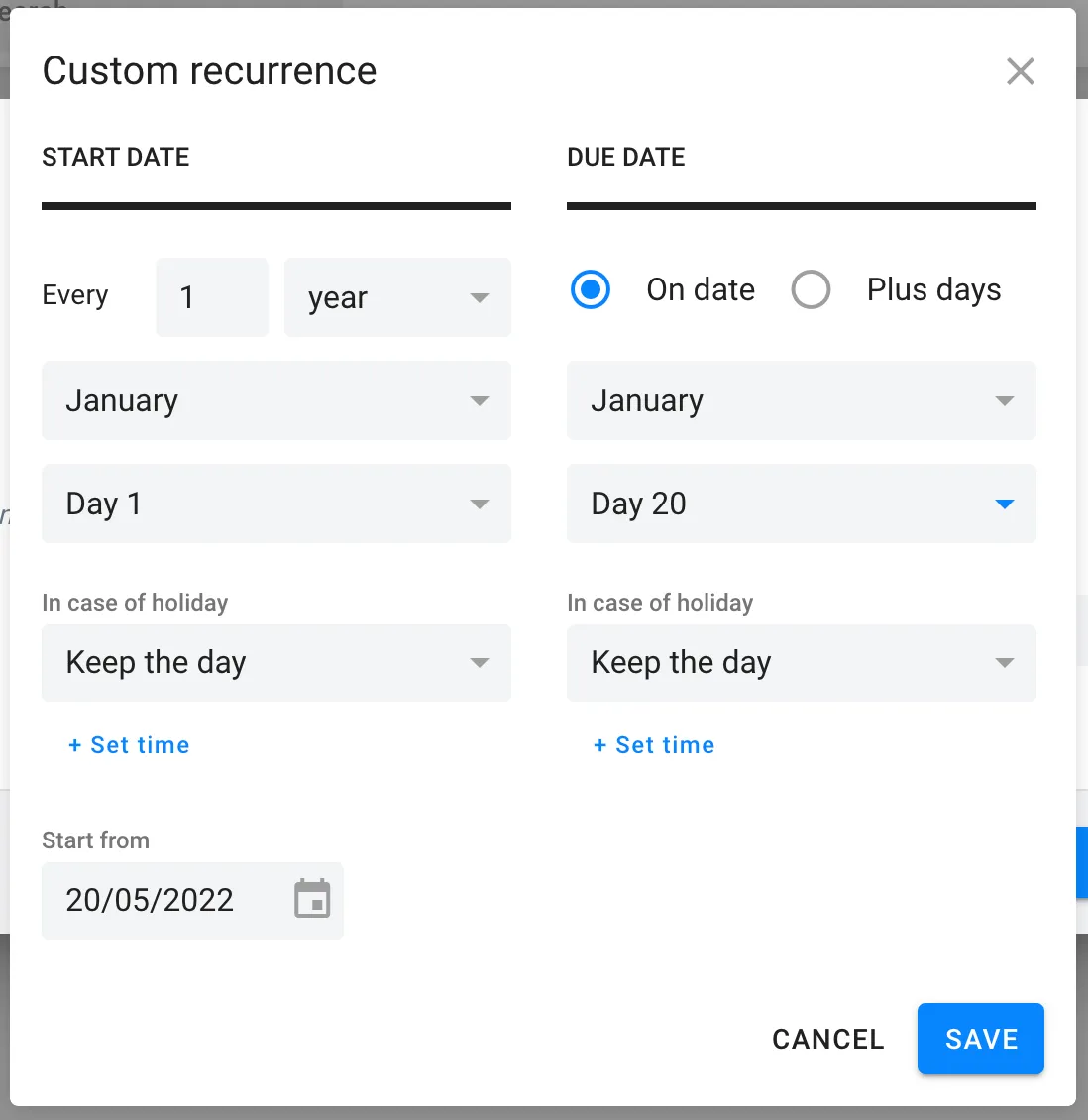
Yearly recurrence
Section titled “Yearly recurrence”Select the required month and day using the calendar. You can also set a due date for recurring tasks in addition to the start date.
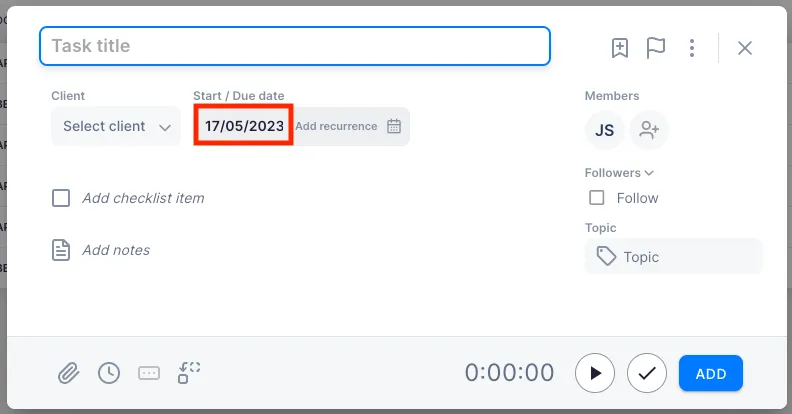
Start recurring tasks based on client date fields
Section titled “Start recurring tasks based on client date fields”When recurring tasks need to follow a specific client deadline — such as year-end, payroll date, annual report, or AML requirements — you can link the task start date to a client date field.
- Open the recurring task settings.
- In the start date options, choose Custom.
- Select which client date field the task should start from.
- Click Save.
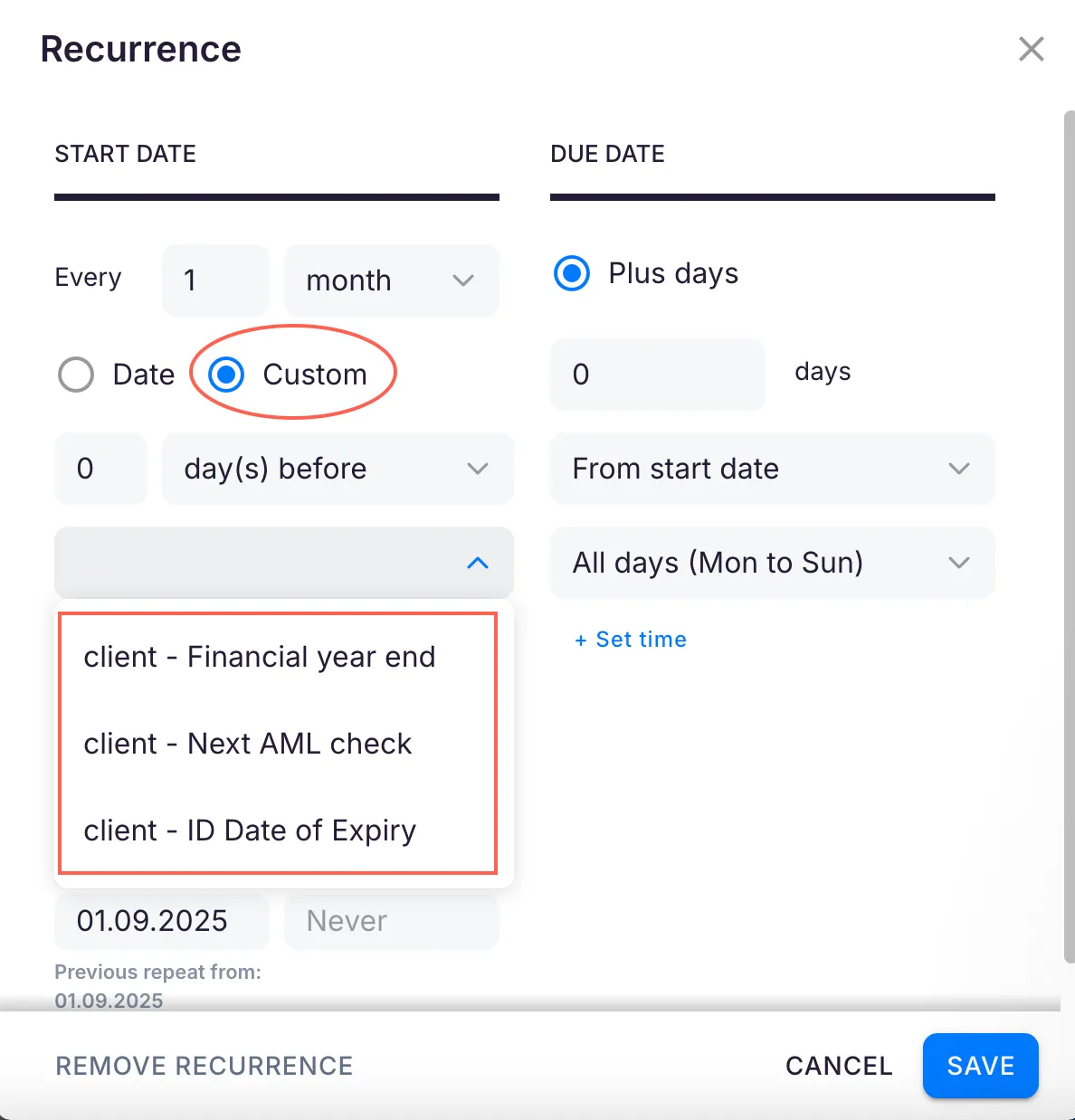
Troubleshooting
Section titled “Troubleshooting”The recurring task was not created for the current period
Section titled “The recurring task was not created for the current period”Check the Repeats from date. If it is set in the future or after the current period, tasks will not be generated until that date is reached.
Tasks appear on weekends or holidays when they should not
Section titled “Tasks appear on weekends or holidays when they should not”For monthly, quarterly, and yearly recurrences, ensure the “before” or “after” days-off setting is configured in the recurrence options. Weekly recurrences do not auto-adjust for holidays — you must reschedule those manually.
I set a past start date but no retroactive tasks were created
Section titled “I set a past start date but no retroactive tasks were created”Verify that the Repeats from date covers the past period you need. Tasks are only created for periods on or after the Repeats from date.
The recurrence interval does not work correctly for weekly tasks
Section titled “The recurrence interval does not work correctly for weekly tasks”Confirm the interval value in the Custom recurrence settings. An interval of 1 means every week; an interval of 2 means every other week.
Cannot set recurrence on a project task
Section titled “Cannot set recurrence on a project task”Project tasks do not support recurrence. Recurrence is only available for tasks in a client workflow. If you need a recurring task, create it in the client’s Workflow tab instead of under a project.