
How to follow tasks in Uku
This content is not available in your language yet.
Following a task gives you ongoing visibility into its progress without being assigned to complete it. Followers receive notifications when someone comments, changes the status, attaches a file, or modifies the due date — without the task appearing in their normal workload.
Who can do this
Section titled “Who can do this”- Any Uku team member can follow tasks they have access to.
- You can also add other team members as followers if you have access to the task.
Task members vs. followers
Section titled “Task members vs. followers”- Task members are directly responsible for completing the task. These tasks appear on their dashboard alongside their other work.
- Followers monitor the task’s progress and receive updates but are not responsible for completion. Followed tasks can be filtered separately from regular tasks.
Example: You are training a new accountant on month-end closing. Assign the task to them (making them a member), then mark yourself as a follower. You will see all their updates and can provide guidance without the task appearing in your regular workload.
How to follow a task
Section titled “How to follow a task”Follow when creating a new task
Section titled “Follow when creating a new task”- Click the + button to add a new task.
- Fill in the task details.
- In the Members section, add the team member(s) who will complete the task.
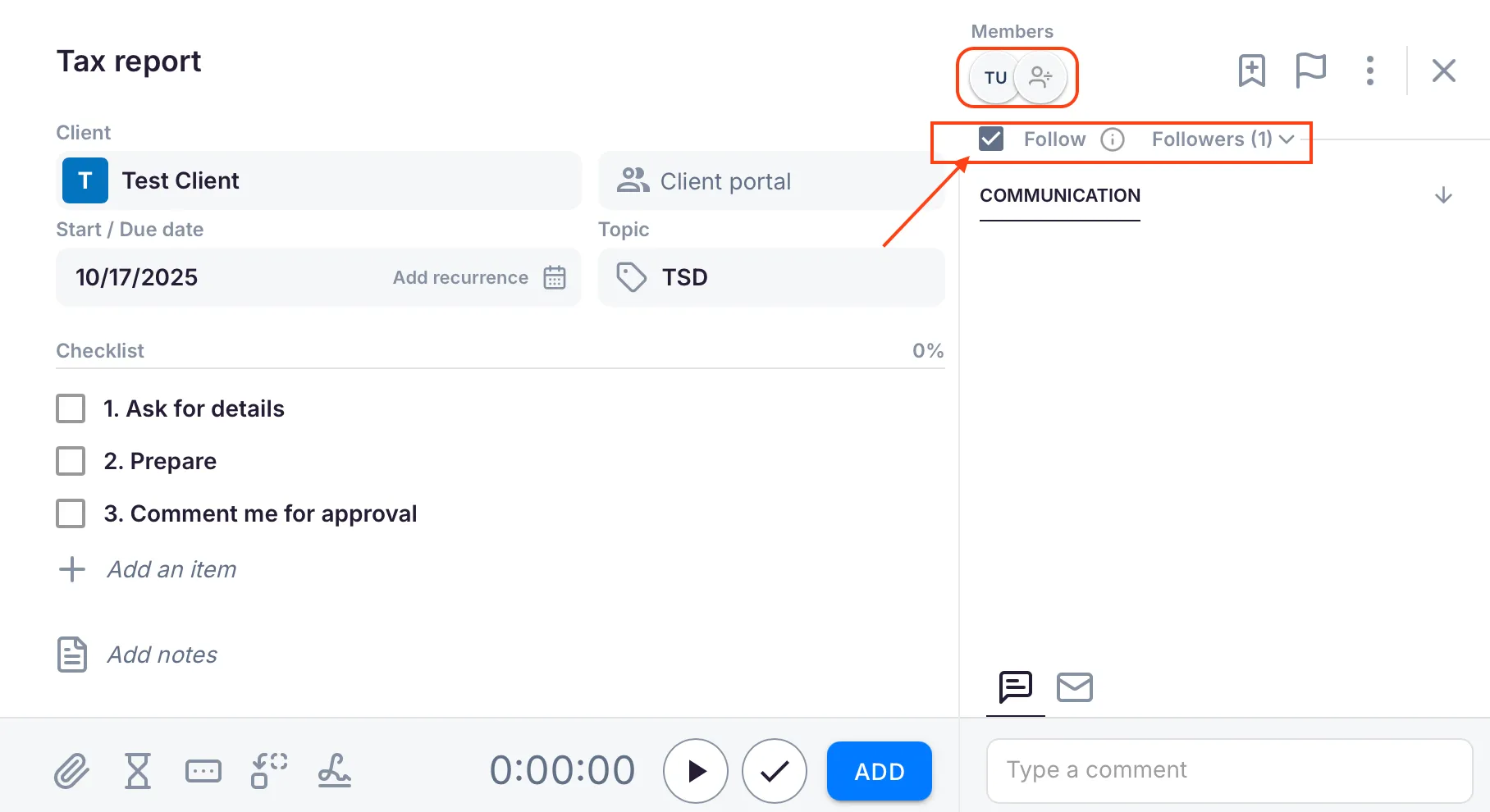
- Check the Follow checkbox in the Members section.
- Click Add to save.
Follow an existing task
Section titled “Follow an existing task”- Open the task from your dashboard or task list.
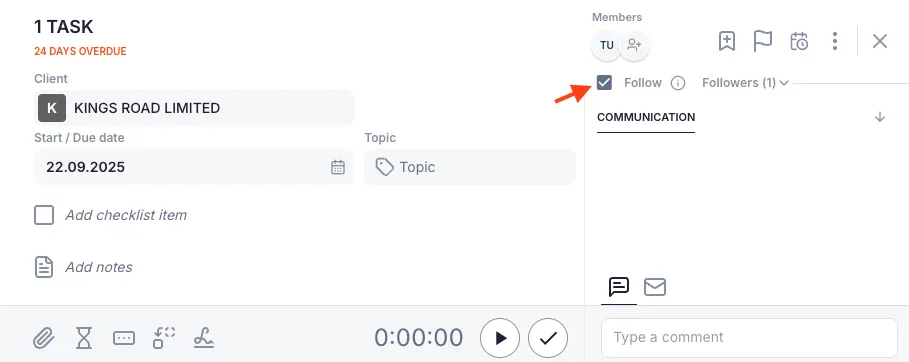
- Locate the Follow checkbox in the Members section.
- Check the box to start following. The change saves automatically.
Follow recurring tasks from a client’s Workflow
Section titled “Follow recurring tasks from a client’s Workflow”If you want to monitor recurring tasks for a specific client over a longer period:
- Navigate to the client’s profile and select the Workflow tab.
- Open the recurring task you want to follow.
- Check the Follow checkbox.
When you follow a recurring task from a client’s Workflow, you automatically follow each new instance of that task as it is created. This is useful for ongoing monitoring of regular client work such as monthly bookkeeping or quarterly VAT returns.
Add other people as followers
Section titled “Add other people as followers”- Open the task.
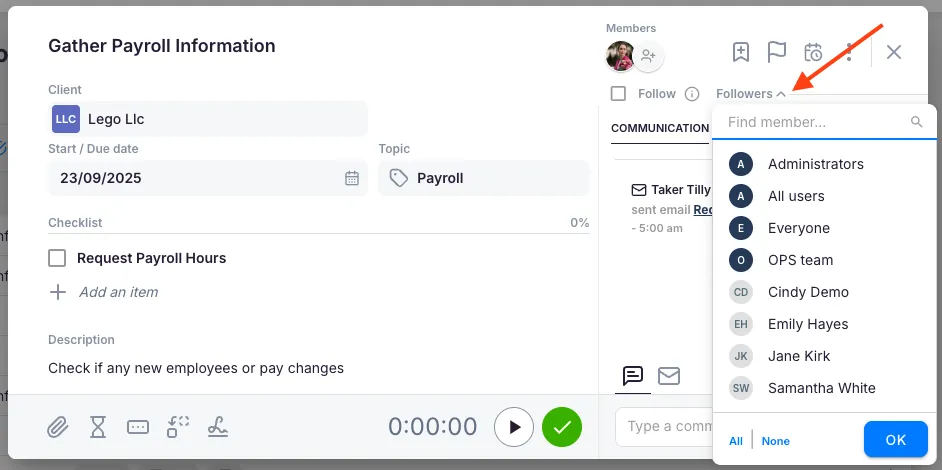
- In the Members section, click Followers (the number shows current followers).
- A dropdown appears showing all team members.
- Select the people you want to add as followers.
- Click OK to save.
Finding tasks you follow
Section titled “Finding tasks you follow”- Go to your Dashboard (Tasks view).
- Click the filter icon in the filter bar.
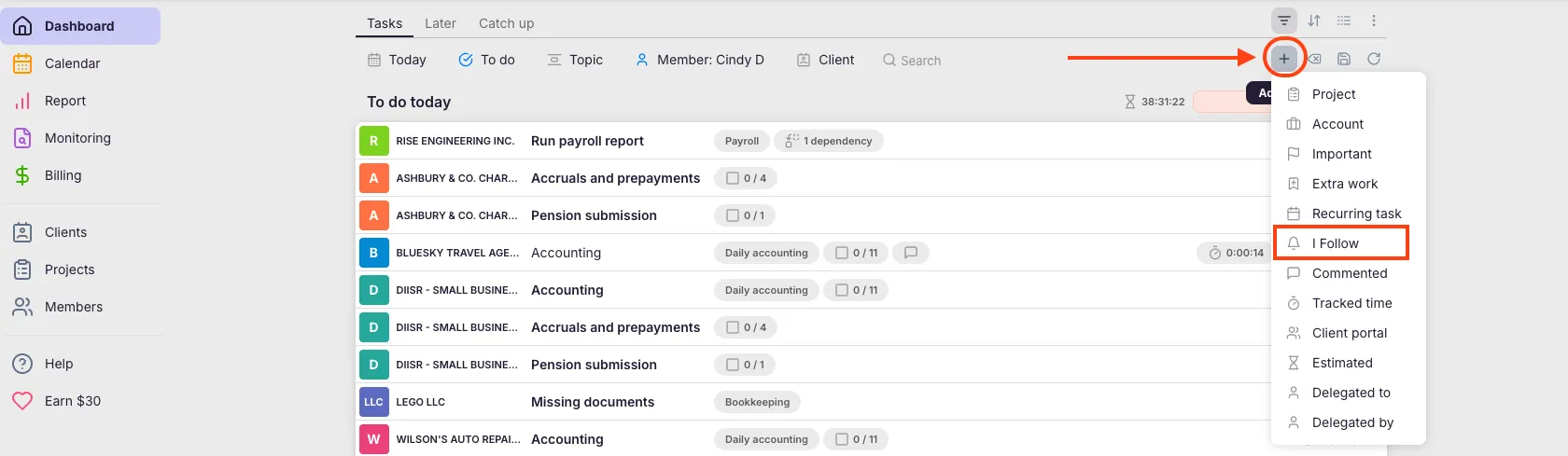
- Click + to add a filter.
- Choose I Follow from the filter menu.
- Only tasks you are following will appear.
Save this as a bookmark so you can return to this view any time. After applying the filter, click the Save bookmark icon and name it “Tasks I Follow”.
Notifications for followed tasks
Section titled “Notifications for followed tasks”When you follow a task, you receive notifications when:
- Someone adds a comment
- The task status changes
- Files are attached
- The due date is modified
- Someone mentions you in a comment
Troubleshooting
Section titled “Troubleshooting”Not receiving notifications for a followed task
Section titled “Not receiving notifications for a followed task”Verify your notification settings in your Uku profile. Make sure the Follow checkbox is still checked on the task.
The “I Follow” filter shows no tasks
Section titled “The “I Follow” filter shows no tasks”You may not be following any tasks yet. Open a task and check the Follow checkbox to start following it, then return to your dashboard and apply the filter again.
A recurring task you followed does not carry over to new instances
Section titled “A recurring task you followed does not carry over to new instances”Make sure you followed the task from the client’s Workflow tab, not just from a single task instance. Following from the Workflow ensures all future instances are followed automatically.
Cannot see the Follow checkbox on a task
Section titled “Cannot see the Follow checkbox on a task”Confirm you have access to the task and the client. If the task belongs to a client you are not assigned to, you will not see the follow option.