
Using task dependencies
This content is not available in your language yet.
Task dependencies let you create connected workflows where the next task only appears on a member’s dashboard once the previous task is marked done. Use them for sequential processes where step B cannot start until step A is finished.
Who can do this
Section titled “Who can do this”- Any Uku team member who can create or edit tasks.
- Tasks must already exist before dependencies can be assigned.
- Editing templates and workflows requires Company Admin/Owner or Client Admin permission.
How dependencies work
Section titled “How dependencies work”When Task B depends on Task A:
- Task B is hidden from dashboards until Task A is marked done.
- Dates must be logically ordered — the start date of Task A cannot be later than Task B’s start date.
- For recurring tasks, both tasks must share the same recurrence period (e.g., both monthly or both weekly). A monthly task cannot depend on a weekly task.
- When multiple prerequisites are set, all of them must be marked done before the dependent task appears.
Example: The Submit documents task depends on Receive documents. When Receive documents is marked done, Submit documents appears on the dashboard. Before that, it is hidden.
How to create a task dependency
Section titled “How to create a task dependency”- Open the task that should appear second (the dependent task).
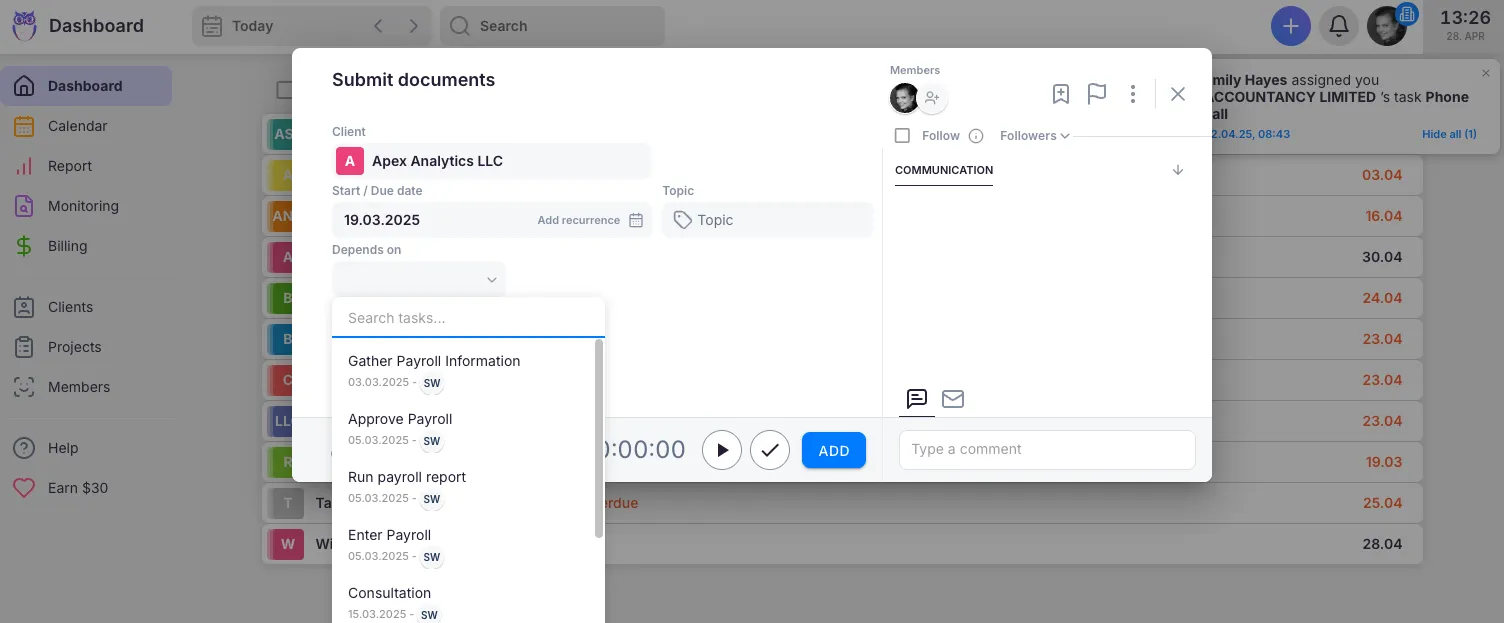
- Click the dependency icon in the task footer to open the Depends on field. The dropdown lists this client’s tasks within a 45-day window.
- Select one or more tasks that must be completed before this task becomes visible.
- The dependency is saved automatically.
How to set dependencies in a client’s Workflow or template
Section titled “How to set dependencies in a client’s Workflow or template”Create dependencies directly in a client’s Workflow or in a template so every new task occurrence inherits the dependency automatically. The process is the same as for one-time tasks — open the recurring task, click the dependency icon, and select the prerequisite.
Dependent recurring tasks can only be in the same recurrence period (e.g., both monthly). You cannot create a dependency across different periods.
Troubleshooting
Section titled “Troubleshooting”The task I want to depend on does not appear in the dropdown
Section titled “The task I want to depend on does not appear in the dropdown”The Depends on dropdown only lists tasks for the same client within a 45-day window. Ensure the prerequisite task is assigned to the same client and falls within this date range.
A dependent task appeared on the dashboard before the prerequisite was completed
Section titled “A dependent task appeared on the dashboard before the prerequisite was completed”Verify that the dependency was properly saved by opening the task and checking the Depends on field. If the field is empty, the dependency was not set. Re-apply the dependency and save.
Cannot set a dependency between two recurring tasks
Section titled “Cannot set a dependency between two recurring tasks”Dependent recurring tasks must share the same recurrence period (e.g., both monthly or both weekly). A monthly task cannot depend on a weekly task.
The dependency icon is not visible in the task view
Section titled “The dependency icon is not visible in the task view”The dependency icon is located in the task footer area. If you do not see it, ensure you have the correct permissions and that the task is fully open (not in a collapsed list view).