How to mark tasks as important?
This content is not available in your language yet.
Some tasks are more urgent than others. Marking tasks as important lets you filter your dashboard to show only high-priority items, so you can tackle the most critical work first and address remaining tasks later.
Who can do this
Section titled “Who can do this”- Any team member can mark tasks as important from the Dashboard, Calendar, client profile, Workflow, or template view.
Mark a single task as important
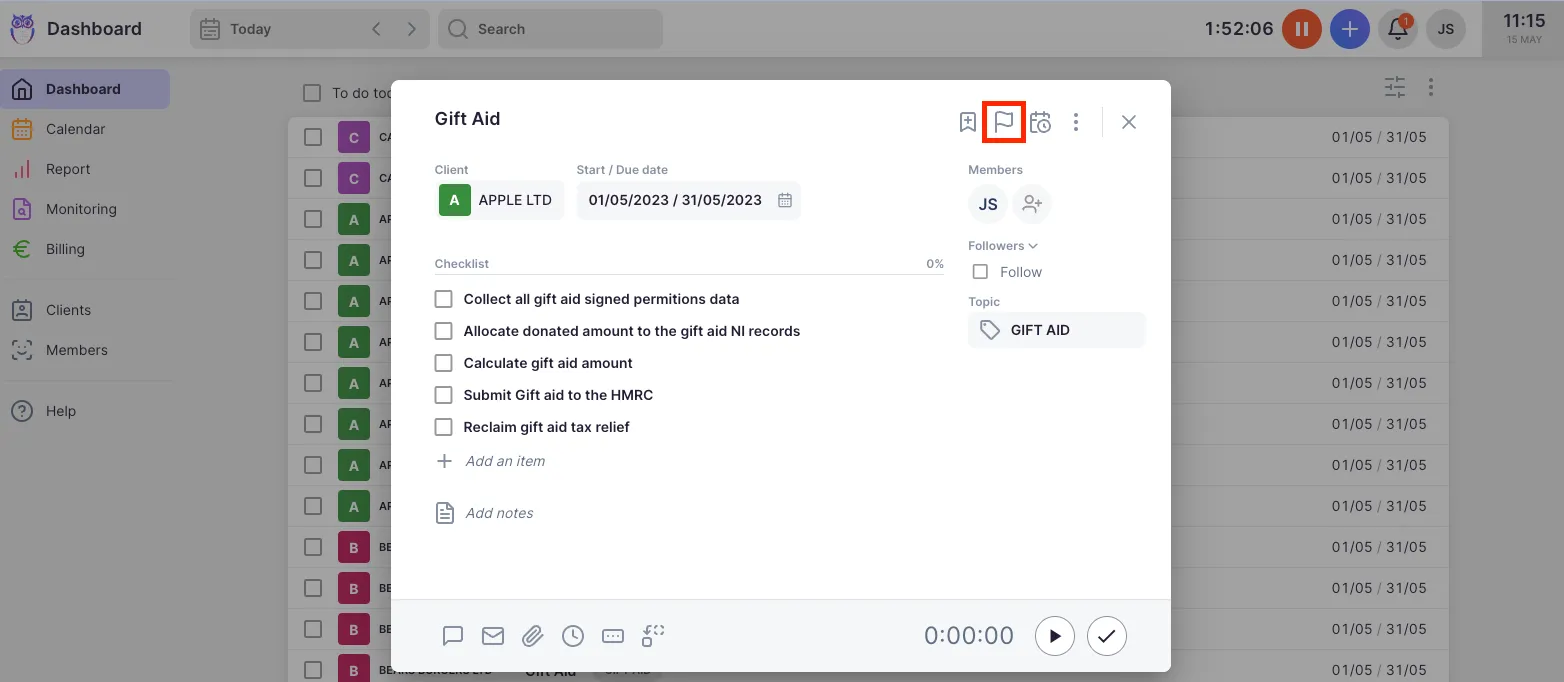
Section titled “Mark a single task as important”- Open the task you want to prioritize from the Dashboard, Calendar, client profile, Workflow, or template view.
- Click the flag icon on the task.
- The task is now marked as important.
Mark multiple tasks as important
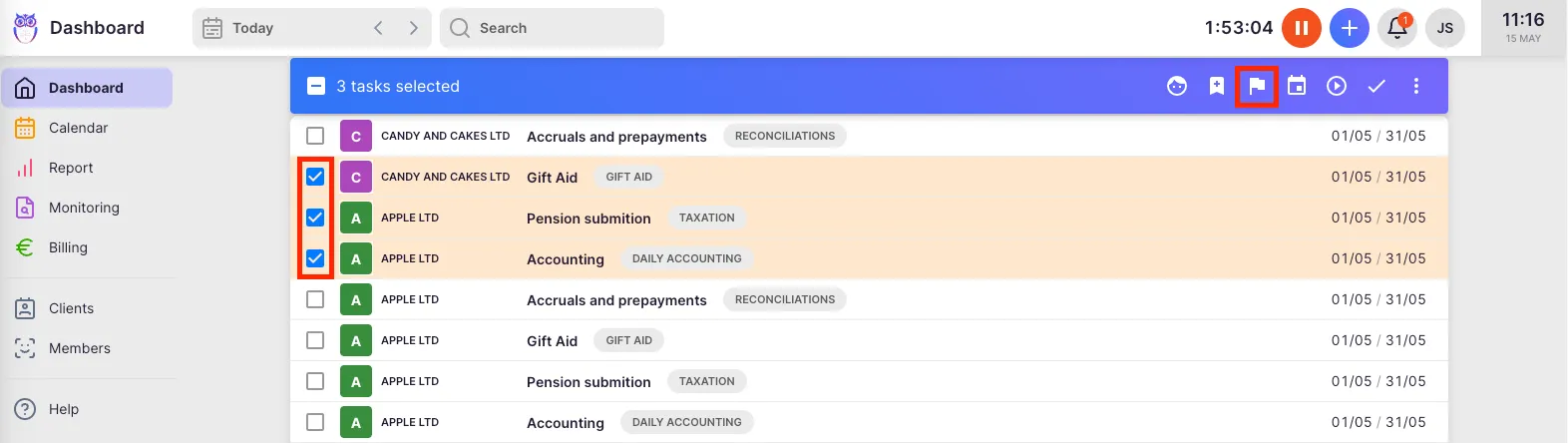
Section titled “Mark multiple tasks as important”- On the Dashboard, hover over task rows and click the checkboxes (or hold Command/Ctrl while clicking).
- Select the tasks you want to prioritize.
- Click the flag icon in the bulk actions bar.
Filter important tasks on the dashboard
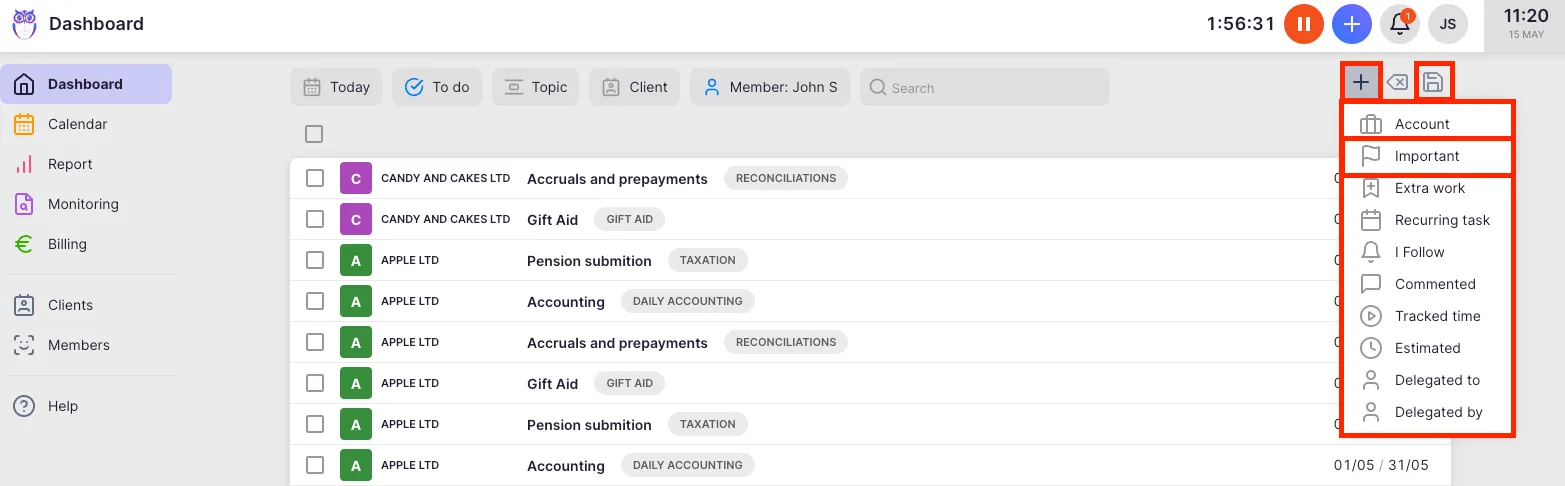
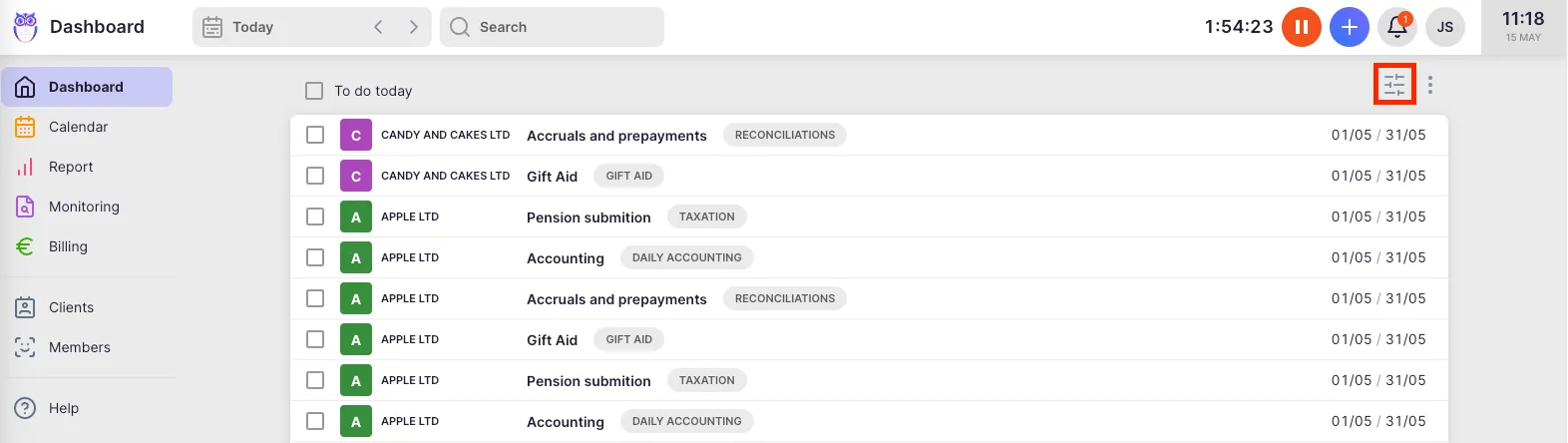
Section titled “Filter important tasks on the dashboard”- On the Dashboard, click the Filter icon to open the filter bar.
- Click the + button to add a new filter.
- Select Important from the filter options.
- Only tasks marked as important will now appear.
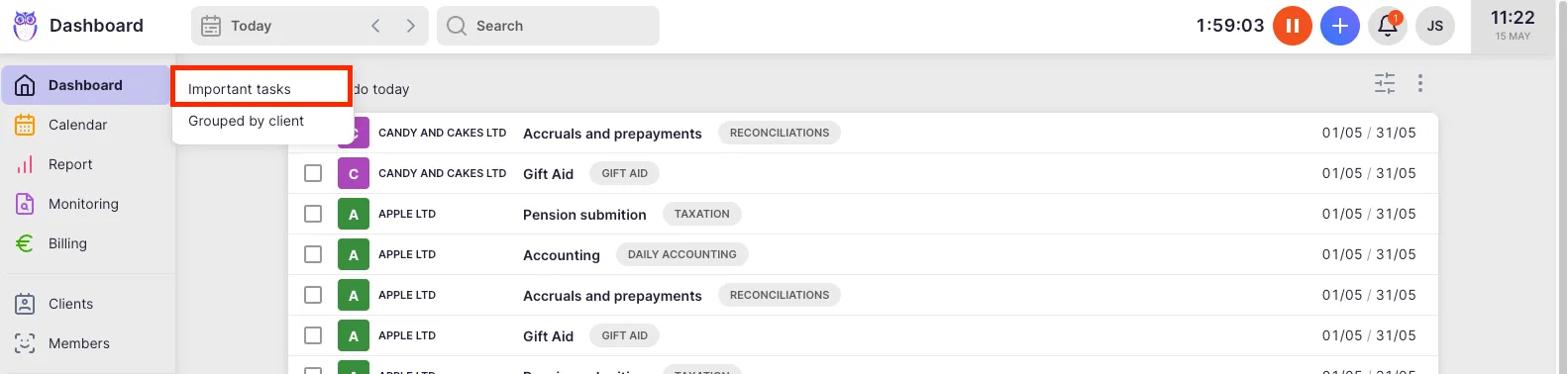
To save this view for quick access, click the Save bookmark (disk) icon in the filter bar, enter a name such as “Important tasks,” and click Save. Access saved bookmarks by hovering over Dashboard in the main navigation.
Troubleshooting
Section titled “Troubleshooting”The flag icon is not visible
Section titled “The flag icon is not visible”Make sure you have opened the task detail view. The flag is displayed inside the task, not on the summary row in the task list.
Important filter does not appear in the filter list
Section titled “Important filter does not appear in the filter list”Click the + button in the filter panel to expand the available filter options. Important appears in the extended list.
Saved dashboard view is missing
Section titled “Saved dashboard view is missing”Hover over Dashboard in the main navigation to see all saved bookmarks. If the view was not saved (the save icon was not clicked), it will be lost when you navigate away.
Unmarking a task as important
Section titled “Unmarking a task as important”Open the task and click the flag icon again to toggle off the important status.