How to set up billing under a parent company
This content is not available in your language yet.
Who can do this
Section titled “Who can do this”- Company Owners and Company Admins can configure parent company billing.
- Company Members can edit client billing settings when they hold Client Admin permission on the client and the relevant billing settings allow it.
- The Billing app must be enabled.
Set up billing under the parent company
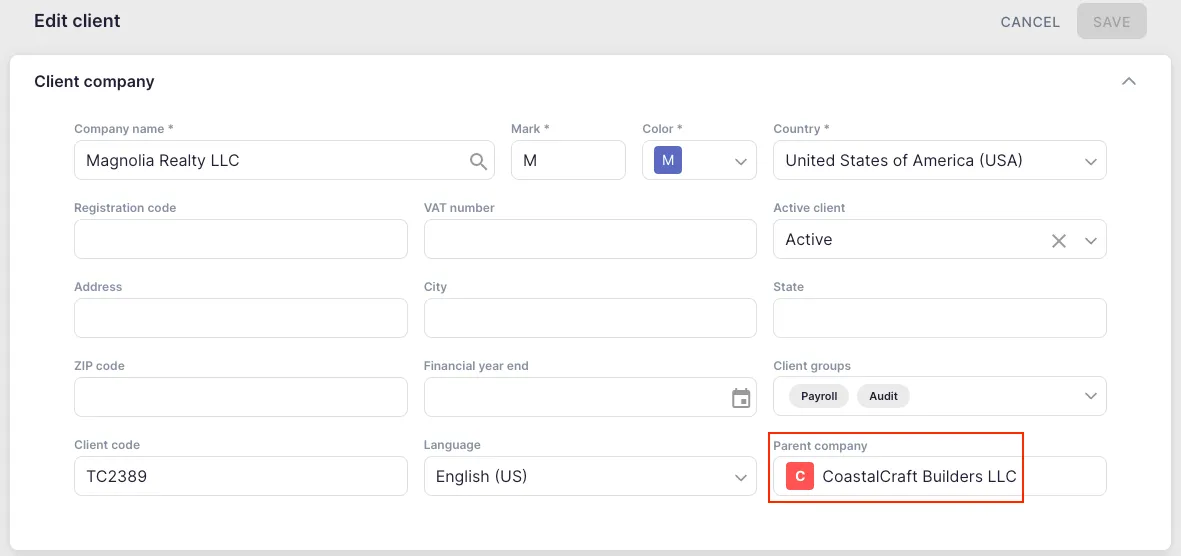
Section titled “Set up billing under the parent company”- Open the subsidiary client’s profile and click Edit.
- In the Parent company field, select the appropriate parent company from the list.
- Save the subsidiary client profile.
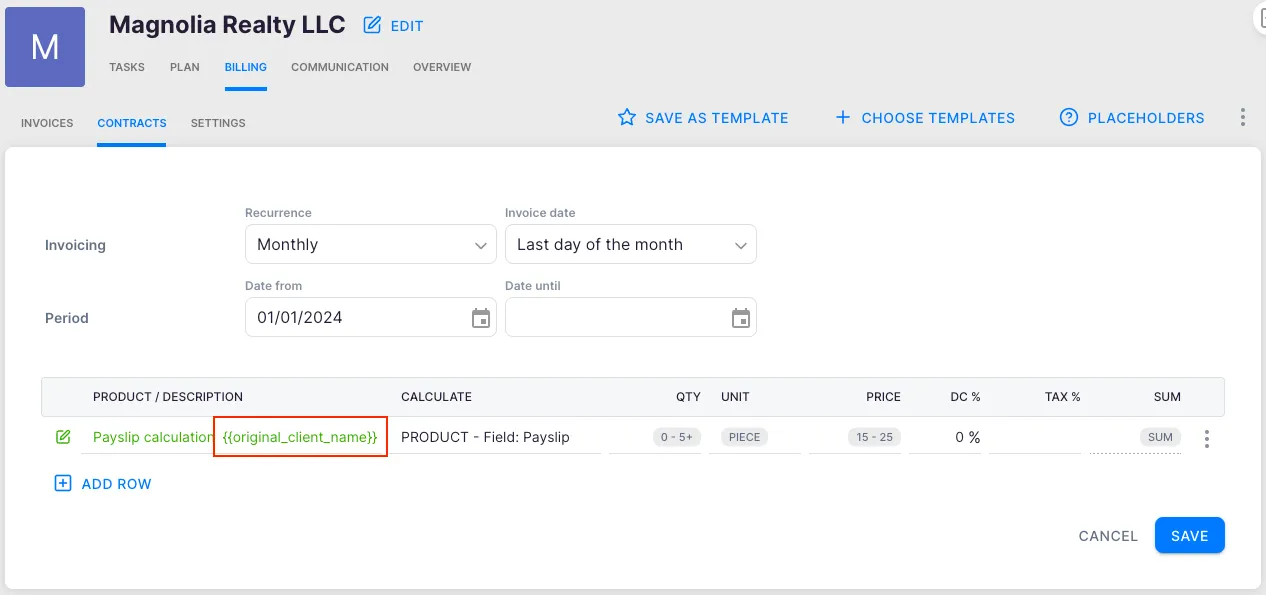
- Navigate to the subsidiary’s Financials > Contracts tab.
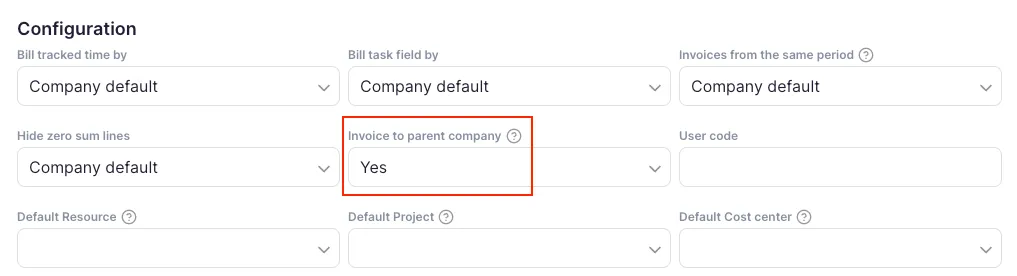
- Open the contract settings and go to the Configuration section.
- Enable Invoice to the parent company.
- Save the settings.
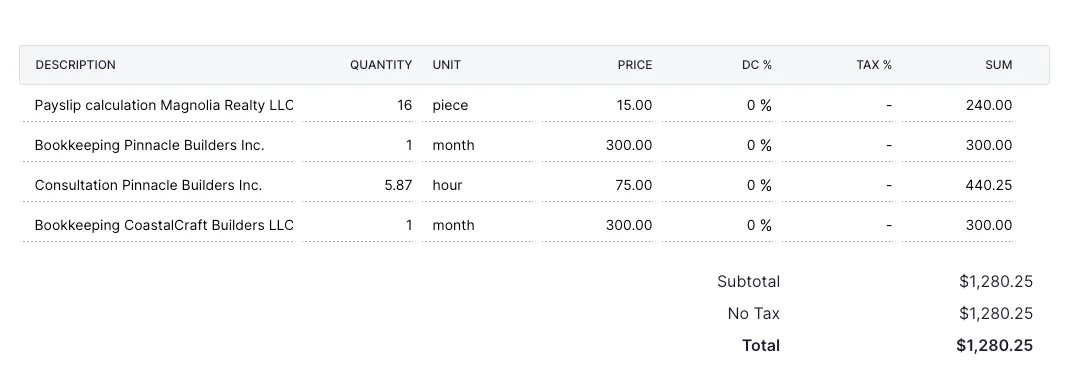
Subsidiary invoices now appear under the parent company in the billing view.
Labelling subsidiary lines on the invoice
Section titled “Labelling subsidiary lines on the invoice”To make it clear which charges belong to which subsidiary, add the ##{{original_client_name}} placeholder to the product description in the subsidiary’s contracts. When the invoice is generated, this placeholder is replaced with the subsidiary’s name on each line item. See Billing placeholders.
Merge subsidiary invoices into one parent invoice
Section titled “Merge subsidiary invoices into one parent invoice”If you want a single consolidated invoice for all subsidiaries under the parent:
- Open the parent company’s profile.
- Go to Financials > Contracts > Settings > Configuration.
- Enable Invoice from the same period (combine all contracts from the same period into one invoice).
- Save the settings.
Each line on the consolidated invoice shows which subsidiary client it belongs to — especially clear when the ##{{original_client_name}} placeholder is used in subsidiary contract products.
Troubleshooting
Section titled “Troubleshooting”Parent company does not appear in the dropdown
Section titled “Parent company does not appear in the dropdown”The parent company must exist as a separate client in Uku before you can link a subsidiary. Create the parent client first.
Subsidiary invoices still appear separately
Section titled “Subsidiary invoices still appear separately”Verify that the Invoice to the parent company setting is enabled in the subsidiary’s contract settings and that you saved after enabling it. Also confirm the parent company has the Invoice from the same period merge setting enabled if you want a single combined invoice.
Invoice lines do not show subsidiary names
Section titled “Invoice lines do not show subsidiary names”Confirm that the ##{{original_client_name}} placeholder is added to the relevant contract product descriptions for the subsidiary.
The “Invoice to parent company” setting is missing
Section titled “The “Invoice to parent company” setting is missing”Ensure the Billing app is activated and that a parent company has been set in the subsidiary’s client edit view first — the contract configuration option only appears after the parent is linked.