
How to mark extra work?
This content is not available in your language yet.
When you deliver more than what the client’s contract or agreement covers, mark those tasks as extra work. The flag is visible in reports and on the dashboard, giving you documented evidence for billing discussions or scope renegotiation.
Who can do this
Section titled “Who can do this”- Any team member can mark individual tasks as extra work.
- Company Admins, Company Owners, and users with Client Admin permission can mark extra work in a client’s Workflow and on workflow templates.
Mark a single task as extra work
Section titled “Mark a single task as extra work”- Open the task from the Dashboard, Calendar, or client task list.
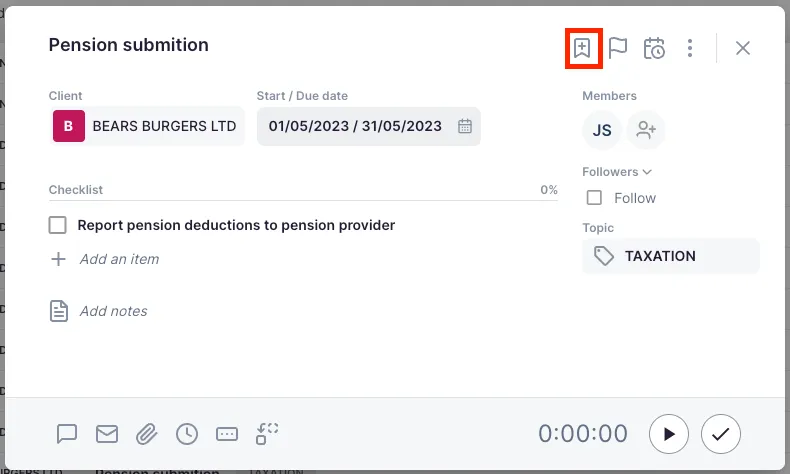
- Click the bookmark-plus icon in the task toolbar to mark it as extra work.
The task displays an orange indicator to confirm it is flagged as extra work.
Mark multiple tasks as extra work at once
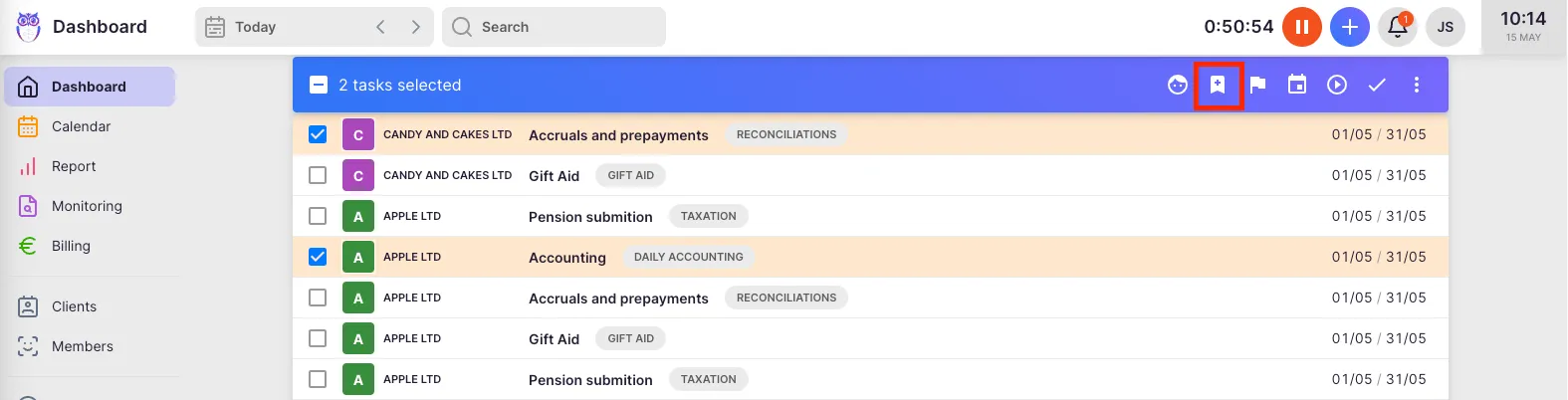
Section titled “Mark multiple tasks as extra work at once”- Open the Dashboard.
- Click the multi-select icon (two checkmarks) above the task list to enter bulk selection mode.
- Select the tasks you want to flag.
- Click the extra work icon in the bulk action bar to apply the flag to all selected tasks.
Mark extra work in a client’s Workflow (recurring tasks)
Section titled “Mark extra work in a client’s Workflow (recurring tasks)”If a task should always be flagged as extra work for a client, set it in the client’s Workflow so the flag carries forward automatically to future task occurrences.
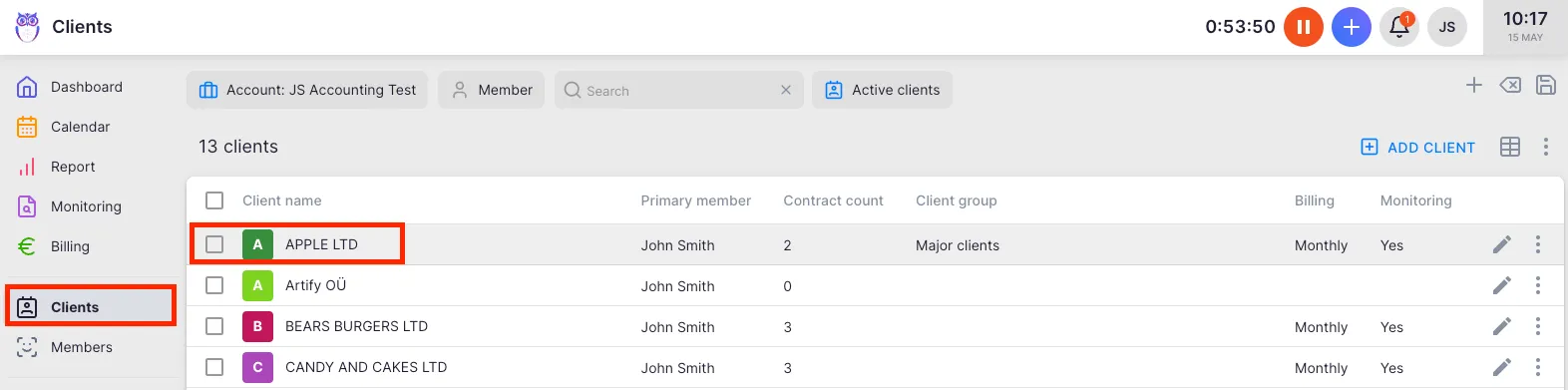
- Select Clients from the main navigation menu.
- Open the client’s profile.
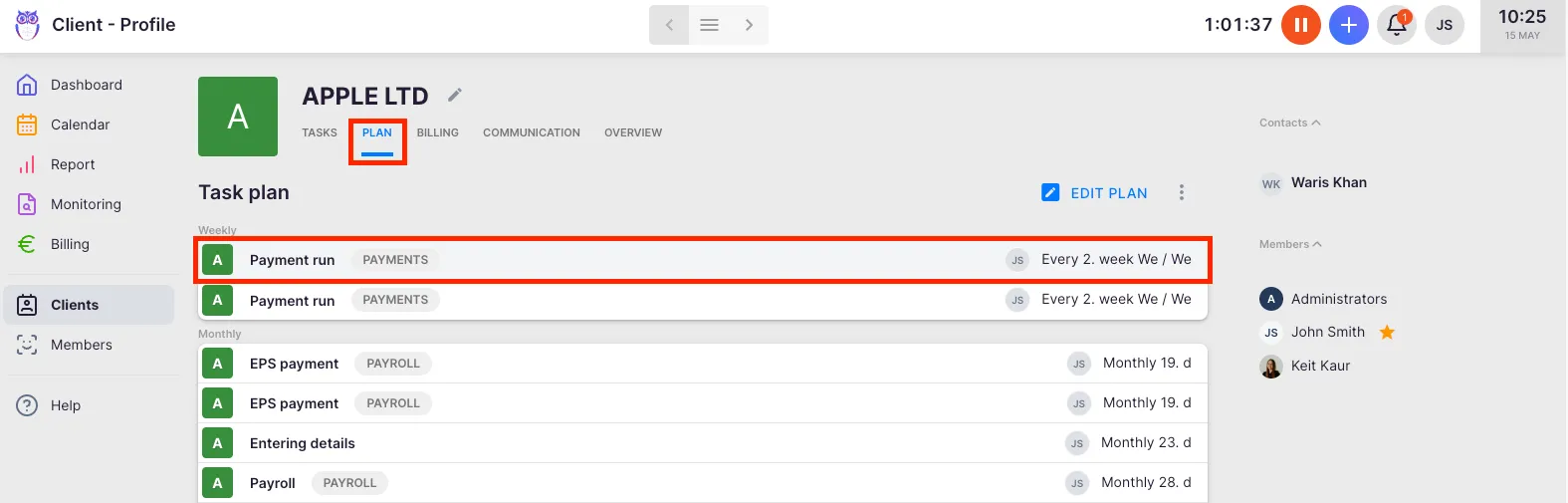
- Select the Workflow tab.
- Open the recurring task you want to flag.
- Click the bookmark-plus icon to mark it as extra work.
- Save the recurring task template.
Mark extra work on a workflow template
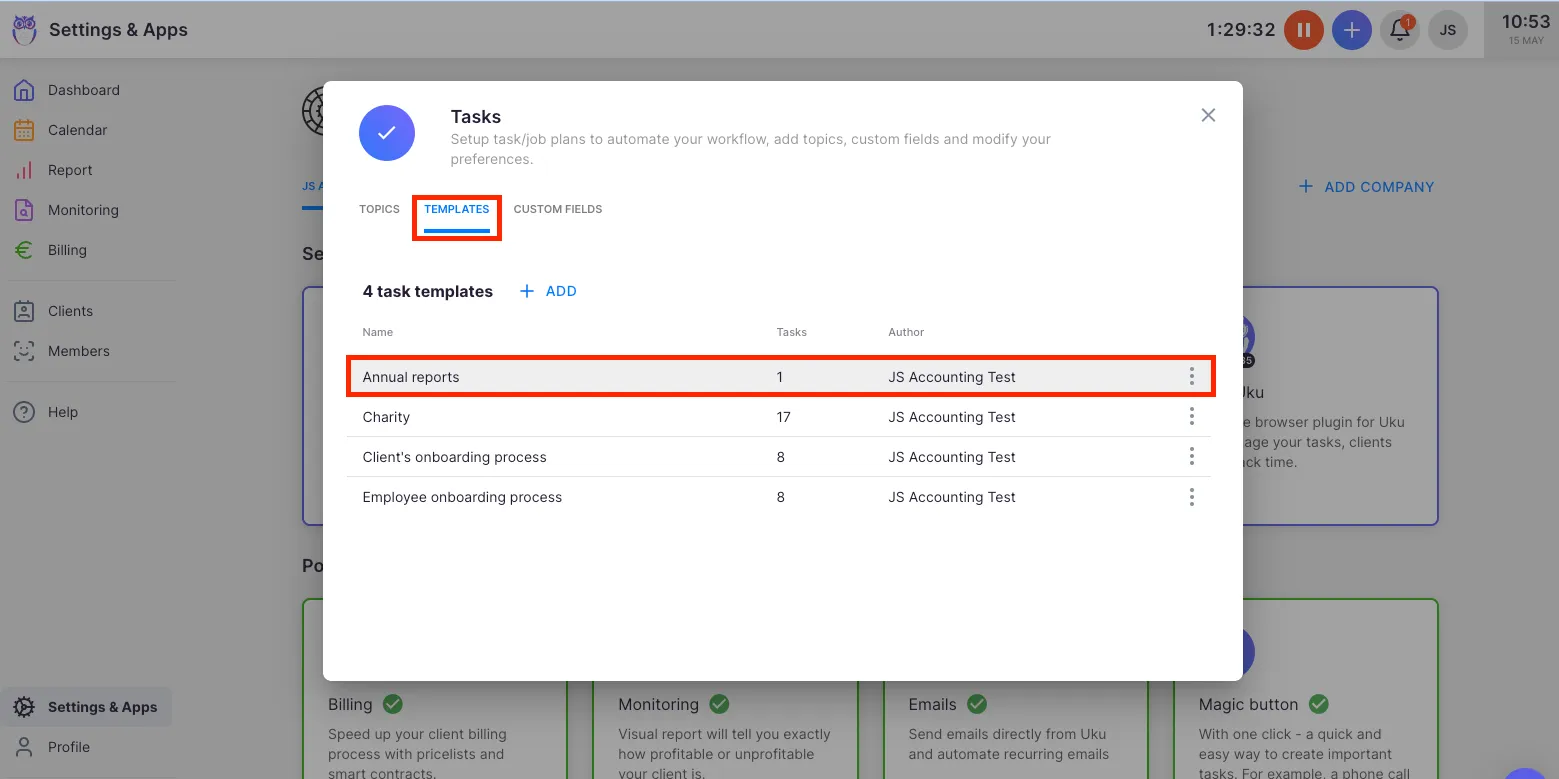
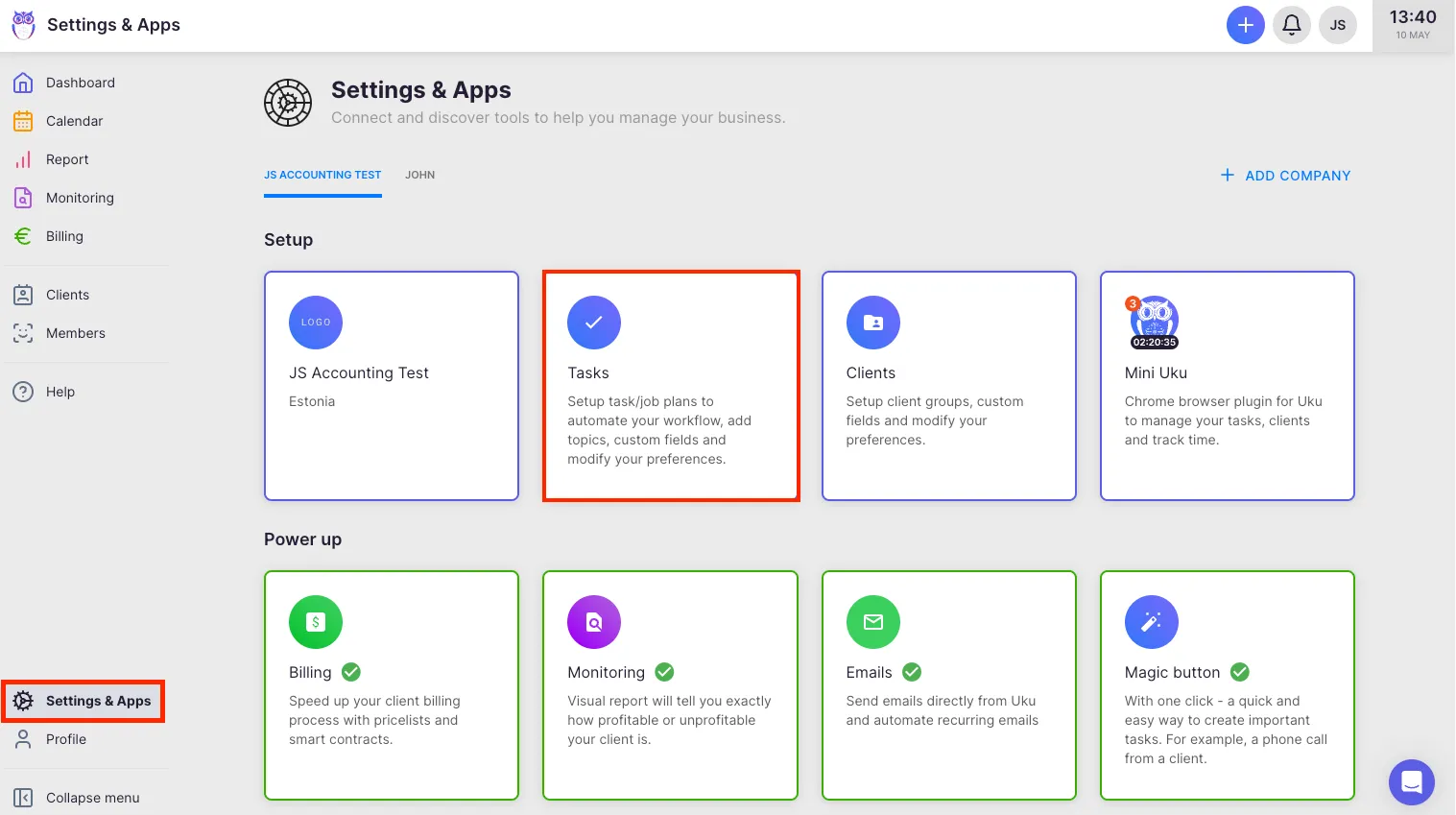
Section titled “Mark extra work on a workflow template”- Select Settings & Apps from the main navigation menu.
- Open the Tasks app settings.
- Select the Templates tab.
- Open the template you want to edit.
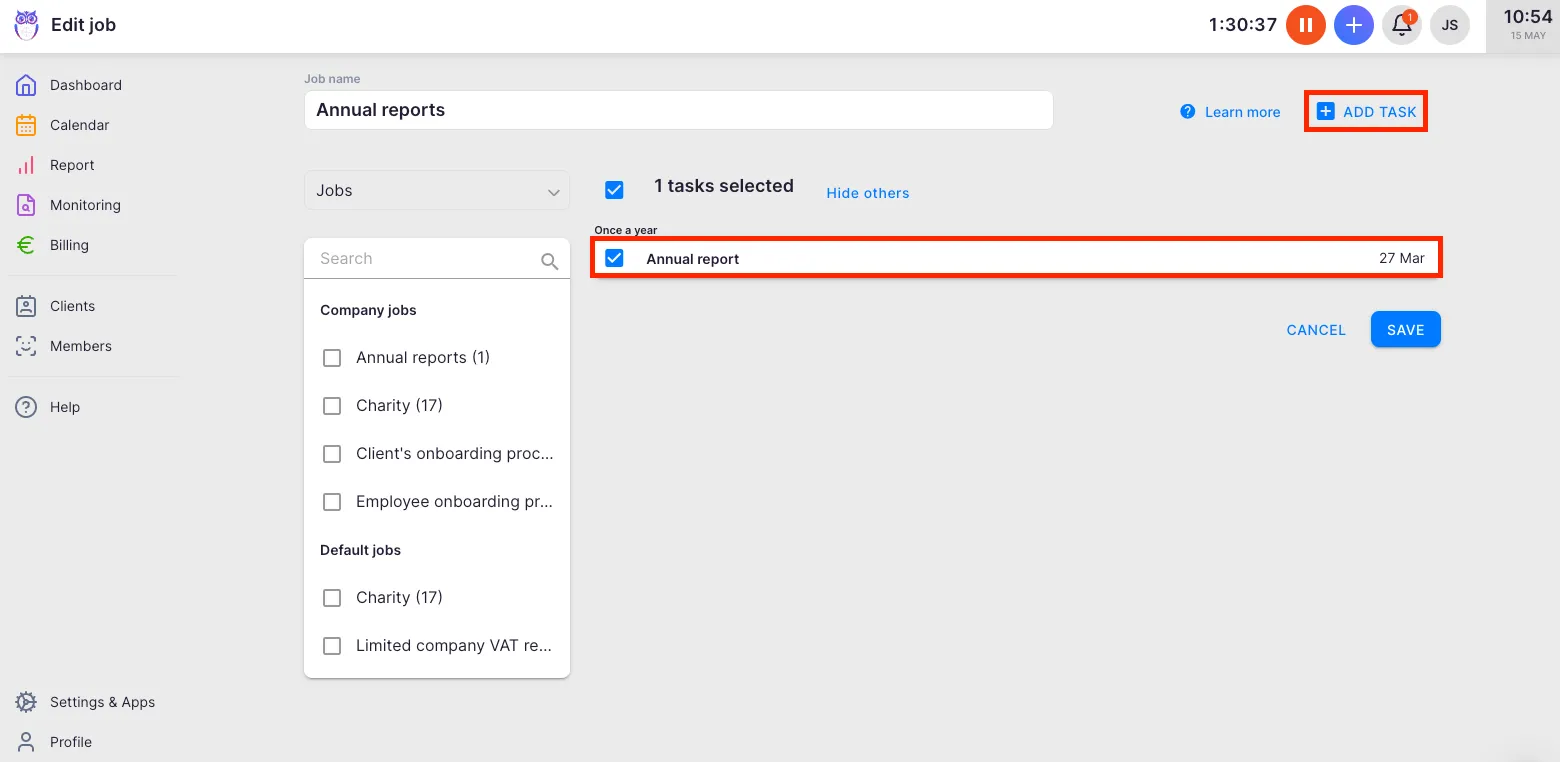
- Select the task and click the bookmark-plus icon to mark it as extra work.
- Save the template.
Viewing extra work in reports
Section titled “Viewing extra work in reports”Open Report from the main navigation menu. Use the Extra work filter to show only tasks flagged as extra work. The Summary and Tasks tabs both support this filter. Extra work time also appears as a dedicated column in the Summary tab’s grouping view.
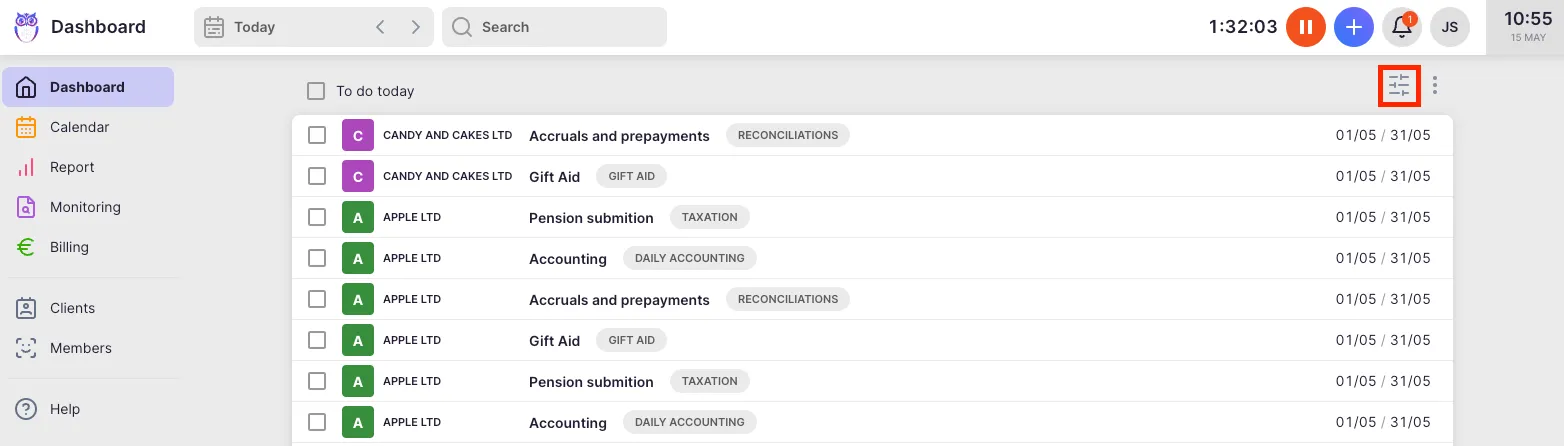
Filtering extra work on the dashboard
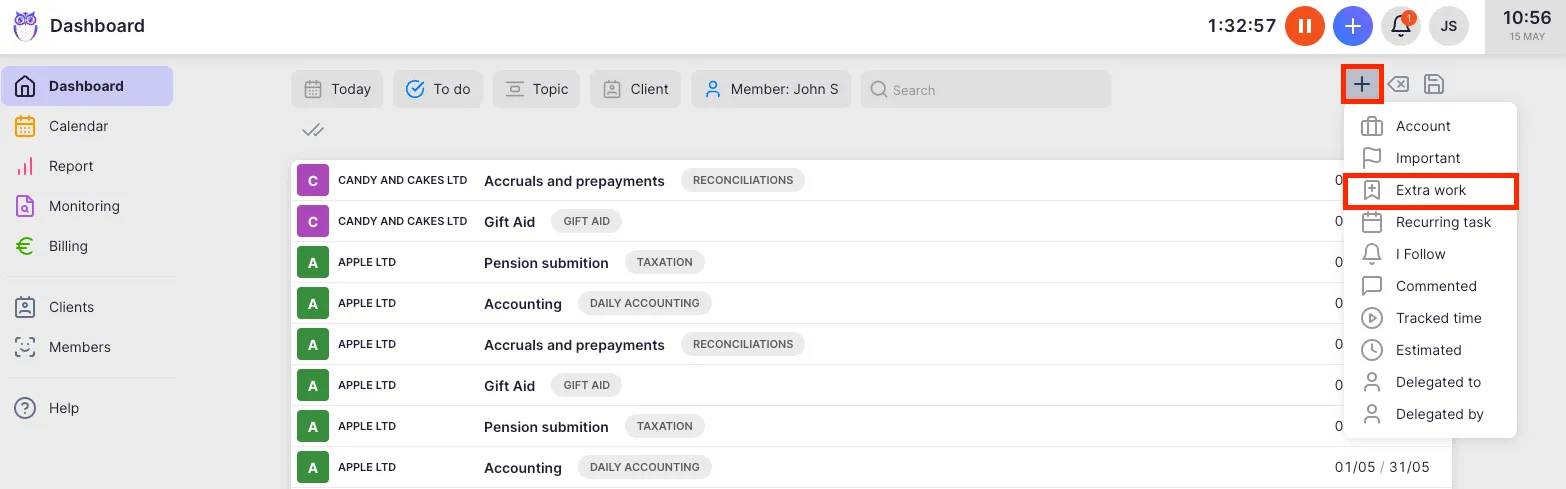
Section titled “Filtering extra work on the dashboard”- Click the filter icon on the Dashboard.
- Add the Extra filter.
Only tasks flagged as extra work will appear in the filtered view.
Troubleshooting
Section titled “Troubleshooting”The extra work icon is not visible on a task
Section titled “The extra work icon is not visible on a task”The icon may be in the task’s toolbar rather than immediately visible. Open the task fully to see the complete toolbar. On some views, the icon appears only on hover.
Extra work does not appear in the report filter
Section titled “Extra work does not appear in the report filter”Click the Add filter button in the report filter bar and look for the Extra or Extra work option. Without this filter active, extra work time is included in the overall totals without being separately identified.
Recurring tasks do not carry the extra work flag forward
Section titled “Recurring tasks do not carry the extra work flag forward”If you marked a single task occurrence rather than the recurring template in the client’s Workflow, the flag applies only to that occurrence. Open the client’s Workflow, find the recurring task, mark it as extra work there, and save — future occurrences will inherit the flag.
Need to flag only part of a task
Section titled “Need to flag only part of a task”Extra work applies to the entire task. Create a separate task for the out-of-scope work and mark that task as extra work. Leave the original task unmarked to represent the contracted scope.