How to save your Dashboard view
This content is not available in your language yet.
Saving a customized Dashboard view lets you switch between different filtered task lists instantly, without reapplying filters each time. Save your most-used views as bookmarks and set a default that opens automatically when you navigate to the Dashboard.
Who can do this
Section titled “Who can do this”- Any Uku team member with access to the Dashboard.
How to filter your Dashboard
Section titled “How to filter your Dashboard”- Open the Dashboard from the main navigation.
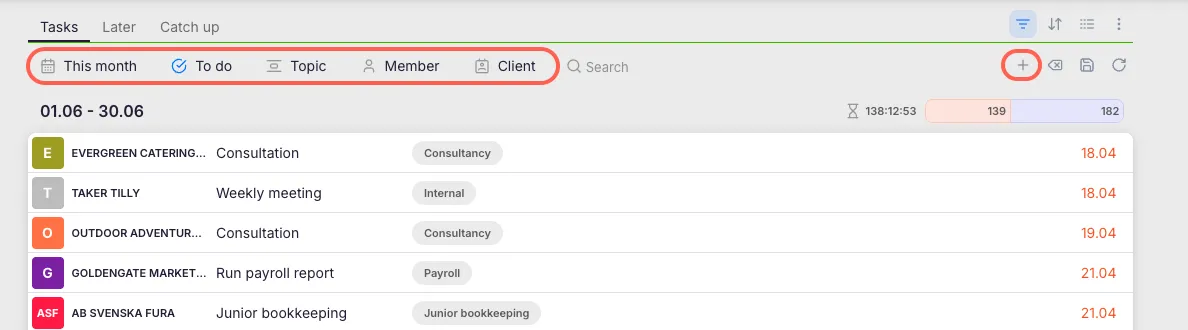
- Click the Filter icon in the task list header.
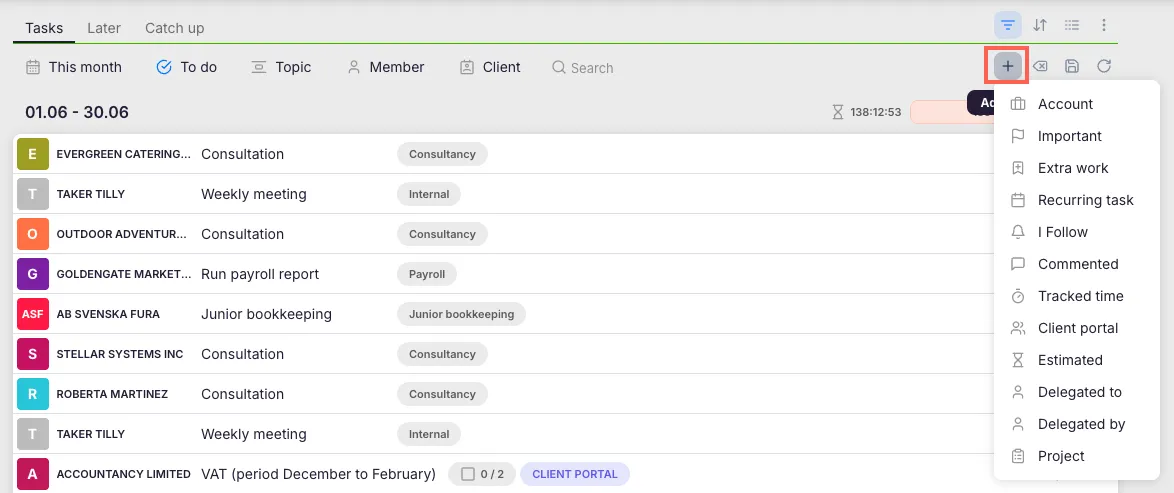
- Select filter options: Date, Status, Topic, Client, Member, or Search.
- To add more filter criteria, click the + icon.
How to save a Dashboard view
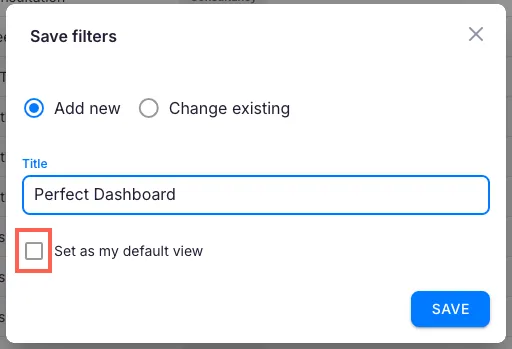
Section titled “How to save a Dashboard view”- After applying the desired filters, click the Save bookmark icon (disk icon) in the filter bar.
- Choose whether to Add a new Dashboard or Edit an existing one.
- Enter a name for the saved view.
- Click Save to confirm.
How to set a default Dashboard view
Section titled “How to set a default Dashboard view”- When saving a Dashboard view, check the Make this my default view checkbox.
- This view will automatically open each time you navigate to the Dashboard.
How to access saved Dashboard views
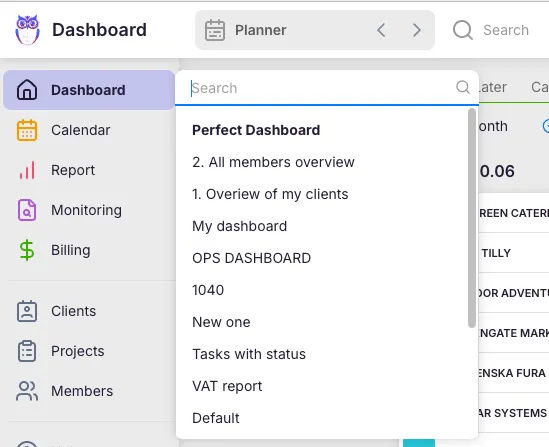
Section titled “How to access saved Dashboard views”- Hover over Dashboard in the main navigation.
- A list of your saved views appears in the submenu.
- Your default view is marked with a # symbol and shown in bold.
- Click any saved view name to switch to it immediately.
Troubleshooting
Section titled “Troubleshooting”Saved view does not appear in the menu
Section titled “Saved view does not appear in the menu”Hover over Dashboard in the main navigation to reveal the submenu. If the view is missing, it may not have been saved successfully — try saving it again.
Default view is not loading automatically
Section titled “Default view is not loading automatically”Verify that the Make this my default view checkbox was checked when saving. Edit the saved view and enable this option.
Filters reset after navigating away
Section titled “Filters reset after navigating away”Filters only persist if you save the Dashboard view as a bookmark. If you apply filters without saving, they are lost when you leave the page.
Cannot edit an existing saved view
Section titled “Cannot edit an existing saved view”Click the Save bookmark (disk icon), then select Edit an existing one in the popup and choose the view you want to update.
Screenshots
Section titled “Screenshots”