How to create products
This content is not available in your language yet.
Who can do this
Section titled “Who can do this”- Company Owners can always create and manage products.
- Company Admins can create and manage products unless the Allow only Company Owners to add and update products billing setting is enabled — in which case only the Company Owner retains product management access. To check or change this setting, go to Settings & Apps > Billing > Settings > Member rights.
Preparation before creating products
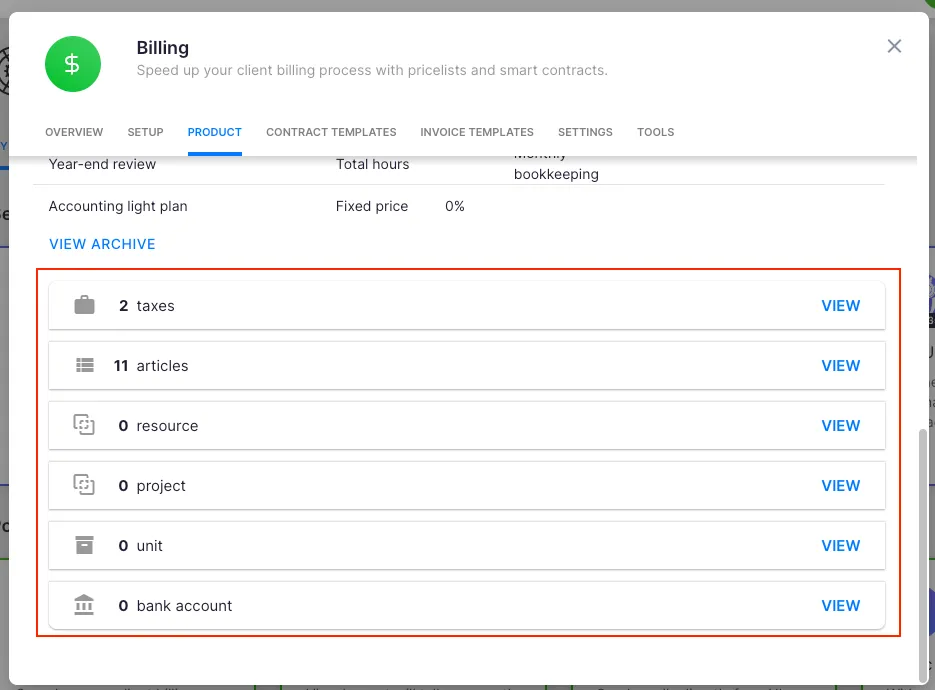
Section titled “Preparation before creating products”Before creating products, set up these supporting records in Settings & Apps > Billing > Setup:
- Tax rates — tax rates that apply to your services. Can be imported from accounting integrations.
- Units — piece, hour, fixed price, or custom units.
- Bank accounts — your company’s bank details, which appear on invoices.
- Article codes — only needed if you integrate with accounting software. Maps Uku products to their counterparts in your accounting system.
Creating a product
Section titled “Creating a product”- Open Settings & Apps from the main navigation.
- Select the Billing app.
- Go to the Setup tab and open the Articles section.
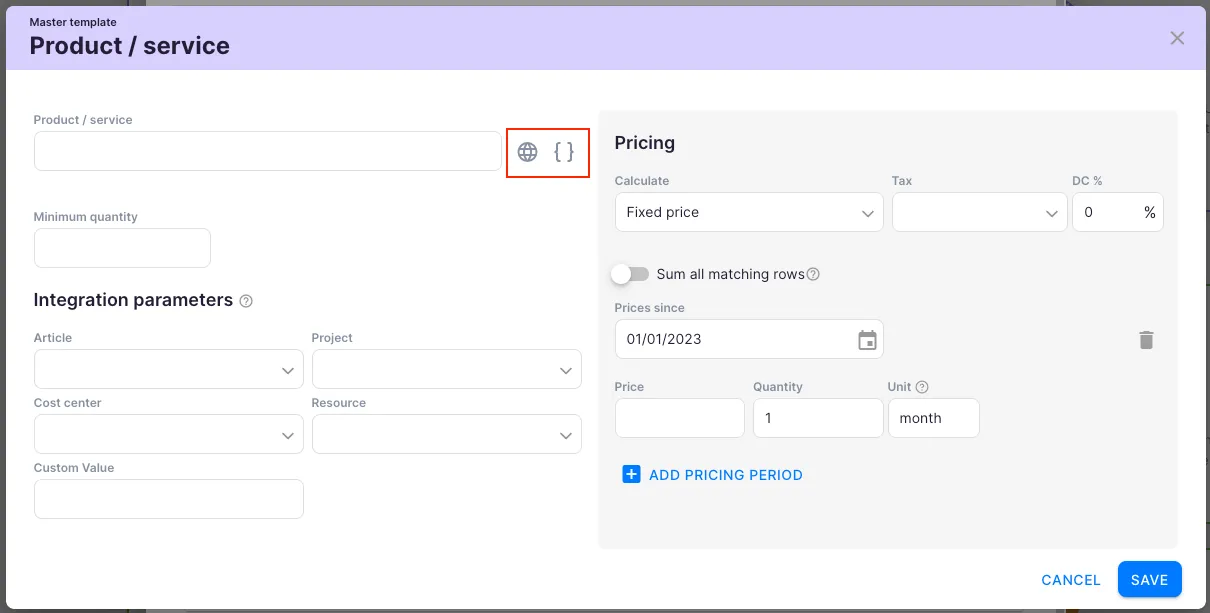
- Click + Add to create a new product.
- Give the product an informative name that helps your team quickly identify it on invoices.
- Set the unit (hour, piece, or fixed).
- Set the tax rate that applies to this service. Invoices and contract rows that use this product inherit the tax rate automatically.
- Optionally, add pricing tiers, an article code, custom fields, and translations for other languages.
- Click Save.
The product name is what appears on invoices and contract rows. You can change the name on an individual contract row without affecting the underlying product definition.
Product types
Section titled “Product types”Different product types determine how billing quantities are calculated:
- Fixed price — a set fee regardless of time or quantity. See How to create a fixed price product.
- Hourly-based — bill by tracked time. See How to create an hourly-based product.
- Per piece — bill by quantity or volume. See How to create a per-piece product.
- Disbursement fees — pass-through expenses billed to the client. See How to create a disbursement fee product.
- Combined — hourly or per-piece pricing combined. See How to create a combined product.
- Additional services — one-time charges. See How to create an additional services product.
Pricing options
Section titled “Pricing options”Sum all matching rows
Section titled “Sum all matching rows”When enabled on a product, the prices of all applicable pricing ranges are summed. When disabled, only the single range in which the quantity falls is applied.
Multiple pricing periods
Section titled “Multiple pricing periods”You can create additional pricing periods on a product. When the date of a new period arrives, those prices are automatically used in billing calculations. This lets you schedule pricing changes in advance.
Troubleshooting
Section titled “Troubleshooting”Permission error when creating a product
Section titled “Permission error when creating a product”Check the Allow only Company Owners to add and update products toggle in Settings & Apps > Billing > Settings. When this is on, only the Company Owner can create or edit products.
Tax rates are missing from the product dropdown
Section titled “Tax rates are missing from the product dropdown”Import tax rates from your accounting integration or add them manually in Settings & Apps > Billing > Setup > Taxes before creating products.
Product does not appear on invoices or contracts
Section titled “Product does not appear on invoices or contracts”Ensure the product is added to the client’s contract and that required fields (unit, price) are filled in.
Pricing changes are not taking effect
Section titled “Pricing changes are not taking effect”Check whether you have set a future pricing period. New pricing applies only from the date specified in the pricing period — invoices already created are not retroactively updated.