
How to update client tasks from template changes
This content is not available in your language yet.
When you improve a task template — adding checklist items, adjusting recurrence, updating titles — you can push those changes to all client plans that use it. Instead of editing each client individually, update the template once and apply changes in bulk.
Who can do this
Section titled “Who can do this”- Members with admin access to the affected clients.
- A task template must already exist in Settings & Apps → Tasks → Templates.
- Client Workflows must have been created from the template you want to update.
What can be updated from templates
Section titled “What can be updated from templates”- Task title
- Task topic
- Checklist items
- Priority flags (Important or Extra work)
- Description
- Client Portal assignment
- Custom fields
- Time estimation
- Email automation
- Attachments
- Recurrence/dates
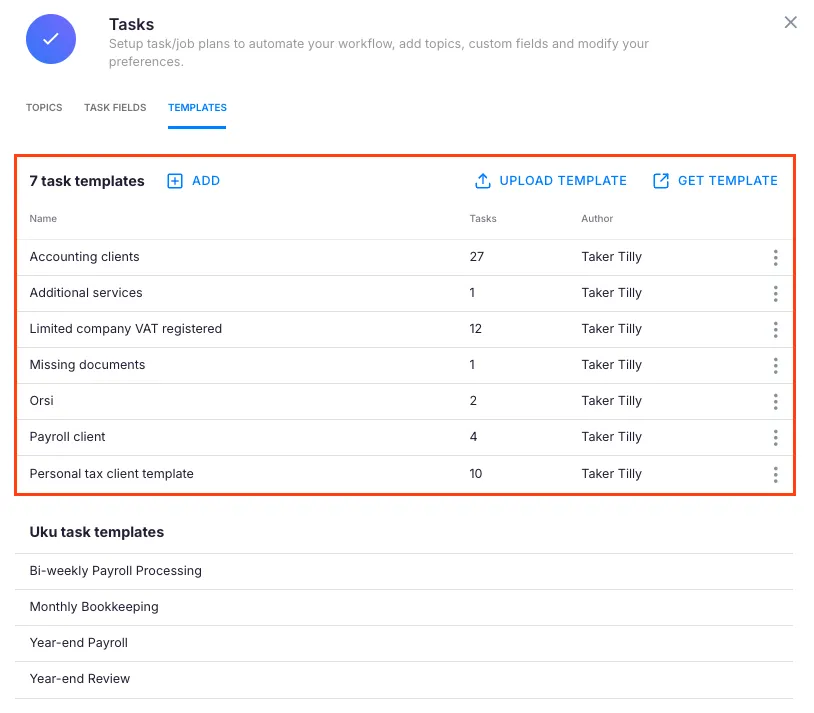
Step 1: Edit the template
Section titled “Step 1: Edit the template”- Go to Settings & Apps → Tasks → Templates.
- Find and open the template you want to modify.
- Edit any of the fields listed above.
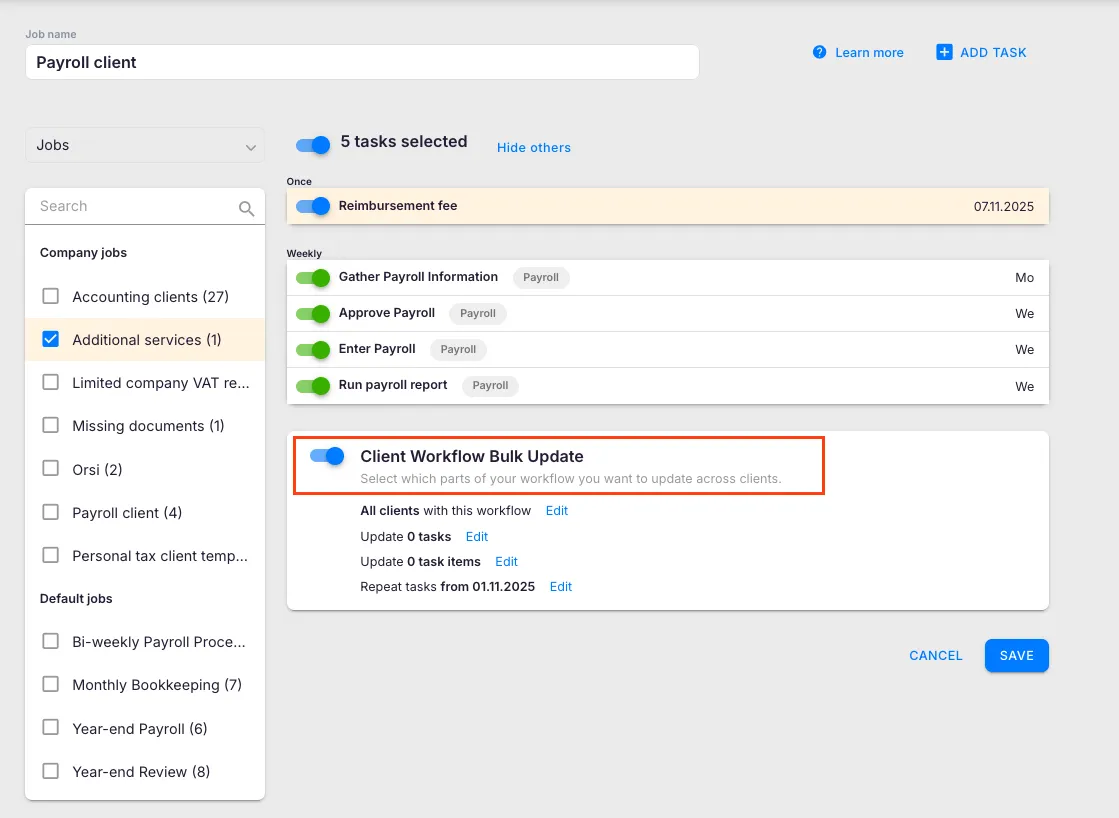
Step 2: Choose update scope
Section titled “Step 2: Choose update scope”When saving template changes, Uku shows you update options:
- Which clients to update — all clients using this template, or select individual clients.
- Which tasks to update — all tasks from this template, or specific tasks.
- Which task items to update — select individual fields (title, checklist, dates, etc.) or select all items to fully sync with the template.
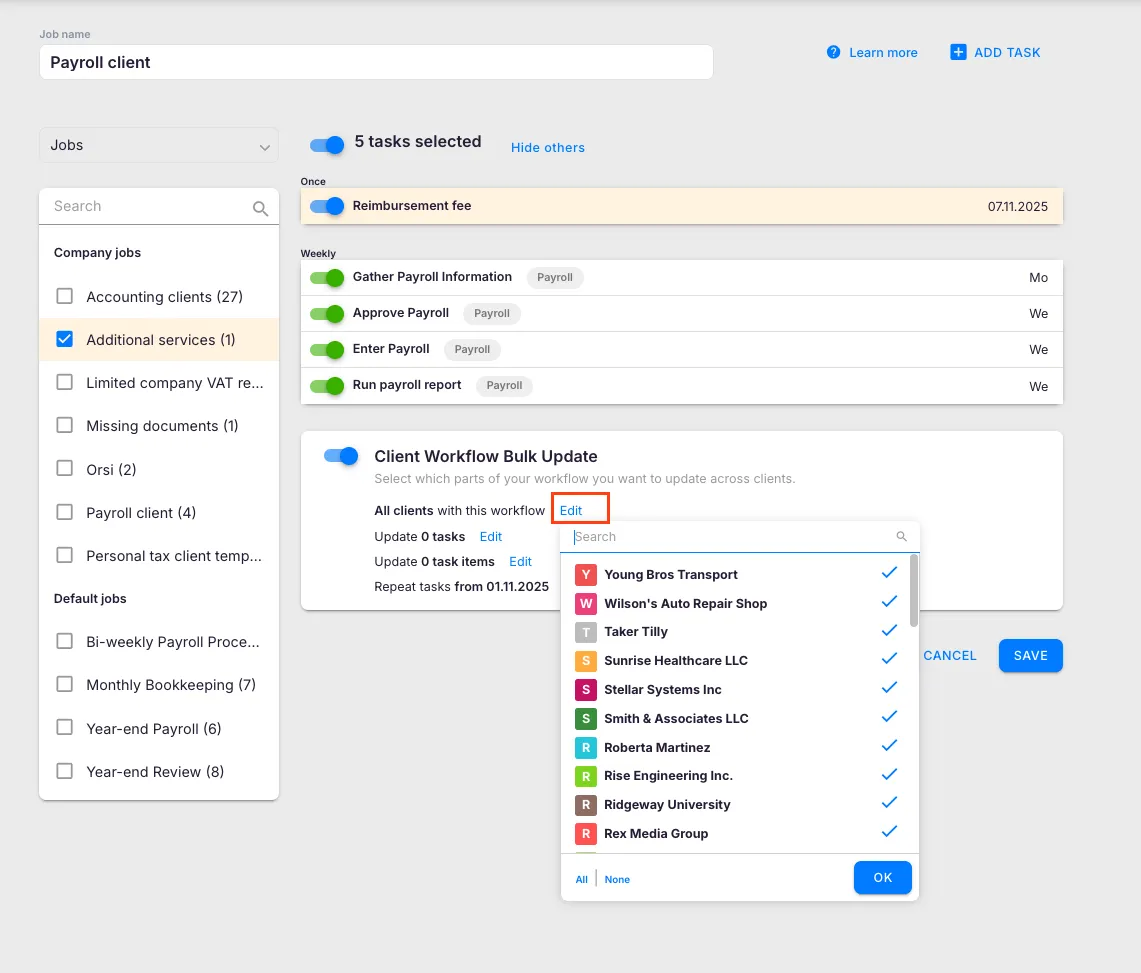
Step 3: Set the task regeneration date
Section titled “Step 3: Set the task regeneration date”The Repeat tasks from date determines when updated tasks start generating:
- Current month — Updates apply to existing tasks starting this month forward.
- Future month — Preserves current tasks; applies updates from the selected month forward.
- Past month — Regenerates tasks backward from that date.
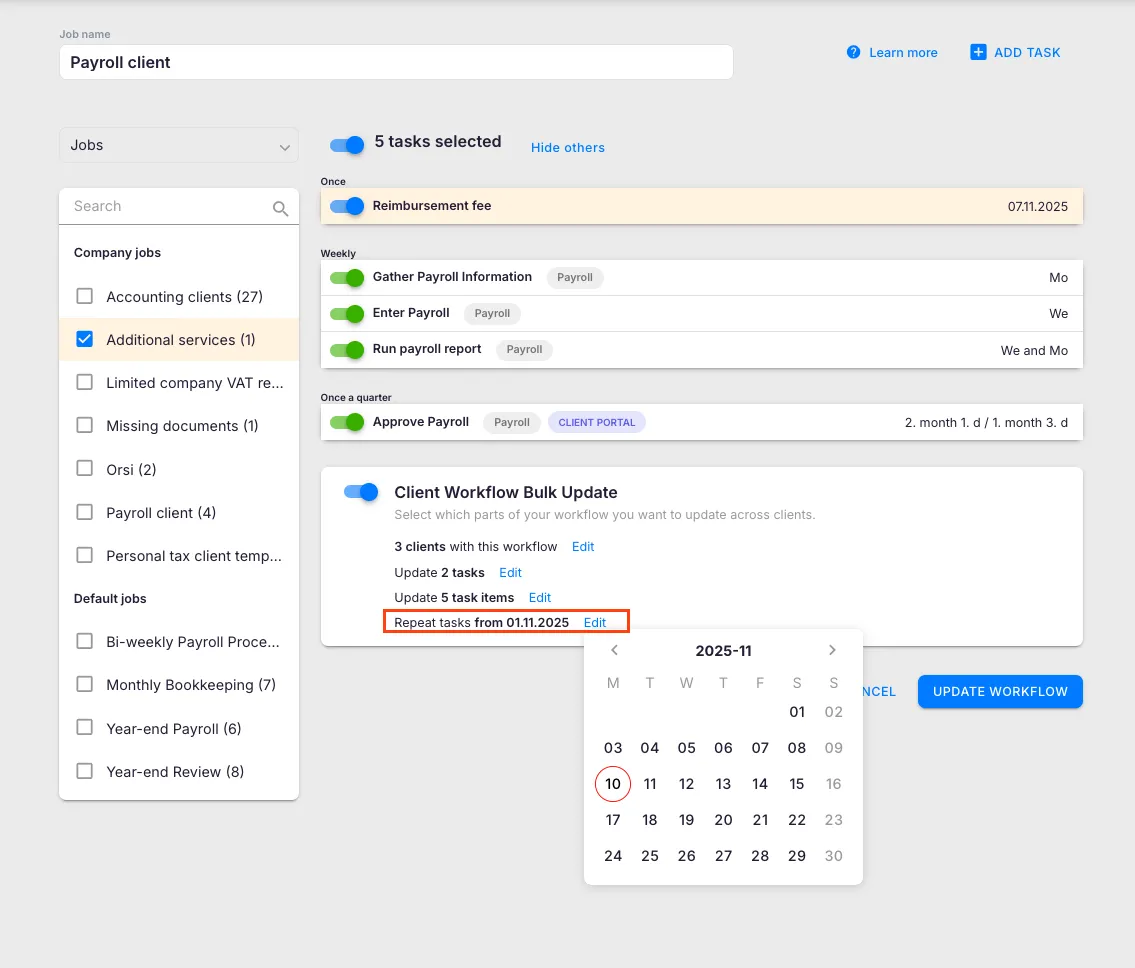
Step 4: Review and confirm
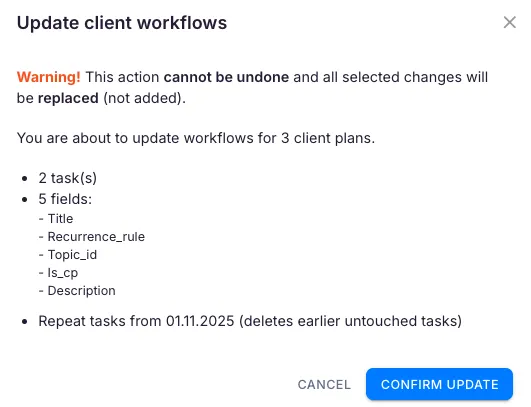
Section titled “Step 4: Review and confirm”- Review the summary showing: number of clients affected, number of tasks being updated, which task items will change, and the start date for changes.
- Read the warning: “Custom changes to client tasks will be overwritten.”
- Click Confirm to apply updates.
Troubleshooting
Section titled “Troubleshooting”Template changes did not appear on client tasks
Section titled “Template changes did not appear on client tasks”Verify you selected the correct clients and tasks during the scope step. Also check that the Repeat tasks from date covers the period where you expect to see changes.
Client-specific customizations were lost
Section titled “Client-specific customizations were lost”Template updates overwrite custom changes on matching fields. Before pushing updates, note which clients have custom modifications and exclude them if needed.
Tasks with “New” status disappeared
Section titled “Tasks with “New” status disappeared”If you selected a past date, tasks with “New” status before that date may have been deleted and regenerated. Use the current or future month to avoid this in future updates.
Cannot find the template update option
Section titled “Cannot find the template update option”Ensure you are editing the template from Settings & Apps → Tasks → Templates. The update scope options appear when you save changes to an existing template that is already in use by client Workflows.