How to manage invoice content and email templates
This content is not available in your language yet.
Who can do this
Section titled “Who can do this”- Company Owners and Company Admins with access to the Billing app in Settings & Apps.
How to edit an invoice template
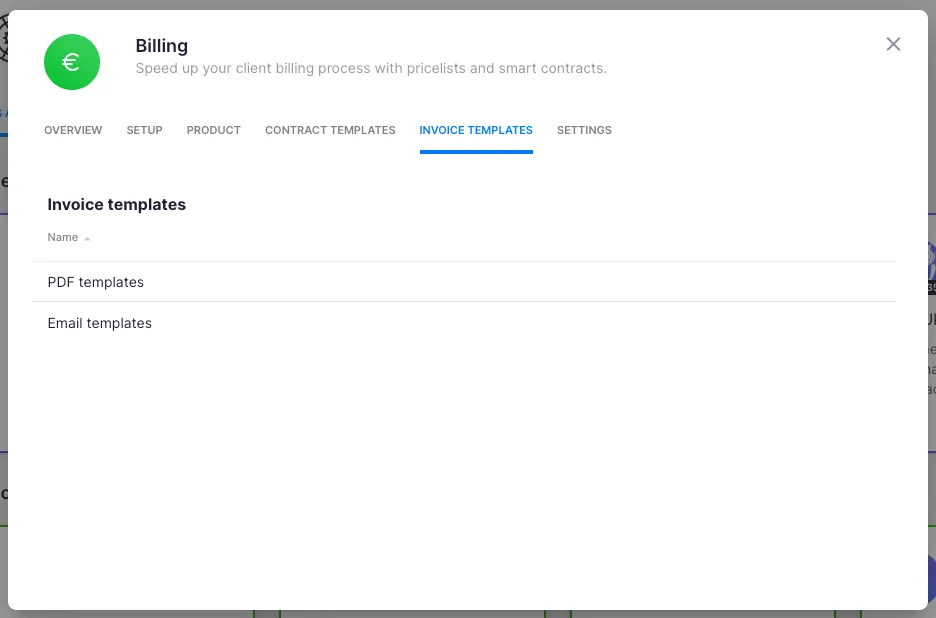
Section titled “How to edit an invoice template”- Open Settings & Apps from the main navigation.
- Select the Billing app.
- Go to the Invoice templates section.
- Click the template you want to edit.
Template fields
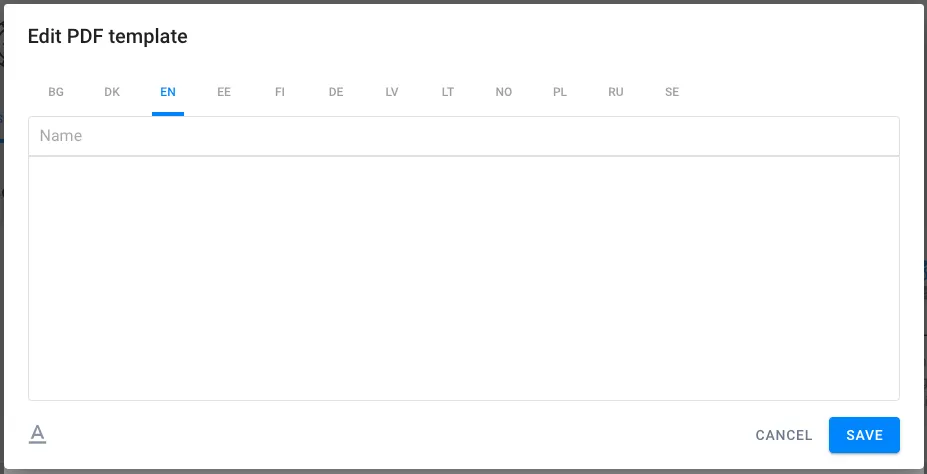
Section titled “Template fields”Language
Section titled “Language”Select the language for this template. When sending an invoice, Uku uses the template that matches the client’s communication language setting. If no matching template exists, the English template is used.
Name (subject line)
Section titled “Name (subject line)”Enter the subject line of the email that will be sent to the client.
Content
Section titled “Content”The content field serves two purposes depending on delivery method:
- Email — the text in the body of the email sent to the client
- PDF — the text added to the PDF document attached to the email
Create a separate template for each language your clients use. If a client’s language does not have a matching template, Uku falls back to the English template.
Troubleshooting
Section titled “Troubleshooting”Client received the invoice in the wrong language
Section titled “Client received the invoice in the wrong language”Check the client’s Communication language setting in their client profile. Uku selects the template based on the client’s language, not the company’s default language.
Invoice email body is empty
Section titled “Invoice email body is empty”Open the template and verify that the Content field for email has been filled in. An empty content field results in a blank email body.
PDF content does not match the email content
Section titled “PDF content does not match the email content”The email and PDF content fields are configured separately within the same template. Update both fields if you want consistent messaging across both formats.