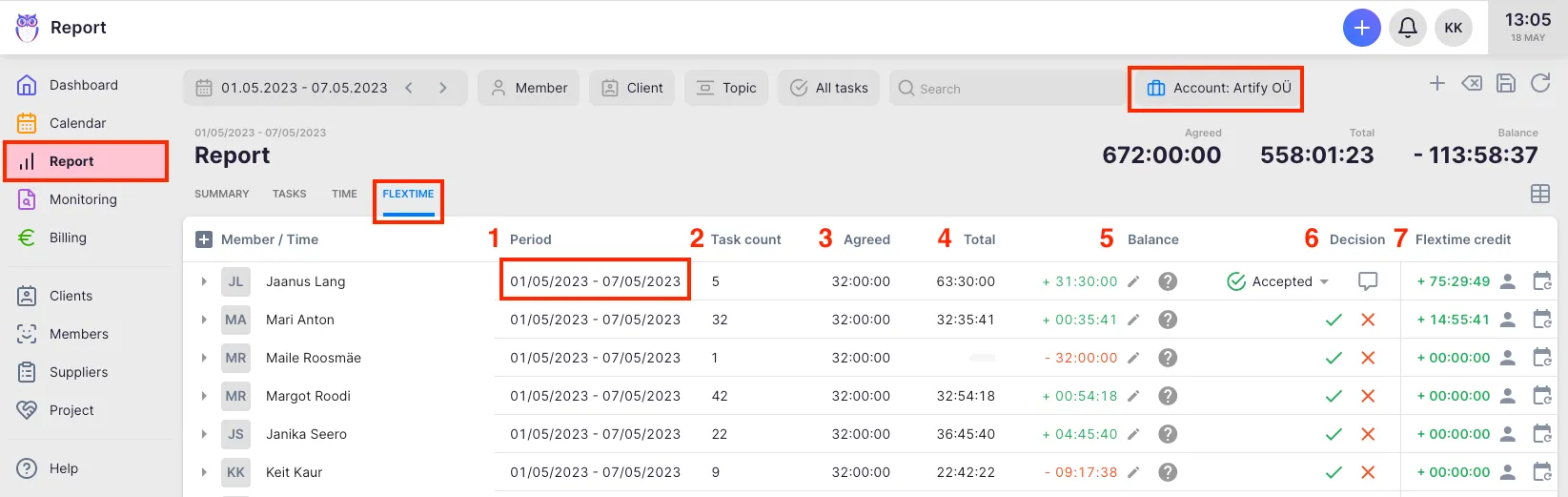
How to review and edit flextime balances in Report
This content is not available in your language yet.
At the end of each flextime period, Company Admins review whether team members worked their agreed hours — and either accept or decline the period. This article covers balance review, manual adjustments, comments, and history. For the full flextime tab column reference, see How to use the Flextime tab in Report.
Who can do this
Section titled “Who can do this”- Company Admins and Company Owners can accept/decline periods, edit balances, and add comments for all members.
- Company Members can view their own data only.
- Requires the Flextime app to be active.
- Available on the Team plan and above.
Accepting or declining a period
Section titled “Accepting or declining a period”When a period is Pending, the Decision column shows two buttons: a green checkmark to Accept and a red X to Decline.
- Click the checkmark to accept the period. The status changes to Accepted (green chip).
- Click the X to decline the period. The status changes to Declined (red chip).
To change a decision after it is made, click the dropdown arrow next to the status chip and choose the opposite status, or select Cancel decision to revert to Pending.
Once a period is Accepted or Declined, the Period balance is locked. To edit the balance, cancel the decision first.
Editing the period balance manually
Section titled “Editing the period balance manually”- Confirm the period’s Decision status is Pending (or cancel an existing decision first).
- Click the balance value in the Period balance column.
- Enter the corrected value in time format (for example,
+2:30:00for 2 hours 30 minutes more, or-1:00:00for 1 hour less). - Click Save.
To remove a manual override and return to the automatically calculated balance, click Reset balance instead of Save.
An info icon appears next to the balance when a calculation breakdown is available. Hover over it to see how the balance was computed, including any vacation deductions and holiday adjustments.
Adding a comment to a period
Section titled “Adding a comment to a period”- Click the comment icon (speech bubble) in the Decision column for the member’s period.
- Type your note (up to 50 characters).
- Click Save.
When a comment exists, the icon changes to a filled speech bubble. Hover over it to preview the text. Comments are visible to both Company Admins and the member.
Viewing the flextime history
Section titled “Viewing the flextime history”To see a full chronological log of all flextime-related events for a member:
- Find the member’s row in the Flextime tab.
- Click the history icon (calendar-clock icon) in the Flextime bonus column.
The History modal shows:
- Time — when the action occurred
- Action — what happened: Accepted flextime, Declined flextime, Cancelled flextime, Balance updated, vacation/absence created/approved/declined
- Info — details such as balance changes (for example, “Balance: +2:00:00 → +1:30:00”) or date ranges
- Who — who performed the action
Troubleshooting
Section titled “Troubleshooting”The Accept/Decline buttons are grayed out
Section titled “The Accept/Decline buttons are grayed out”Only Company Admins and Company Owners can change Decision status. If you are a Company Member, you can view the status but not change it.
The balance cell is not clickable
Section titled “The balance cell is not clickable”The period has already been Accepted or Declined (a lock icon appears). Cancel the decision first using the dropdown arrow next to the status chip, then click the balance to edit it.
The history icon is not visible
Section titled “The history icon is not visible”The history icon appears in the Flextime bonus column. If the column is not visible, click Properties to enable it. The history icon is only available per member row (not on expanded child rows).
Balance shows unexpected values after vacation approval
Section titled “Balance shows unexpected values after vacation approval”Hover over the info icon next to the Period balance to see the full calculation breakdown. Approved vacations and flextime bonus withdrawals automatically affect the balance calculation for the relevant period.