
How to activate and set up the Flextime app?
This content is not available in your language yet.
The Flextime app tracks each team member’s agreed working hours against their actual tracked time. It powers overtime management, vacation balances, and the flextime balance report. Once activated, every period closes with a balance that Company Admins can approve or decline.
Who can do this
Section titled “Who can do this”- Company Admins and Company Owners can activate, configure, and manage Flextime settings.
- All team members can view their own flextime data once the app is activated.
- Available on the Team plan and above.
Activate the Flextime app
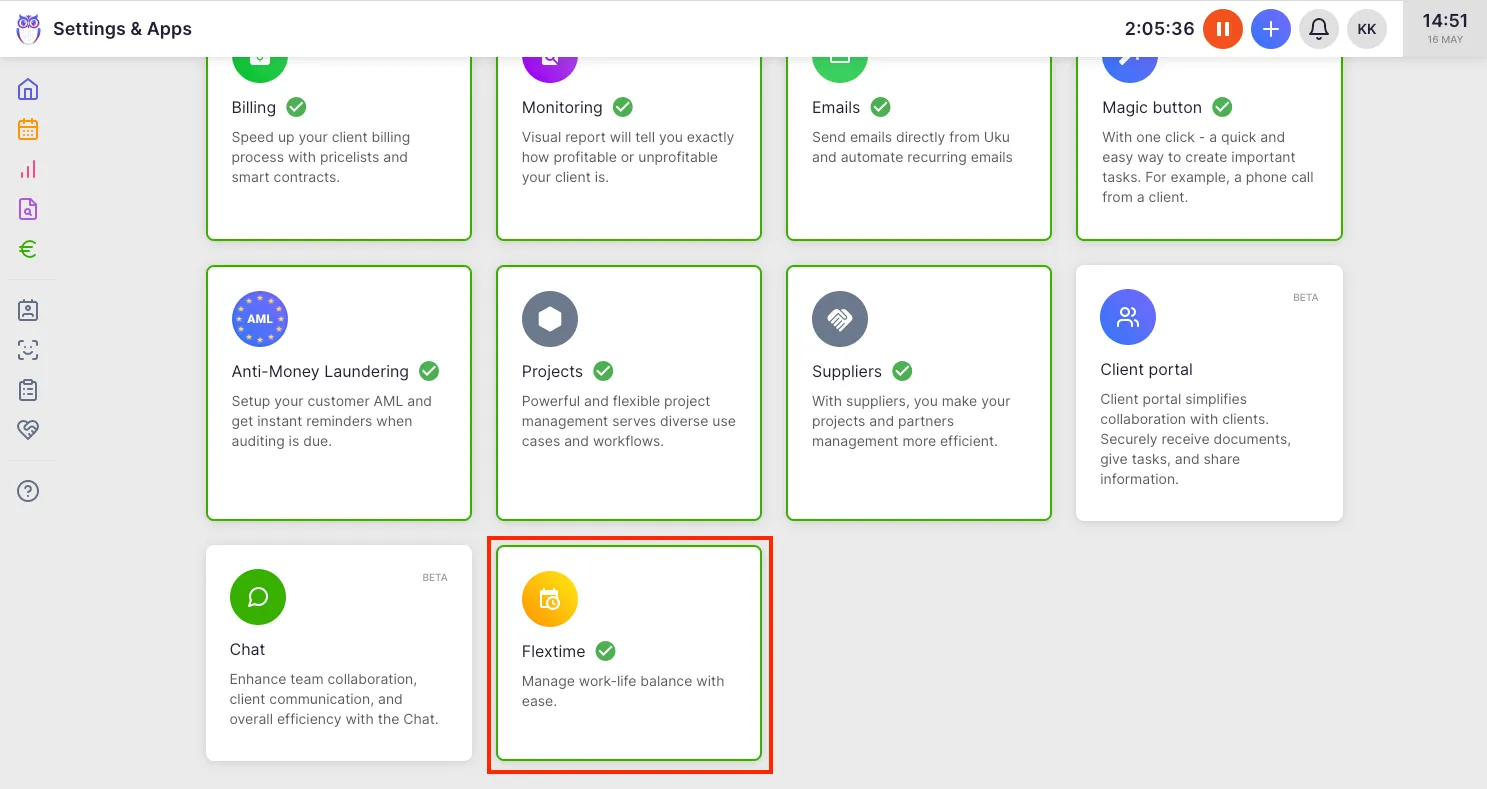
Section titled “Activate the Flextime app”- Select Settings & Apps from the main navigation menu.
- Find and click the Flextime app card.
- Click Activate and confirm.
Flextime is now active. The Flextime tab becomes available in Report and in member profiles.
Configure Flextime settings
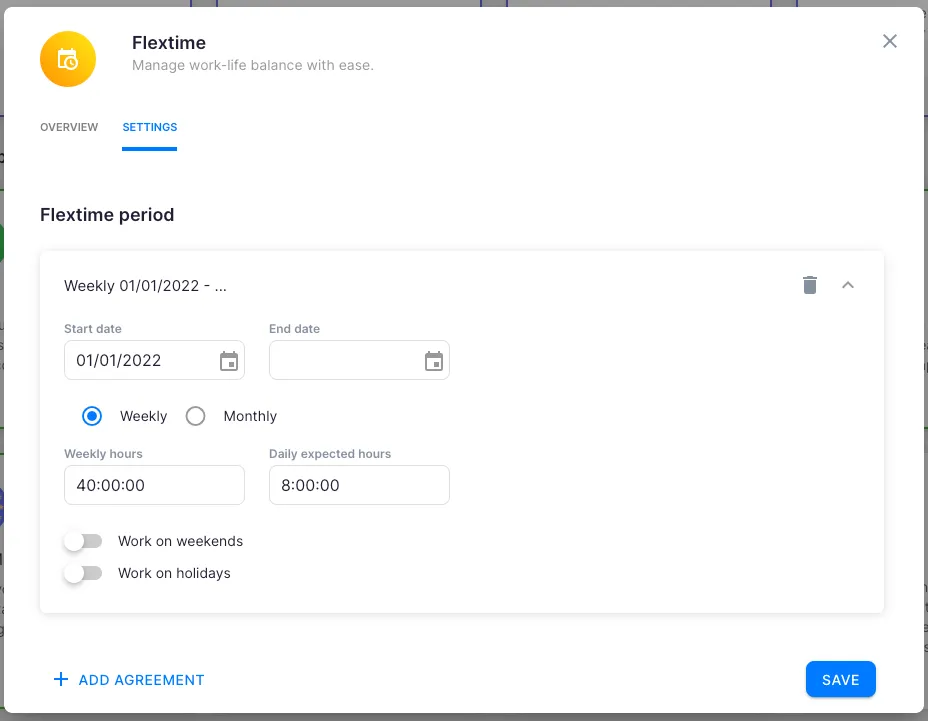
Section titled “Configure Flextime settings”After activating, open the Flextime settings and configure the following on the Settings tab:
- Start date — when flextime calculation begins. Set this to match when your company started tracking hours. The default is January 1 of the previous calendar year.
- End date — optional. Leave empty for an open-ended calculation.
- Calculation period — choose Weekly or Monthly. At the end of each period, Company Admins review and approve time entries for that period.
- Weekly working hours — the standard number of working hours per week (default: 40).
- Working day length — the agreed length of a working day in hours (default: 8). Uku uses this to calculate holiday deductions and total working hours.
- Consider weekends as working hours — enable if weekends count toward required hours for your company.
- Consider public holidays as working hours — enable if public holidays should not reduce the required hours for that period. Leave disabled if holidays count as free days.
Set individual agreements for team members
Section titled “Set individual agreements for team members”The company-wide settings apply to all members by default. To set custom working hours for specific members (part-time, flexible schedules, etc.), go to each member’s profile and edit their Agreements tab. See the article How to see and change the Flextime agreement? for details.
Troubleshooting
Section titled “Troubleshooting”Flextime calculation looks incorrect for past periods
Section titled “Flextime calculation looks incorrect for past periods”Check the Start date in Flextime settings. If the date is set to a point before your team started tracking time, periods with no data will skew the totals. Adjust the start date to match when tracking actually began.
Overtime hours are not showing
Section titled “Overtime hours are not showing”Overtime is calculated after a Company Admin approves the period. Open Report → Flextime, find the relevant period, and confirm its Decision status. Unapproved (Pending) periods may not display completed overtime totals.
Public holidays are being counted as working days
Section titled “Public holidays are being counted as working days”Go to Settings & Apps → Flextime → Settings and confirm the Consider public holidays as working hours toggle is disabled. When disabled, public holidays automatically reduce the required working hours for that period.
A member’s flextime data is missing
Section titled “A member’s flextime data is missing”Each member needs an active flextime agreement. Open the member’s profile and check the Agreements tab. If no agreement exists, add one. Without an agreement, Uku cannot calculate expected hours for that member.