How to add client workflow templates?
This content is not available in your language yet.
Client workflow templates define the recurring and one-time tasks a client should have. Create them once in Settings & Apps, then apply them to any number of clients to set up consistent task plans quickly. Templates are distinct from project workflow templates — these are for ongoing client work, not finite projects.
Who can do this
Section titled “Who can do this”- Any member with access to a Uku company account can create and use templates.
- Templates created under the company account are visible to all team members.
Navigate to the templates section
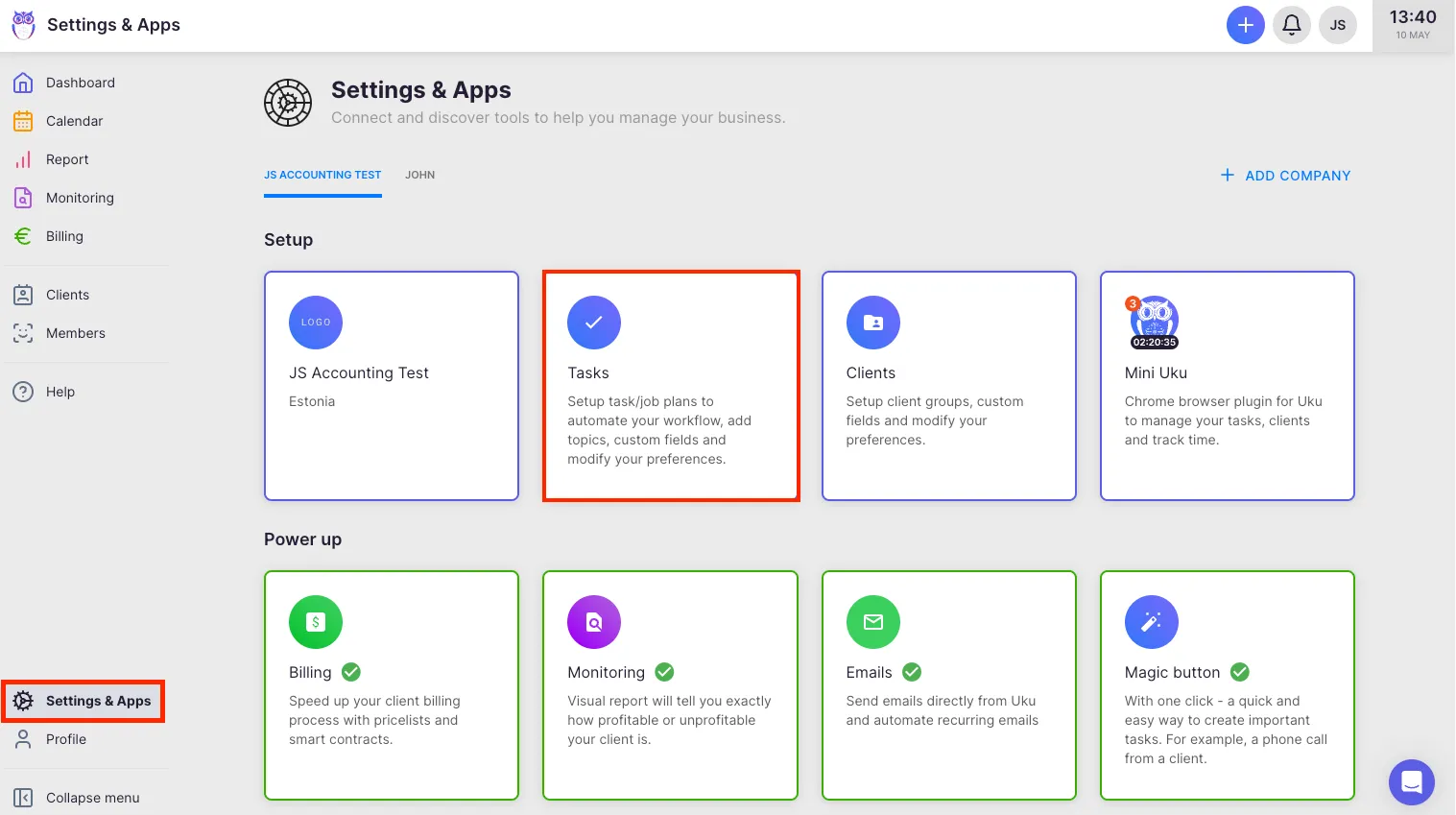
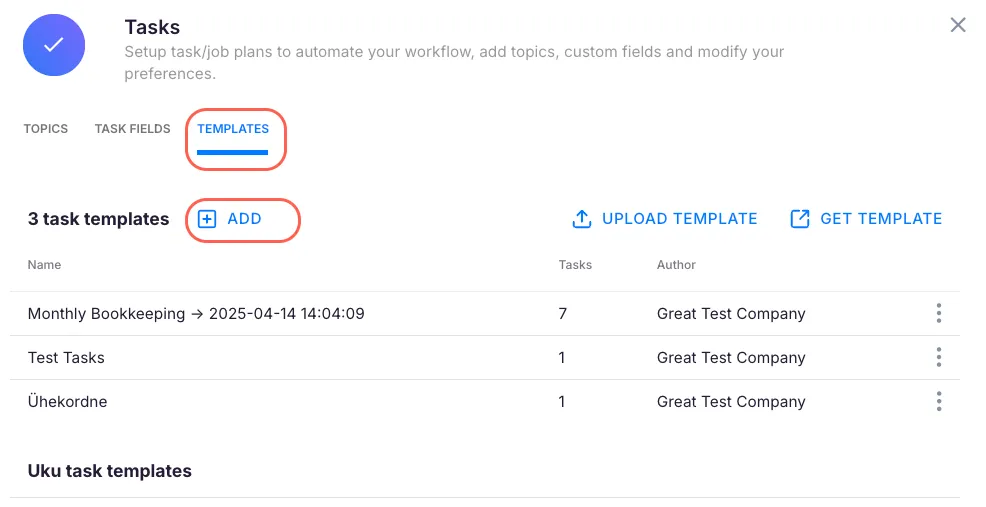
Section titled “Navigate to the templates section”- Select Settings & Apps from the main navigation.
- Click the Tasks app.
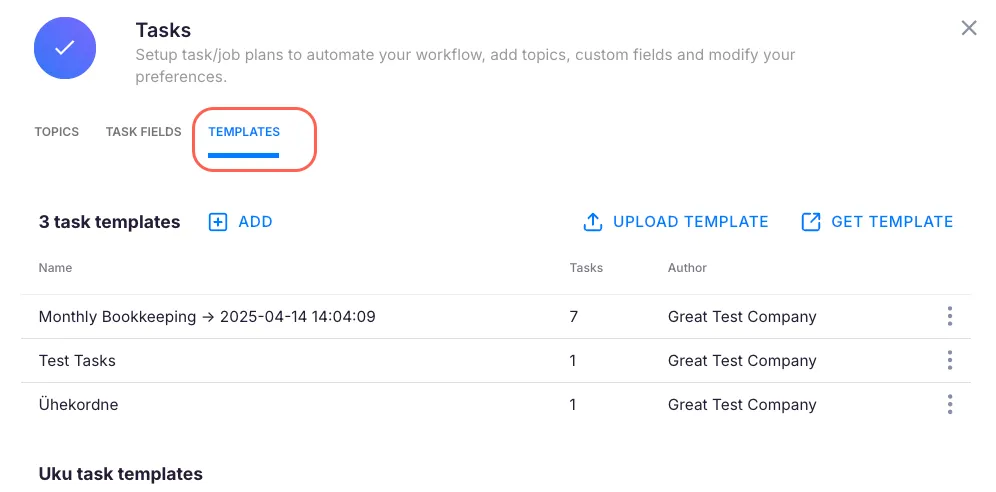
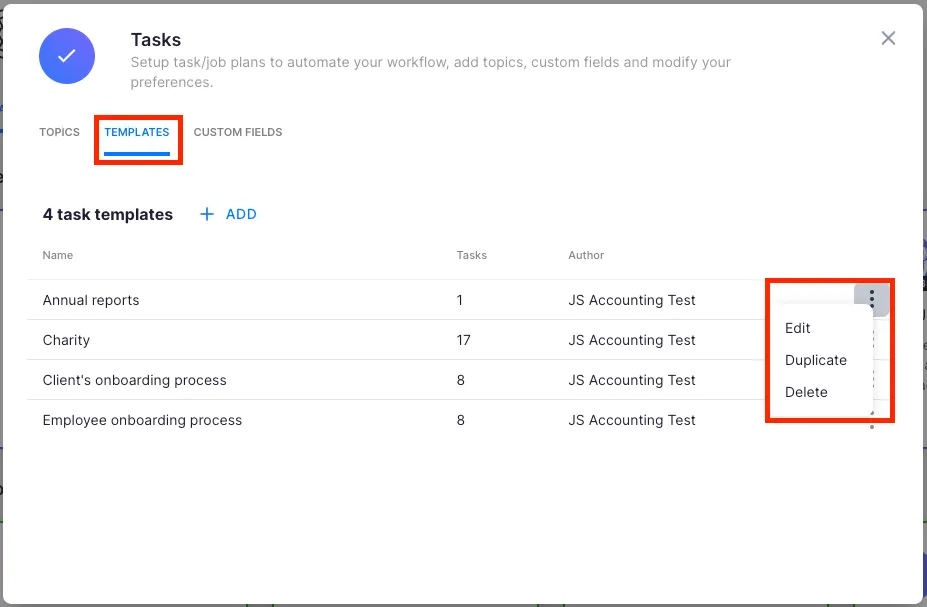
- Select Templates.
Option A: Upload a template from Excel
Section titled “Option A: Upload a template from Excel”- Prepare your task template in an Excel file. Sample files are available at getuku.com.
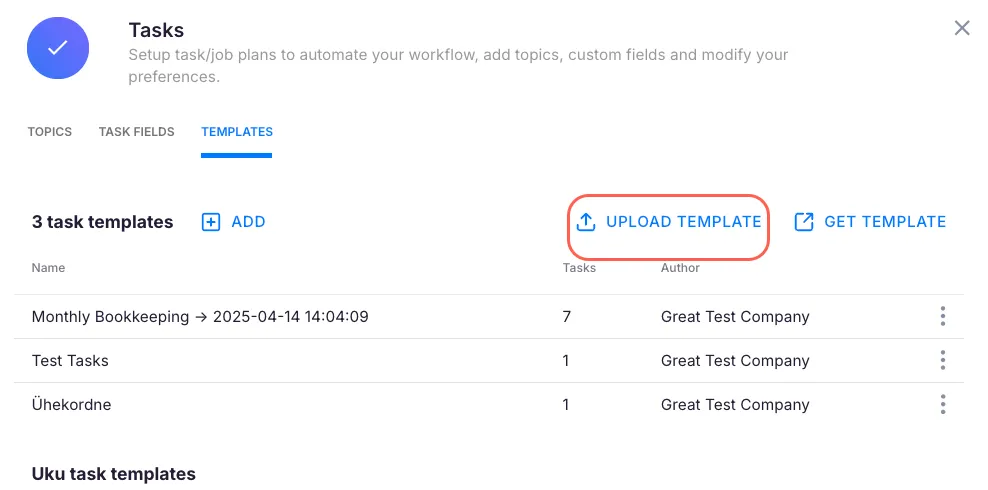
- Click Upload template.
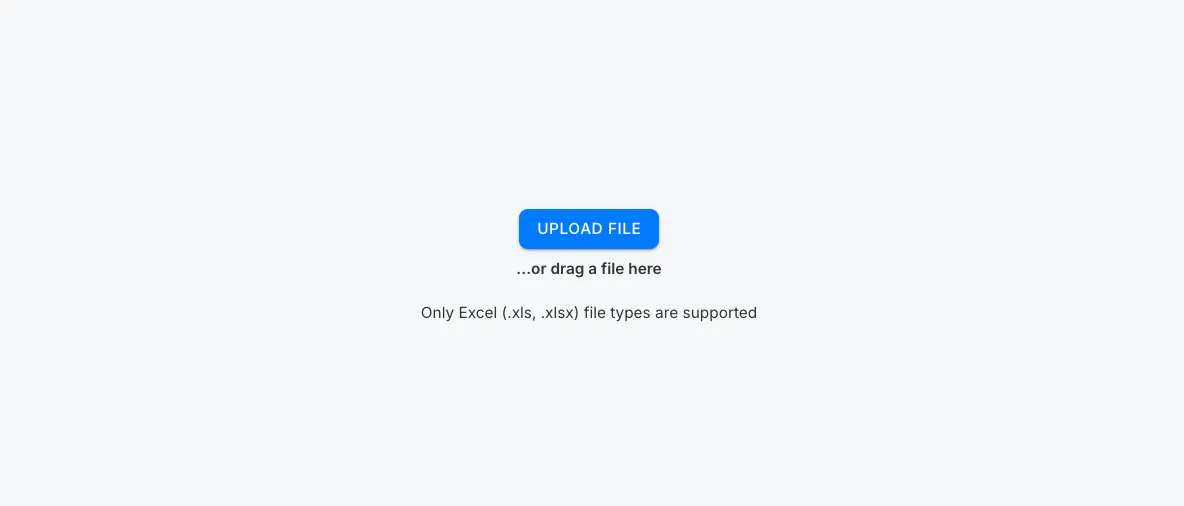
- In the upload window, drag and drop the file or select it from your computer.
- The template appears in your list with the upload date and time.
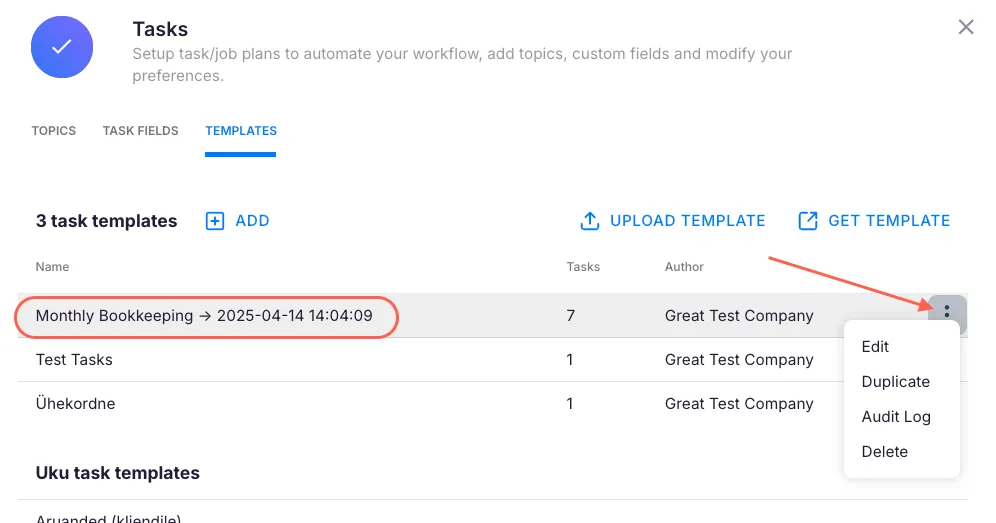
Click the three-dot menu next to any template to rename, duplicate, or delete it.
Option B: Create the template manually
Section titled “Option B: Create the template manually”- In the Templates section, click + Add.
- Give the template a descriptive name. Consider creating smaller, modular templates (e.g., a separate template for annual reports) rather than one large template for everything.
- Choose whether to use an existing template as a starting point or start from scratch.
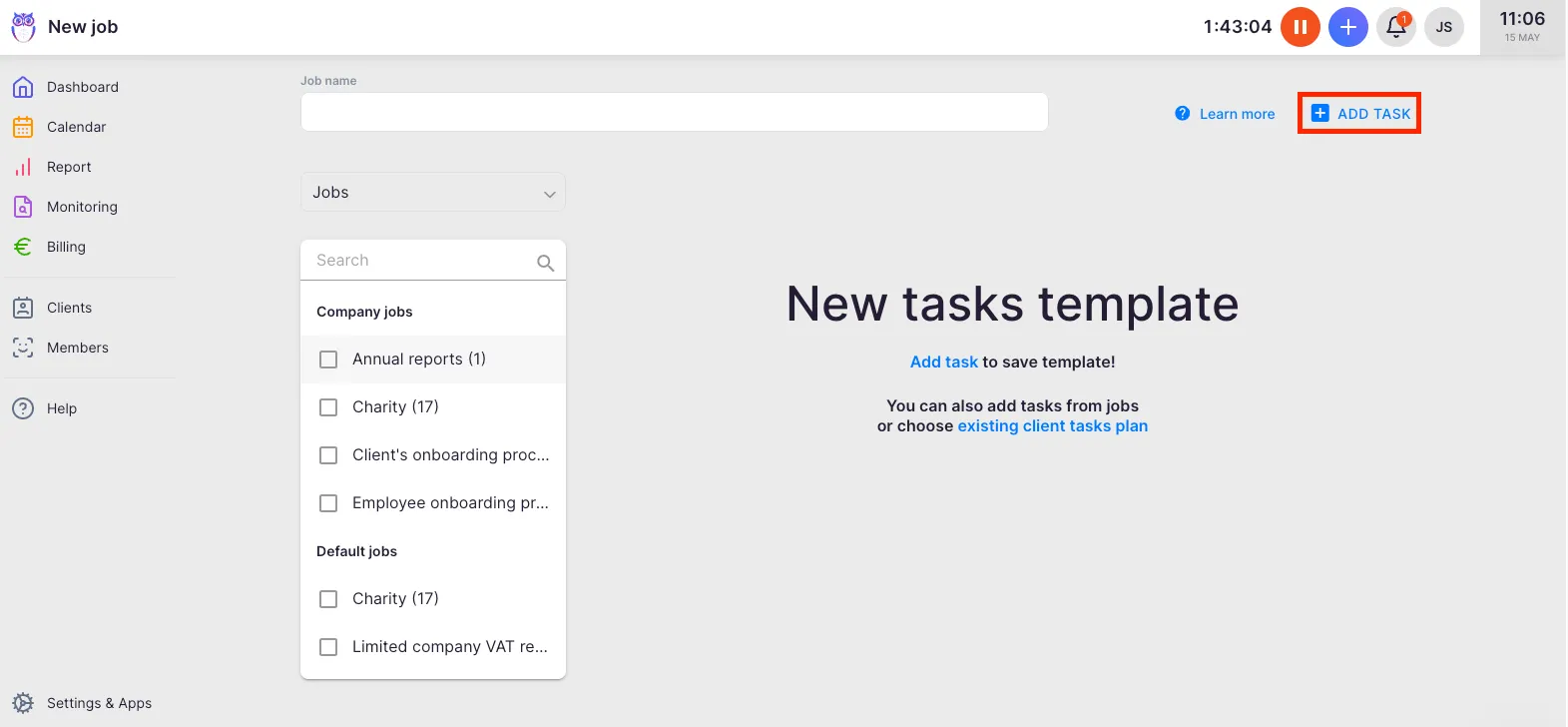
- Add tasks to the template. You do not need to specify a client or member — just fill in task details.
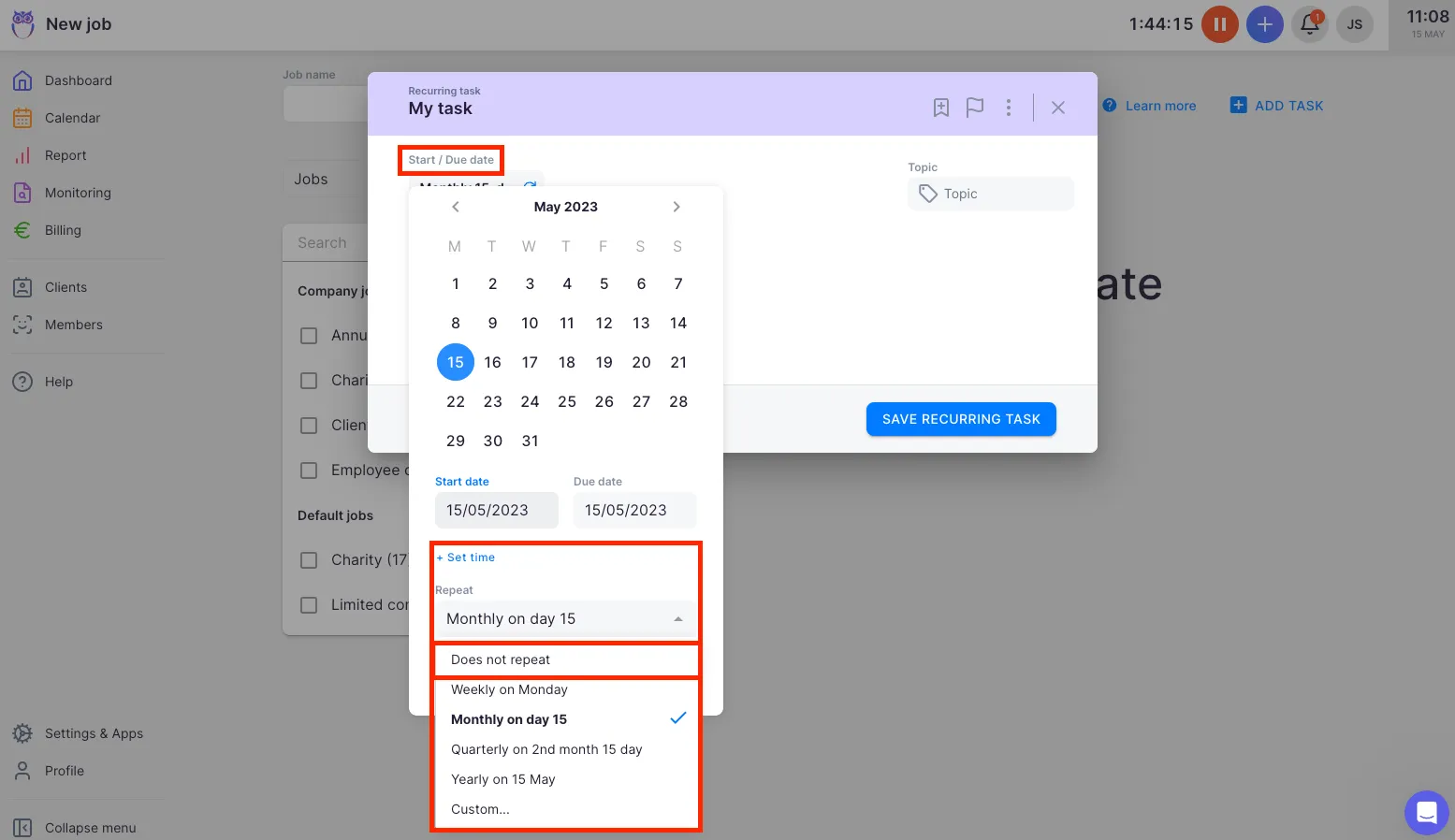
- Tasks in templates are recurring by default (indicated by a purple header). To add a one-time task, select Does not repeat from the Start/Due date menu.
- Save the template.
Applying templates to multiple clients at once
Section titled “Applying templates to multiple clients at once”- Select Clients from the main navigation.
- Select the clients you want to assign the template to.
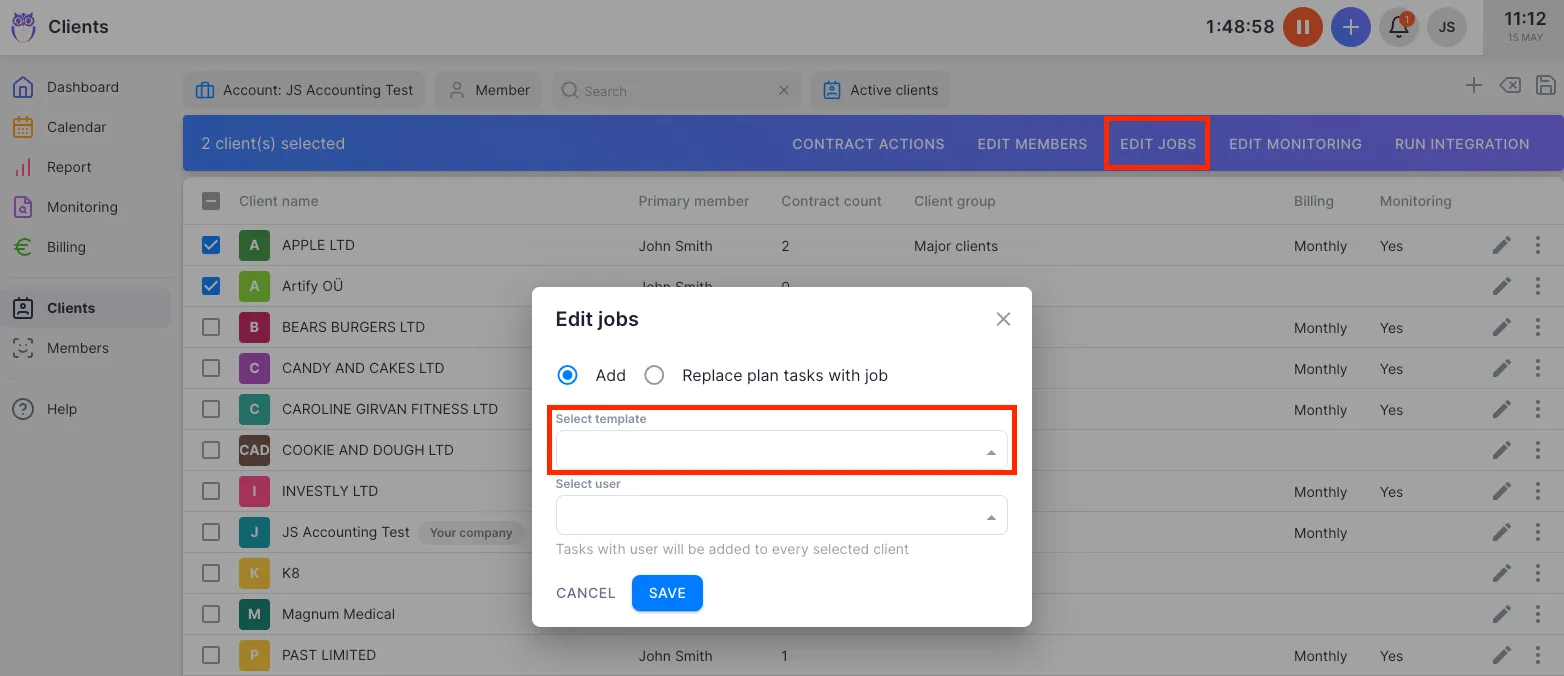
- Click the Edit jobs button.
- Choose the template from the list.
- Save the selection.
Troubleshooting
Section titled “Troubleshooting”Excel upload fails or template appears empty
Section titled “Excel upload fails or template appears empty”Ensure your Excel file matches the expected format. Download a sample file from getuku.com and compare the column structure. Common issues include missing headers, incorrect date formats, or unsupported file types (use .xlsx).
Template tasks default to recurring when you need one-time tasks
Section titled “Template tasks default to recurring when you need one-time tasks”By default, all template tasks are recurring. To create a one-time task, open the task within the template and select Does not repeat from the Start/Due date menu.
Template does not appear when creating a client Workflow
Section titled “Template does not appear when creating a client Workflow”Templates must be saved under the company account (not a personal account) to be visible to all team members. Verify the template is listed in Settings & Apps → Tasks → Templates.
Cannot assign the template to clients in bulk
Section titled “Cannot assign the template to clients in bulk”Make sure you have selected at least one client from the Clients list before clicking Edit jobs. The bulk assignment option only appears when clients are selected.