Office attendance tracking
This content is not available in your language yet.
Office attendance tracking lets Uku automatically detect whether team members are working from the office or remotely, based on their IP address. Members see their work location displayed throughout Uku, helping managers plan office capacity and team meetings without having to ask who is in.
Who can do this
Section titled “Who can do this”- Company Admins and Company Owners can enable and configure office attendance tracking.
- All team members can view their own work location status and toggle it manually.
Setting up office attendance tracking
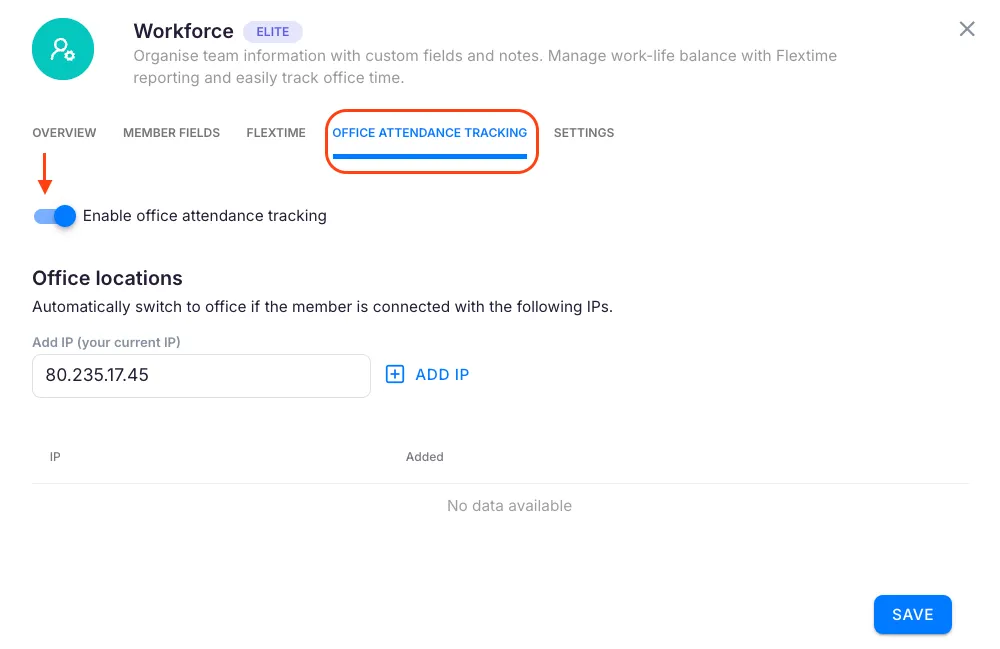
Section titled “Setting up office attendance tracking”- Select Settings & Apps from the main navigation menu.
- Open the Workforce Management app settings.
- Select the Office attendance tracking tab.
- Enable the Enable office attendance tracking toggle.
- Enter the company’s office IP address.
- Click Save.
If your company uses multiple offices or servers, click Add IP to add each additional IP address and save.
How the status icons work
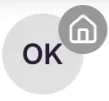
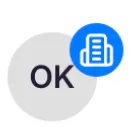
Section titled “How the status icons work”Once tracking is enabled, a house icon appears in the application interface for all team members:
- Blue house — the member is connected from a registered office IP. Uku shows them as working in-office.
- Grey house — the member is connected from an IP not on the office list. Uku shows them as working remotely.
Uku assigns the grey (remote) icon automatically when the connection IP does not match any registered office IP address.
Manually toggling work location
Section titled “Manually toggling work location”Members can override their detected location when needed:
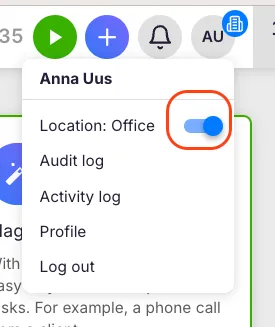
- Click your profile name or avatar in the application menu.
- Use the location toggle in the dropdown to switch between office and remote status.
The automatic IP-based detection resumes the next time your connection changes. Manual toggling is useful when a VPN or shared network causes incorrect detection.
Troubleshooting
Section titled “Troubleshooting”The house icon does not appear for team members
Section titled “The house icon does not appear for team members”Confirm that a Company Admin has activated the Enable office attendance tracking toggle and saved the configuration. Without saving, the feature does not take effect.
The status shows remote (grey) while in the office
Section titled “The status shows remote (grey) while in the office”The IP address connecting from may not match the registered company IP. Ask a Company Admin to check the registered IPs in Settings & Apps → Workforce Management → Office attendance tracking. Also check if you are connected through a VPN that changes your apparent IP.
Cannot toggle work location manually
Section titled “Cannot toggle work location manually”The location toggle appears in the profile dropdown menu. If it is not visible, office attendance tracking may not be fully configured. Ask a Company Admin to verify the setup.
Multiple office locations are not all recognized
Section titled “Multiple office locations are not all recognized”Each office location needs its own IP entry. Go to the office attendance tracking settings and click Add IP for each additional location. Save after adding all addresses.