
How to send an invoice in the client's language
This content is not available in your language yet.
Who can do this
Section titled “Who can do this”- Any member with access to Clients and Billing settings.
- The Billing app must be activated.
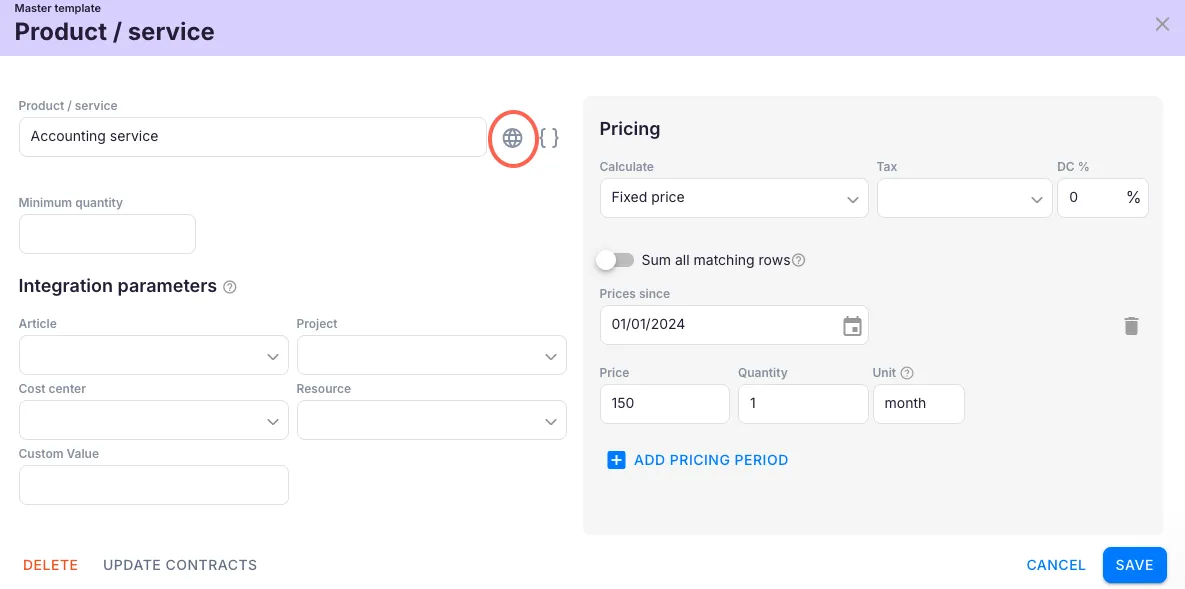
- Products must have translations added for each language you want to support.
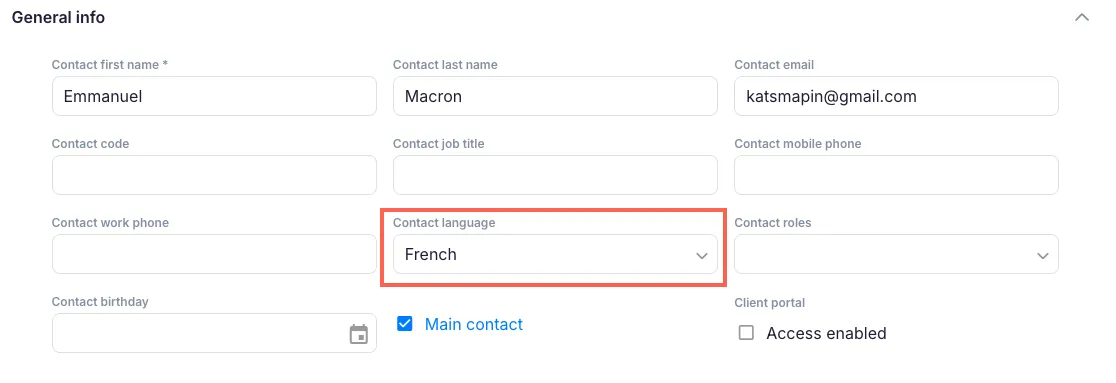
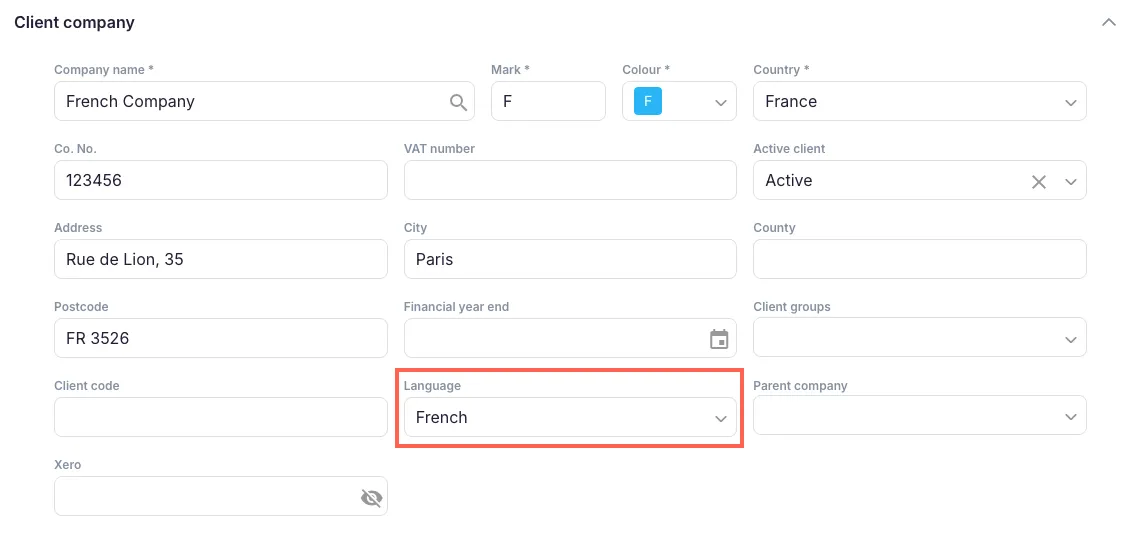
Step 1 — Set the client’s communication language
Section titled “Step 1 — Set the client’s communication language”- Open the client’s profile and click Edit.
- Find the Communication language field.
- Select the desired language from the dropdown.
- Click Save.

Step 2 — Add product translations
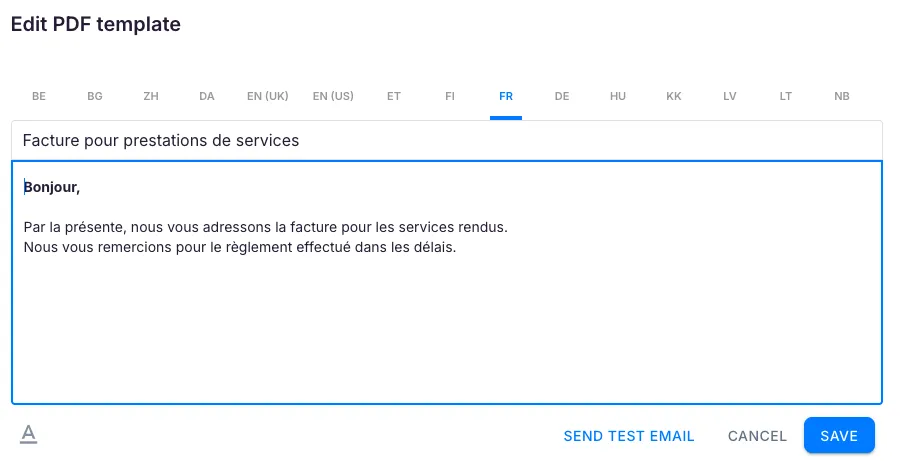
Section titled “Step 2 — Add product translations”Each product used on invoices must have a translation in the client’s language.
- Open Settings & Apps > Billing > Setup > Articles.
- Select the product you want to translate.
- Click Add translation or open the translations section.
- Enter the product name and description in the target language.
- Click Save.
Repeat for every product that appears on invoices for clients who use a different language.
Step 3 — Verify the invoice language
Section titled “Step 3 — Verify the invoice language”- Open the client’s profile and go to Financials > Contracts.
- Preview an invoice for the client.
- Confirm that the invoice lines, product names, and descriptions appear in the correct language.
Invoice still showing the wrong language?
Section titled “Invoice still showing the wrong language?”If the invoice still displays in the wrong language after completing the steps above, the contract rows were likely added before the product translations were set up.
To fix this:
- Open the client’s contract in Financials > Contracts.
- Remove the existing contract rows that were added before translations were created.
- Re-add the same rows. Uku now pulls the correct translated product names.
- Preview the invoice to confirm the language is correct.
- Click Save.
Note: When you add new product translations to existing products, you may need to remove and re-add contract rows on any contracts that already use those products.
Troubleshooting
Section titled “Troubleshooting”Some invoice lines are translated but others are not
Section titled “Some invoice lines are translated but others are not”Each product must have its own translation. Open Settings & Apps > Billing > Setup > Articles and verify that every product used on the invoice has a translation in the client’s language.
Communication language dropdown does not show the desired language
Section titled “Communication language dropdown does not show the desired language”The available languages depend on your account’s regional settings. Check Settings & Apps to see which languages are configured.
New clients default to the wrong language
Section titled “New clients default to the wrong language”Set the Communication language on the client profile immediately when creating a new client so invoices are generated in the correct language from the start.